How to set up the RSVP card
Choose how guests reply, whether they can say maybe or hide their name, who can see who's going, and the dietary options they pick from.
Every invite has an RSVP card, where guests tap to say they’re in, maybe or can’t make it and tell you about dietary needs. It’s always there, but you choose how it works.
-
In the editor, tap anywhere on the reply card, such as the Are you coming? question.
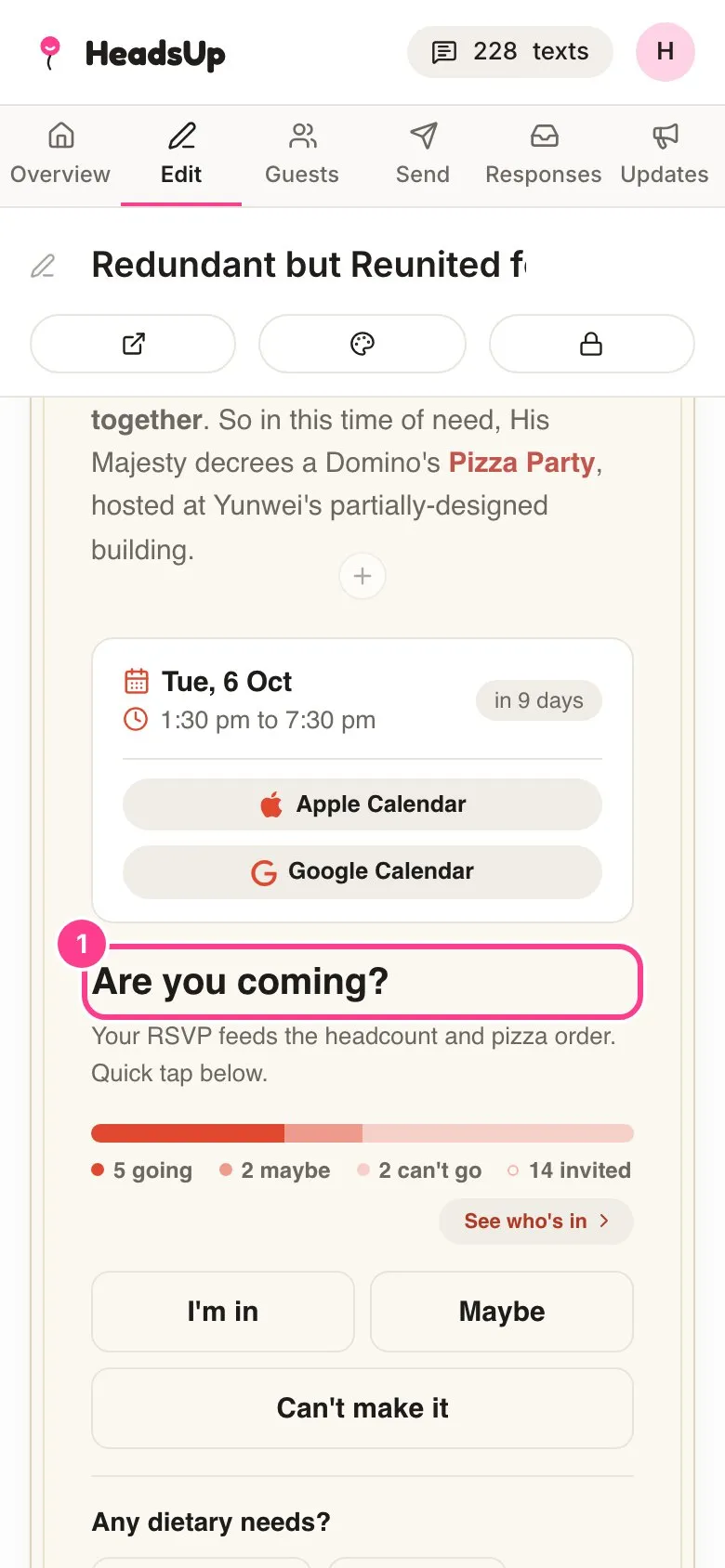
-
The RSVP panel opens with the date and time at the top, then a switch for each choice. The main ones:
- Allow “Maybe” responses, so guests aren’t stuck between yes and no.
- Let guests hide their name from other guests, for anyone who’d rather not appear on the list.
- Let guests tap “Going” to see who’s in, which shows the list of who’s coming.
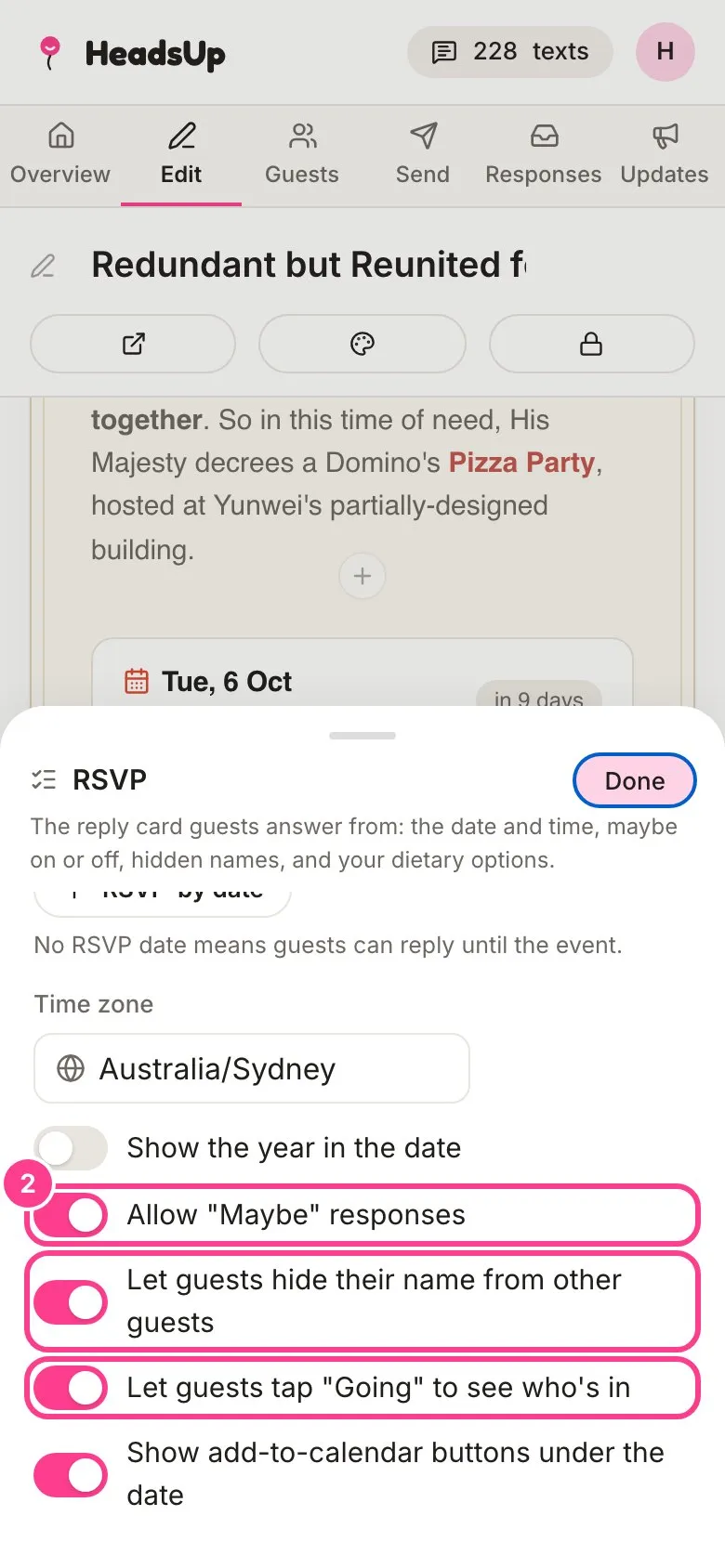
-
Scroll down to Dietary options guests can pick. Type over an option to change it, use the arrows to reorder, the cross to remove one, or tap Add option. Turn on Add an “Other…” option so guests can type their own for anything you haven’t listed. Tap Done.
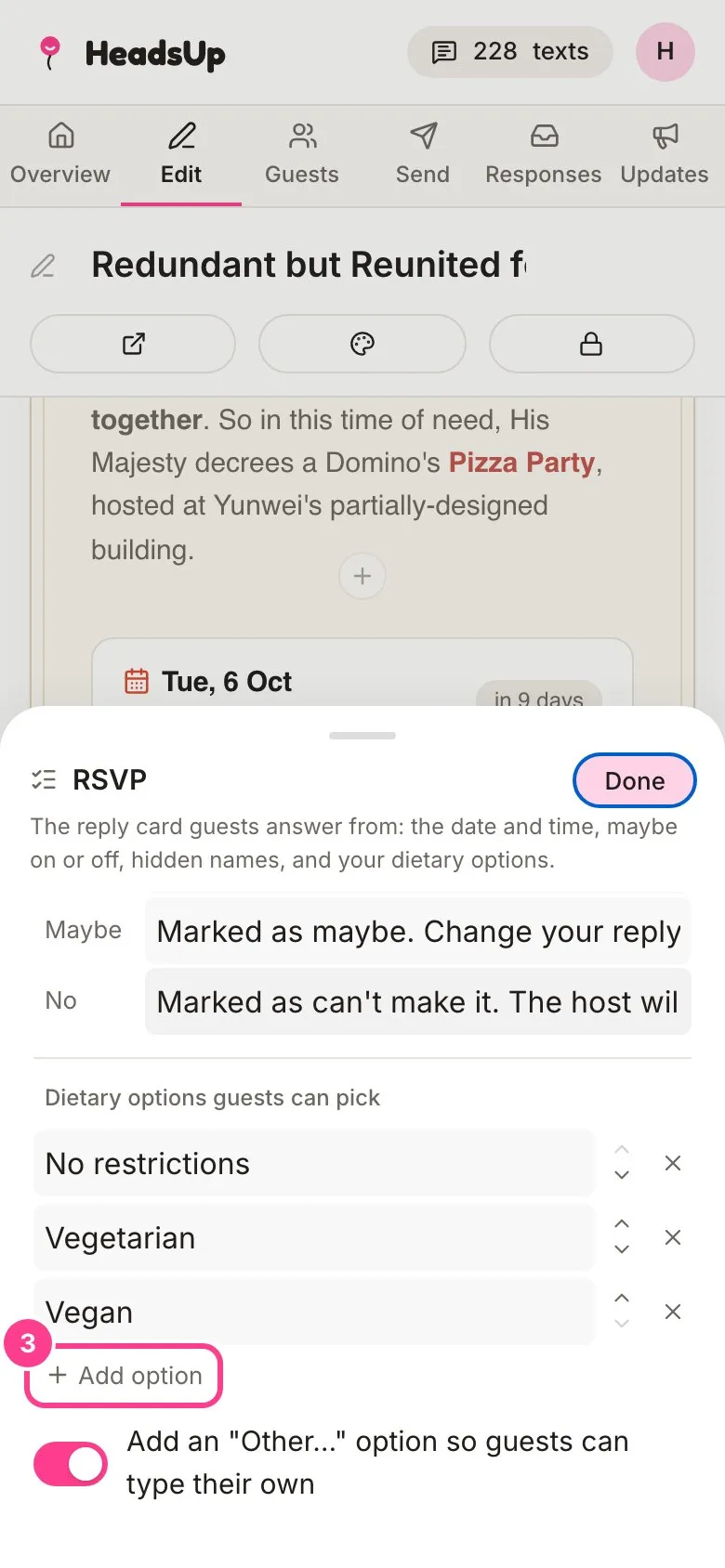
More you can change
- Date and time, the same as on your event’s Overview, plus an RSVP-by date. With no RSVP-by date, guests can reply right up until the event.
- Show the year in the date and Show add-to-calendar buttons under the date.
- Let guests ask you questions, which adds an Ask the host box to the invite. See answering guest questions.
- How the tally looks, as Number tiles or One bar.
- Message under the question, a line of your own under Are you coming?.
- Button labels guests see, so I’m in can say whatever suits your event, and Messages after guests reply, the line a guest sees once they’ve answered.
Good to know
- Guests don’t need an account to reply. They just tap a button on their invite.
- The Join label is for your public link, where people who aren’t on your list yet see a join button instead of the reply buttons. See sharing a public link.
Didn't answer it?
Tell us what you were trying to do and we'll write back, or give our guide to your AI assistant and ask it.