How to design your invite with AI
Describe the look you're after, or share a photo, and the AI designer restyles your whole invite in about half a minute.
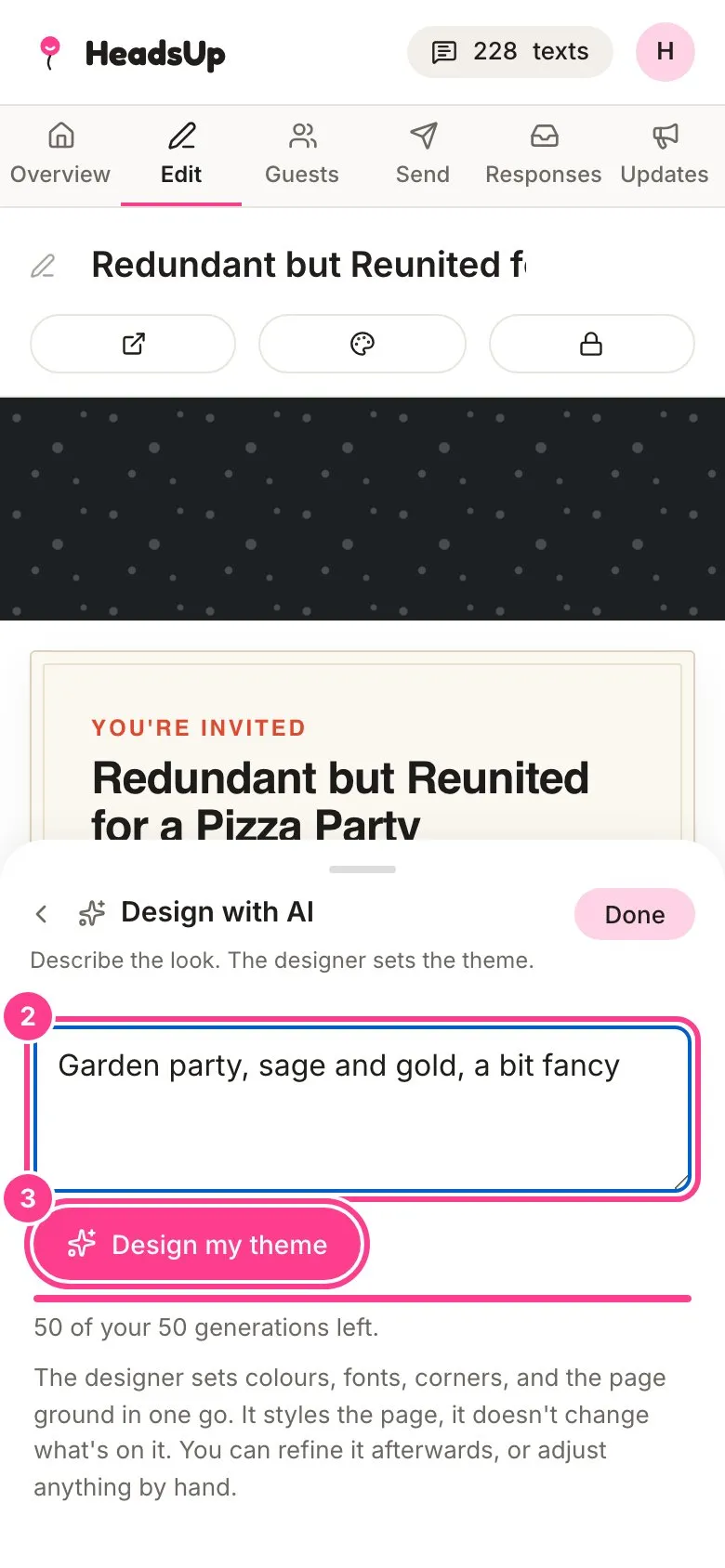
Not sure which colours go together? Tell the AI designer the feel you want, like “garden party, sage and gold, a bit fancy”, and it sets the colours, fonts, corners and page background in one go. It only changes the look. Your words and blocks stay exactly as they are.
-
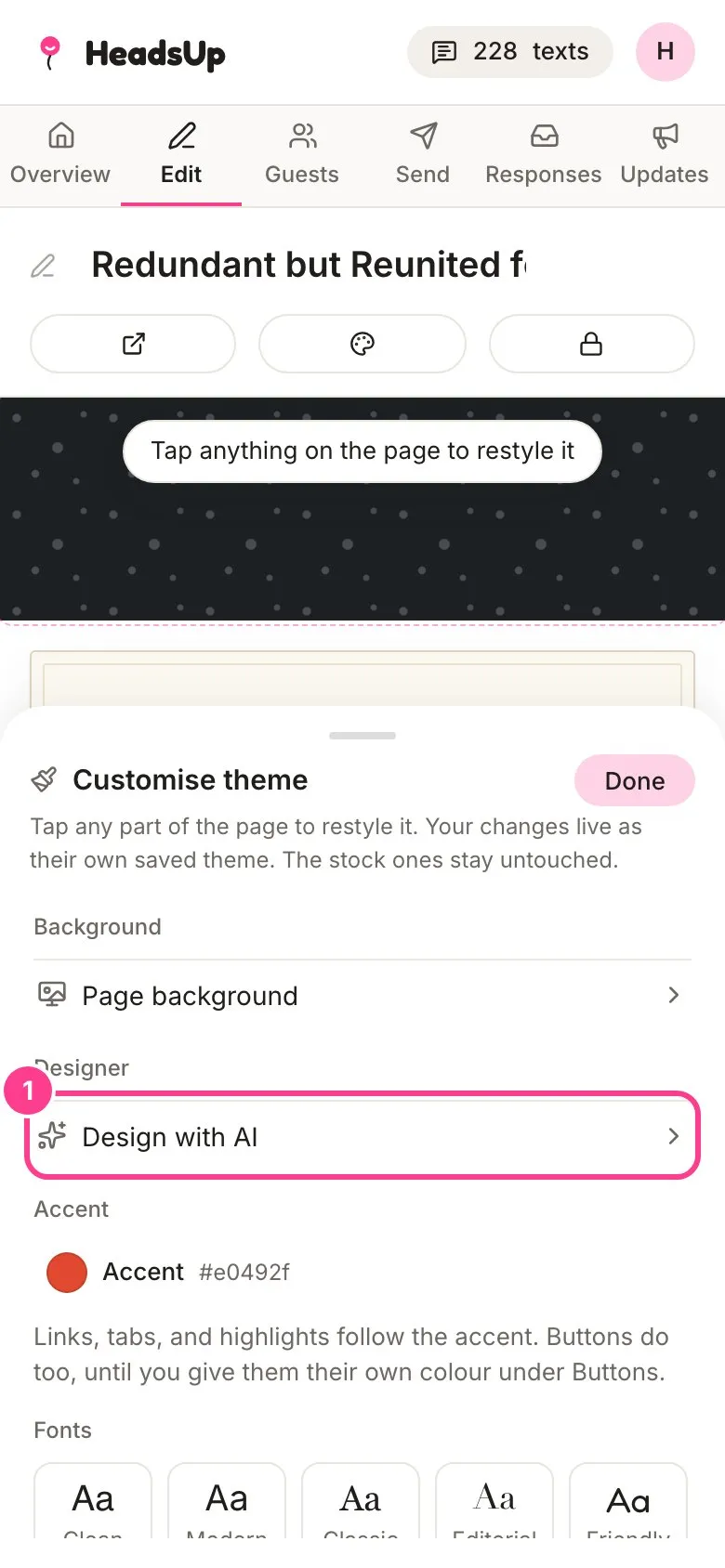
In the editor, tap Theme, then Customise this theme, then Design with AI.
-
Describe the look you want in the box. To match a photo, like an outfit or a venue, tap Match a photo and pick one.
-
Tap Design my theme. It usually takes about half a minute, and the invite behind the panel changes when it’s done.
Not quite right? Type what should change, like “darker, less gold”, and tap Refine this theme. Anything you don’t mention stays put.
Good to know
- Each design or refine uses one AI generation. Plus includes 20 every 30 days, Pro 50, Business 150, Business Pro 300 and Business Max 500. The panel shows how many you have left.
- If a design fails, the generation goes back on your count.
- The same allowance covers the AI first draft you can start a new event from. See creating an event.
- Your AI look is saved like any other custom theme, so you can adjust it by hand in the studio or pick a stock theme to start over.
- On the Free plan, the designer shows what it does and a link to the plans. See comparing plans.
- A co-host can use the designer too. It uses the event owner’s allowance.
Didn't answer it?
Tell us what you were trying to do and we'll write back, or give our guide to your AI assistant and ask it.