How to run a potluck (bring a plate)
Add a shared bring-a-plate list to your invite so guests can see what's covered and nobody brings the fifth pavlova.
The Potluck block puts a shared list on your invite. Guests add what they’re bringing, and everyone can see what’s already on the table.
-
In the editor, tap a + where you want it and pick Potluck, then tap the pencil on the new block to open it. See how to add and move blocks if you’re new to blocks.
-
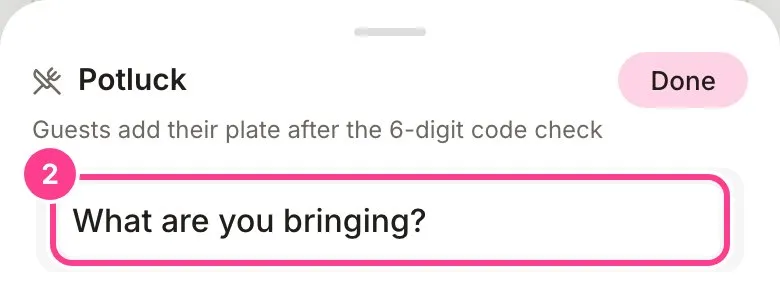
Type the question guests see above the list, like “What are you bringing?”. Tap Done.
-
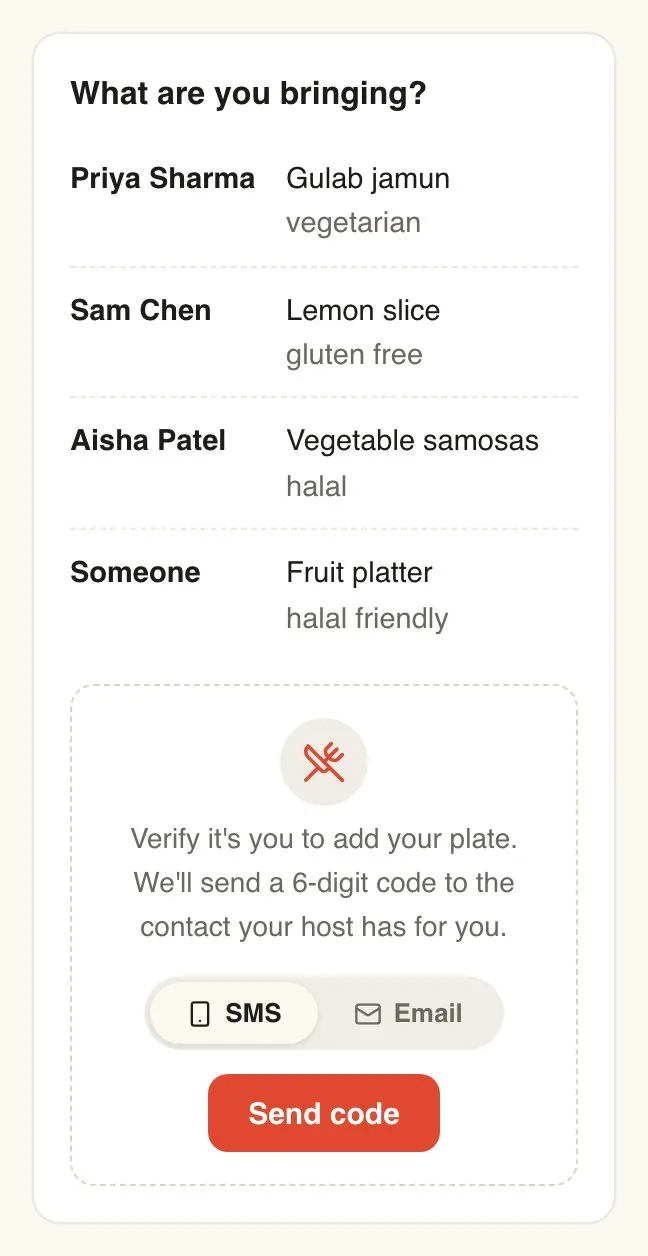
Guests see the list with each person’s name, dish and note. To add their own, they confirm a quick 6-digit code, then fill in What are you bringing? and tap Add my plate.
-
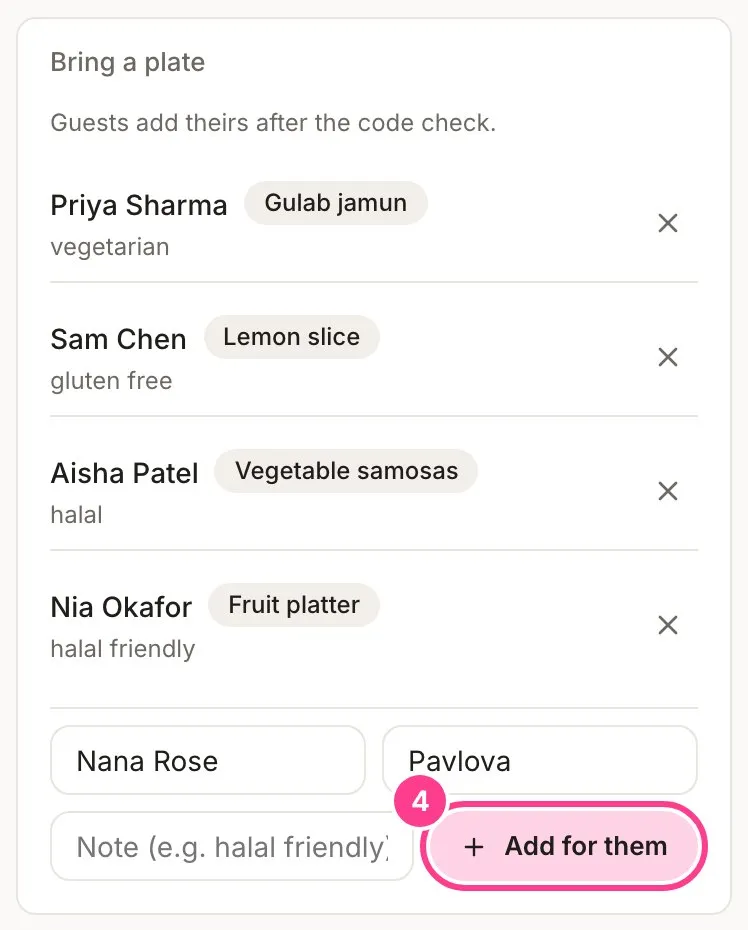
Someone told you in person? Open the event’s Responses screen, tap Activity and scroll to the Bring a plate card. Type who it’s from and what they’re bringing, then tap Add for them. You can remove any plate from there too, with the cross beside it.
Good to know
- Reading the list is open to every guest. Adding to it needs the code, so a forwarded link can’t fill it with nonsense. How the code check works.
- Guests who hid their name on their RSVP show as “Someone” on the list. You always see real names.
- There’s one list per event, so one Potluck block is all you need.
- Guests with no mobile or email on file can’t get a code. Add their plate for them, or add a contact to their guest entry.
- Want set jobs instead of an open list, like “Ice run” or “Bring a speaker”? Use a sign-up sheet.
Didn't answer it?
Tell us what you were trying to do and we'll write back, or give our guide to your AI assistant and ask it.