How to style your invite with custom CSS
If you know CSS, you can add your own styles on top of your theme from the theme studio. It's an early, experimental feature.
The theme studio covers most looks without any code. If you write CSS and want to go further, the Custom CSS box lets you add your own styles on top of your theme. It’s marked Experimental, so it may not always work the way you expect yet.
-
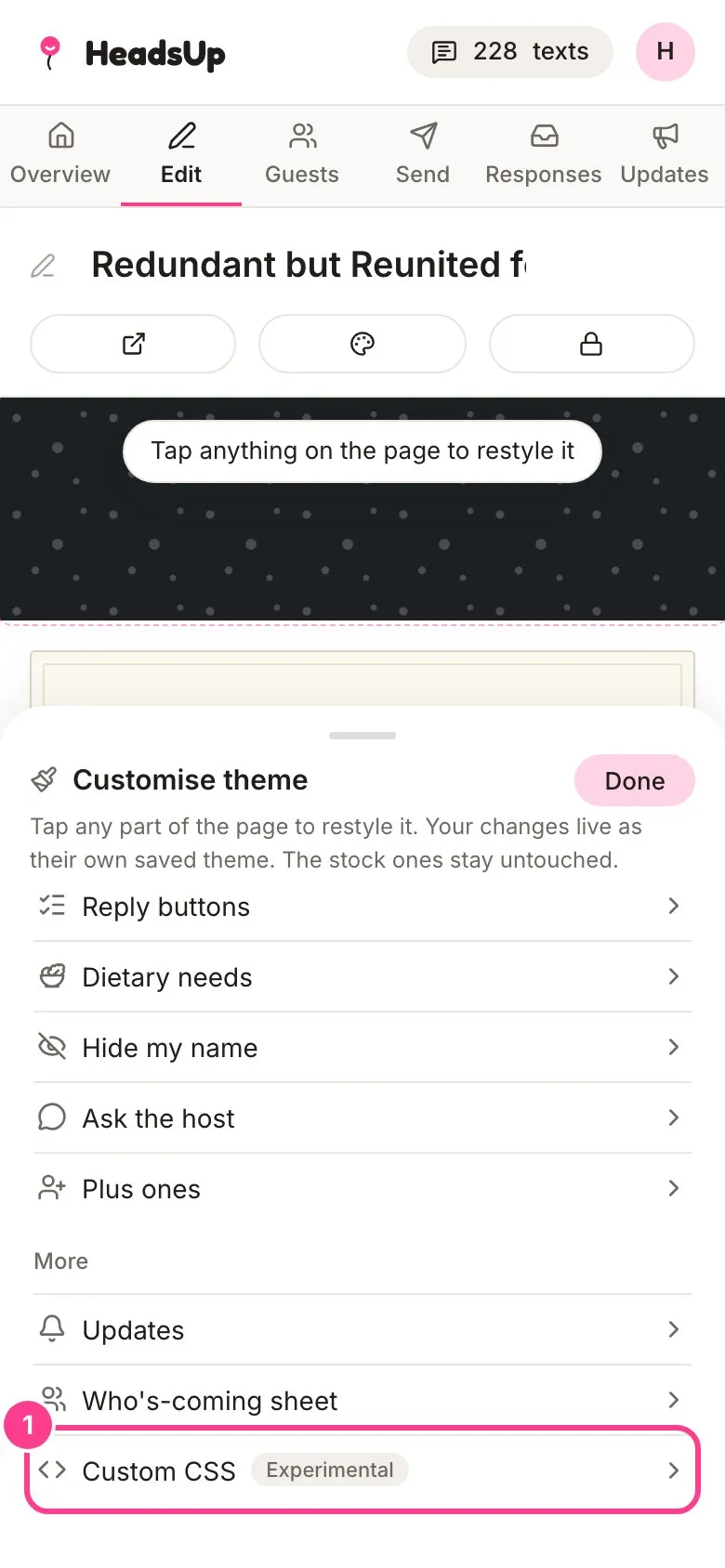
In the editor, tap Theme, then Customise this theme. Scroll to the bottom of the list and tap Custom CSS.
-
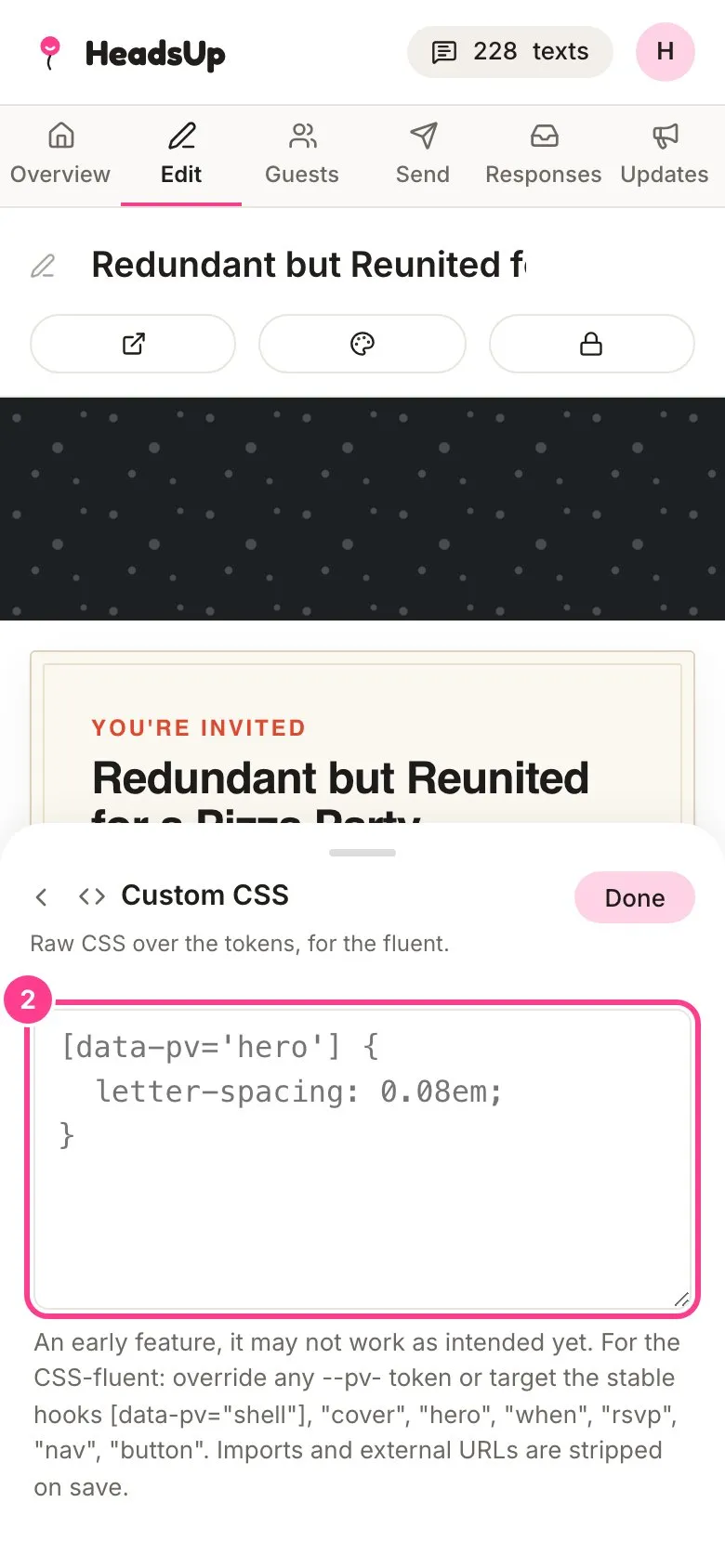
Type or paste your CSS into the box. The invite behind the panel updates as you type, and your CSS saves with the rest of your changes. Tap Done.
Good to know
- Your CSS only reaches your invite, never the rest of the page guests see.
- The hint under the box lists the parts you can safely target, such as
[data-pv="hero"],"cover","rsvp"and"button", and you can override any of the theme’s--pv-colour and size settings. - Imports and links to outside files are removed when it saves.
- You can use up to 20,000 characters.
- Your CSS is part of your custom theme. Picking a stock theme takes it off this invite, but it stays in your saved theme, and Reset customisations clears it too.
Didn't answer it?
Tell us what you were trying to do and we'll write back, or give our guide to your AI assistant and ask it.