How to add link buttons
Add big tappable buttons to your invite for a playlist, a gift registry, a group chat or anything with a link.
The Link buttons block puts full-width buttons on your invite, each opening a link. Handy for a shared playlist, a gift registry, a group chat or a booking page.
-
In the editor, tap a + where you want it and pick Link buttons, then tap the pencil on the new block to open it. See how to add and move blocks if you’re new to blocks.
-
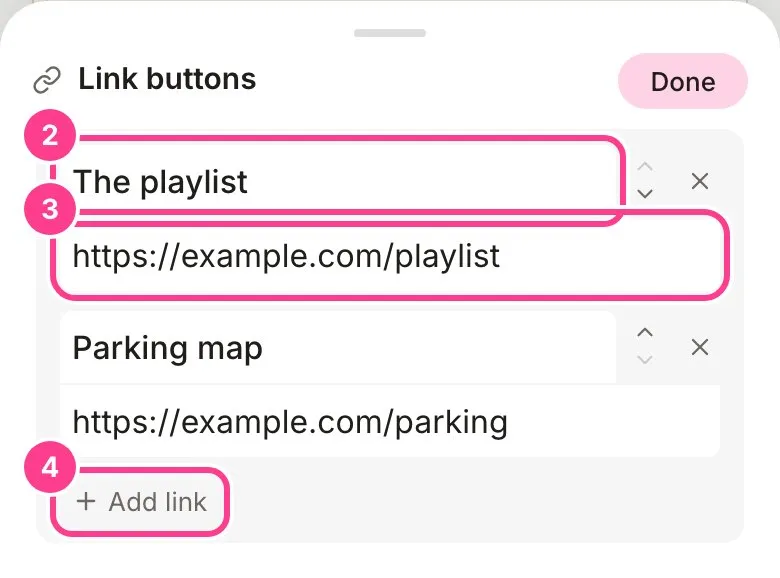
Type the button’s label, like “The playlist”.
-
Paste the link underneath, starting with https://.
-
Tap Add link for another button. Use the arrows to reorder, and tap a link’s cross twice to remove it. Tap Done.
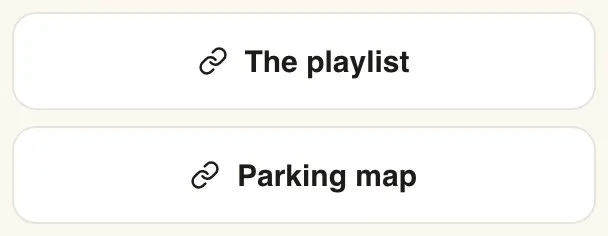
Guests see one button per link. Links open in a new tab, so your invite stays open behind them.
Good to know
- In the editor, tapping a button selects the block instead of opening the link, so you can edit it. Use the guest preview to try the links. See how to preview your invite as a guest.
- A button with no link doesn’t show on the invite. One with no label shows the link itself.
Didn't answer it?
Tell us what you were trying to do and we'll write back, or give our guide to your AI assistant and ask it.