How to add a sign-up sheet
List the jobs that need doing, like an ice run or setup crew, and let guests put their name down.
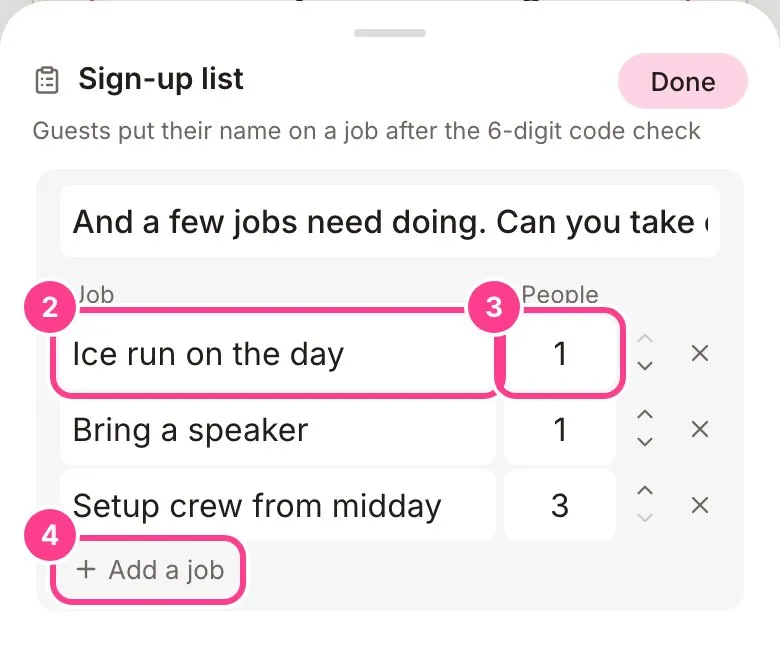
The Sign-up list block turns “can someone grab ice?” into jobs guests can claim. You set the jobs and how many people each one needs, and guests put their name on one. Once a job is full, it shows as covered.
-
In the editor, tap a + where you want it and pick Sign-up list, then tap the pencil on the new block to open it. See how to add and move blocks if you’re new to blocks.
-
Type a line guests see at the top, like “Can you help with one of these?”. Then name each job.
-
Beside each job, set how many people it needs under People.
-
Tap Add a job for another. Use the arrows to reorder, and tap a job’s cross twice to remove it. Tap Done.
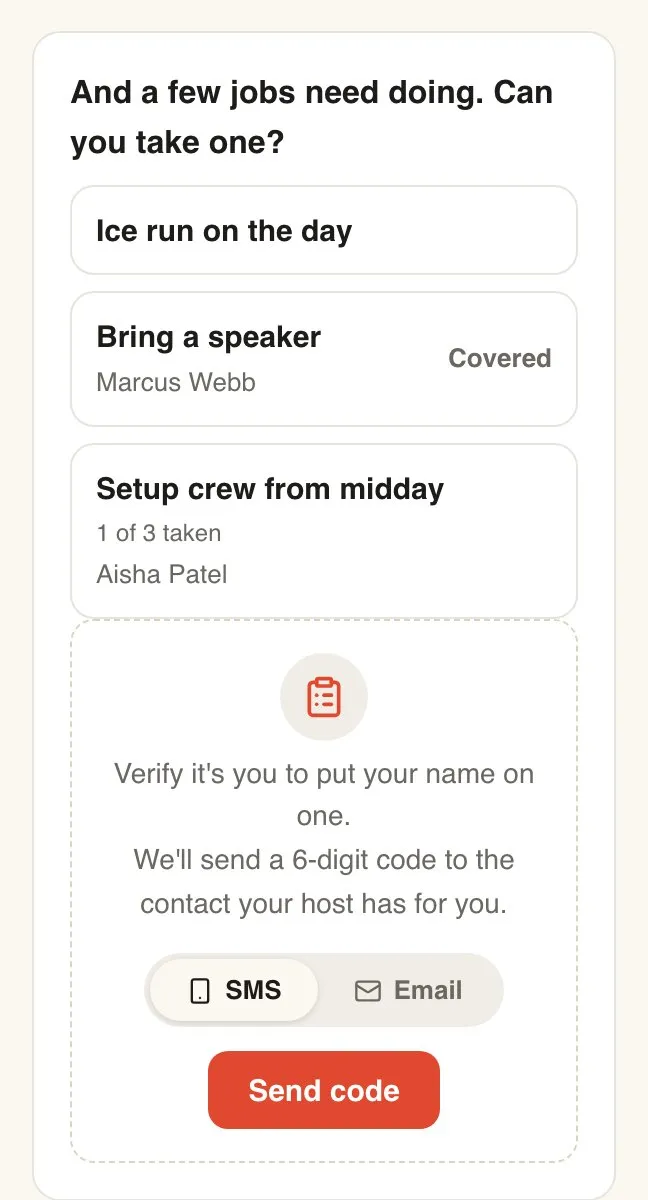
Guests see each job, how many spots are taken and who’s on it. After a quick 6-digit code, they tap I’ll take it to claim a spot, or Hand it back to let it go.
Good to know
- A job stops taking names once it’s full, and shows as Covered.
- Names on the list are visible to every guest, so people know who they’re teaming up with. Guests who hid their name on their RSVP show as “Someone”. You always see real names on the event’s Responses screen, under Activity, in the Sign-up card.
- Claiming needs the code so a forwarded link can’t sign somebody up. How the code check works.
- A sign-up list can go in an update too. See how to ask guests in an update.
Didn't answer it?
Tell us what you were trying to do and we'll write back, or give our guide to your AI assistant and ask it.