How to see who's coming
Check who's going, who's a maybe and who hasn't replied yet, then narrow the list or record a reply someone gave you in person.
Every reply lands on your event’s Responses screen the moment a guest taps it. The counts sit at the top, and the whole guest list sits under them, so you can see who’s in, who’s still thinking, and who you might need to nudge.
-
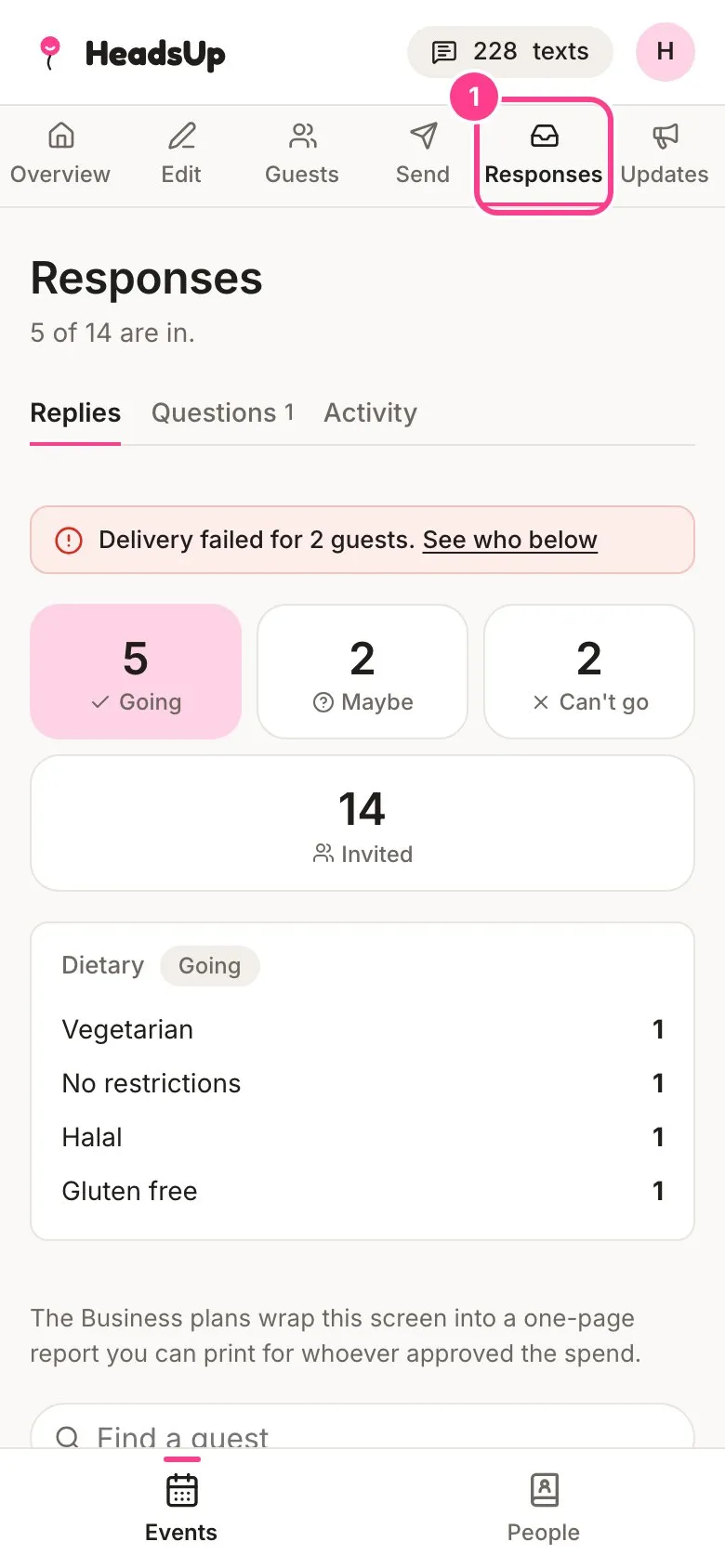
Open your event and tap Responses. The line under the title counts who’s in, like “5 of 14 are in.”
-
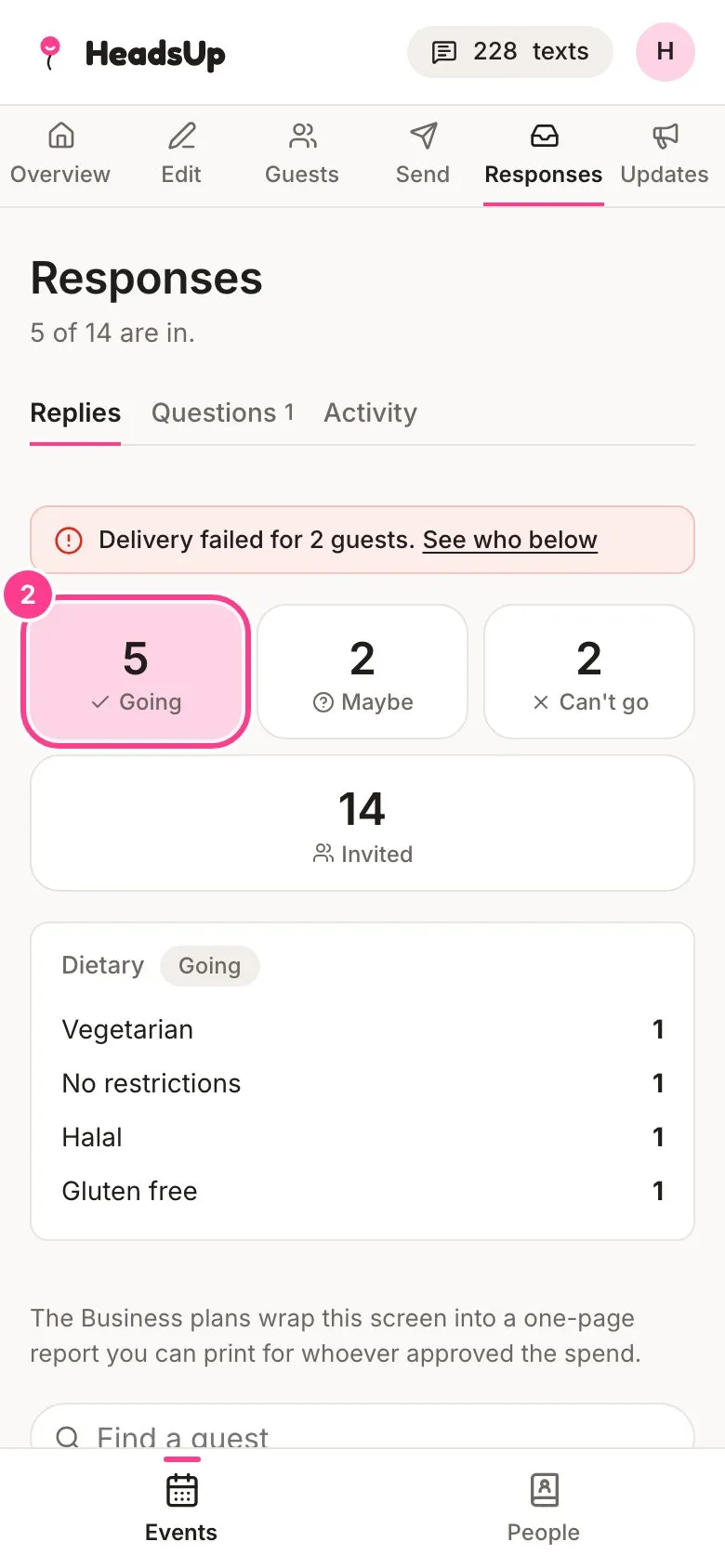
The tiles show how many guests are Going, Maybe and Can’t go, out of everyone Invited. Tap a tile to narrow the list below to just those guests. Tap it again, or tap Invited, to see everyone.
-
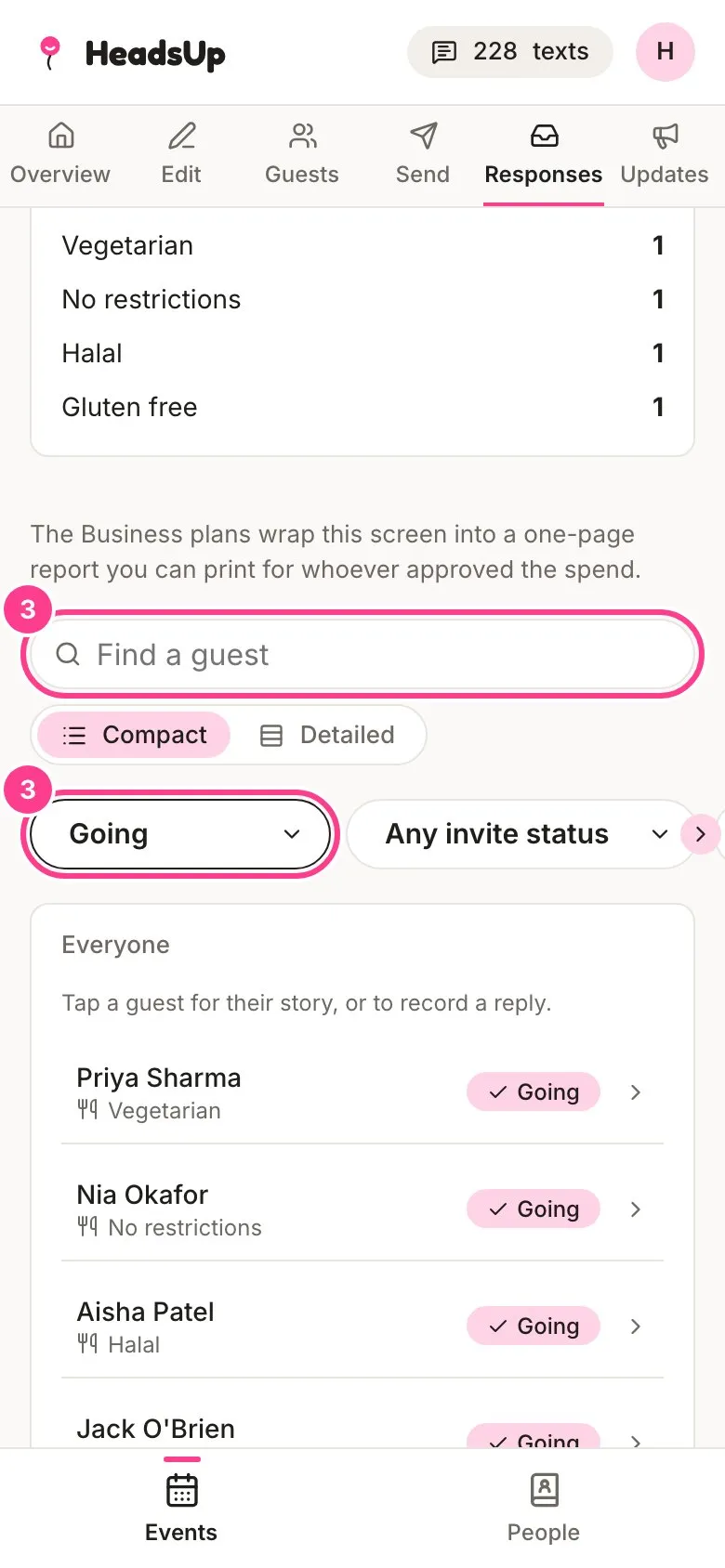
Scroll down to the list. Type in Find a guest to search by name, or use the filters to narrow by reply, invite status, arrival or group. Switch between Compact and Detailed to see more on each row.
-
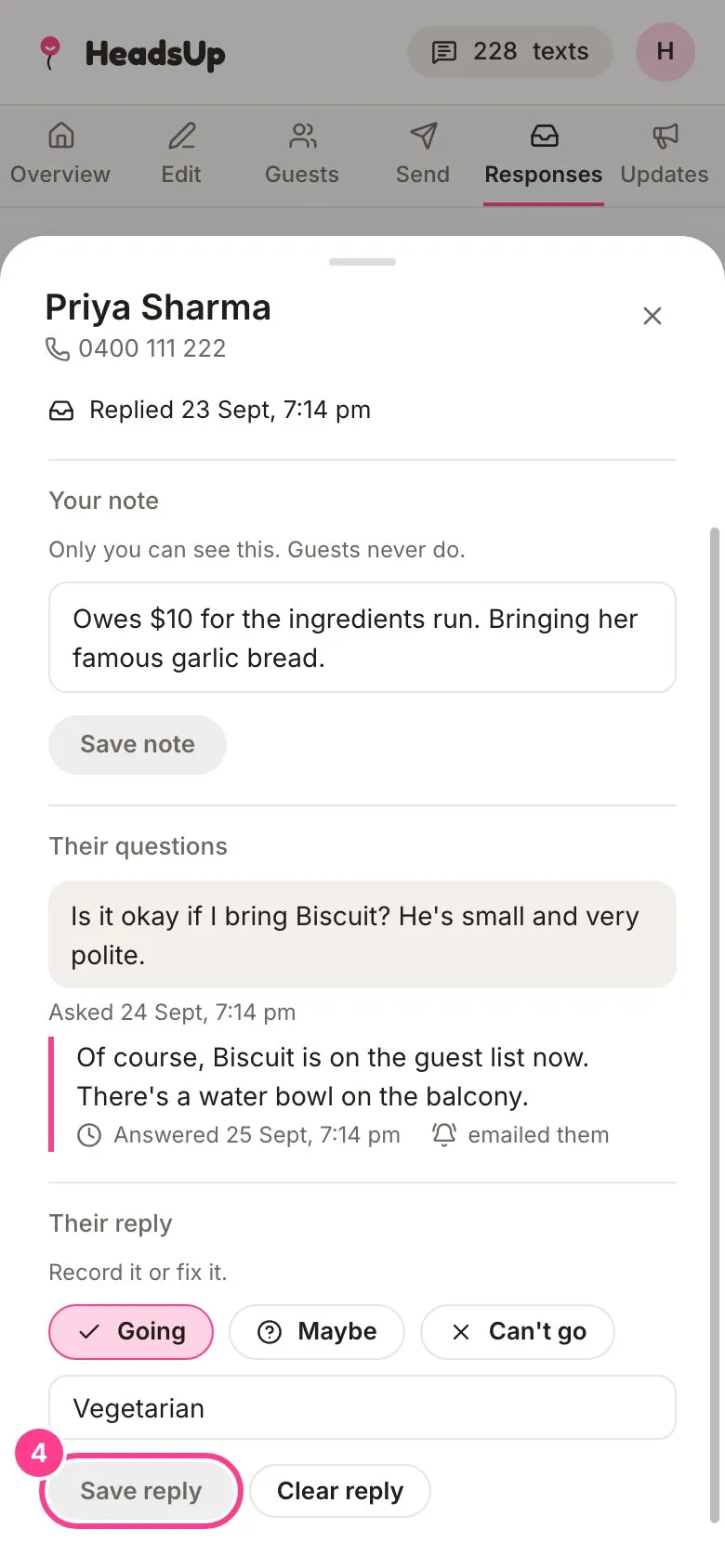
Tap a guest to see their story: when their invite was sent, when they opened it and when they replied. If they told you in person, pick Going, Maybe or Can’t go under Their reply and tap Save reply. Clear reply takes a reply back off.
Good to know
- Your event’s Overview shows the same tiles, so you can check the numbers without leaving it.
- The screen updates live. Leave it open and new replies turn up on their own.
- A guest can hide their name from the other guests. You still see them. Their details say “Hides their name from other guests”.
- If some of your invites didn’t arrive, a red line above the tiles says how many. Tap See who below to list those guests.
- Guests waiting for your OK, like plus ones or people who joined from your public link, show under a Waiting tab. See How to allow plus ones.
- Guests never need an account to reply.
Didn't answer it?
Tell us what you were trying to do and we'll write back, or give our guide to your AI assistant and ask it.