How to let guests bring a plus one
Turn on plus ones so guests can add people from their invite. Choose how many each, whether you approve them, and how their invites go.
With plus ones on, your guests can add people themselves, straight from their invite. Each plus one gets their own personal link and replies for themselves, so your headcount stays honest.
-
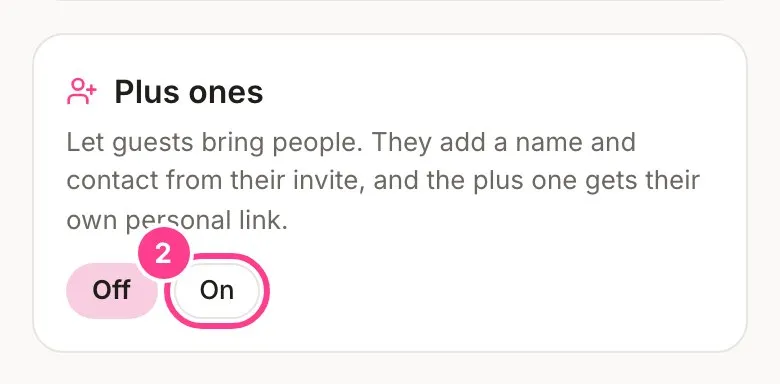
Open your event on the Overview tab and scroll down to Plus ones.
-
Tap On.
-
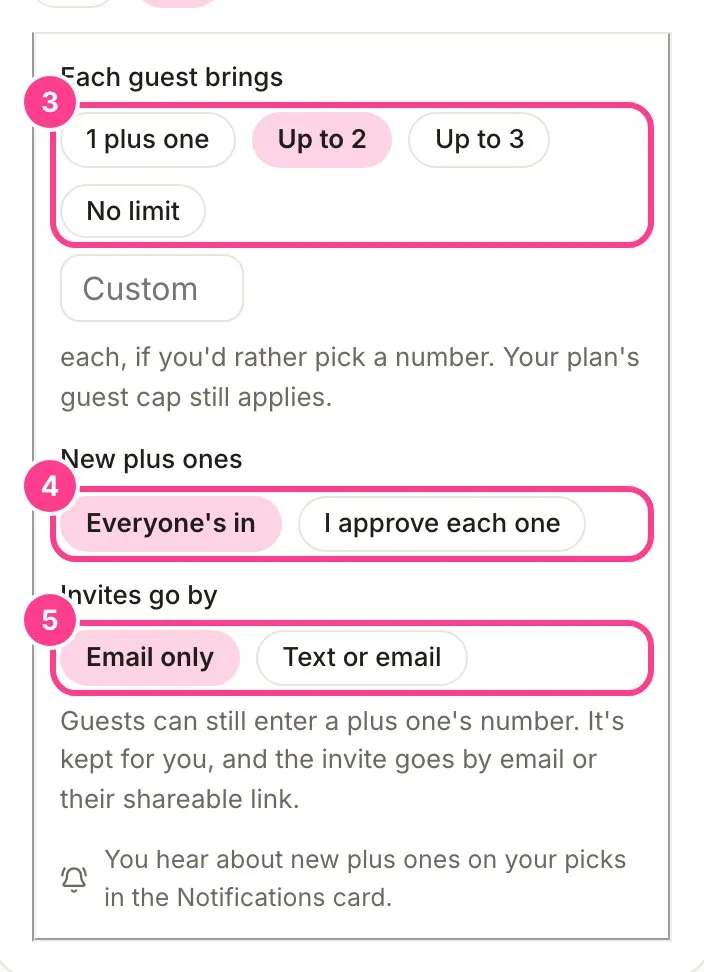
Under Each guest brings, pick 1 plus one, Up to 2, Up to 3 or No limit. Or type your own number in Custom.
-
Under New plus ones, pick Everyone’s in, or I approve each one if you’d like to check them first.
-
Under Invites go by, pick Email only or Text or email.
Your changes save as you go. You can also switch plus ones on in the last step when you create an event.
What your guests see
Guests tap Bring a plus one on their invite, confirm it’s them with a quick code, then add a name, plus a phone or email if they have one. Their plus one gets an invite with their own link. See how guests bring a plus one.
If you approve each one
New plus ones wait in a Waiting section at the top of your Guests tab. Tap Approve and send to let them in and send their invite (just Approve when there’s no phone or email to send to), or tap Remove. Removing never costs you anything, because nothing was sent.
Good to know
- On your Guests list, a plus one’s card says who brought them, for example Plus one of Priya Sharma.
- With Text or email picked, each plus-one invite that goes by text uses one of your texts, and it’s your guests who decide when one goes out. Email invites are free. With Email only, guests can still type a number and it’s kept for you.
- Plus ones can’t bring plus ones of their own.
- Plus ones count towards your plan’s guest limit for the event.
- You can hear about new plus ones by text, email or push. Set that up in the Notifications card on the same screen.
Didn't answer it?
Tell us what you were trying to do and we'll write back, or give our guide to your AI assistant and ask it.