How to share a public link to your event
Turn on one link anyone can open, so people can see your invite and add themselves to the guest list after a quick code check.
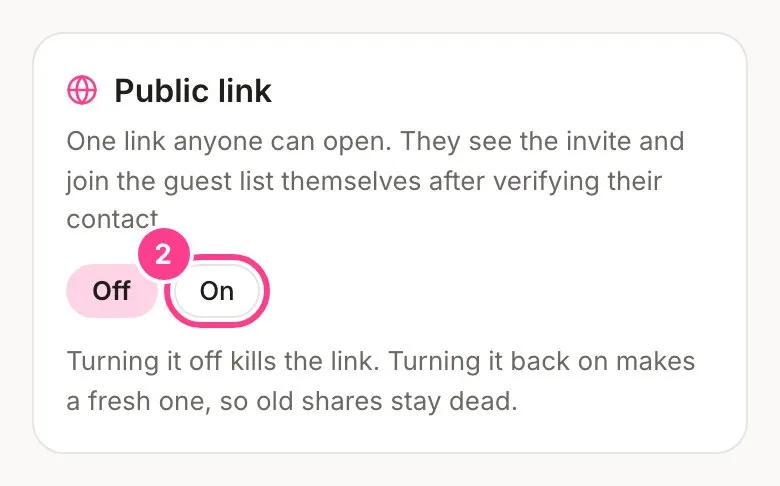
Normally every guest gets their own personal link. A public link is one link for everyone, handy for a social post, a group chat or a poster. Anyone who opens it sees the invite, and they can join your guest list themselves by confirming their email or mobile with a 6-digit code.
-
Open your event on the Overview tab and scroll down to Public link.
-
Tap On.
-
Tap Copy link and share it wherever you like.
-
Under Join with, choose what people confirm to join: Email, Mobile or Either. If the event’s Verification codes are set to Email only, people always join with an email, and Mobile and Either stay greyed out until you switch codes to Text or email.
-
Under Joins, pick Anyone with the link, or I approve each join if you’d like to check people first. Under Spots, you can set the most guests you’ll take.
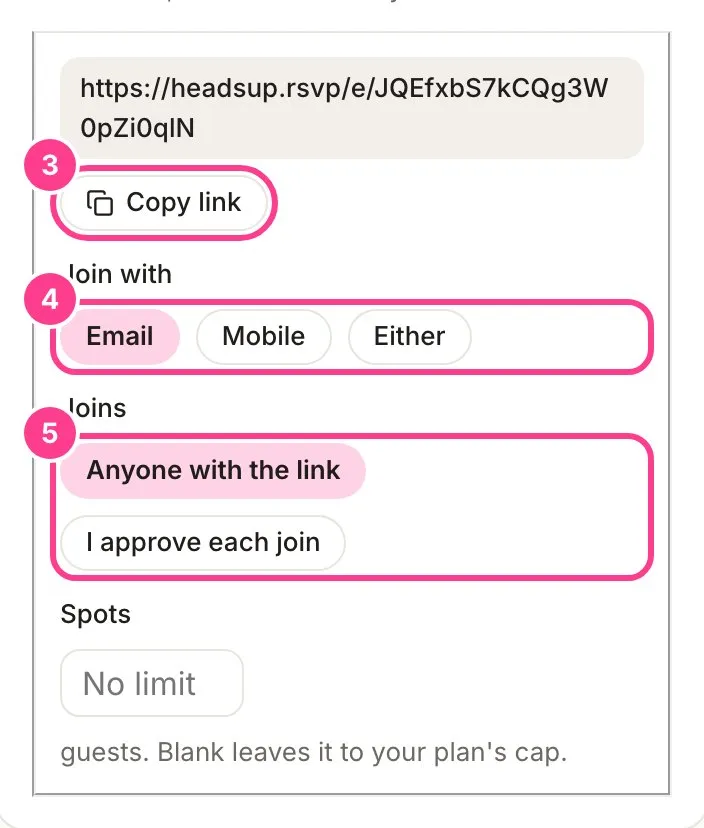
The public link also sits at the bottom of the Send tab, with its own Copy link button.
How joining works
Someone opens your link, taps to join, and types their name and email or mobile. They get a 6-digit code, and once they’ve entered it they’re on your list with their own personal link, already counted as going. They can change their reply any time. If they were already on your list, they simply pick up where they left off. See how joining from a public link works.
With I approve each join, new joiners wait in a Waiting section at the top of your Guests tab until you tap Let them in.
Good to know
- Treat everything on the invite as public, updates included. Joining unlocks hidden details and locked tabs, so with Anyone with the link picked, those reach anyone who joins.
- Guest names show as “Someone” to people who haven’t joined.
- Email codes are free. Mobile codes use your texts, and anyone who finds the link can ask for one, so a public link can use texts much faster than a guest list would. If you run out of texts, people can only join with an email. With Join with set to Mobile, nobody can join until you top up.
- Turning the link off kills it. Turning it back on makes a fresh link, so old shares stay dead.
- Leave Spots blank to go up to your plan’s guest limit. When the event’s full, new people are told before any code is sent.
- Public links work on every plan, Free included.
Didn't answer it?
Tell us what you were trying to do and we'll write back, or give our guide to your AI assistant and ask it.