How to import a guest list
Bring lots of guests in at once by pasting a list, importing a spreadsheet, or picking people you've invited before.
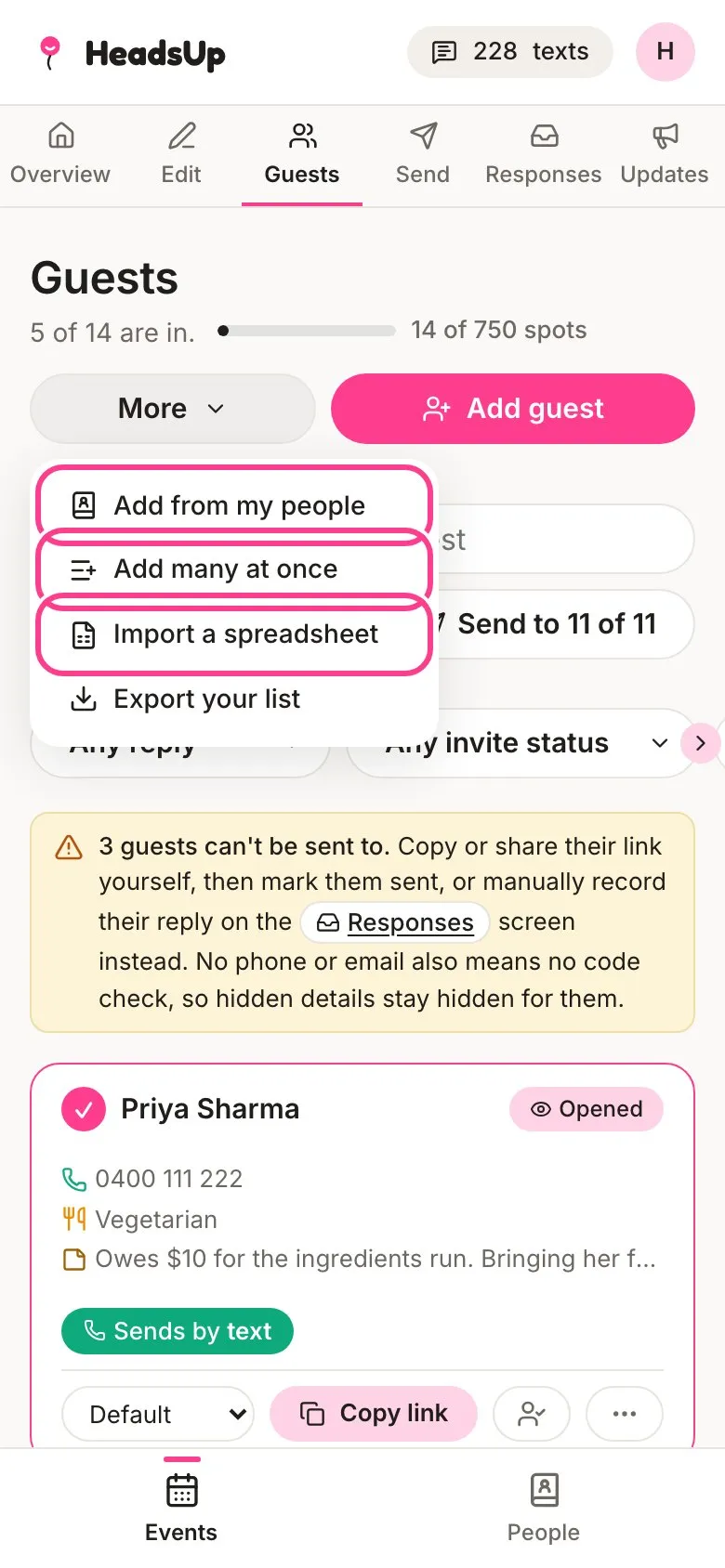
Typing guests in one by one gets old fast. There are three quicker ways to fill your list, all under the More button on the Guests tab: paste a list, import a spreadsheet, or pick from people you’ve saved before.
Paste a list
-
On Guests, tap More, then Add many at once.
-
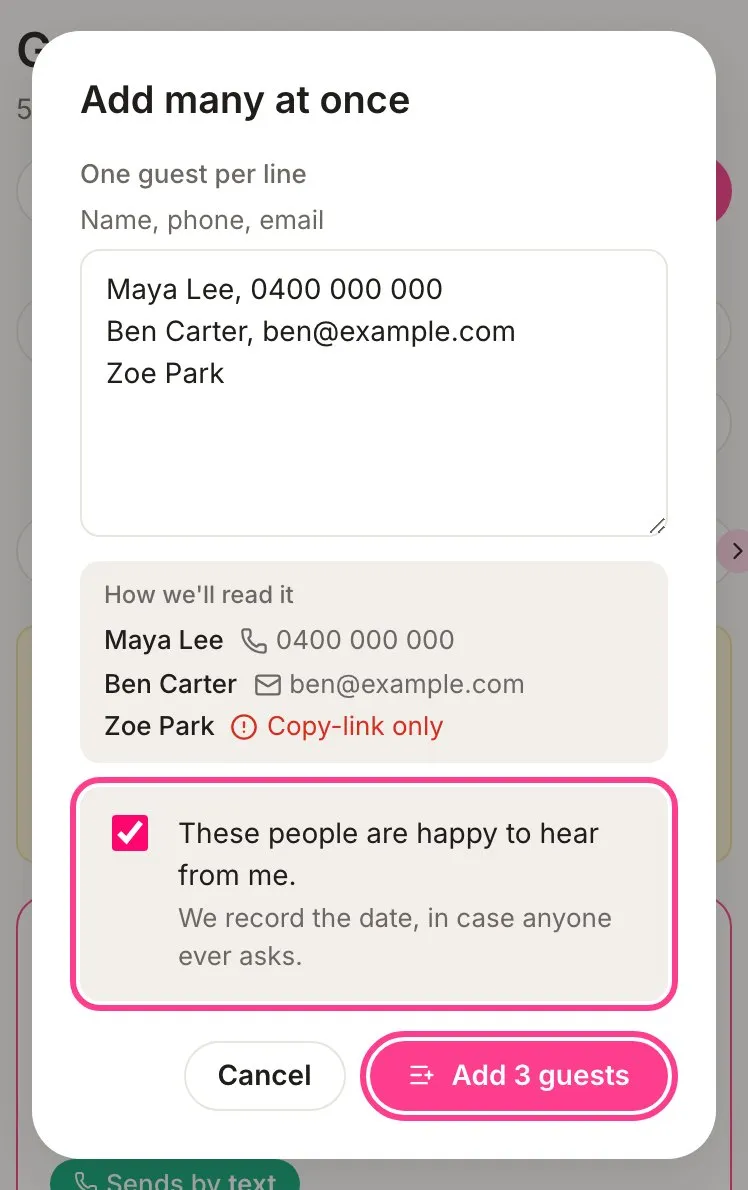
Paste or type your guests, one per line, as Name, phone, email. Only the name is needed. HeadsUp shows you how it read each line, and anyone without a phone or email is marked Copy-link only.
-
Tick These people are happy to hear from me.
-
Tap Add with the number of guests, for example Add 3 guests.
Import a spreadsheet
-
Save your list as a CSV file from Excel, Numbers or Google Sheets. Put column headings in the first row and one person per row under it. Not sure how to lay it out? Tap Download a starter file for a ready-made one.
-
On Guests, tap More, then Import a spreadsheet, and tap Choose a CSV file.
-
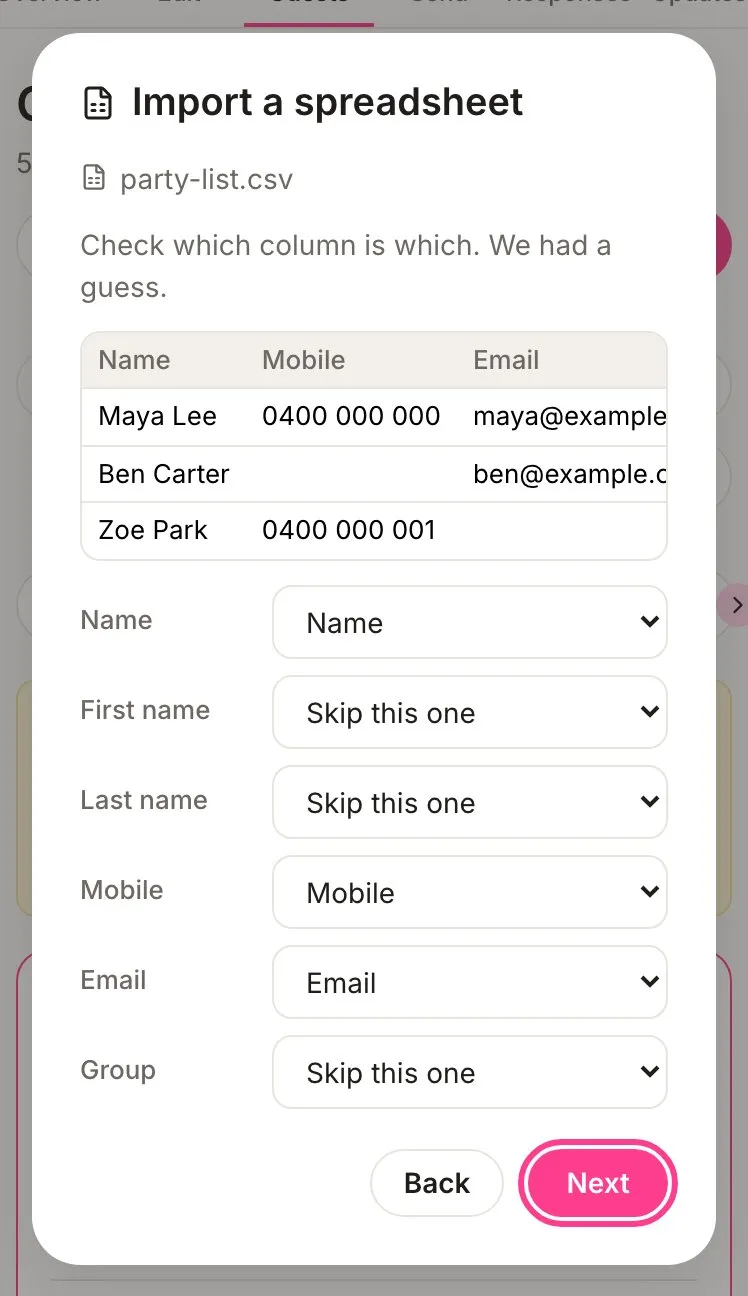
Check which column is which. HeadsUp has a guess, but you can change any of them or pick Skip this one. The name needs a column, either one Name column or First name and Last name. Tap Next.
-
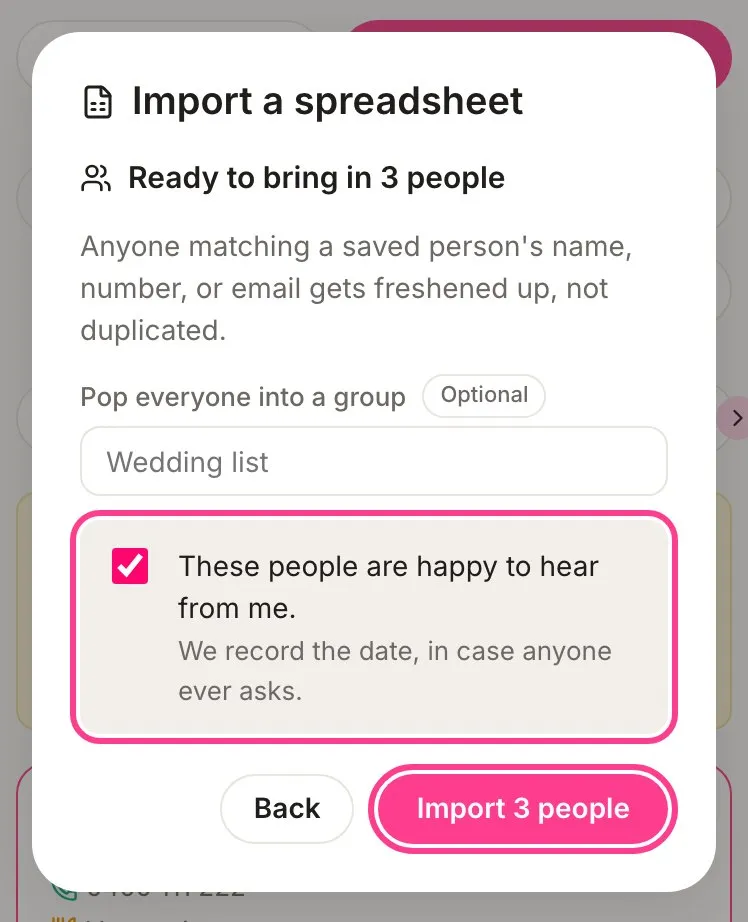
If you like, type a group under Pop everyone into a group. Tick These people are happy to hear from me. and tap Import.
-
They’re now saved in your People. Tap Pick them into this event to put them on the guest list, then tap Add in the list that opens.
Pick from your people
Everyone you’ve ever added is saved in your People list, so inviting the same crowd again is a few taps.
-
On Guests, tap More, then Add from my people.
-
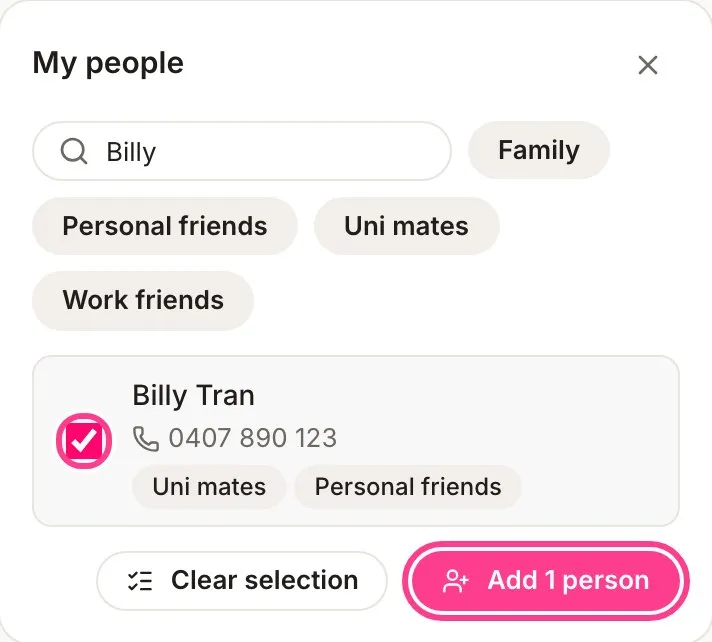
Search by name or tap a group to narrow the list, then tick the people you want. Anyone already invited shows On the list.
-
Tap Add, for example Add 1 person.
Why we ask you to tick the box
Texting or emailing a list of people is something Australian spam law cares about. You need their permission to message them, so HeadsUp asks you to say so each time you bring in a batch, and we record the date you ticked it, in case anyone ever asks. Adding one guest at a time just shows a reminder instead.
Good to know
- Everyone you import also lands in your People list. Someone who matches a person you’ve already saved gets freshened up, not duplicated.
- Numbers need to be Australian mobiles for HeadsUp to text them. A pasted line with another kind of number needs fixing or removing before you can add the list. A spreadsheet row with one is still saved, just without texting.
- Spreadsheet rows without a name are left out.
- Your plan’s guest limit per event still applies. If a big list would go over, HeadsUp tells you, and anyone who already made it in stays in.
- In the HeadsUp app on your phone, More also has Add from your contacts, which picks people straight from your phone’s address book.
Didn't answer it?
Tell us what you were trying to do and we'll write back, or give our guide to your AI assistant and ask it.