How your People list works
Everyone you invite is saved to People, so you can add them to your next event in a couple of taps. Here's how to add, find and reuse them.
People is your own address book inside HeadsUp. Everyone you add to an event is saved there too, so the next time you host, you can pick them straight from the list instead of typing them in again.
-
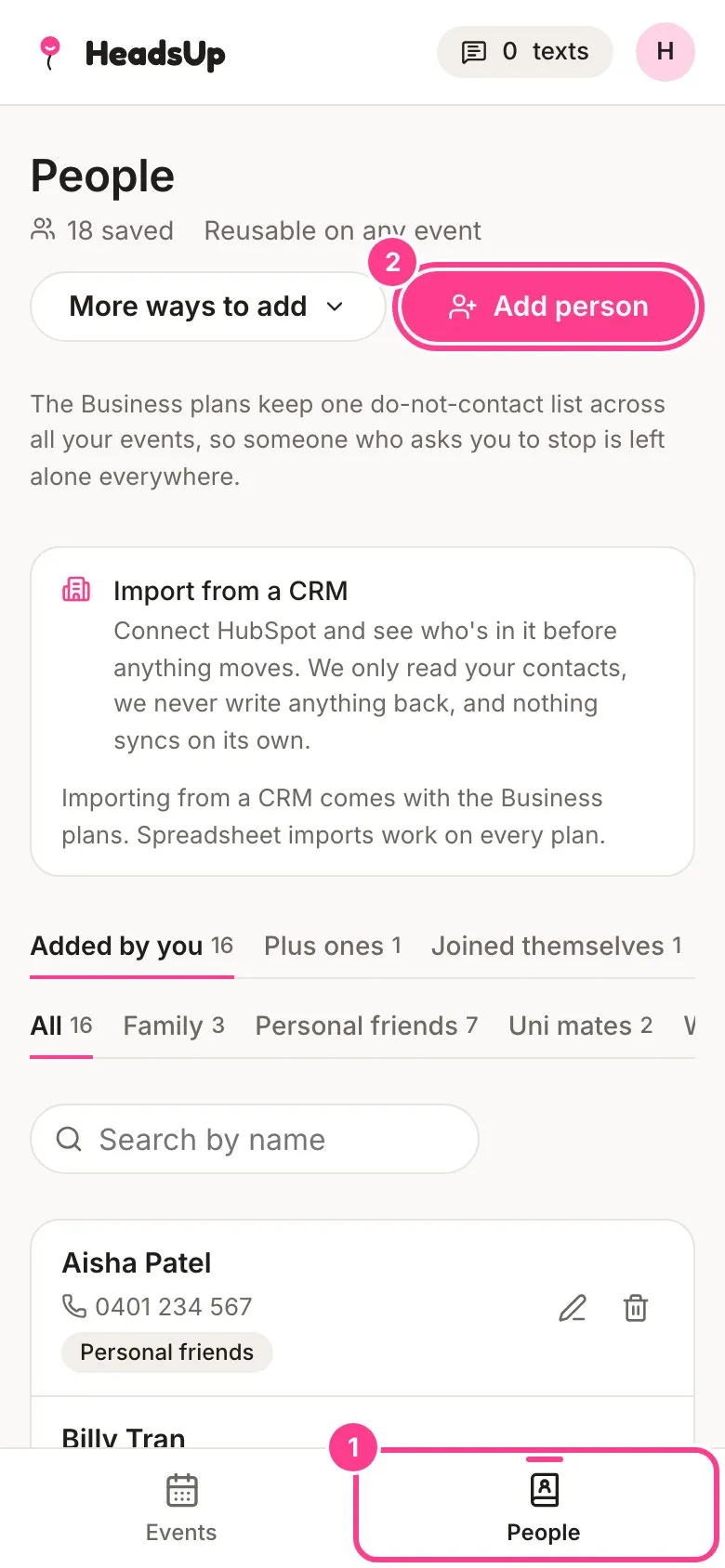
Tap People in the bar at the bottom of the screen. On a computer it’s in the menu on the left.
-
To save someone new, tap Add person.
-
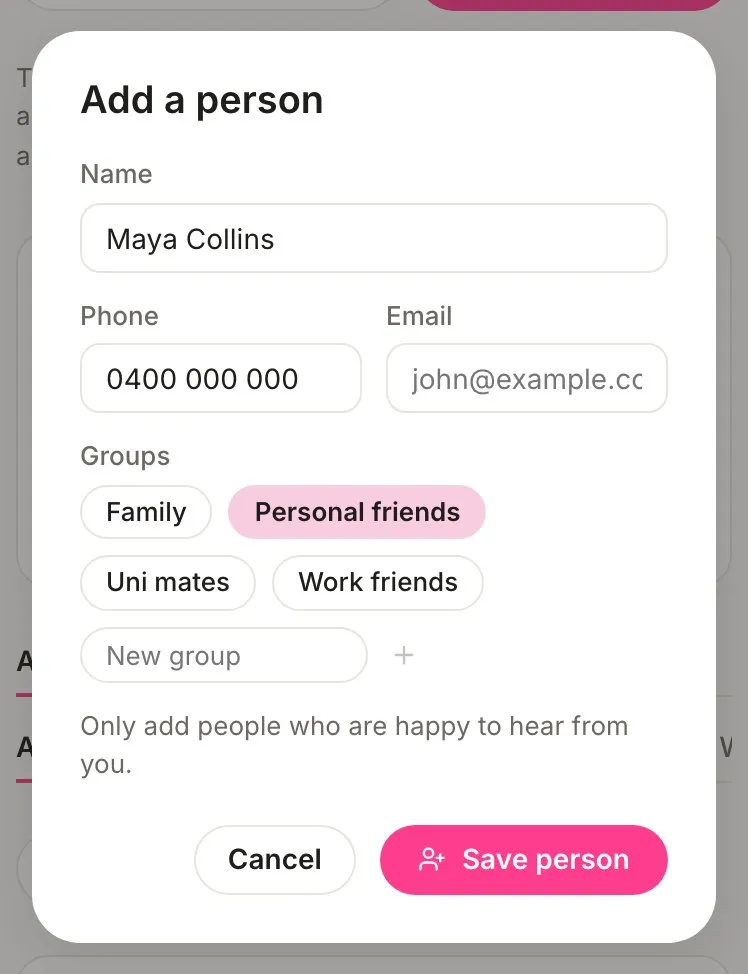
Type their Name, then their Phone, their Email, or both. Tap any of your Groups to file them there, then tap Save person.
-
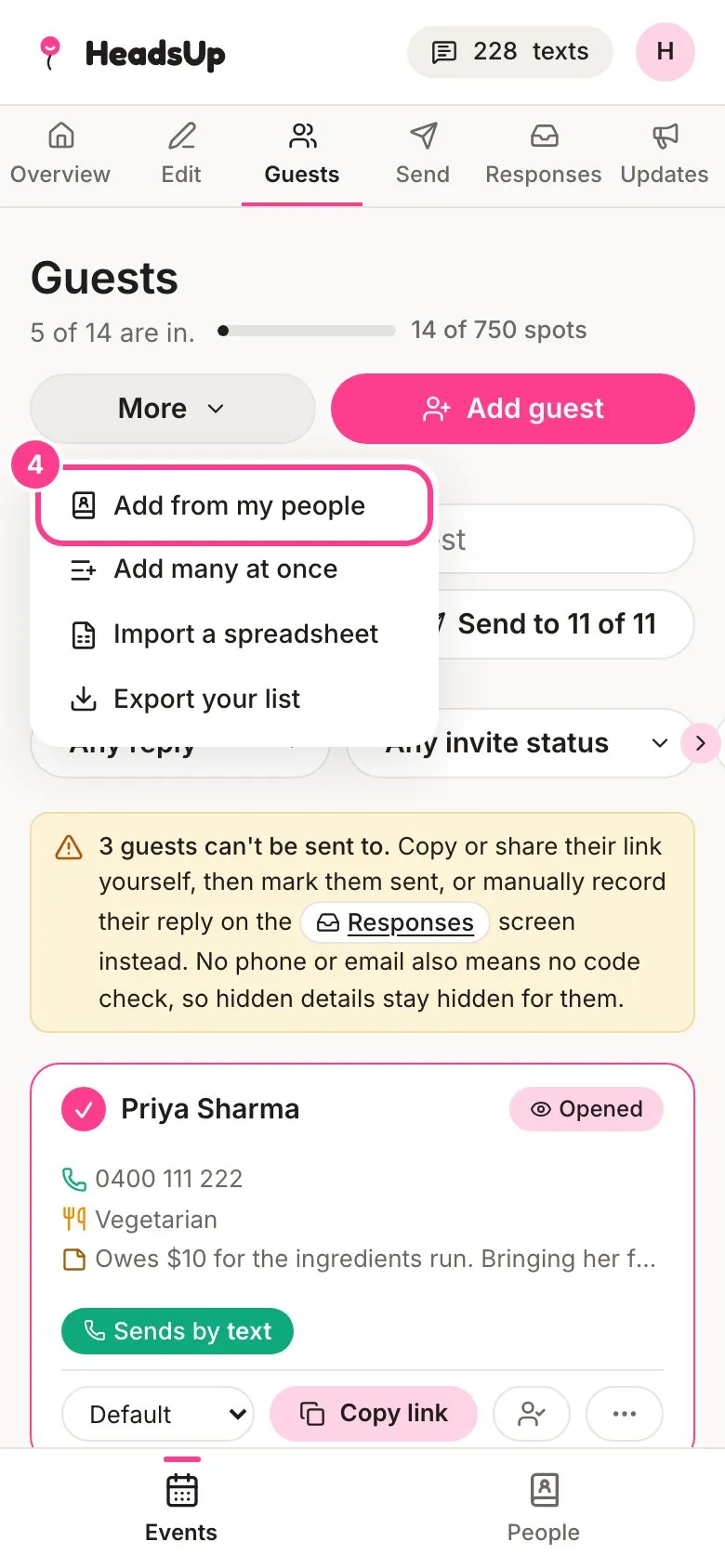
To invite saved people to an event, open the event’s Guests screen, tap More, then Add from my people. Tick who you want, or pick a group, then tap the add button, such as Add 3 people.
More ways to add people
Tap More ways to add at the top of People to bring in lots of people at once.
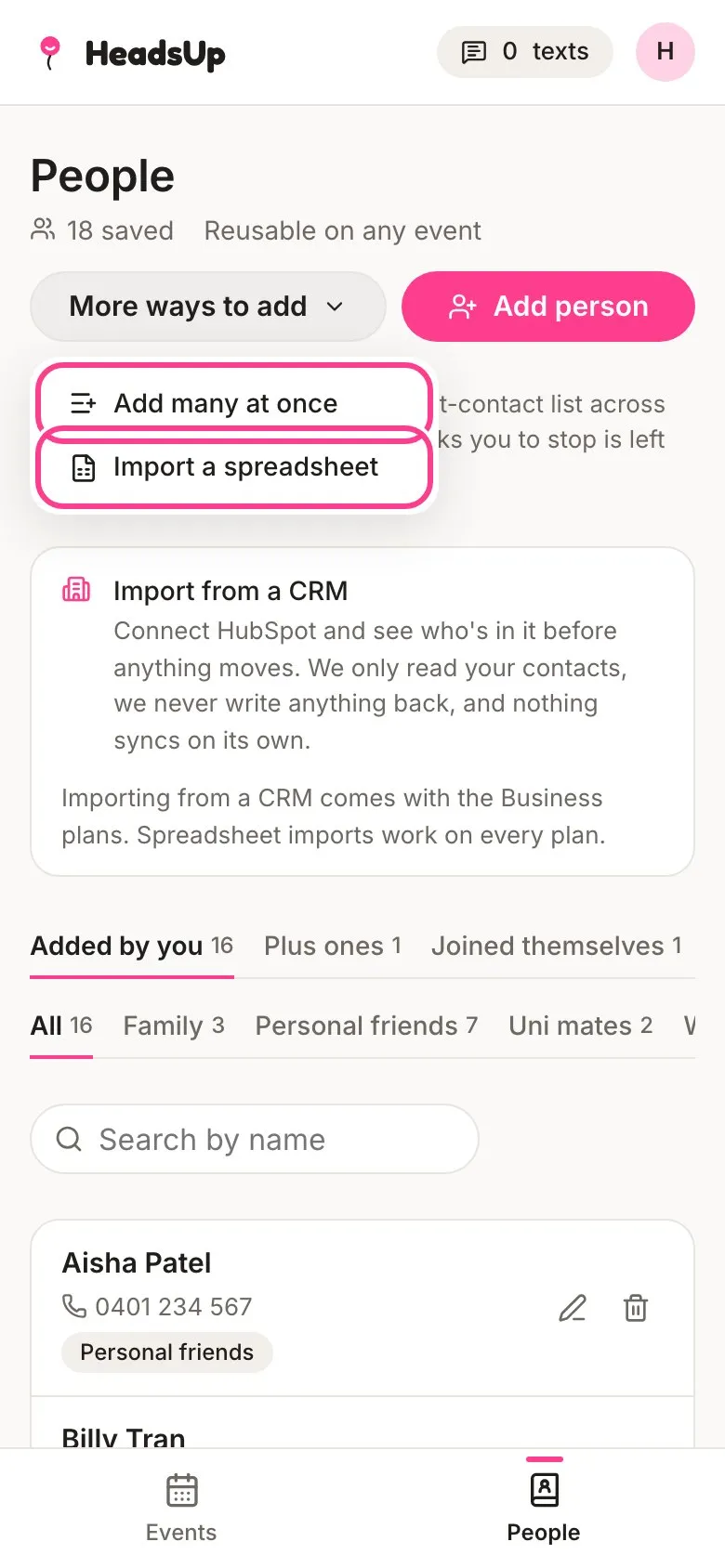
- Add many at once lets you paste a list, one person per line.
- Import a spreadsheet reads a CSV file. See how to import a guest list.
- Add from your contacts picks people from your phone’s contacts, in the HeadsUp app on your phone.
- Import from a CRM brings people in from HubSpot on a Business plan. See import contacts from a CRM.
When you add a lot of people at once, you’re asked to tick These people are happy to hear from me. We record the date you ticked it.
Good to know
- Only add people who are happy to hear from you.
- Tap the pencil on anyone to change their details or groups. Opening someone also shows their history, such as when they were added and which events they were invited to.
- Search by name to find someone fast, and tap a group to see only the people in it. See make a group.
- People sorts itself into tabs by how someone arrived. Added by you is everyone you added. Plus ones and Joined themselves show up once a guest brings a plus one or someone joins from your public link.
- We can only text Australian mobiles for now. Anyone else can get their invite by email or their own link.
- Guests never need an account. People is just for you, and your guests never see it.
Didn't answer it?
Tell us what you were trying to do and we'll write back, or give our guide to your AI assistant and ask it.