How to use your do-not-contact list
Keep one list of numbers and emails that none of your events will ever text or email. Managing it comes with the Business plans.
When a guest stops texts or emails from an invite, that only covers the one event. Your do-not-contact list goes further: add a number or an email, and no event of yours will text or email it again, including events you haven’t made yet.
-
Tap People, then Do not contact.
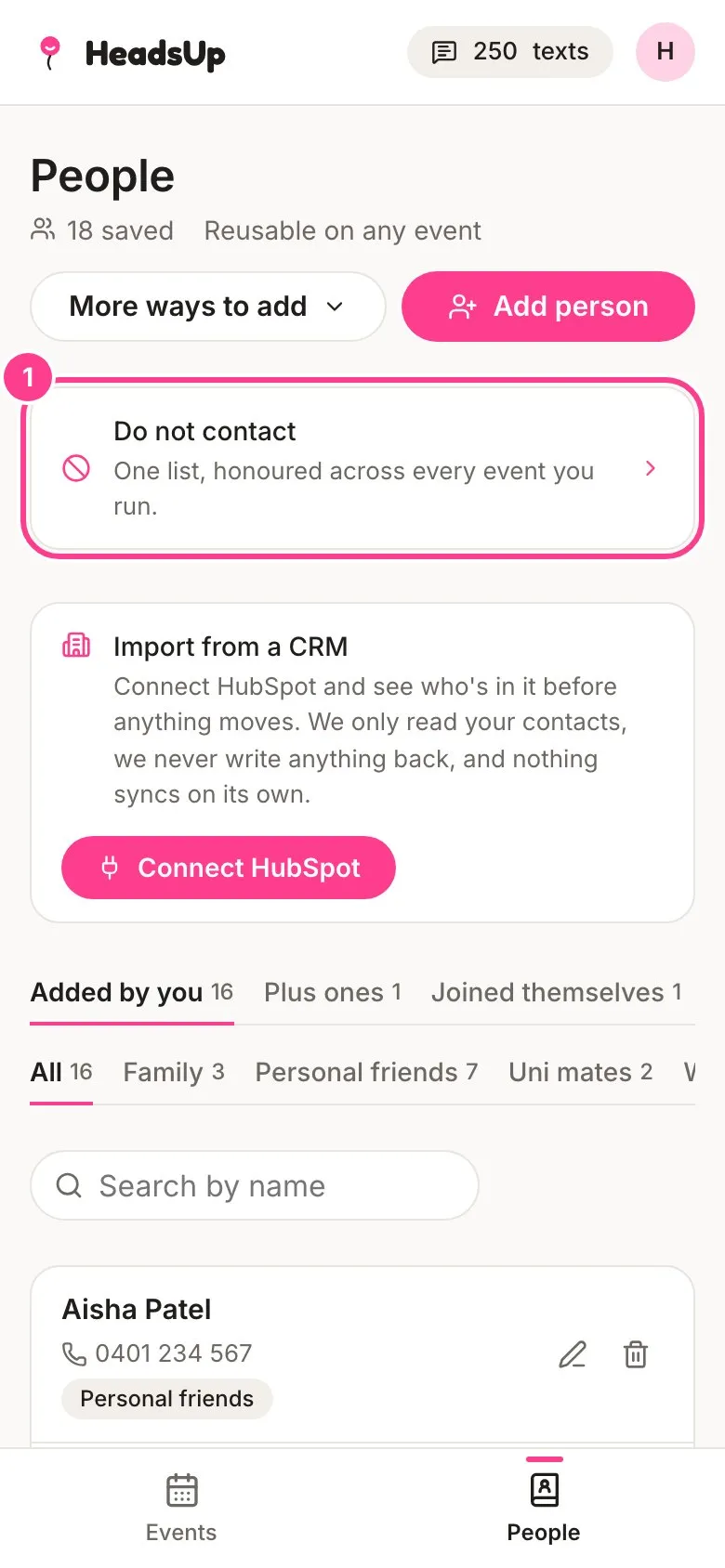
-
Type the mobile number or email address.
-
Tap Add. It’s on the list straight away, with why it’s there and the date it was added.
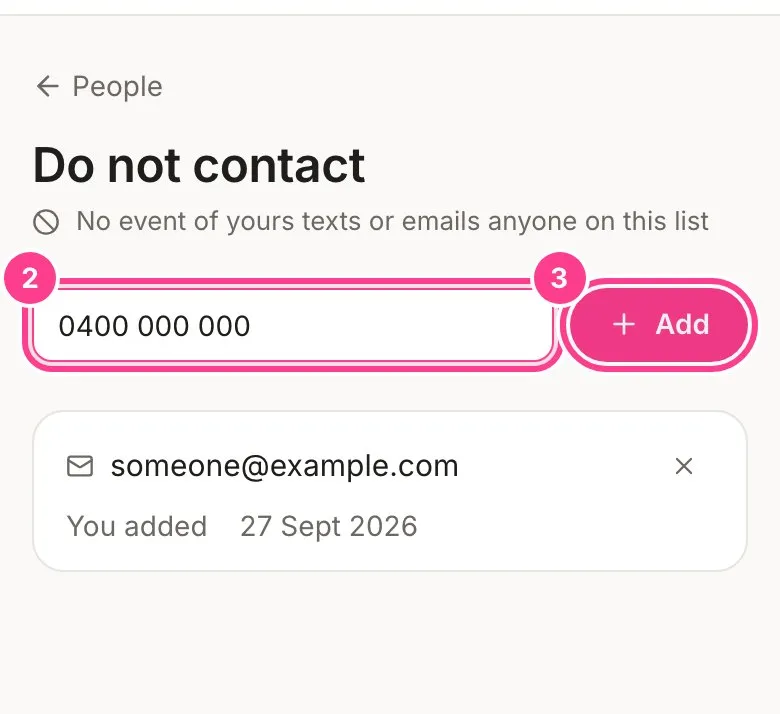
When a guest asks you to stop
If a guest has already stopped texts or emails on one of your events, or marked one of your emails as spam, their details on the Guests screen offer Stop contacting them everywhere. One tap puts their number and email on your list.
Taking someone off
Tap the cross beside them and confirm with Take them off. Your events can message them again from then on.
Good to know
- The list is honoured on every plan, always. Even if your Business plan ends, nobody on it gets messaged, and you can still see the list and take people off it.
- Anyone on the list is skipped when you send, and the Guests and Send screens say why. They can still open their invite link and reply.
- A number matches however it’s written, so 0400 000 000 and +61 400 000 000 are the same. Emails match whatever the capitals.
- Deleting or merging someone in People never takes them off this list, so deleting a person can’t be a way to message them again.
- A verification code a guest asks for themselves still sends, because they asked for it.
- Each entry says why it’s there: You added, They asked to stop or They marked an email as spam.
Didn't answer it?
Tell us what you were trying to do and we'll write back, or give our guide to your AI assistant and ask it.