How to import contacts from HubSpot
Connect HubSpot to bring your contacts into People. We only ever read, you see everyone before they come across, and nothing syncs on its own.
If your guest list already lives in HubSpot, you can bring it straight into People instead of exporting a spreadsheet. HeadsUp only reads your contacts. It never writes anything back to HubSpot, and nothing comes across until you’ve seen who it is and pressed import.
-
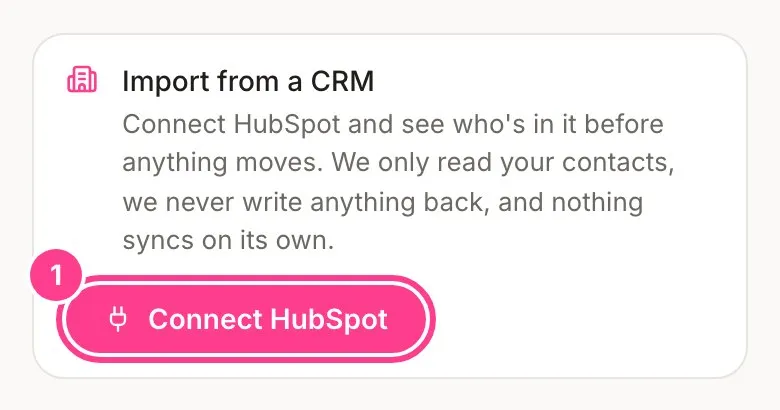
Tap People. On the Import from a CRM card, tap Connect HubSpot.
-
HubSpot opens and asks you to sign in and allow HeadsUp to read your contacts. Approve it, and you come back to People with HubSpot connected.
-
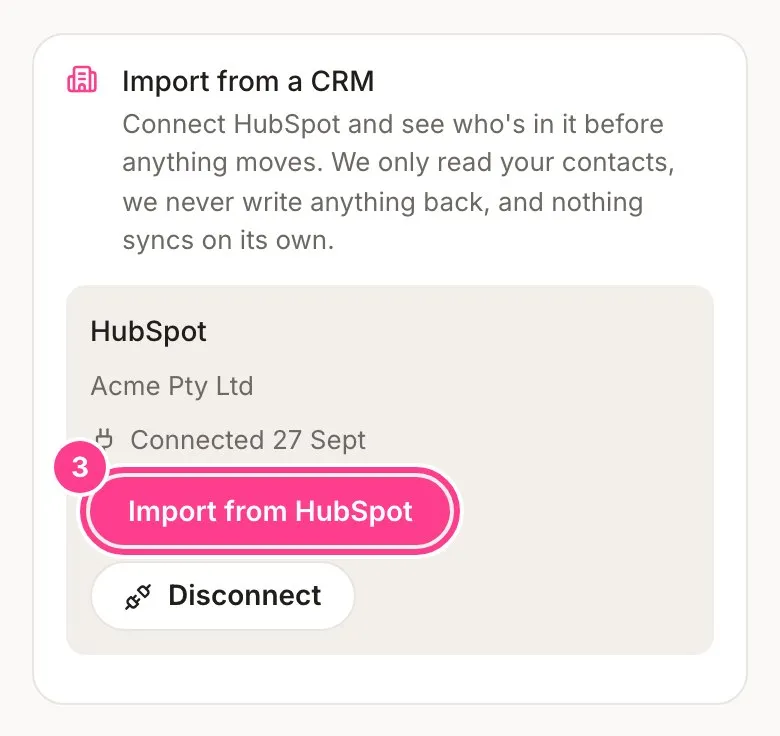
Tap Import from HubSpot. You can also find Import from a CRM under More ways to add.
-
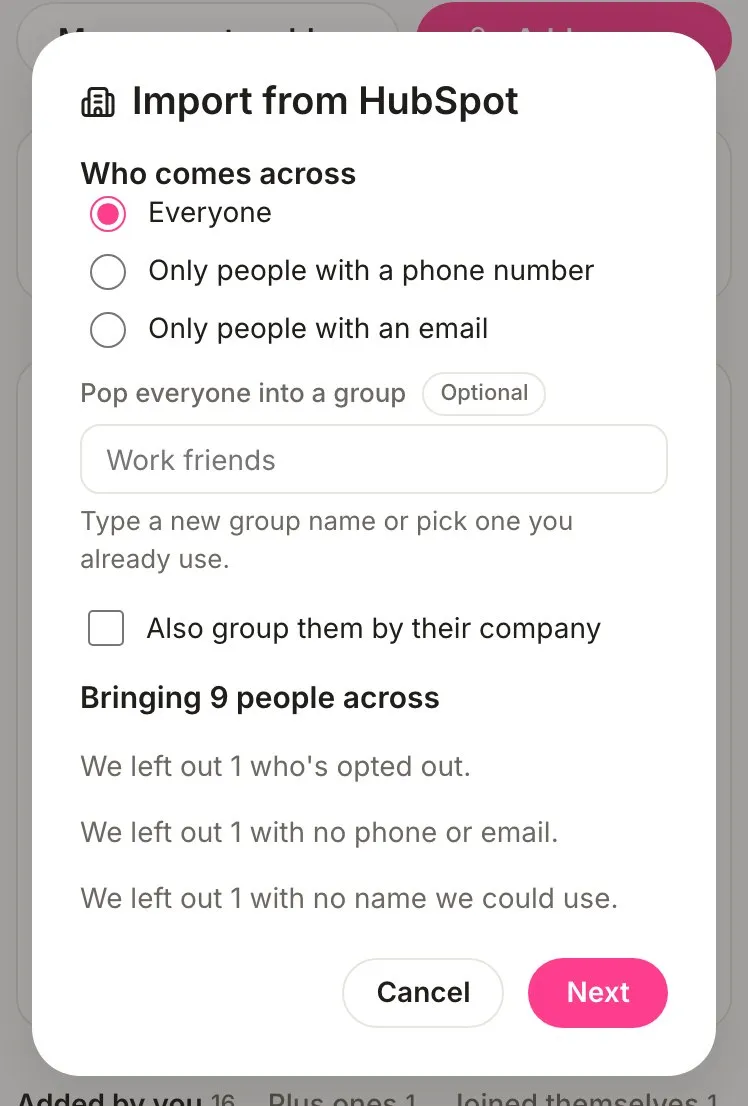
Choose Who comes across: Everyone, Only people with a phone number or Only people with an email. If you like, Pop everyone into a group, and tick Also group them by their company. Tap Next.
-
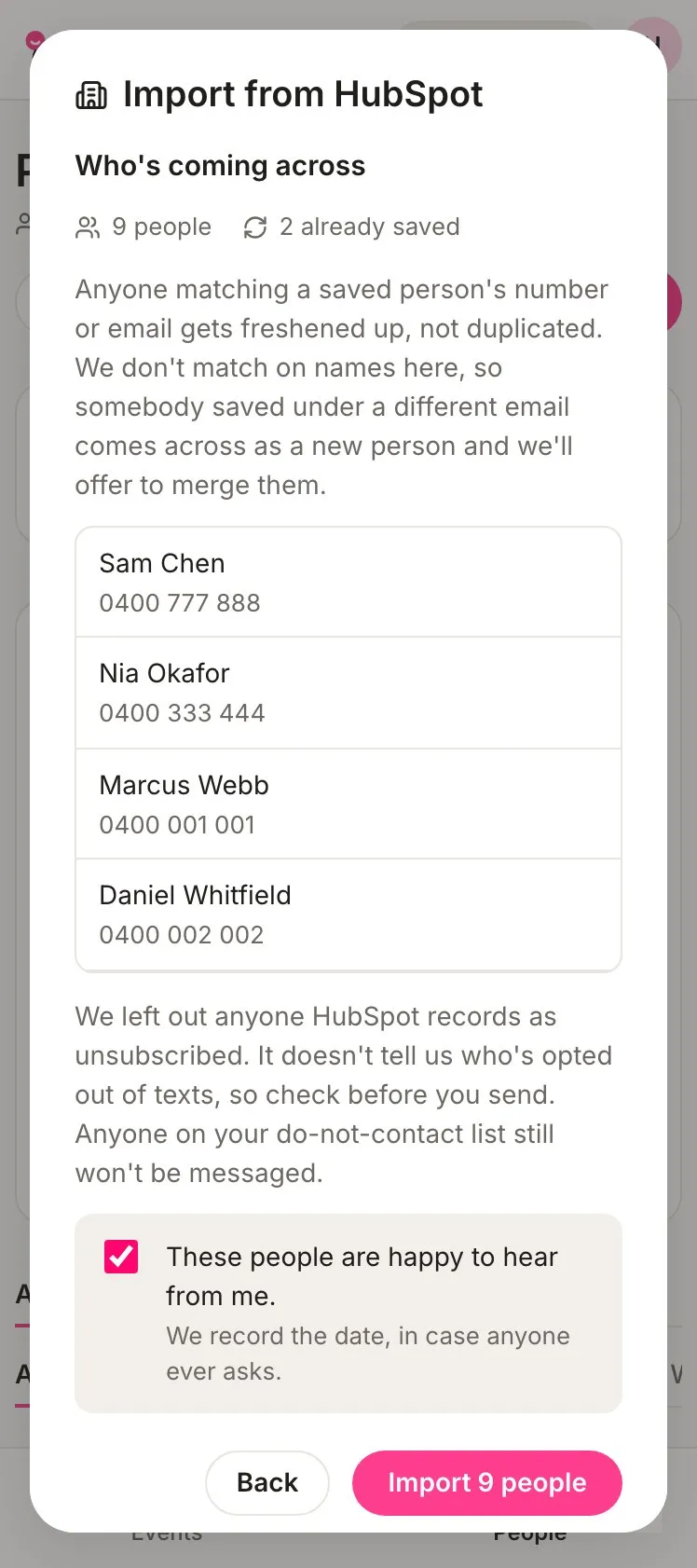
Check the list of who’s coming across. Tick These people are happy to hear from me., then tap the import button, such as Import 9 people.
They’re in People straight away, ready to add to any event. See your People list.
Good to know
- Nothing syncs by itself. Someone you add to HubSpot tomorrow only comes across when you import again.
- Anyone HubSpot has marked as unsubscribed is left out, and so is anyone with no phone or email. HubSpot doesn’t tell us who has opted out of texts, so check before you send.
- Anyone on your do-not-contact list still won’t be messaged, whatever HubSpot says.
- Someone whose number or email is already in People gets their blanks filled in rather than being added twice. We don’t match on names here, so a colleague saved under a different email comes across as a new person, and HeadsUp offers to merge them.
- A big HubSpot account is read in batches of up to 2,000 people. Tap Read the next batch to carry on.
- To disconnect, tap Disconnect on the card. Everyone you already brought in stays in People. If HubSpot doesn’t hear from us, the card says so, and you can remove HeadsUp in your HubSpot account settings too.
- If your Business plan ends, importing pauses straight away. Everyone you brought in stays, and you can still disconnect.
- HubSpot is the one CRM you can connect for now.
Didn't answer it?
Tell us what you were trying to do and we'll write back, or give our guide to your AI assistant and ask it.