How to make a group of people
File people into groups like Family or Work friends, then invite a whole group to an event in a couple of taps.
Groups keep your People list tidy and make inviting quick. Put your family in Family and your team in Work friends, and next time you host, you can add the whole group to an event at once. A person can be in as many groups as you like.
-
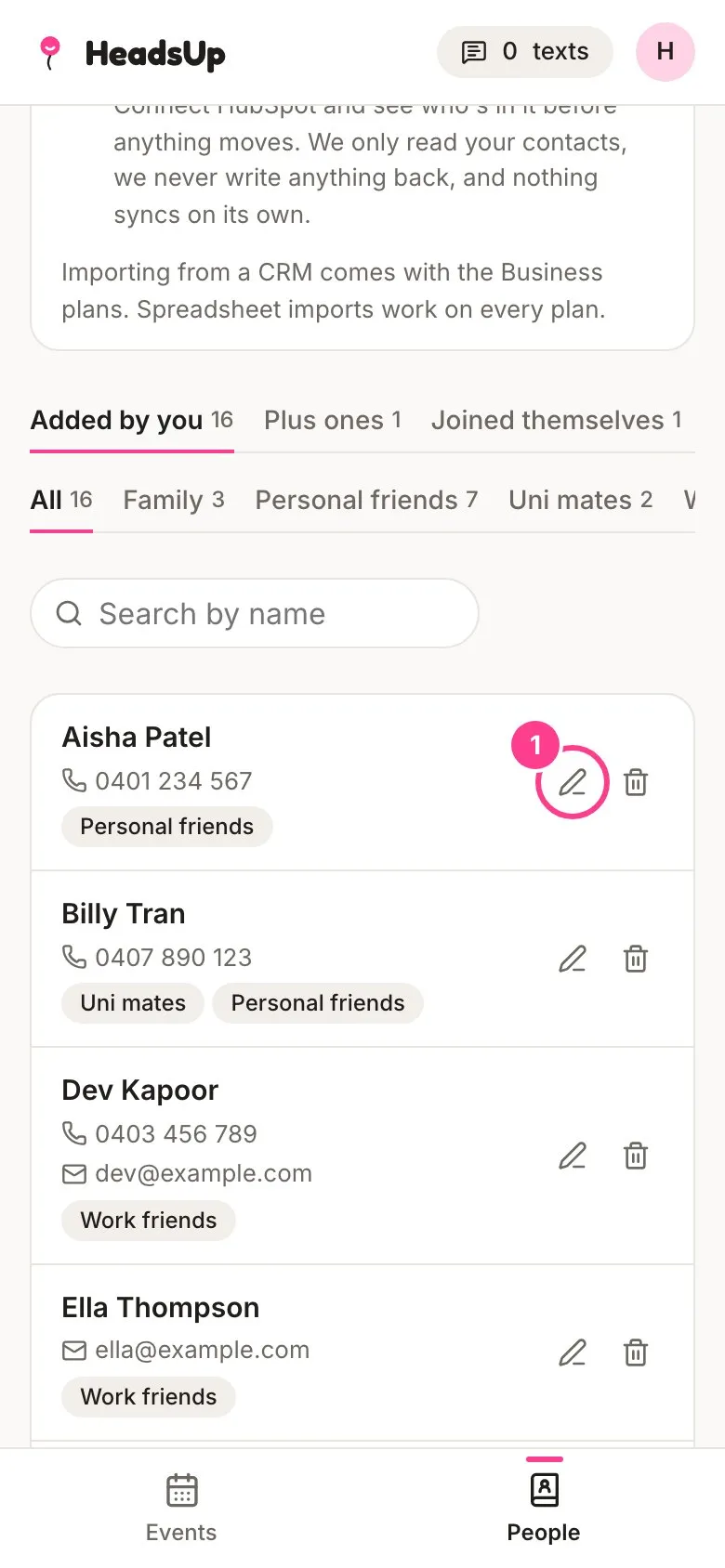
Tap People, find the person, and tap the pencil beside them.
-
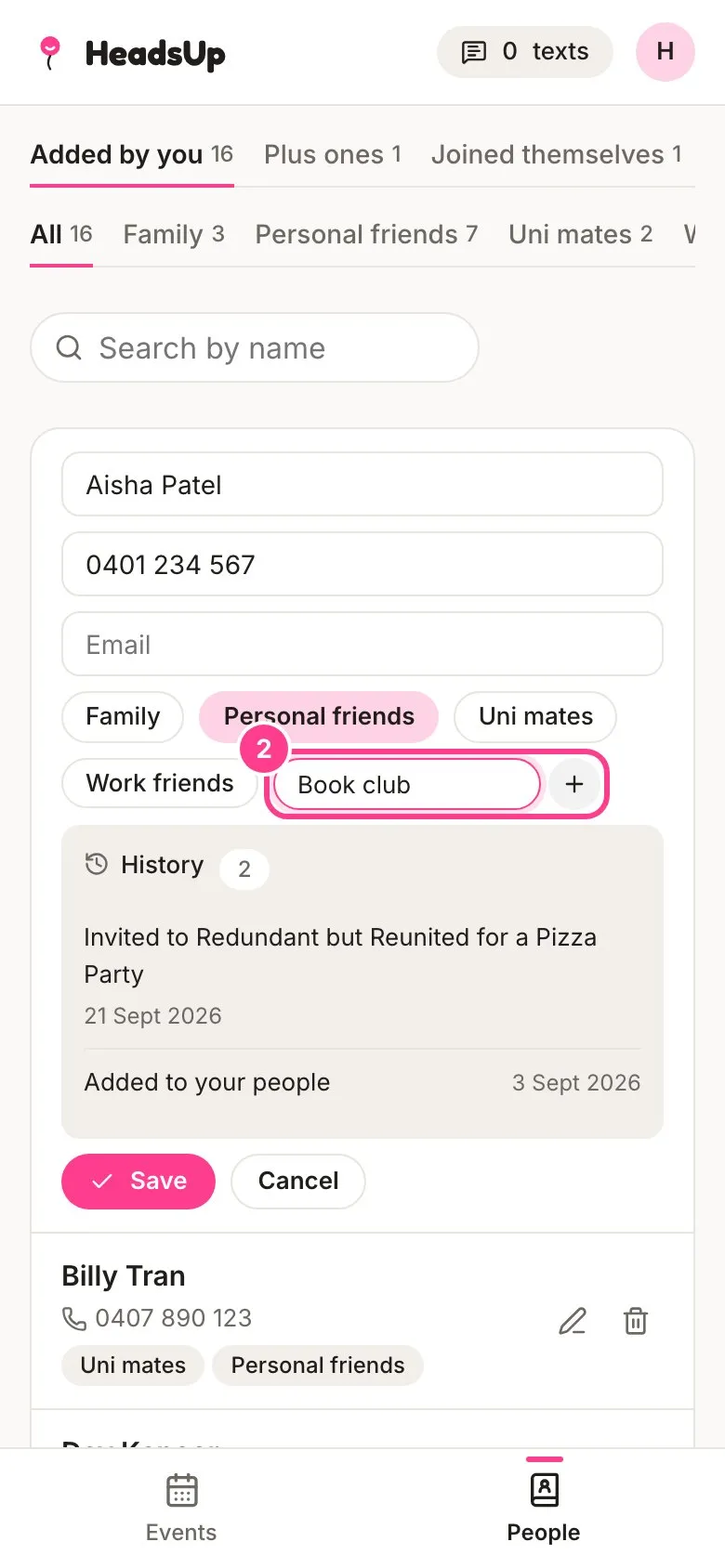
Tap a group to put them in it. To start a new group, type its name in New group and tap the plus.
-
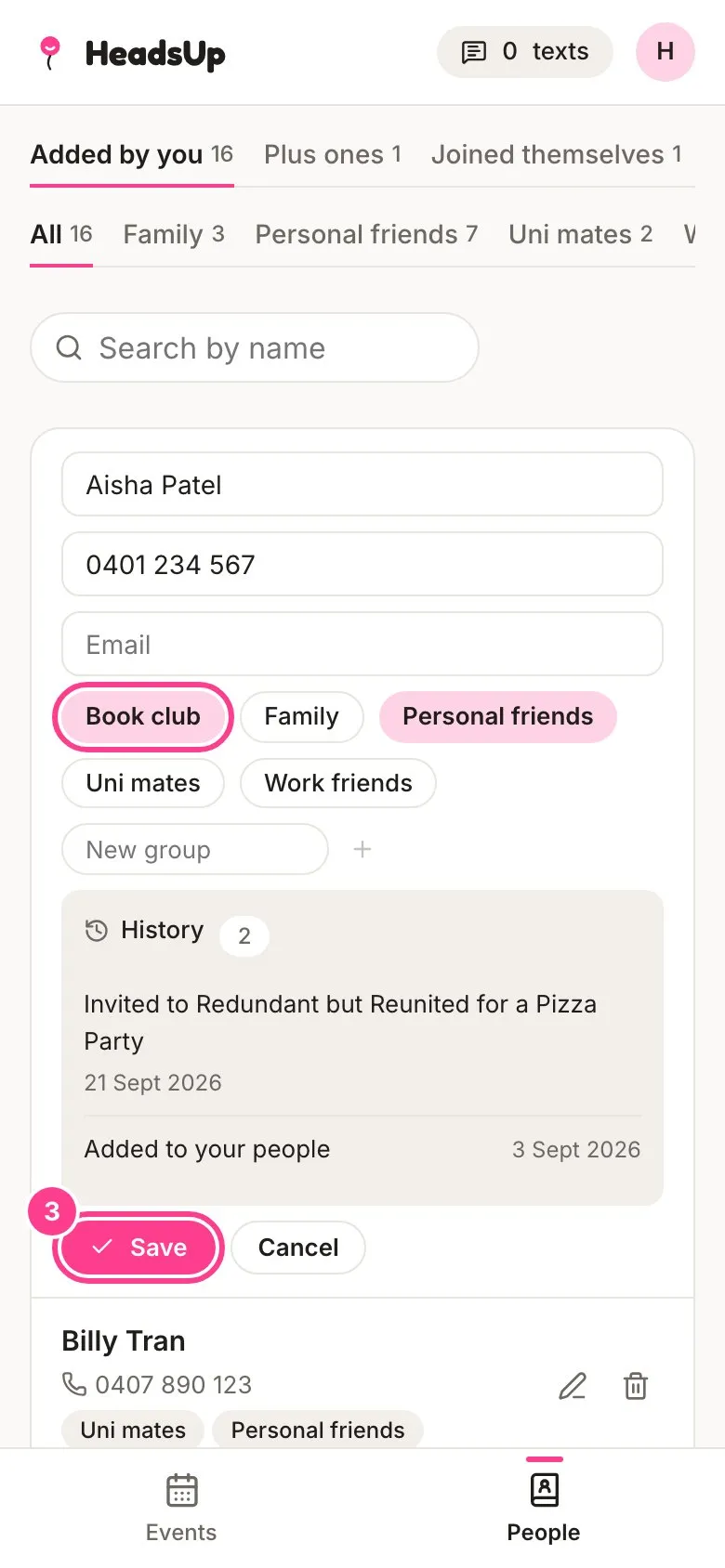
Tap Save.
-
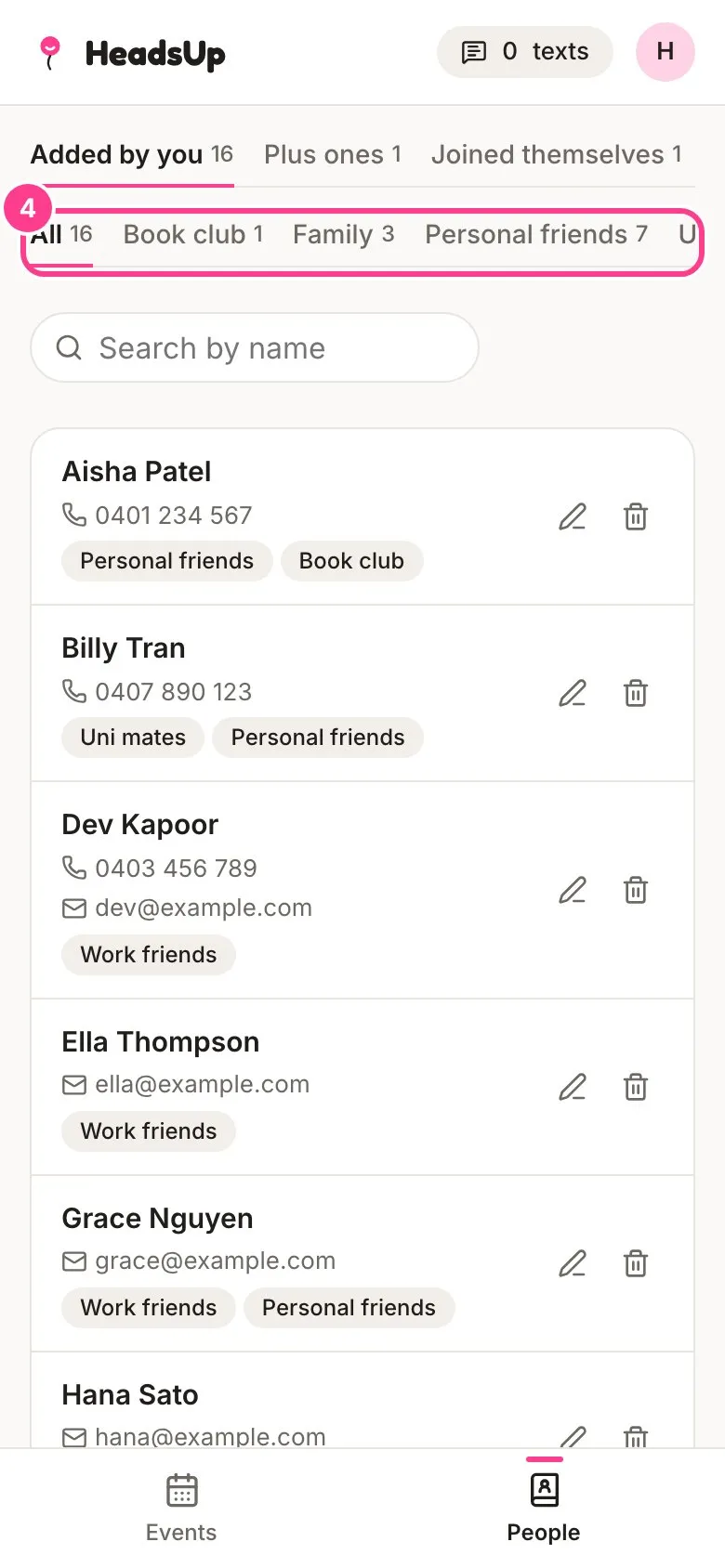
Your groups show as tabs across the top of your People list, each with how many people are in it. Tap one to see just those people.
Invite a whole group
-
Open your event’s Guests screen, tap More, then Add from my people. Tap a group to show just the people in it.
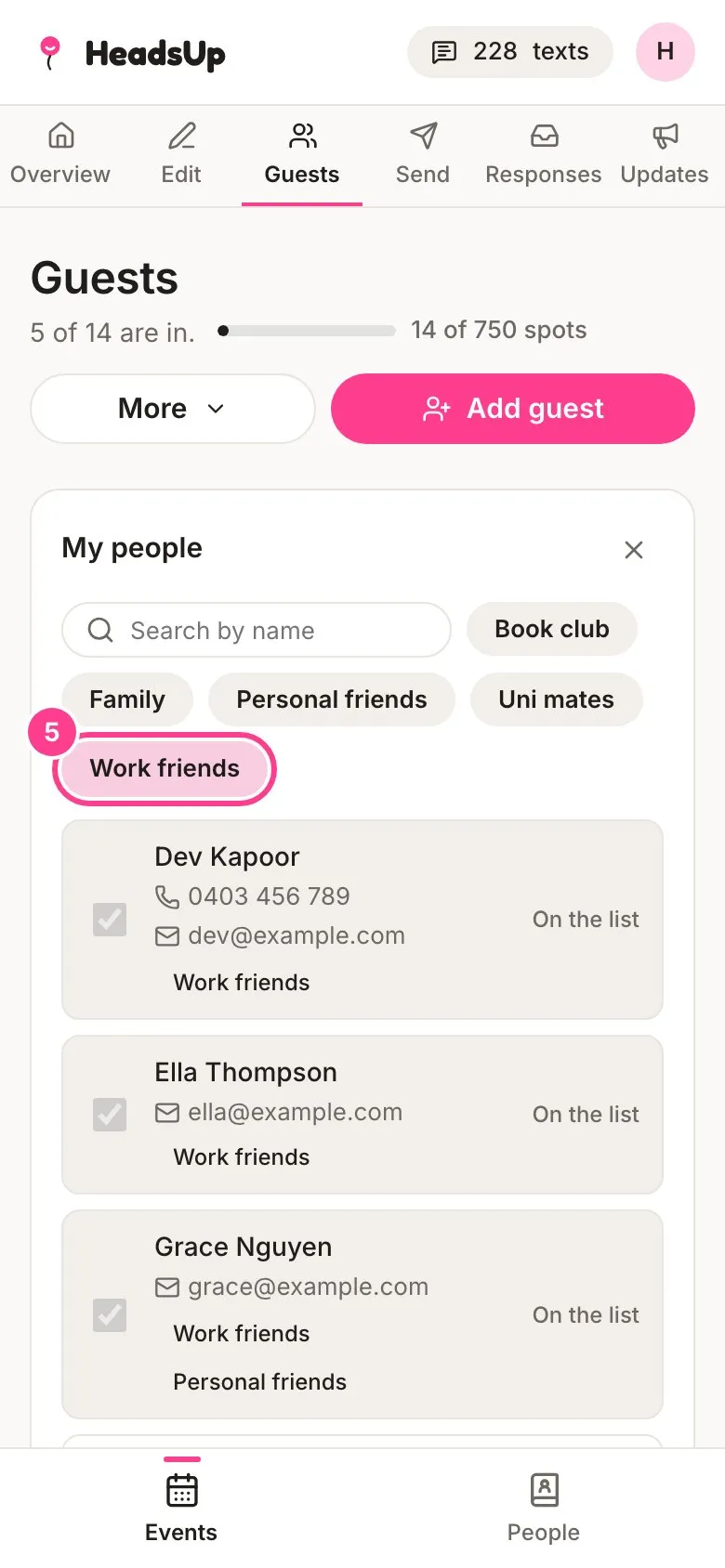
-
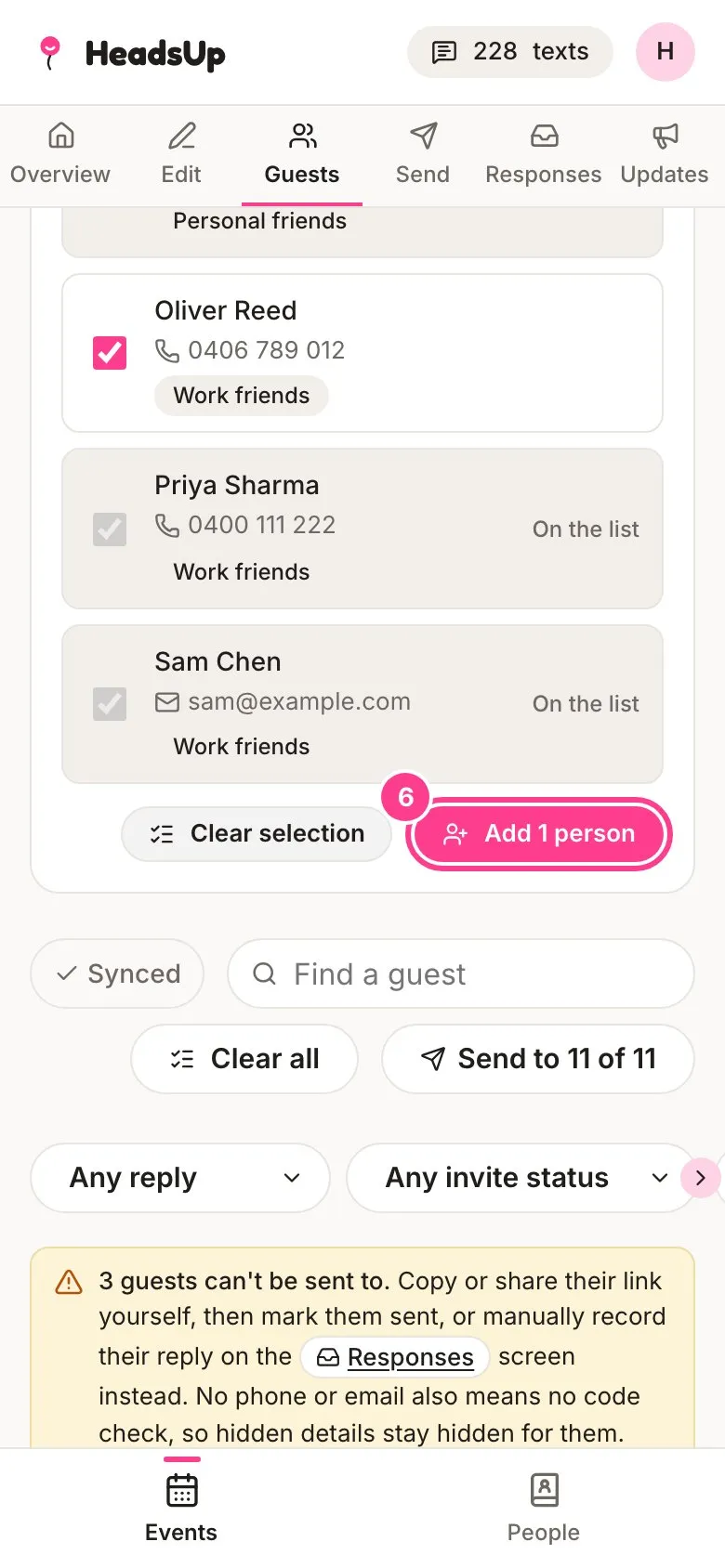
Tap Select all shown, then the add button, such as Add 1 person. Anyone already on the guest list is marked On the list and isn’t added twice.
Good to know
- You can pick groups as you add people too: in Add person, when you paste a list with Add many at once, when you import a spreadsheet, and when you import from a CRM.
- Typing a group name that already exists picks that group rather than making a second one, whatever the capitals.
- A group disappears on its own once nobody is in it.
- On an event’s Guests screen, the Any group filter shows only the guests from one of your groups.
- Groups are just for you. Guests never see which groups they’re in.
Didn't answer it?
Tell us what you were trying to do and we'll write back, or give our guide to your AI assistant and ask it.