How to add guests to your event
Add guests one at a time with a name and a mobile or email, or with just a name if you'll pass their link on yourself.
Every guest on your list gets their own personal link, so you can see who’s opened the invite and who’s replied. Adding someone takes a name and, if you have it, a way to reach them.
-
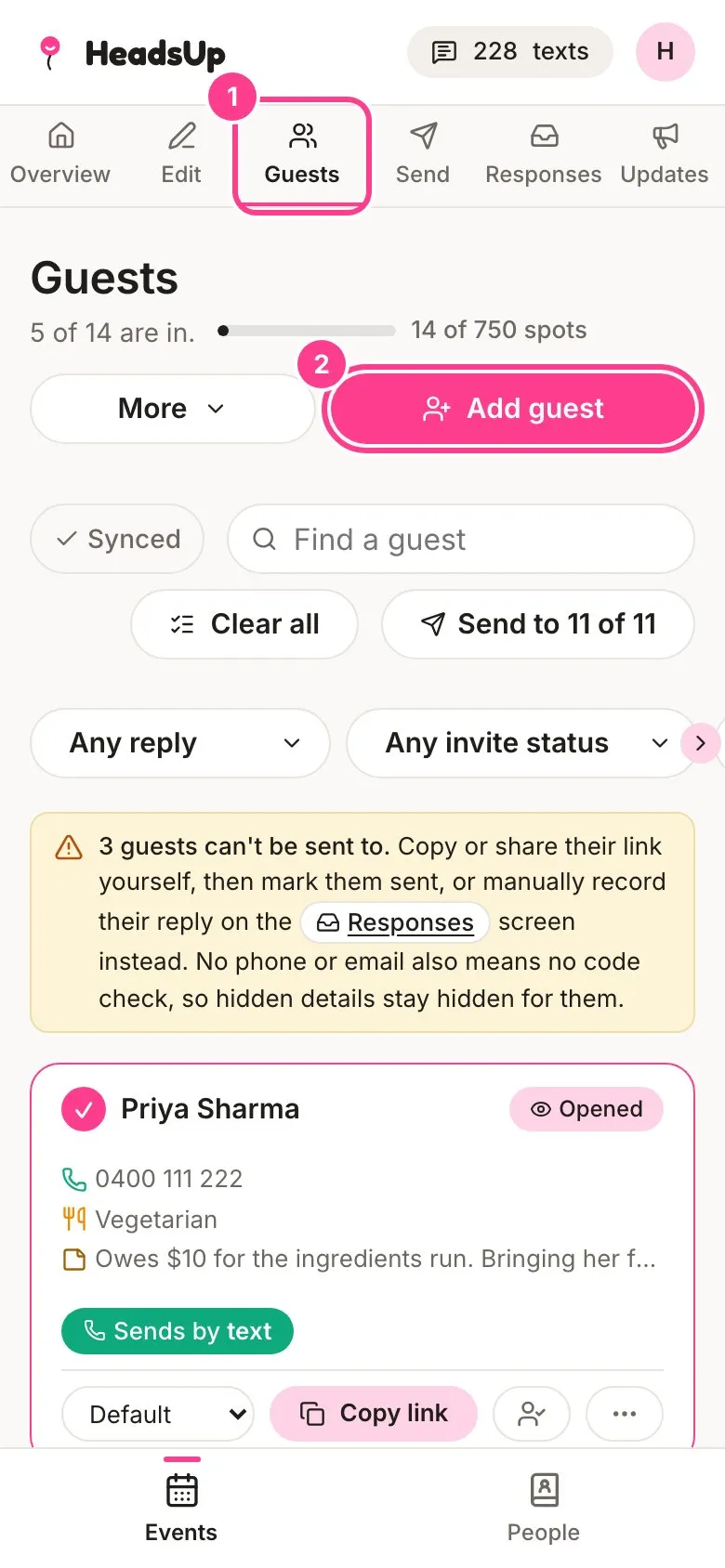
Open your event and tap the Guests tab.
-
Tap Add guest.
-
Type their Name, then their Phone, their Email, or both. You can pop them into Groups too, which saves them to your People list for next time.
-
Tap Add guest.
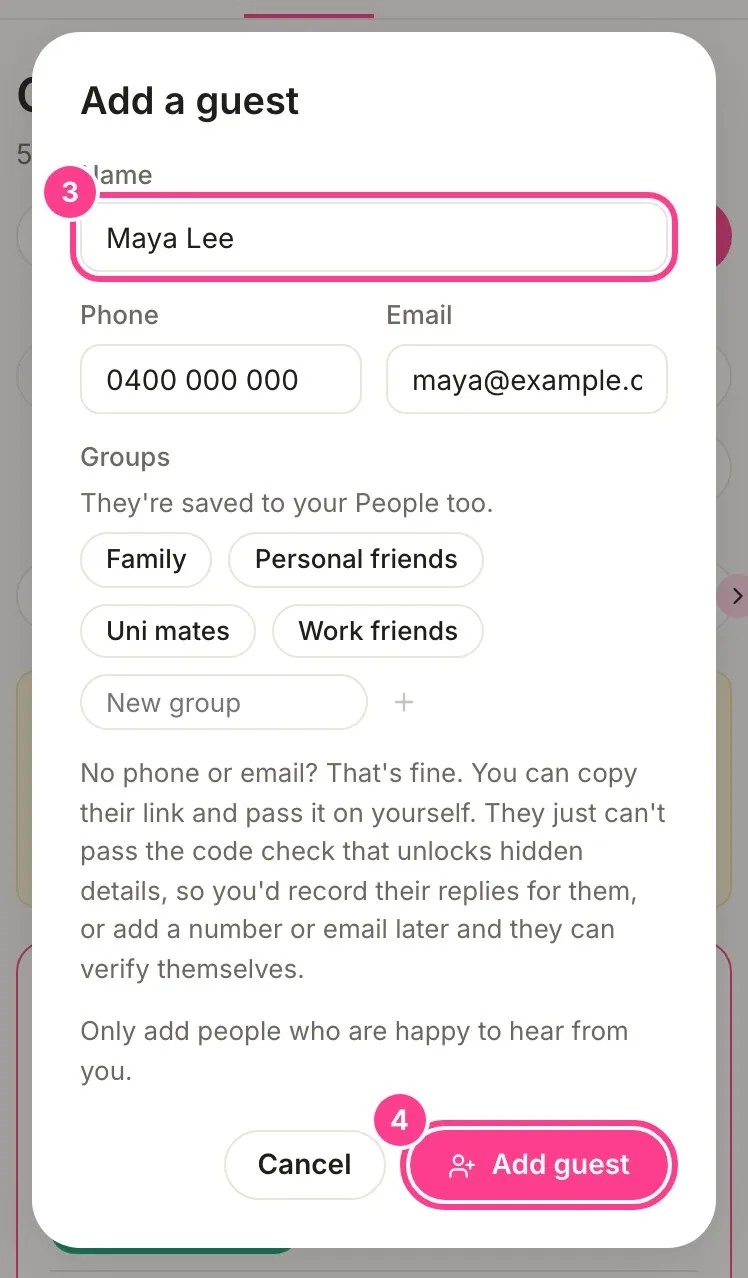
They land on your list straight away, marked Not sent until you send their invite.
Good to know
- A phone number needs to be an Australian mobile for now. If it isn’t, leave it blank and add an email, or copy their link and send it yourself.
- No phone or email is fine. You can copy their link and pass it on however you like. They just can’t get a code to unlock hidden details, so you’d record their reply for them, or add a number or email later.
- If someone already on the list has the same number, you’ll see a heads-up. You can still add them, handy for a couple sharing a phone, but each guest gets their own text on every send.
- Only add people who are happy to hear from you.
- Each plan has a guest limit per event: 150 on Free, 300 on Plus, 750 on Pro, and up to 10,000 on the business plans. The count at the top of Guests shows how many spots you’ve used.
- Guests never need an account. They just tap their link.
- Got a lot of people? See how to import a guest list.
Didn't answer it?
Tell us what you were trying to do and we'll write back, or give our guide to your AI assistant and ask it.