How to send invites by text
Text each guest their personal invite link from the Send tab. Pick who gets it, write a short message and tap send.
Texts are the quickest way to get a yes. Each guest gets a text from HeadsUp with your message and their own personal link, so you can see who’s opened it and who’s replied.
-
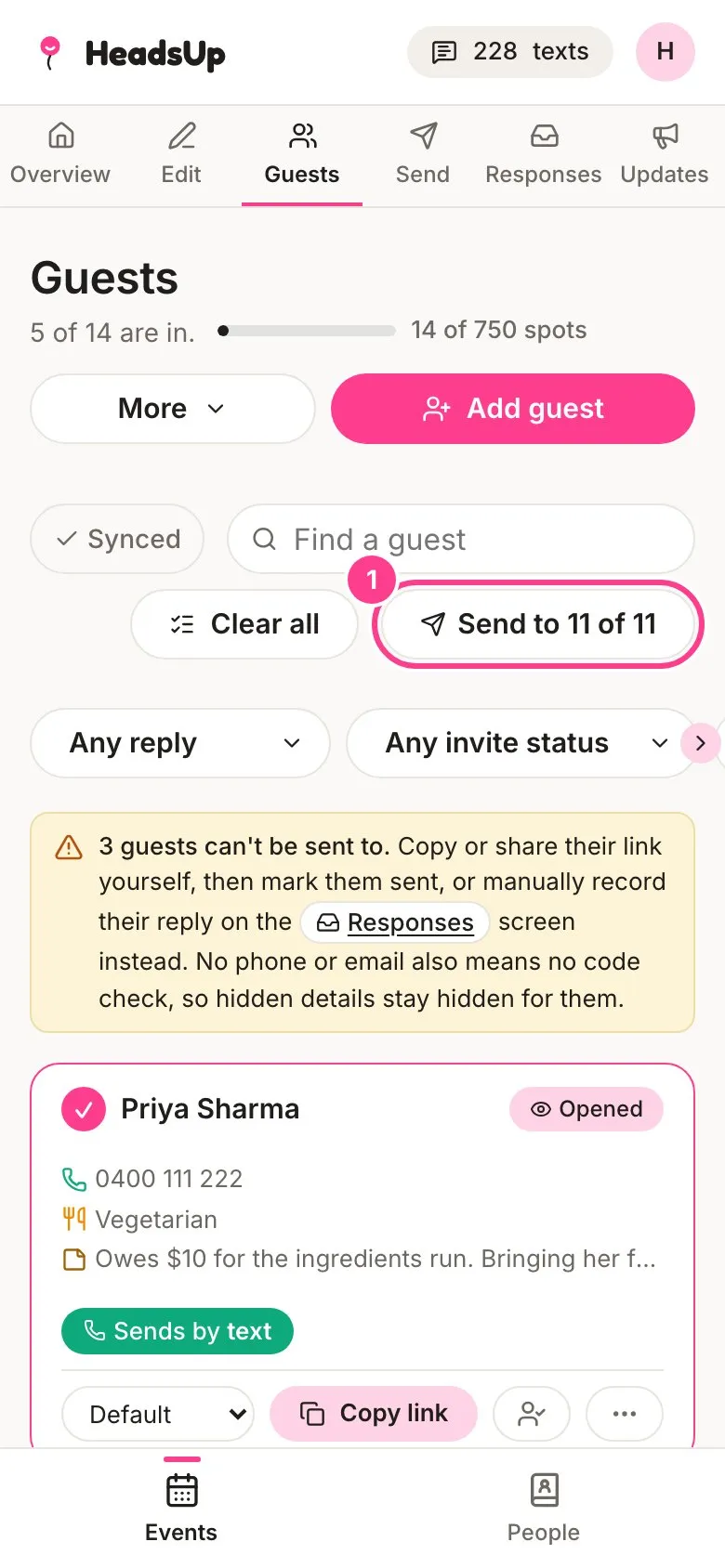
Choose who gets it. On the Guests tab, everyone you can reach is ticked. Tap a guest’s card to leave them out of this send, or tap it again to put them back. The Send to pill at the top shows how many are in. Tap it to go to the Send tab.
-
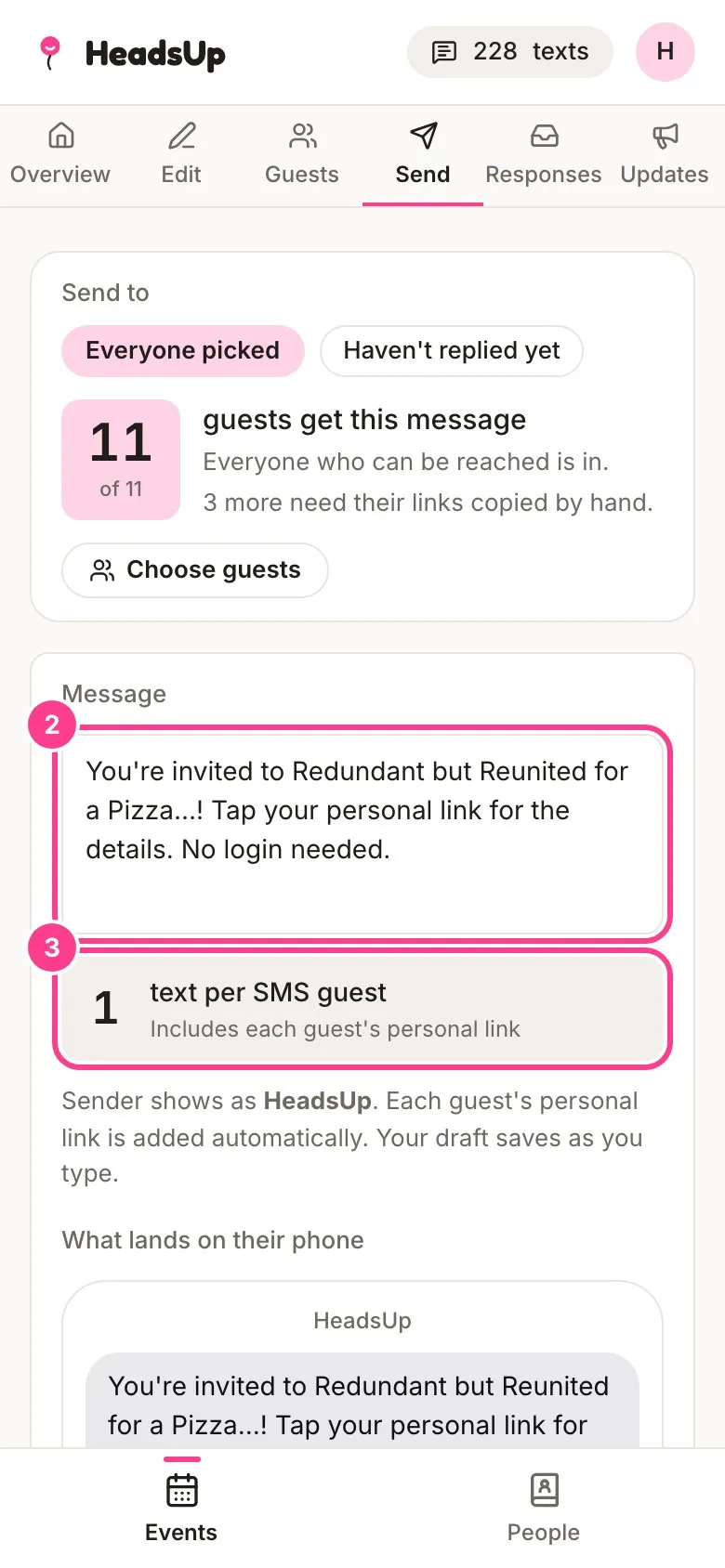
Write your message. A starting message is filled in for you. Change it however you like. Each guest’s link is added on the end automatically, and What lands on their phone shows a preview.
-
Check the count. The box under the message shows how many texts it takes per guest. Keep it short and it’s one.
-
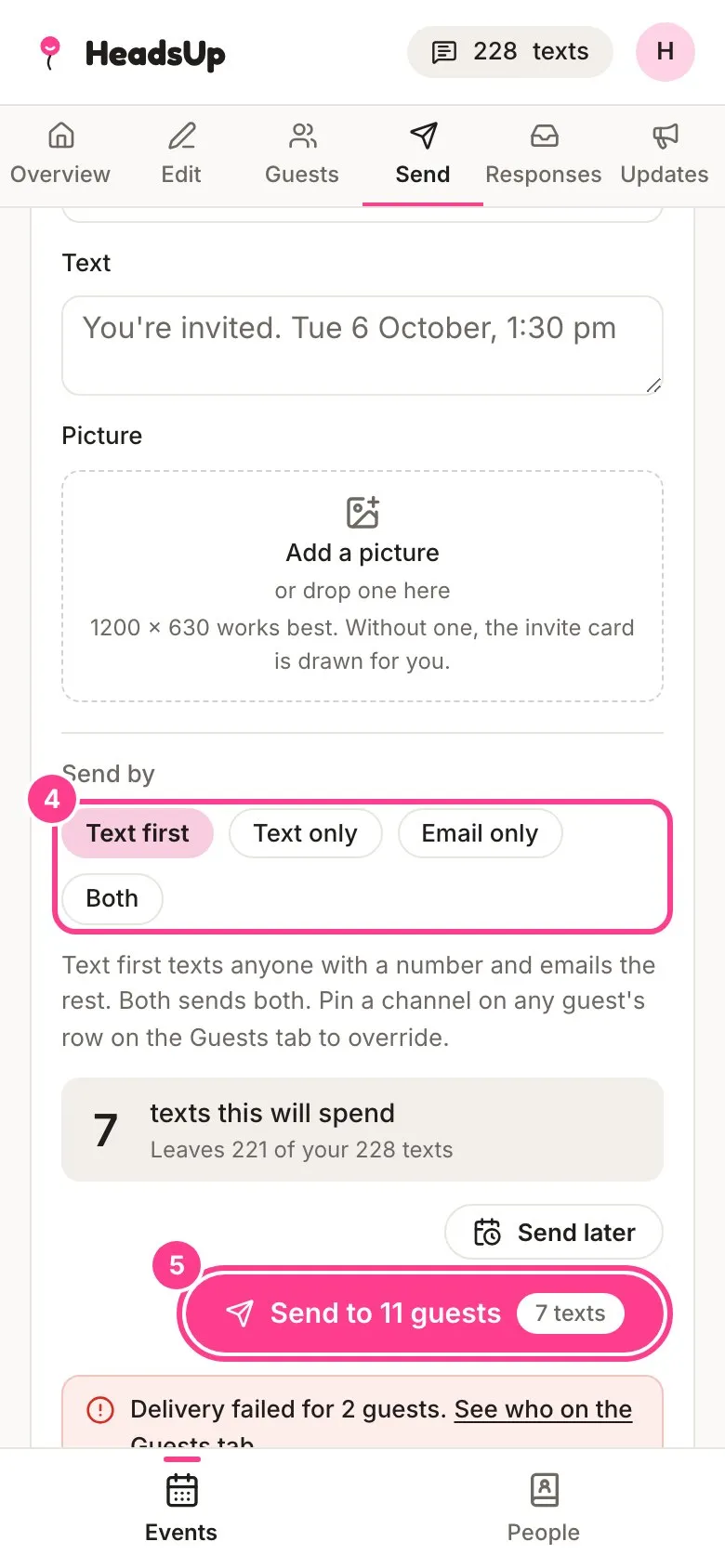
Pick how it goes. Under Send by, Text first texts anyone with a number and emails the rest. Text only just texts. Both sends a text and an email.
-
Send it. The button shows how many guests and how many texts it’ll use, for example Send to 11 guests. Tap it.
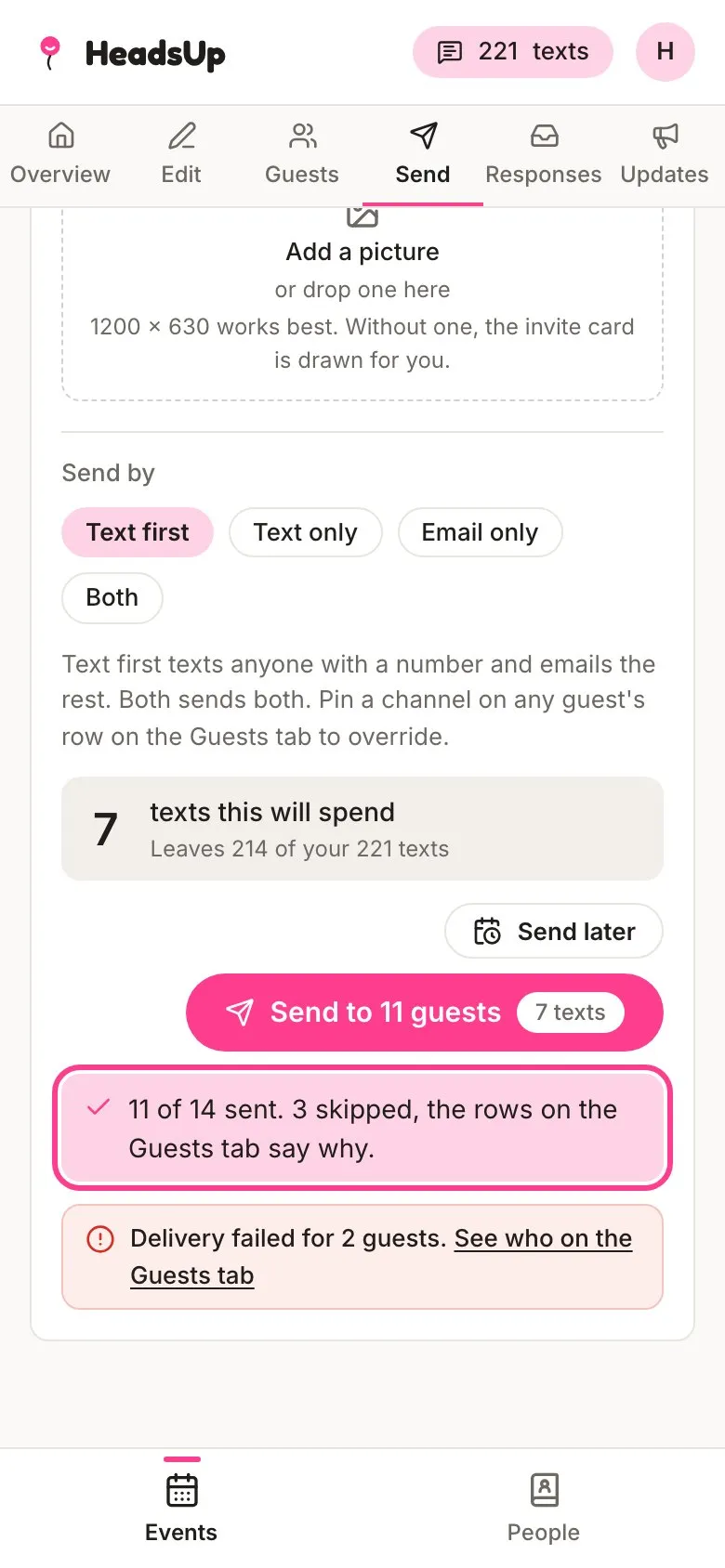
When it’s done, you’ll see how many went out, and any guests who were skipped. Their cards on the Guests tab say why.
Good to know
- Texts come from your texts balance, shown at the top of the screen. Paid plans include texts every 30 days, and anyone can buy a text pack. If a send needs more texts than you have, nothing goes out and you’ll see how many you’re short.
- HeadsUp can text Australian mobiles for now. Guests with another number can get an email, or you can copy their link.
- The text shows HeadsUp as the sender, or your own sender name if you’ve had one set up on a business plan. Either way guests can’t reply to it. They reply on their invite, and they can stop texts from there too.
- Want one guest to always get an email instead? Change Default on their card to Email. Each card also shows how it’ll send, for example Sends by text.
- Once you tap send, it keeps going even if you close the app.
- Guests you’ve already sent to can be sent to again. Choose who carefully, because every text counts. To nudge only the people who haven’t answered, see how to send a reminder.
Didn't answer it?
Tell us what you were trying to do and we'll write back, or give our guide to your AI assistant and ask it.