How to send invites by email
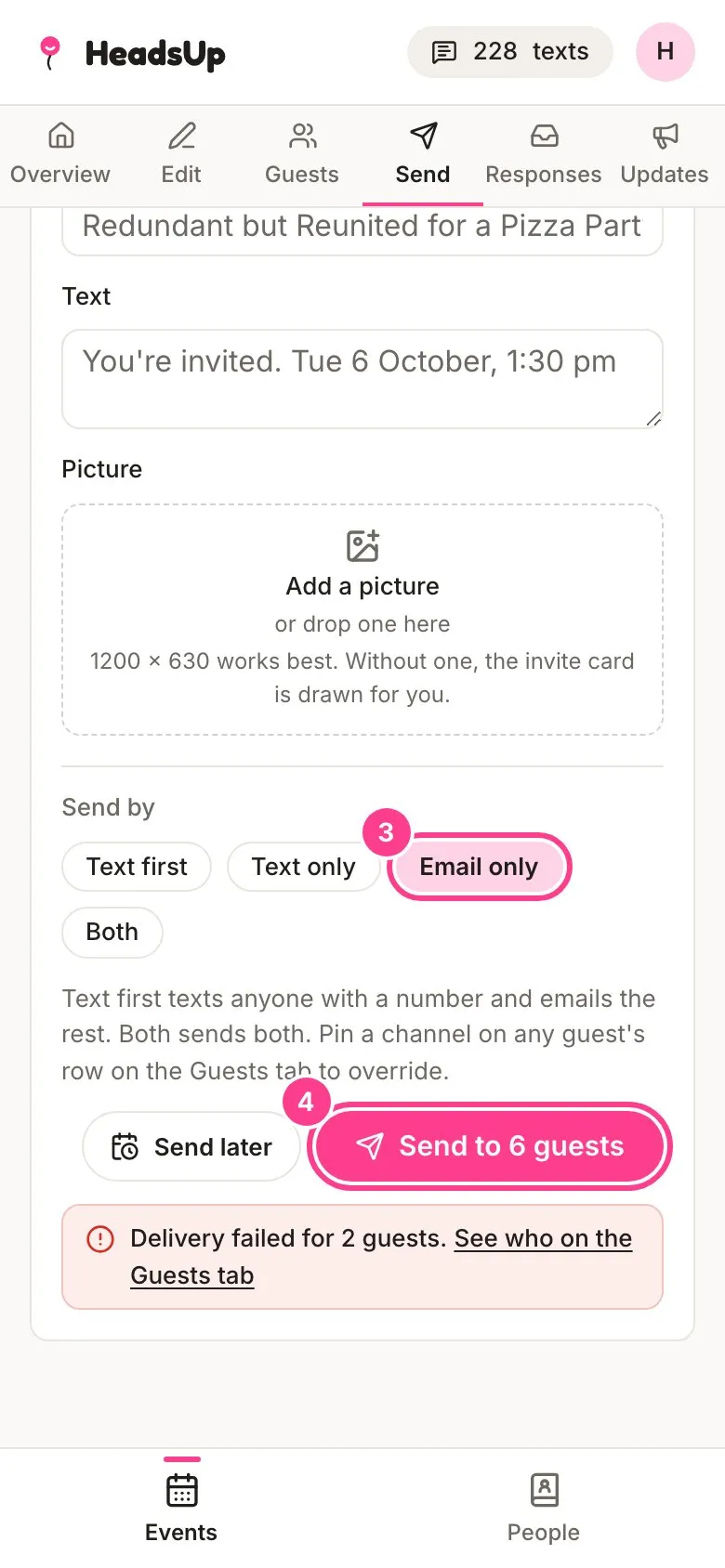
Email every guest their personal invite link for free, on every plan. Pick Email only on the Send tab and tap send.
Email invites are free on every plan, Free included. Each guest gets an email with your message and a big Open your invite button that takes them to their own personal link.
-
On the Guests tab, check who’s ticked for the send. Tap a card to leave someone out.
-
Open the Send tab and write your message. Blank lines split it into paragraphs in the email.
-
Under Send by, tap Email only.
-
Tap the send button, for example Send to 6 guests.
The email’s subject is “You’re invited:” followed by your event’s name.
Mixing email and text
You don’t have to pick one. Text first texts anyone with a mobile and emails everyone else, and Both sends both. On any guest’s card on the Guests tab, you can change Default to Email so that person always gets an email.
Good to know
- Email never uses your texts.
- Guests with no email are skipped when you pick Email only. Their cards say why, and you can copy their link instead.
- Every invite email has a line at the bottom to stop emails about this event. If a guest uses it, their card says Opted out of emails and later sends skip them.
- If an email bounces, the guest’s card says Email bounced. Fix the address and you can send again. See how to check delivery.
- If your paid plan has ended, there’s a limit on how many guests one email send can reach. The Send tab tells you the number, and texts still send at any size.
Didn't answer it?
Tell us what you were trying to do and we'll write back, or give our guide to your AI assistant and ask it.