How to set your invite's link preview
Choose the picture, title and text that show when your invite link is shared in a chat app.
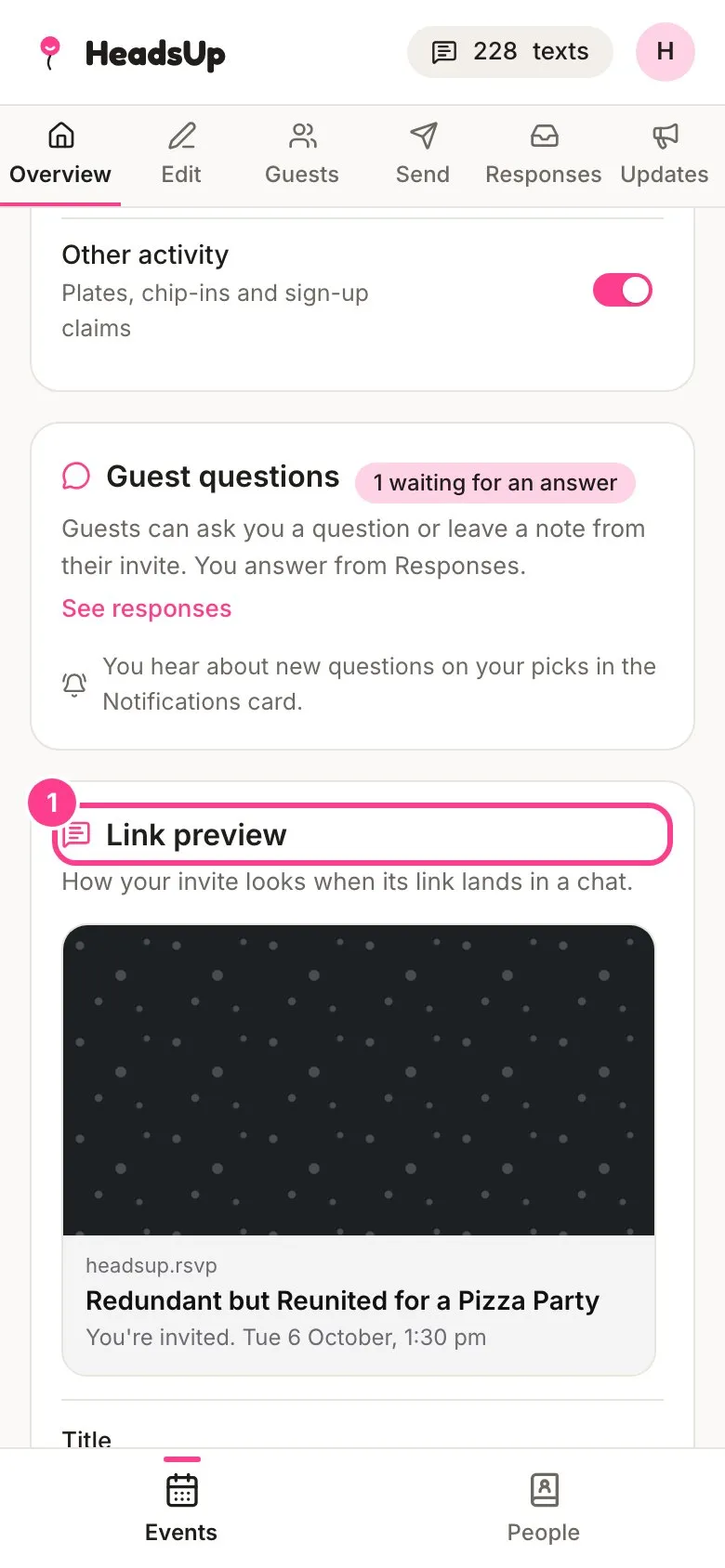
When your invite link lands in a chat like Messages or WhatsApp, it shows as a little card with a picture, a title and a line of text. On a paid plan, that card uses your cover, and you can change all three.
-
Open your event’s Overview and scroll down to the Link preview card. The mock-up shows how your link looks in a chat right now.
-
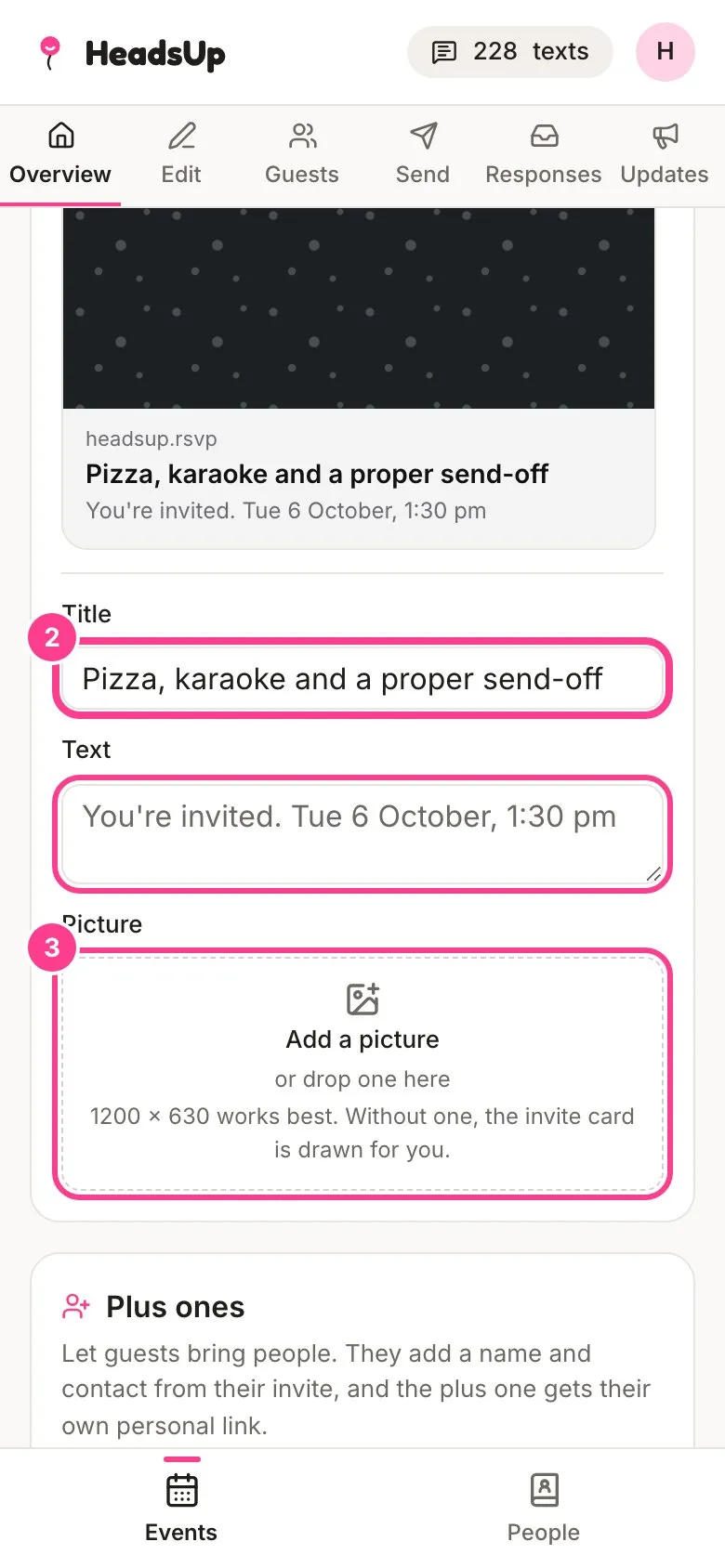
Type a Title and Text of your own. The mock-up changes as you type, and each one saves when you tap out of the box. Leave either empty to use the event name and the date.
-
Under Picture, tap Add a picture to use your own image instead of your cover.
Good to know
- On the Free plan, your link shows the HeadsUp card with your event’s name and date. Plus, Pro and the business plans draw your cover instead and let you change the picture, title and text.
- A picture 1200 by 630 pixels works best. Without one, the card is drawn from your cover.
- The title can be up to 90 characters and the text up to 200.
- The same fields are on the Send tab, next to the phone preview.
- If your plan ends, the preview you saved keeps showing. Changing it again needs an active plan.
Didn't answer it?
Tell us what you were trying to do and we'll write back, or give our guide to your AI assistant and ask it.