How to collect money with a chip-in
Ask guests to chip in for pizzas or a gift, keep your PayID private, and see who has paid.
The Chip-in block asks guests to put in for something, like the food or a group gift. Your payment details stay hidden until a guest confirms a 6-digit code, and guests tap a button once they’ve paid so you can keep track.
HeadsUp doesn’t take or hold any money. Guests pay you directly, the way you ask them to, such as by PayID or bank transfer.
-
In the editor, tap a + where you want it and pick Chip-in, then tap the pencil on the new block to open it. See how to add and move blocks if you’re new to blocks.
-
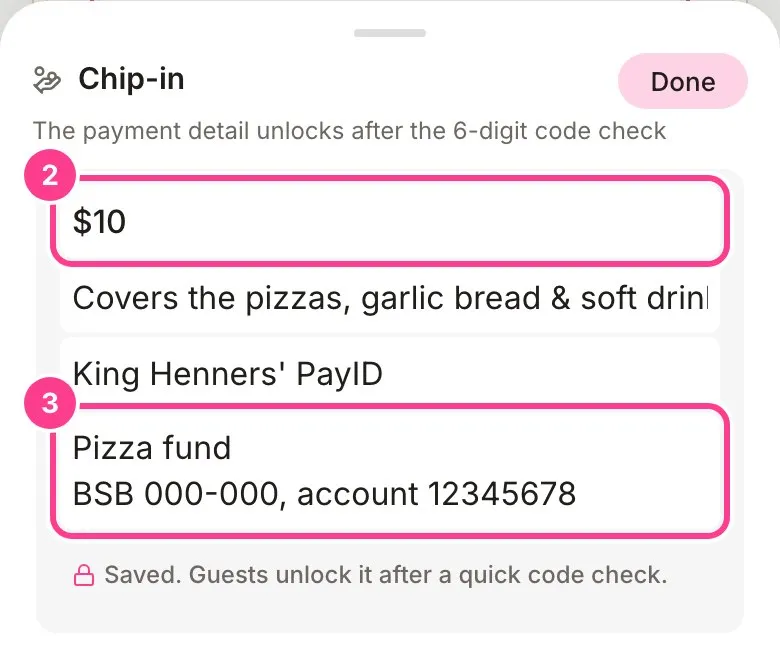
Type how much, like “$10”, and what it covers, like “pizzas and drinks”.
-
Add a label guests see, like “PayID”, and then your actual payment details underneath. Those stay private until a guest verifies. They save on their own. Tap Done.
-
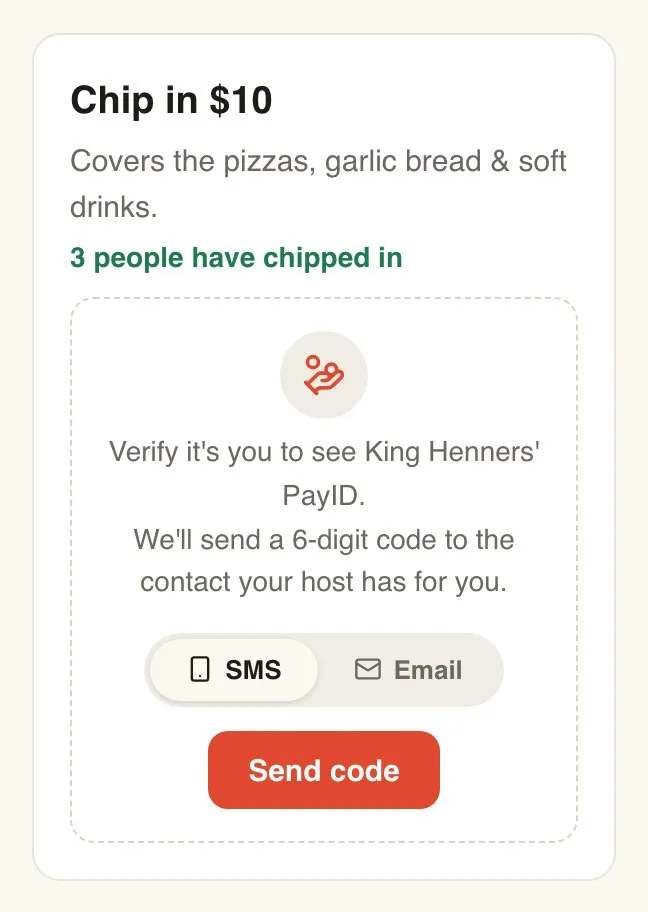
Guests see the amount, what it’s for and how many people have chipped in. After they verify, your details appear with an I’ve chipped in button to tap once they’ve paid.
Good to know
- Guests see how many people have chipped in, never who. You see the names on the event’s Responses screen, under Activity, in the Chip-in card.
- A guest who tapped by mistake can tap Take it back.
- The I’ve chipped in tap is the guest’s word, not a payment record. Check your bank for the money itself.
- The code goes to the mobile or email you have for each guest. How the code check works.
- A chip-in can go in an update too. See how to ask guests in an update.
Didn't answer it?
Tell us what you were trying to do and we'll write back, or give our guide to your AI assistant and ask it.