How to edit your invite
Your invite is its own editor. Tap any text to type over it, style it with the formatting bar, and your changes save as you go.
In HeadsUp there’s no separate form to fill in. The invite you see on the Edit tab is the page your guests get, and you change it by tapping on it. Headings, text and everything else sit right where guests will see them.
-
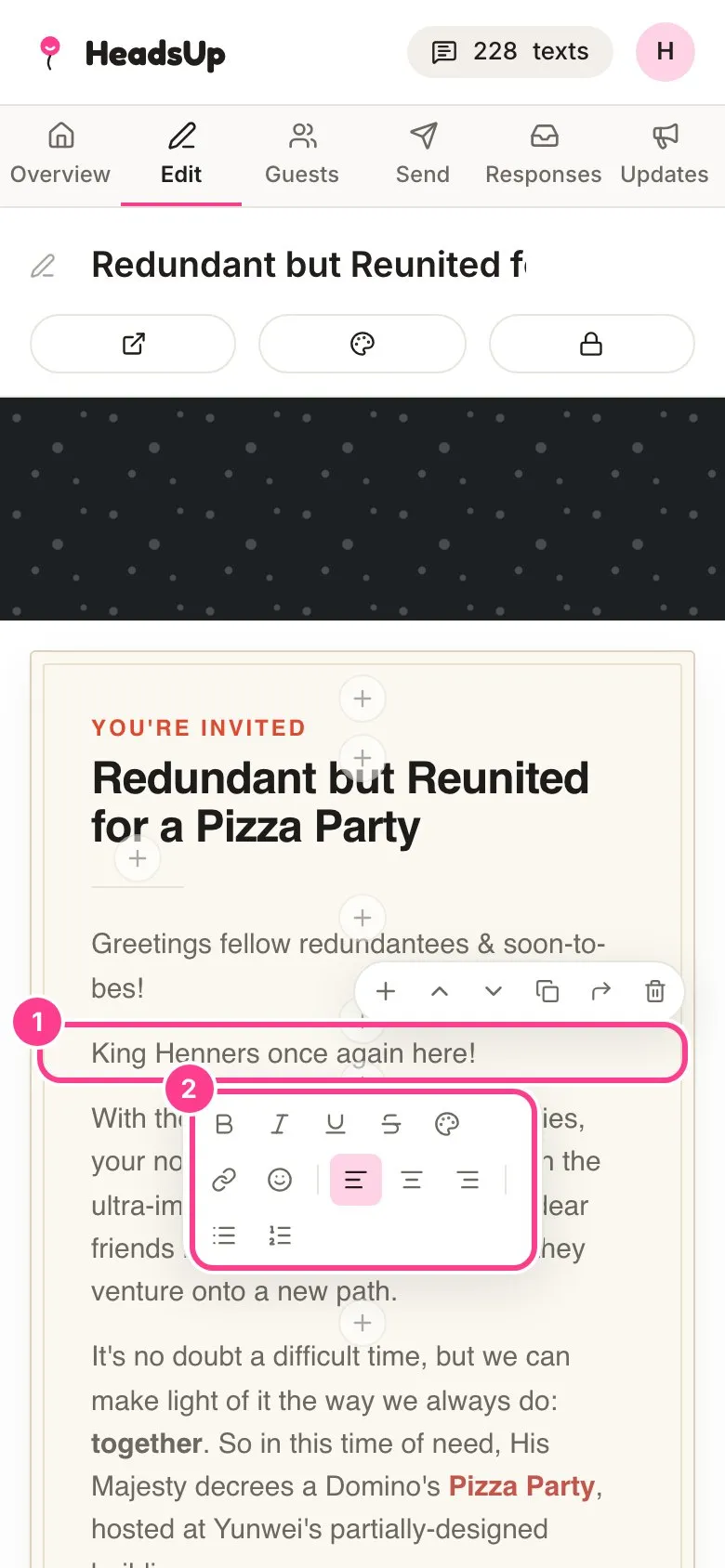
Open your event and tap Edit. Tap any heading or paragraph to put your cursor in it, then type. A pink outline shows which block you’re in, and the formatting bar pops up just under it.
-
Select some words and use the formatting bar to make them Bold, Italic, Underline or Strikethrough, give them a text colour or a highlight, turn them into a Link, or add an emoji. The alignment buttons set the whole block left, centre or right, and there are bulleted and numbered lists too.
-
There’s no save button. A moment after you stop typing, Saved shows next to the event name at the top.
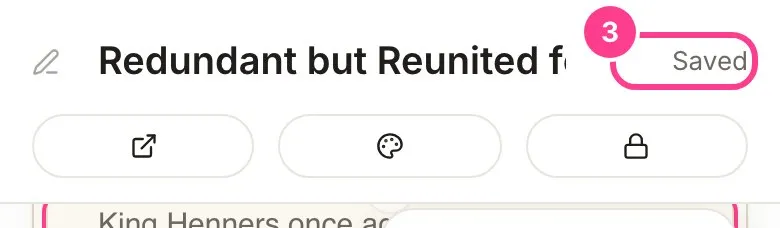
To change the event’s name, tap the title at the top of the editor and type.
Good to know
- Colours on text are picked from a small palette that suits every theme. Leave a word on the automatic colour and it follows your theme’s ink, so it stays readable if you change themes later.
- Some blocks, like a location or a poll, open a panel from the bottom of the screen when you tap them. Make your changes there and tap Done.
- Guests who already have your link see your changes the next time they open it. If it’s something they should hear about, post an update.
- On a phone, the app’s header slides away as you scroll down the invite to give you more room, and comes back as soon as you scroll up.
- If you edit with a co-host, a block they’re working on shows their name and you can’t change it until they’re done. See editing together with a co-host.
Didn't answer it?
Tell us what you were trying to do and we'll write back, or give our guide to your AI assistant and ask it.