How to lock a whole tab
Put an entire tab, like your venue page, behind a quick code check so only guests you invited can open it.
Sometimes a whole page is private, not just one line. A venue tab might hold the address, a map, parking notes and a photo of the front door. Locking the tab hides all of it until a guest confirms a 6-digit code, and you don’t have to hide each block one by one.
-
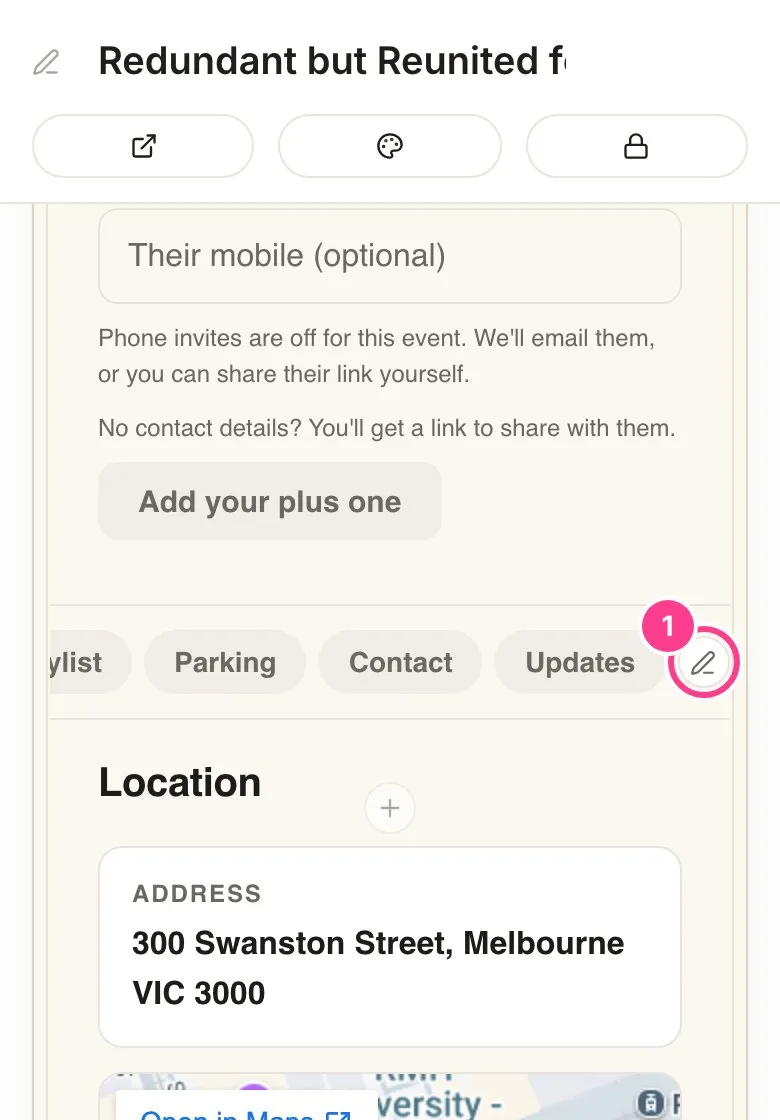
In the editor, scroll to your tabs and tap the pencil at the end of the row (Edit tabs).
-
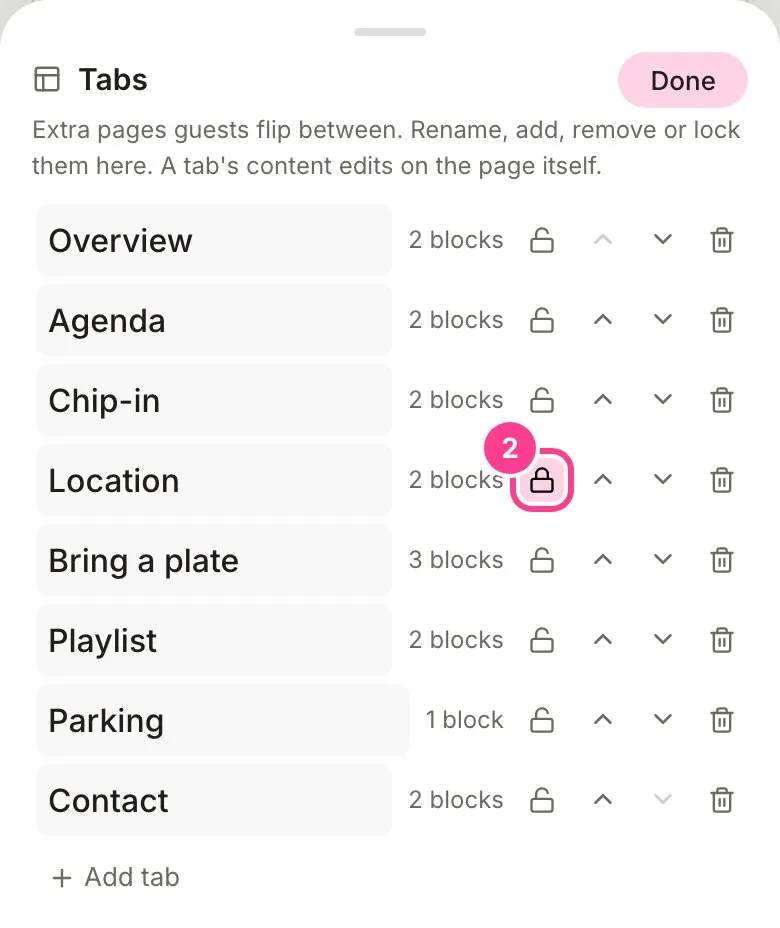
Tap the lock beside the tab you want to hide. It turns pink when the tab is locked. Tap it again to unlock. Then tap Done.
-
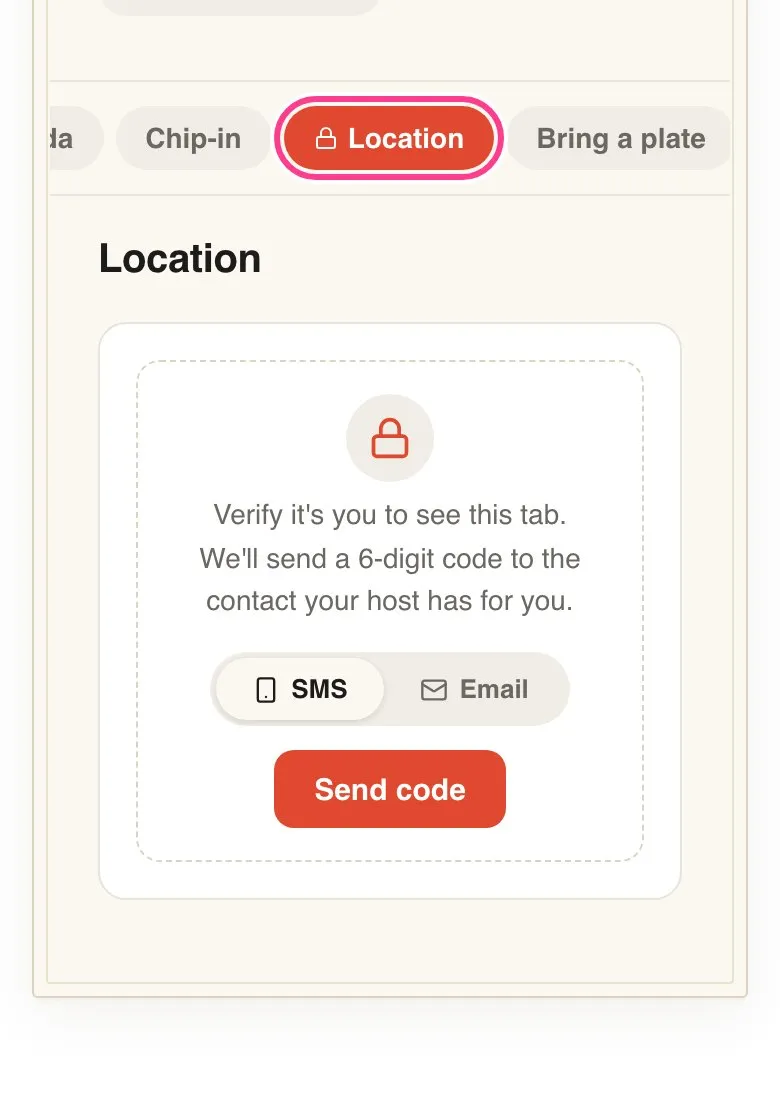
That’s it. Guests still see the tab’s name, wearing a small lock, but when they open it they get a code card instead of what’s on it. After they verify, the whole tab opens.
Good to know
- To check what a locked tab looks like before guests verify, tap the lock button (Locked view) at the top of the editor. You keep editing the tab’s blocks as normal when it’s off.
- The code goes to the mobile or email you have for each guest, and one code unlocks everything private on the invite. How the code check works.
- Anything guests add on a locked tab, like poll votes, plates or sign-up names, stays hidden with it until they verify.
- An address on a locked tab never goes into a guest’s calendar file.
- New to tabs? See how to add a tab.
Didn't answer it?
Tell us what you were trying to do and we'll write back, or give our guide to your AI assistant and ask it.