How to add a countdown
Add a live countdown to your event's start, so guests see how many days are left every time they open the invite.
The Countdown block counts down to your event, live. It works out the time from your event’s own date and start time, so there’s nothing to set except an optional line underneath.
-
In the editor, tap a + where you want it and pick Countdown, then tap the pencil on the new block to open it. See how to add and move blocks if you’re new to blocks.
-
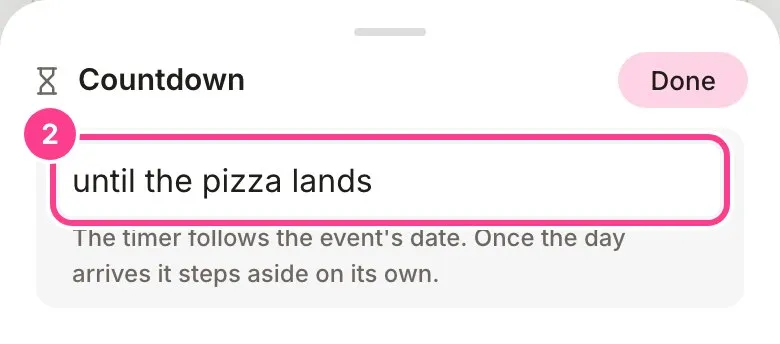
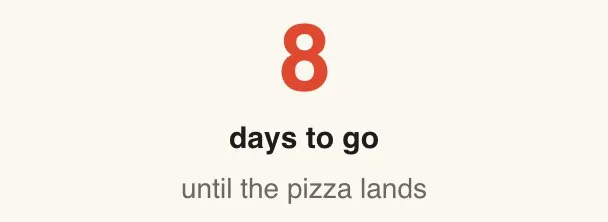
Type a line to sit under the numbers if you like, such as “until the pizza lands”. Tap Done.
Guests see how long is left, in days, then hours, then minutes as the event gets close.
Good to know
- The countdown needs your event to have a date. With no date yet, guests see nothing and the editor shows a reminder in its place. You can set the date on the RSVP card or the event’s Overview.
- Once the event starts, the countdown steps aside on its own. Guests see nothing there, and you don’t need to remove it.
- Change the event’s date or time and the countdown follows.
Didn't answer it?
Tell us what you were trying to do and we'll write back, or give our guide to your AI assistant and ask it.