How to add a location and map
Show guests where to go with an address and a real Google map, and hide it until they verify if it's your home.
The Location block shows your address with a Google map guests can tap for directions. If it’s your home, you can keep the address and map hidden until a guest confirms a quick code.
-
In the editor, tap a + where you want it and pick Location. See how to add and move blocks if you’re new to blocks. Then tap the pencil on the new block to open it.
-
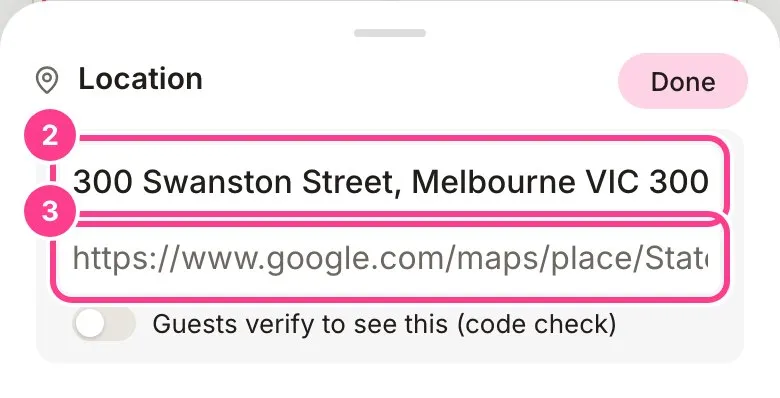
Type the address the way you’d like guests to read it.
-
For the map, open the place in Google Maps, tap Share and copy the link, then paste it into the second box. Short share links work, HeadsUp expands them for you.
-
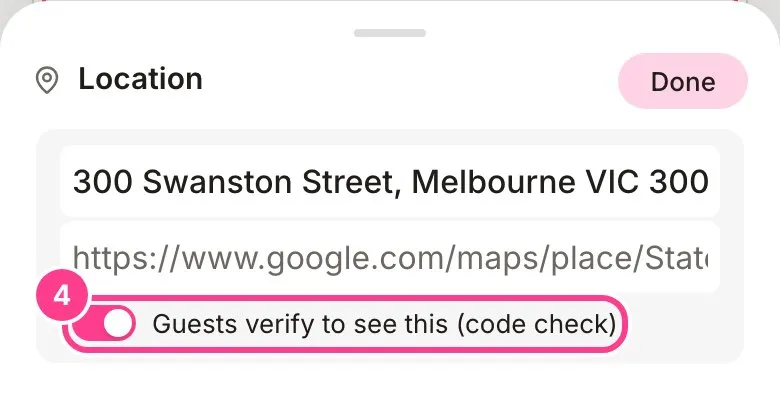
Want the address private? Switch on Guests verify to see this (code check). Tap Done.
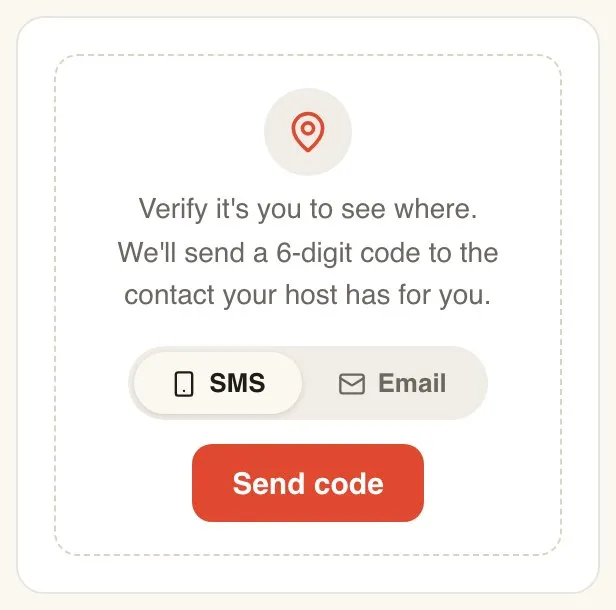
With the switch on, guests see a code card where the address and map would be, until they verify.
Good to know
- No map link? That’s fine. The map searches for the address instead. If HeadsUp doesn’t recognise a link, it says so under the box and falls back to the address.
- The code goes to the mobile or email you have for each guest. How the code check works.
- The first address on your invite goes into the event when guests add it to their calendar. A hidden address never does, even after they verify.
- Got parking notes, photos and a map that all need hiding? Lock the whole tab instead.
Didn't answer it?
Tell us what you were trying to do and we'll write back, or give our guide to your AI assistant and ask it.