How to add an event to your calendar
Save the event to Apple Calendar, Google Calendar or Outlook straight from your invite, in one tap.
Don’t let the date sneak up on you. Your invite can drop the event straight into your calendar, with the name, date and time filled in.
-
Find the date card. Open your invite and look for the card with the date and time, just above the reply buttons.
-
Tap your calendar. Tap Apple Calendar or Google Calendar.
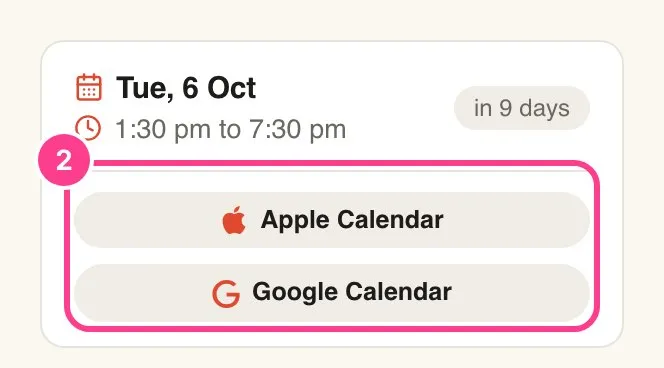
- Apple Calendar downloads a calendar file. On an iPhone it opens straight in Calendar. It works for Outlook and most other calendar apps too, so use this one if you’re not on Google.
- Google Calendar opens Google Calendar with the event ready to save. Check the details and tap Save.
Good to know
- No end time? If the host didn’t set one, the calendar entry runs for two hours.
- Hidden addresses stay hidden. If the host keeps the address for verified guests only, it isn’t put in the calendar entry, even if you’ve unlocked it. Copy it in yourself if you like.
- Plans changed? A calendar entry doesn’t update on its own. If the host moves the date, add it again from your invite.
- Don’t see the buttons? The host can switch them off, or the event may not have a date yet.
Didn't answer it?
Tell us what you were trying to do and we'll write back, or give our guide to your AI assistant and ask it.