How to change your reply
Plans change. Open your invite link again and tap a different reply, no code or account needed.
Said yes and now can’t make it? Or said maybe and you’re now a firm yes? You can change your reply whenever you need to, right up until replies close. The host sees the change straight away.
-
Open the same link. Find the text or email with your invite and tap the link again. It’s your personal link, so it opens your own reply.
-
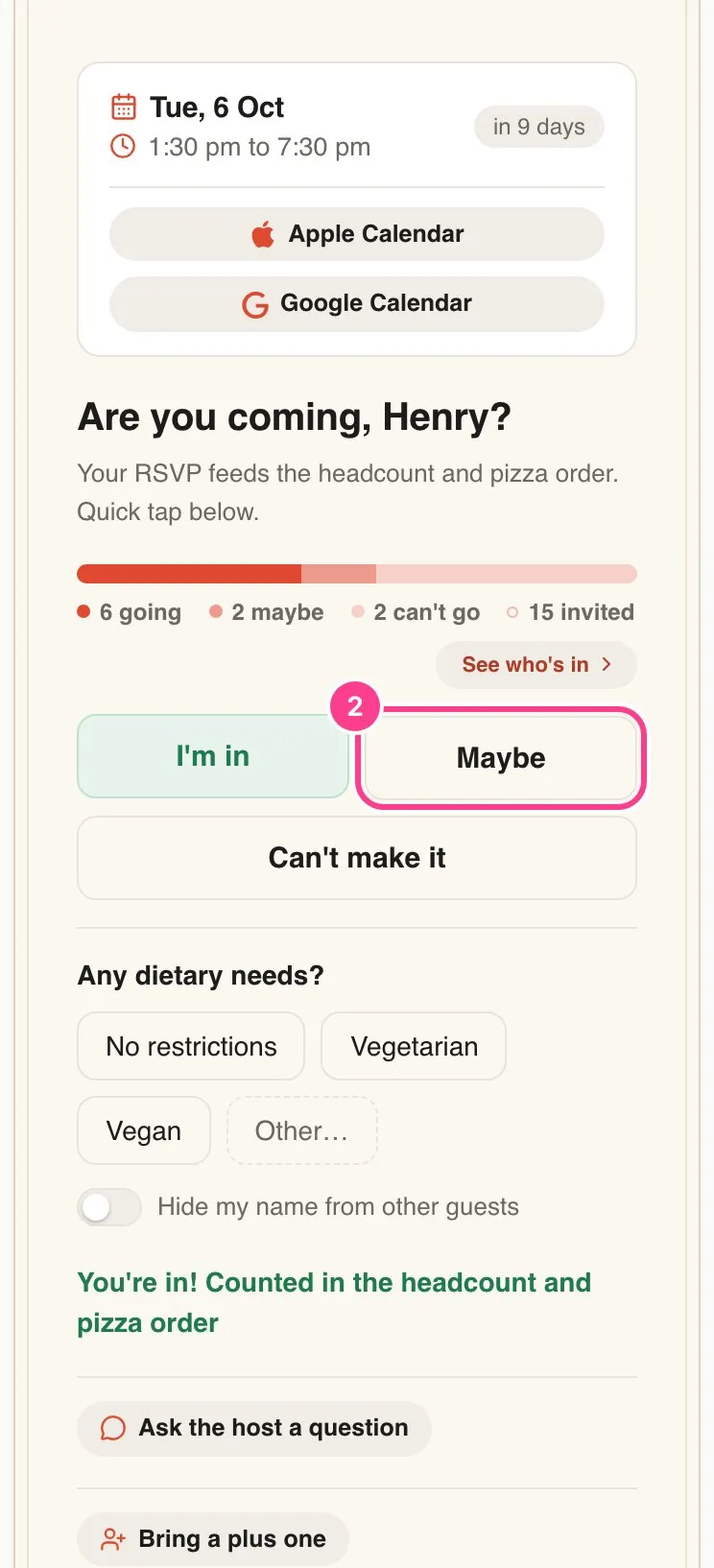
Tap a different reply. Your current reply is highlighted. Tap another one, like Maybe or Can’t make it.
-
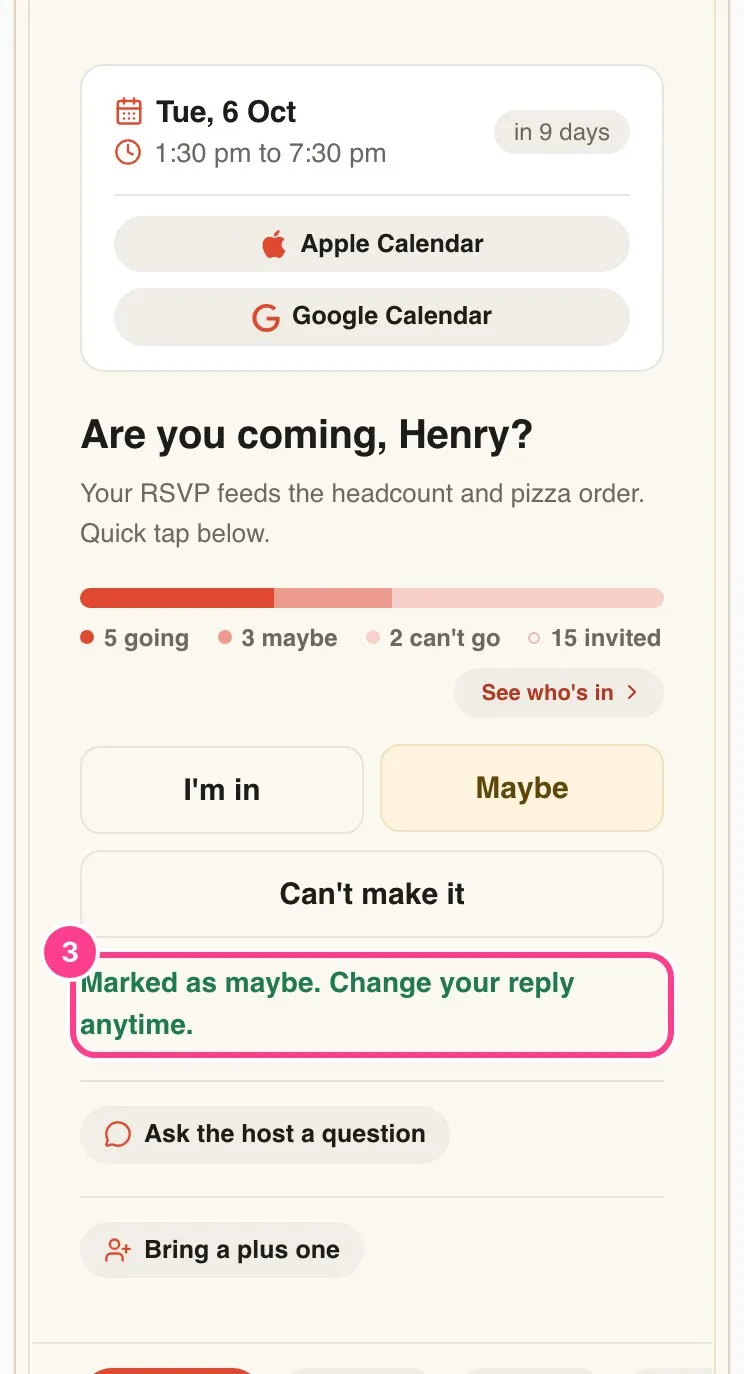
Check the note. A short note under the buttons confirms the change, like Marked as maybe. Change your reply anytime. The counts above update too.
You can also change your dietary needs or the Hide my name from other guests switch the same way. Each tap saves on its own.
Good to know
- Replies close when the event ends, or when it starts if it has no end time, or earlier if the host set a reply-by date. When there’s a deadline, you’ll see RSVP by and the date above the buttons. Once replies close, the buttons go away and a note says so, like RSVPs have closed. If you still need to change something, get in touch with the host, since they can update your reply for you.
- Changing your reply never needs a code.
- Lots of changes in a short time? Every tap counts, dietary needs and the name switch included, so after about ten in an hour you’ll be asked to wait a few minutes.
- Lost the link? Ask the host to send it again. If they’ve made you a new link, the old one stops working and you’ll see This invite link isn’t active.
Didn't answer it?
Tell us what you were trying to do and we'll write back, or give our guide to your AI assistant and ask it.