How to reply to an invite
Got a text or email from HeadsUp? It's an invite from someone you know. Here's how to open it and tell them if you're coming.
Got a text from HeadsUp out of the blue? It’s an invite from someone you know. HeadsUp is the app they used to make the invite and send it, so the text comes from HeadsUp rather than their own number. Some businesses that use HeadsUp send under their own name instead. The link opens a page made just for you, and replying takes one tap. You don’t need an account, an app or a password.
-
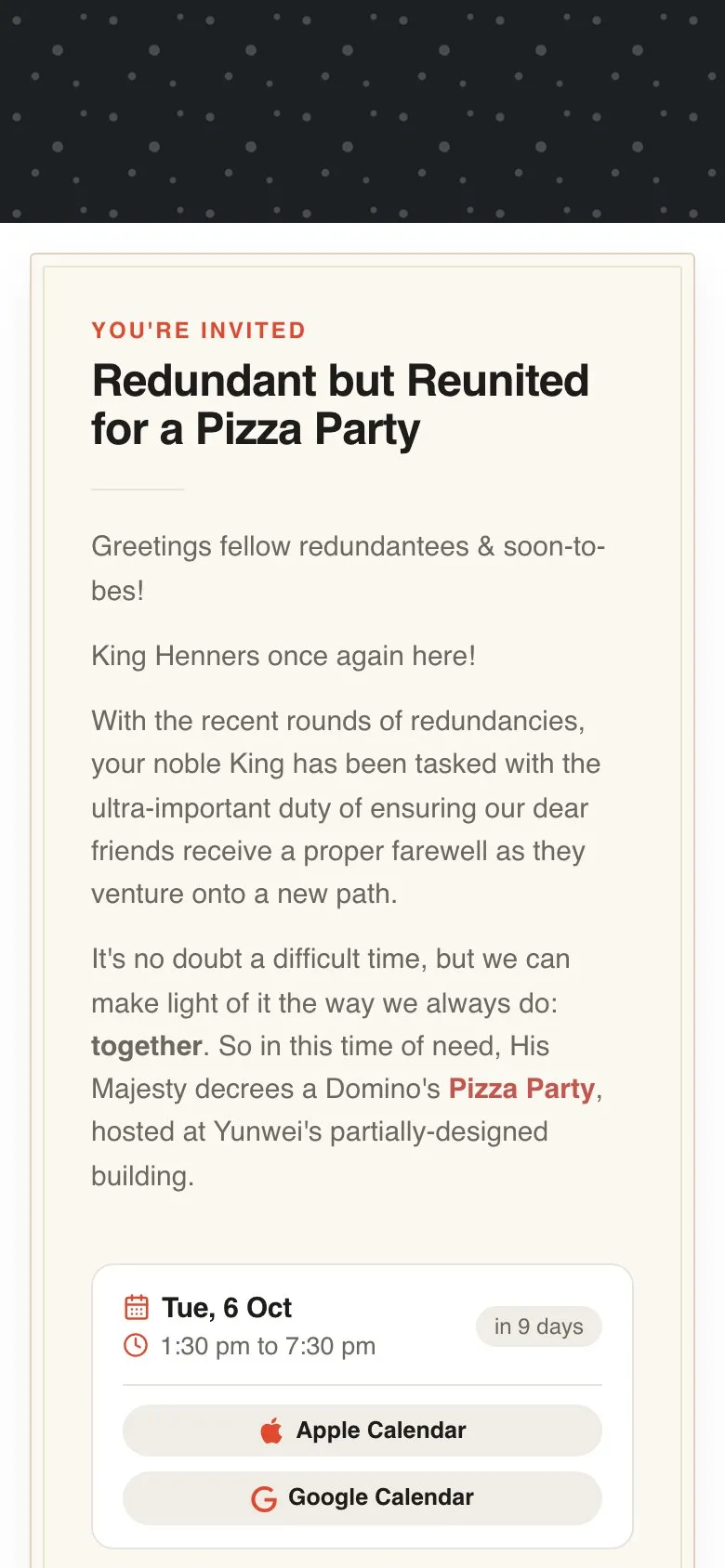
Open your link. Tap the link in the text or email. It opens the invite in your browser, with the event’s name, what’s happening and when.
-
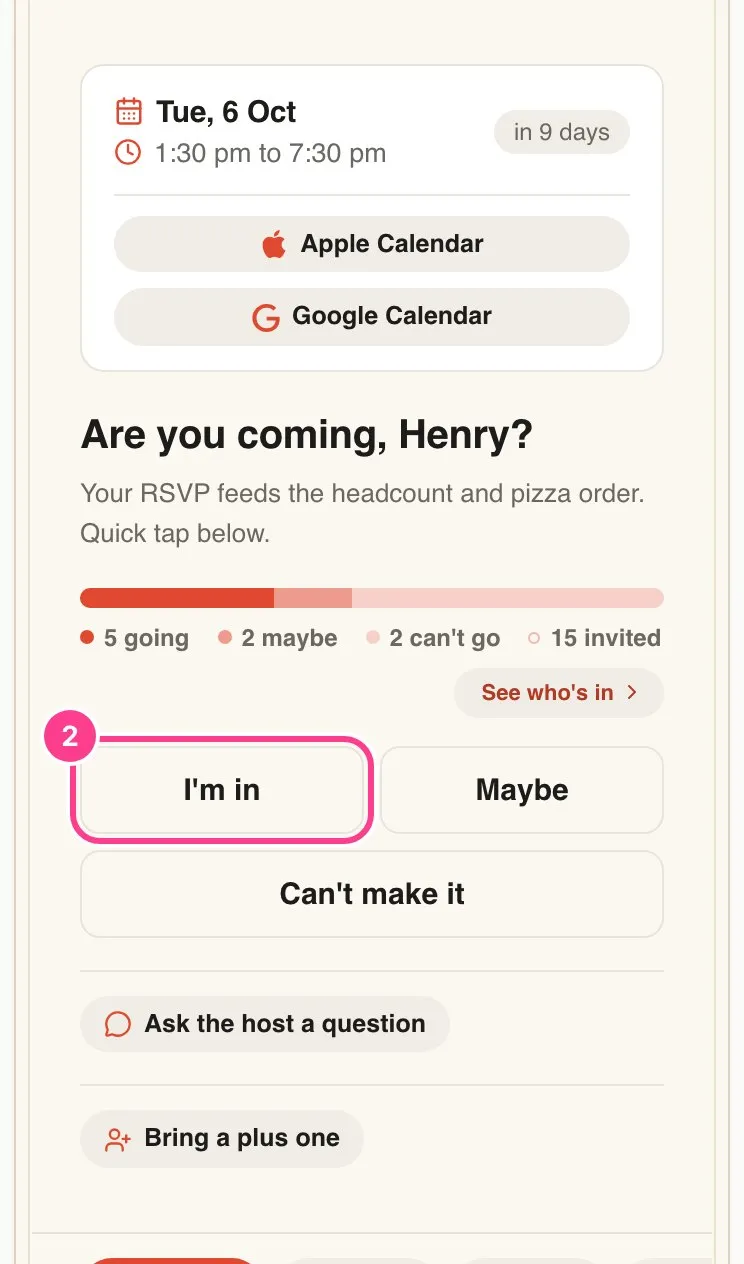
Tap your reply. Scroll to the question under the date, like Are you coming?, and tap one of the buttons. Hosts can word these themselves, so you might see I’m in, Maybe and Can’t make it, or something that suits their event.
-
Add the extras, if asked. If you’re going, the host may ask Any dietary needs? Tap what fits, or Other… to type your own. Turn on Hide my name from other guests if you’d rather not show up on the list other guests can see.
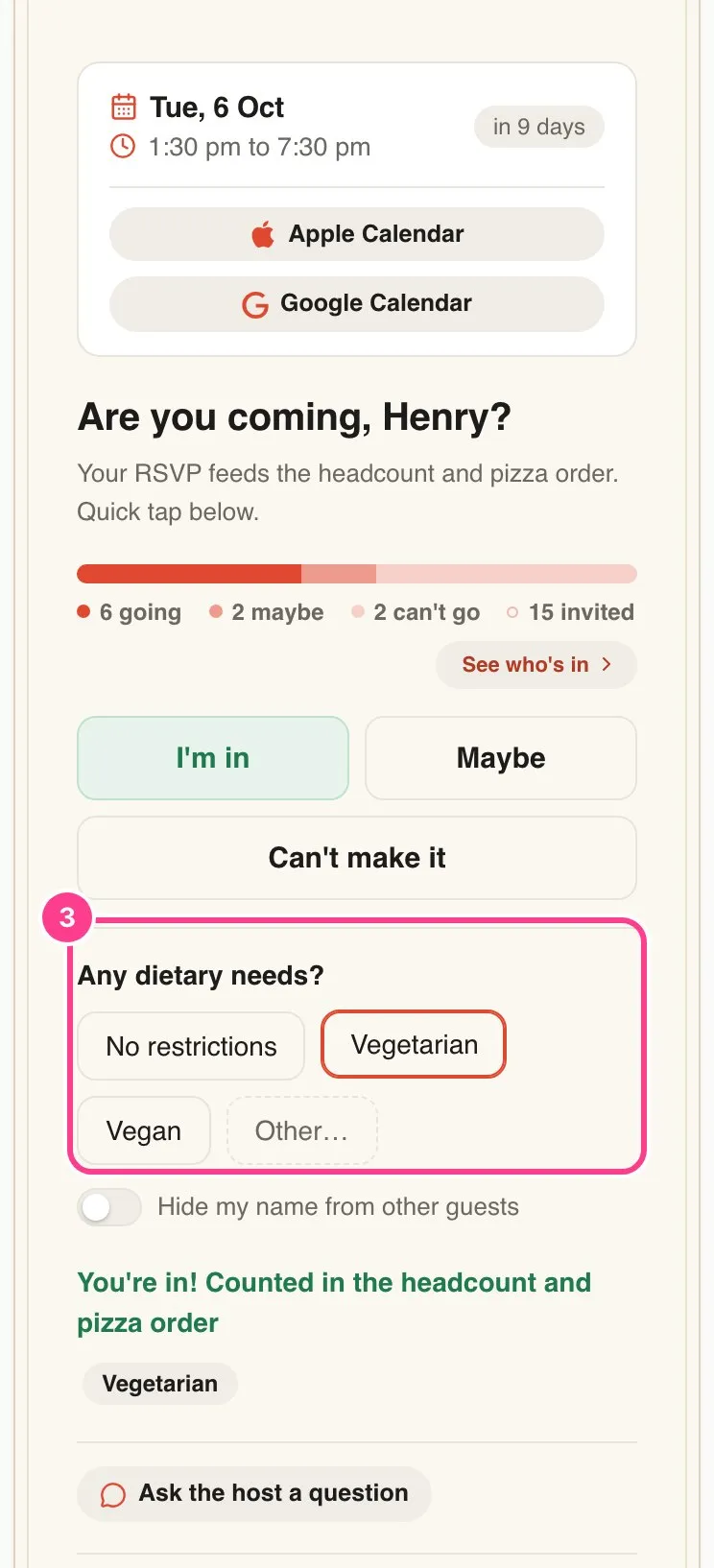
That’s it. A short note under the buttons confirms your reply, and the host sees it straight away. There’s nothing to submit.
Good to know
- The link is personal. It’s made for you, so your reply lands against your name. Please don’t forward it. If someone else should come, ask the host, or see how to bring a plus one.
- Is it real? The link starts with
headsup.rsvp/i/, or it may be on the host’s own web address. Your invite never asks you for a password or card details. If you’re unsure, check with the person who invited you. - Replying never needs a code. Some parts of an invite, like an address, may be hidden until you confirm it’s you with a 6-digit code. Here’s why you might be asked for a code.
- You can change your reply any time until replies close. See how to change your reply.
- Want to stop hearing about this event? Here’s how to stop texts or emails.
Didn't answer it?
Tell us what you were trying to do and we'll write back, or give our guide to your AI assistant and ask it.