How to stop texts or emails about an event
Stop a host's texts or emails about one event in a single tap from your invite. No code, and it's never refused.
Don’t want any more messages about an event? You can stop texts, emails or both yourself, straight from your invite. It takes one tap, you don’t need a code, and a stop is never refused.
Replying STOP to a HeadsUp text won’t work. Texts come from a name, usually HeadsUp, rather than a phone number, so they can’t receive replies. Use the switch on your invite instead.
Stop texts
-
Open your invite. Tap the link in any text about the event.
-
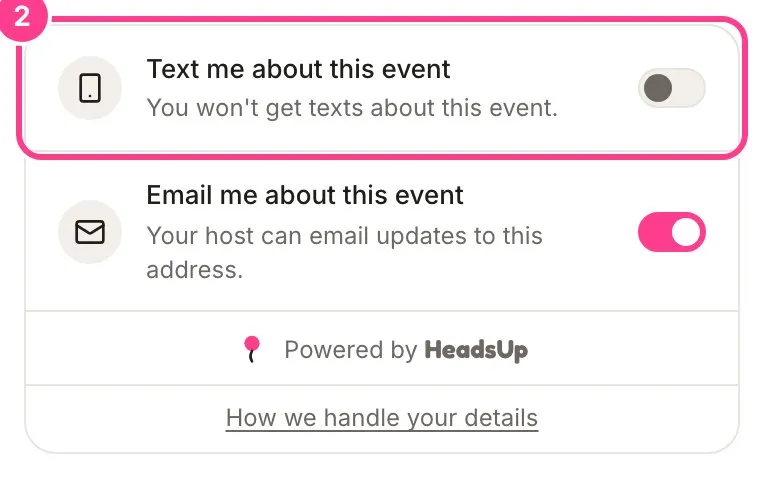
Turn off Text me about this event. Scroll to the very bottom of the invite and tap the switch. It says You won’t get texts about this event. once it’s off.
Stop emails
-
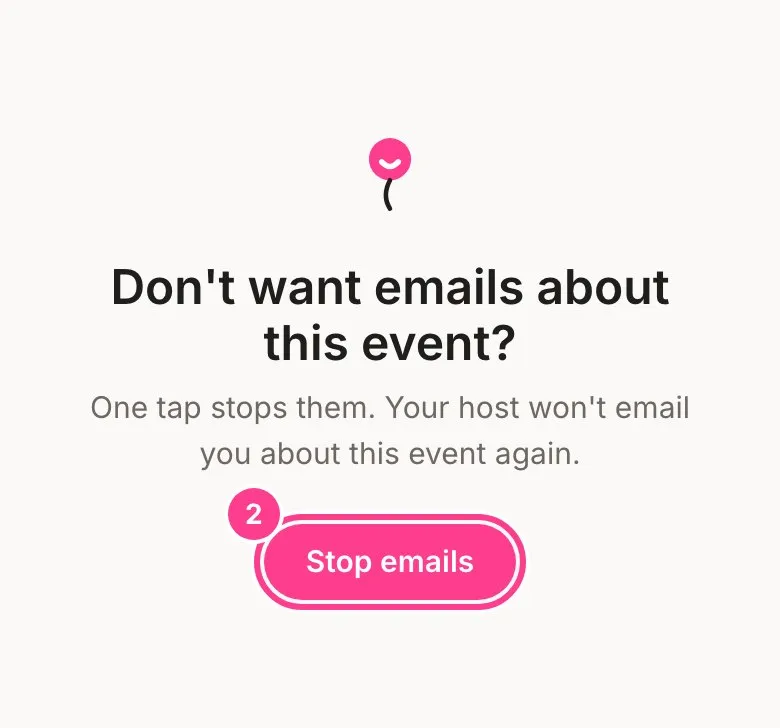
Tap Stop them in the email. Every email about an event has Don’t want emails about this event? Stop them at the bottom. Many mail apps also show their own unsubscribe button at the top, which does the same thing.
-
Tap Stop emails. The page asks first, so nothing stops by accident. You’ll see Emails stopped once it’s done.
You can also turn off Email me about this event at the bottom of your invite, the same way as texts.
Good to know
- It’s just this event. A stop covers the event you tapped it from. Other invites, even from the same host, have their own switch.
- You’ll only see the switches you need. If the host only has your email, there’s no texts switch, and the other way round.
- Changed your mind? Turn the switch back on. Starting messages again asks for a 6-digit code first, unless you’ve already confirmed it’s you on this device, because anyone with your link could otherwise switch them back on. Stopping never does.
- Your invite keeps working. You can still open it, reply and see updates. The host just can’t text or email you about this event.
- Codes you ask for still arrive. If you tap Send code on your invite, the code comes through even if you’ve stopped texts or emails, because you asked for it.
- Not sure what the event is? It’s from someone who has your number or email, sent using HeadsUp. Open the link to see what it’s about, or stop it here if it’s not for you.
Didn't answer it?
Tell us what you were trying to do and we'll write back, or give our guide to your AI assistant and ask it.