How to join an event from a shared link
Found an event link in a group chat or on social media? Join with your name and a 6-digit code, and get your own invite.
Some hosts share one link for everyone, in a group chat, a newsletter or on social media, instead of sending each person their own invite. Anyone with that link can see the invite and join. Joining takes your name and a quick code, and there’s no account or password.
-
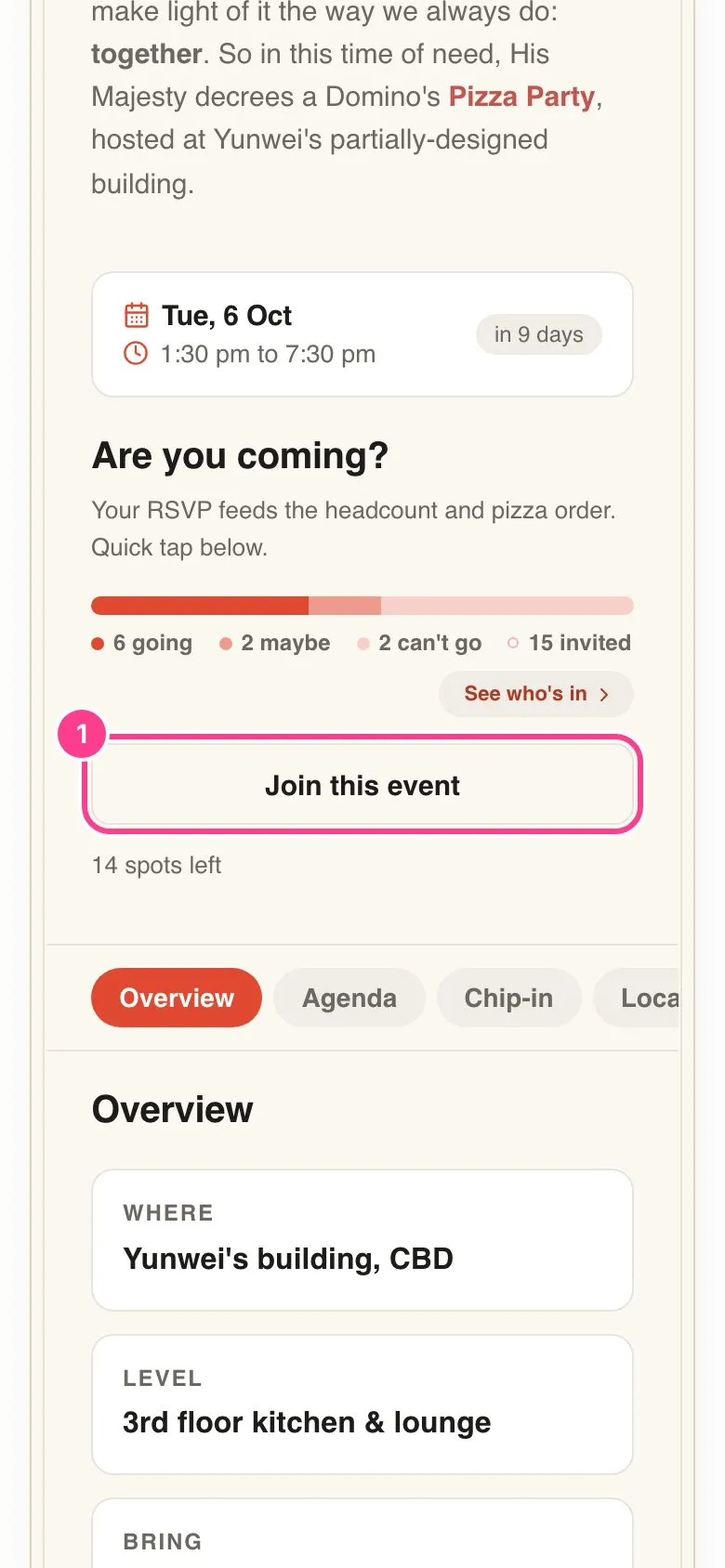
Tap Join this event. Open the link and scroll to the button where the reply buttons would normally be. The host may have worded it their own way, and if they check each person first it says Ask to join. You might also see how many spots are left.
-
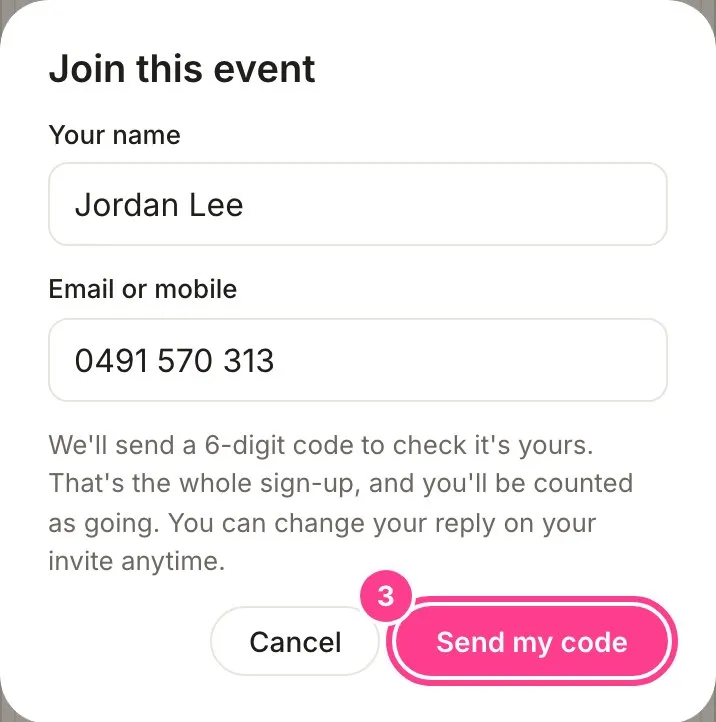
Add your details. Type Your name and your email or mobile, whichever the host asks for.
-
Tap Send my code. A 6-digit code goes to the email or mobile you typed, to check it’s really yours.
-
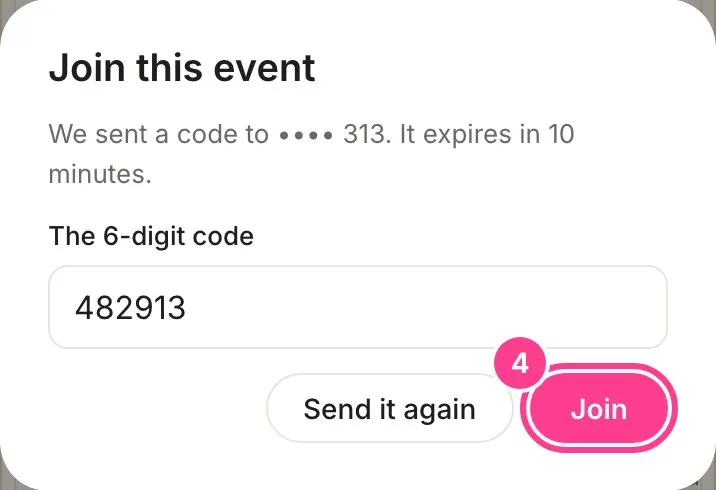
Type the code and tap Join. Didn’t get it? Tap Send it again. Codes last 10 minutes.
You’re in, and counted as going. Your own invite page opens, with anything the host keeps for guests only, like the address, already unlocked on this device. From there you can change your reply, add it to your calendar and more, just like any other guest.
Good to know
- Keep your personal link. After joining you get your own invite link, the one that opened after step 4. Bookmark it so you can come back to your reply.
- If the host approves joins, you’ll see Request sent instead. Tap Open my page to see your invite. You can’t reply or unlock anything until the host lets you in.
- Already joined? Join again with the same email or mobile. It finds your existing spot rather than adding you twice, and keeps any reply you’d already given. If the event is full, the button says Already joined? Get your link for exactly this. New people can’t join a full event.
- On the shared page, other guests’ names are hidden, and so is anything the host keeps for verified guests. You’ll see them once you’ve joined, if the host shares them.
- Joining is between you and the host. They’ll see your name and the contact you used, and may send you updates about this event. You can stop texts or emails any time.
Didn't answer it?
Tell us what you were trying to do and we'll write back, or give our guide to your AI assistant and ask it.