How to add a poll
Ask guests a question on your invite, like which Saturday works or what to eat, and watch the votes come in.
A Poll block lets guests vote right from their invite. Pick the question, the options and how many they can choose. Voting is one tap, with no code needed.
-
In the editor, tap a + where you want it and pick Poll, then tap the pencil on the new block to open it. See how to add and move blocks if you’re new to blocks.
-
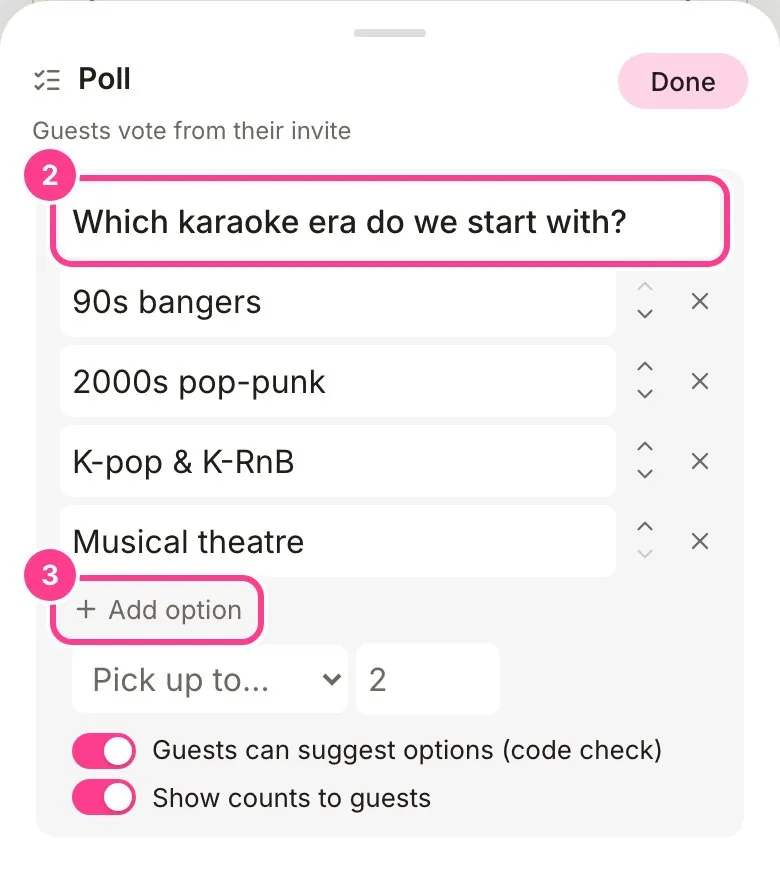
Type your question at the top, then fill in the options.
-
Tap Add option for more. Use the arrows to reorder, and tap an option’s cross twice to remove it.
-
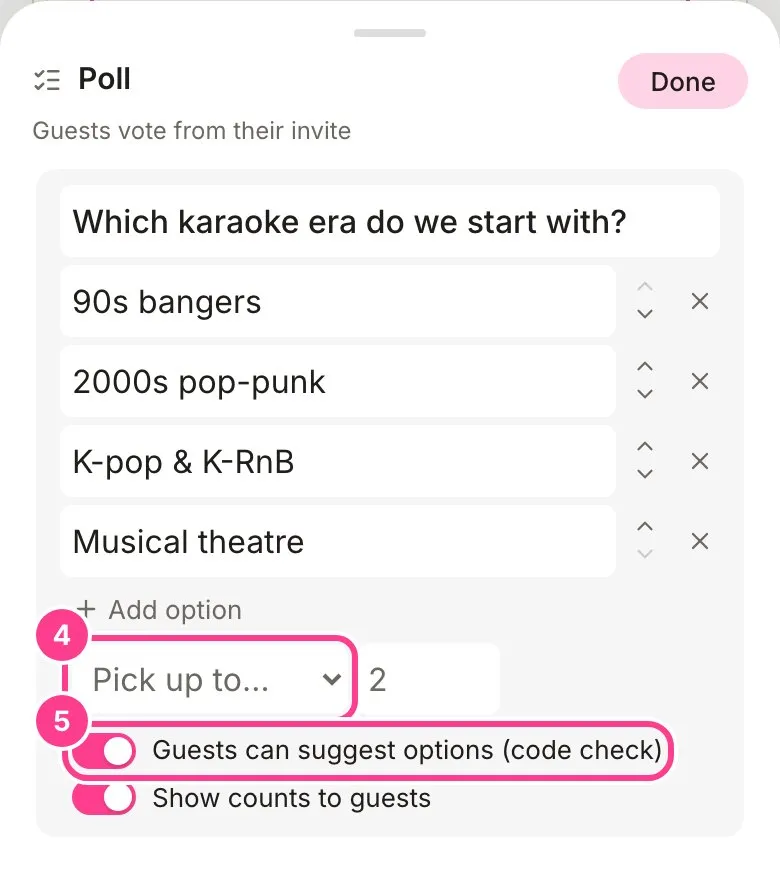
Choose how many options each guest can pick: Pick one, Pick any, Pick up to…, Pick exactly… or Pick at least…. The last three ask for a number.
-
Decide on the two switches. Guests can suggest options (code check) lets guests add their own option. Show counts to guests shows everyone the tallies, or switch it off so only you see them. Tap Done.
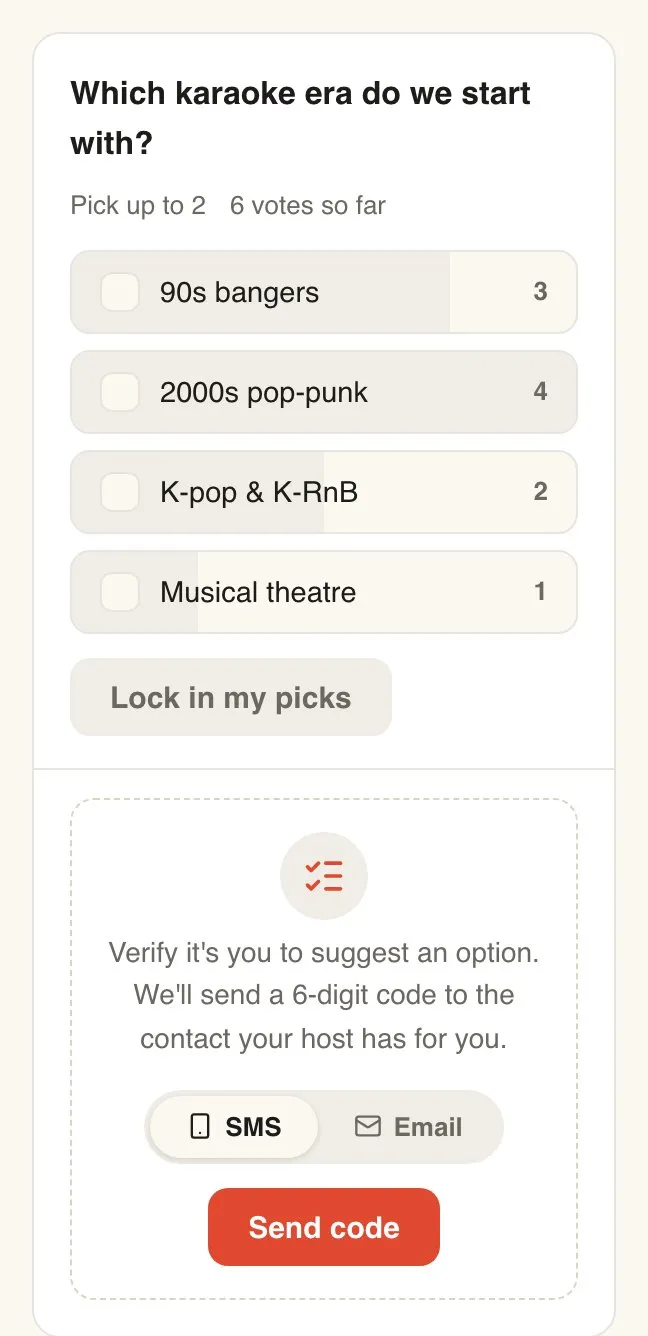
Guests tap their picks and then Lock in my picks. They can change their vote any time.
Good to know
- You see every vote, and who picked what, on the event’s Responses screen, under Activity.
- Guests only need a 6-digit code to suggest an option, not to vote. Why guests are asked for a code.
- Options guests add show under Added by guests in the poll’s sheet. Tap the cross beside one to remove it.
- A poll can go in an update too, when you need to ask about a change. See how to ask guests in an update.
Didn't answer it?
Tell us what you were trying to do and we'll write back, or give our guide to your AI assistant and ask it.