How to preview your invite as a guest
See your invite exactly the way guests will, try the reply buttons, and check what's hidden until a guest verifies.
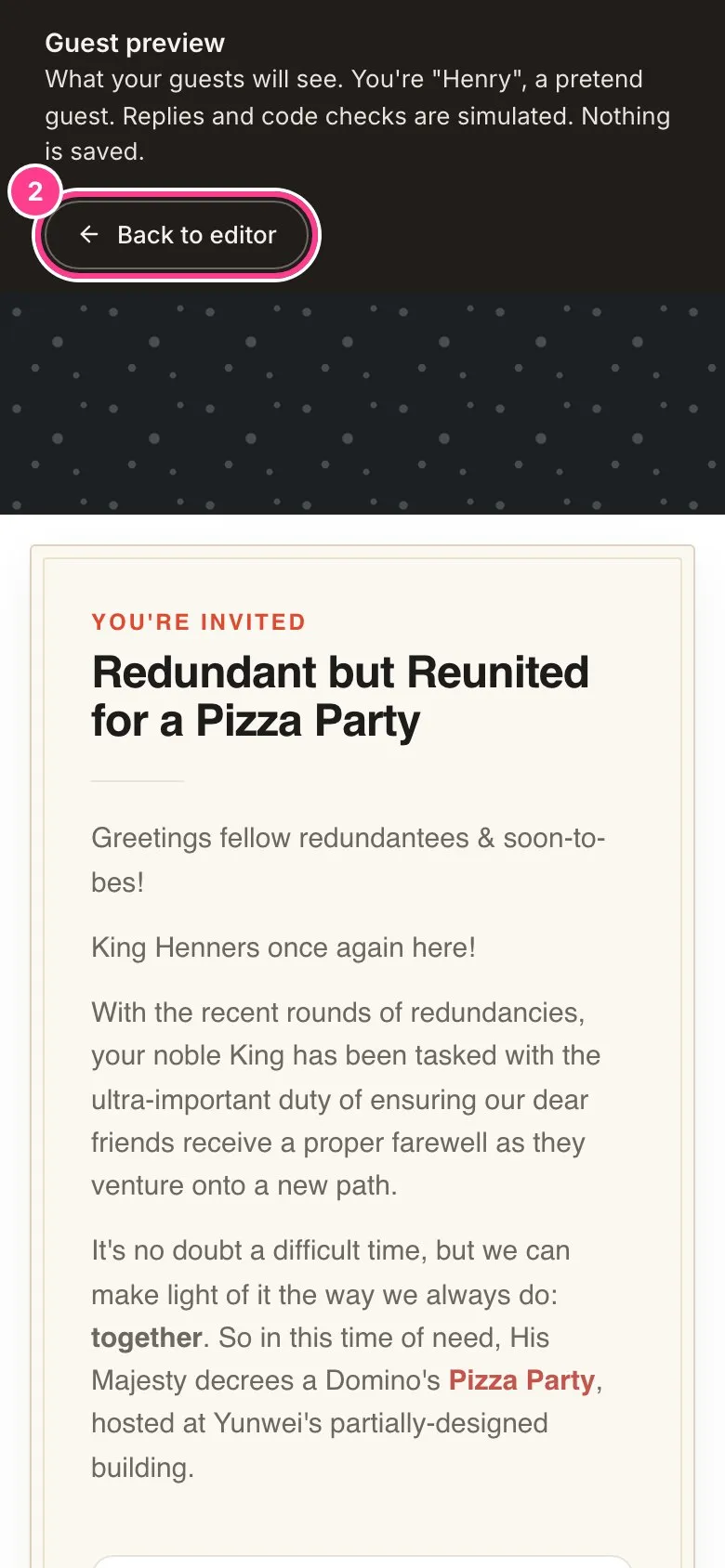
The editor already looks a lot like the real thing, but it’s worth a proper look before you send. The guest preview shows your invite with none of the editing buttons, and lets you tap through it the way a guest would.
-
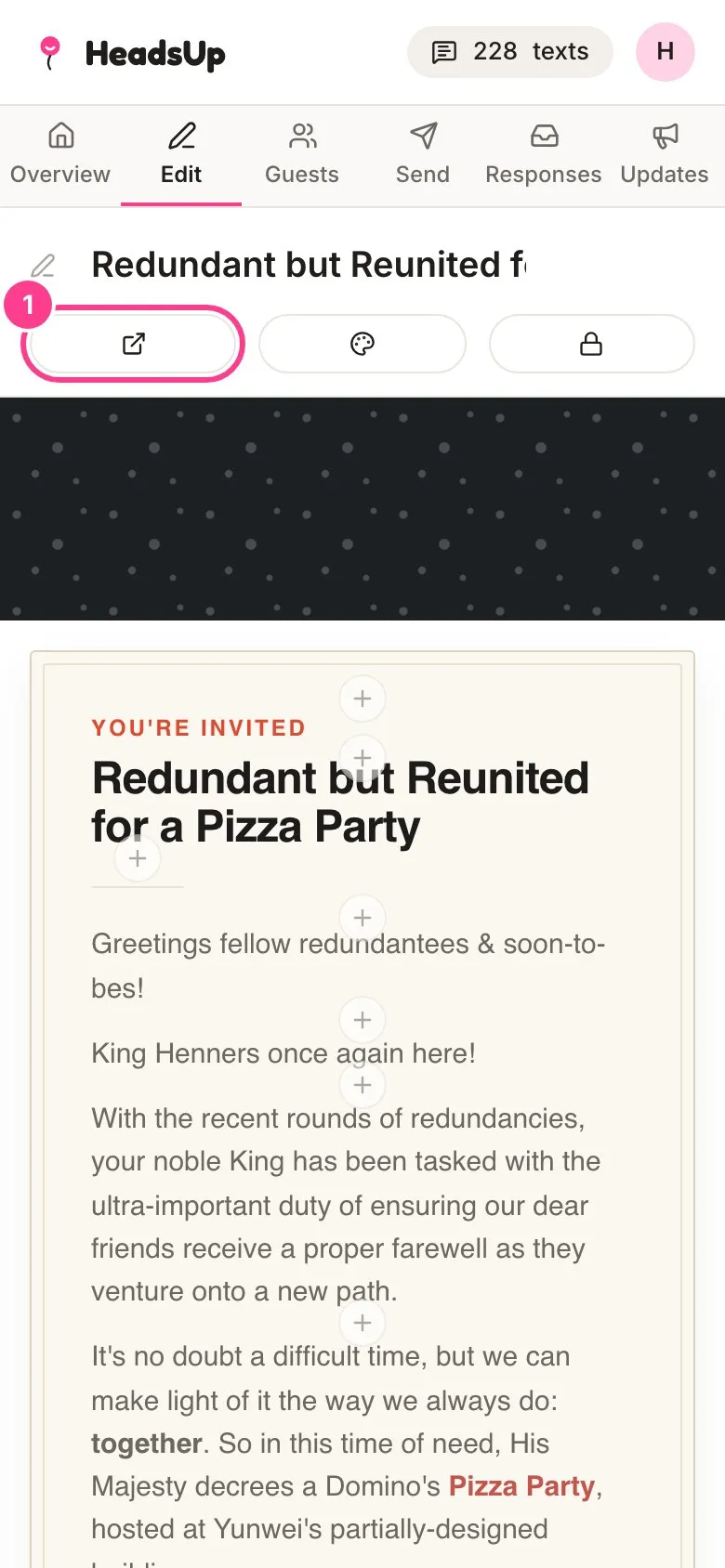
In the editor, tap View as guest (the button with the arrow out of a box). The preview opens in a new tab.
-
Scroll, reply and try the code checks. You’re a pretend guest, so replies and code checks are only simulated and nothing is saved. When you’re done, tap Back to editor.
Check what’s hidden before a code
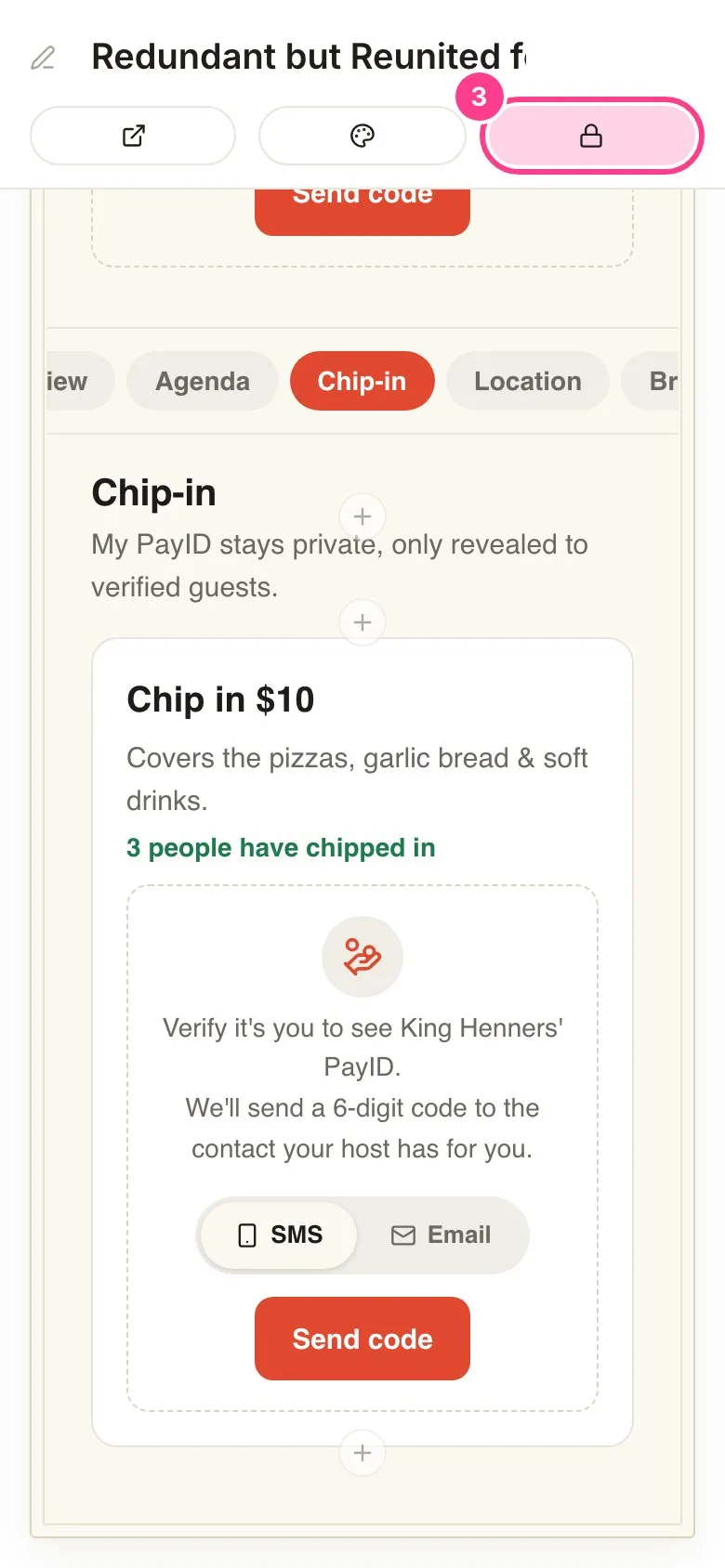
If your invite has anything guests only see after a quick code check, such as a reveal block, a chip-in or a locked tab, the editor bar also has a Locked view button (the padlock).
-
Tap Locked view to see every hidden part the way guests meet it before they verify. Tap it again to go back to editing the hidden details.
Good to know
- One code opens everything hidden on the invite, so Locked view flips every hidden part at once.
- Locked view only shows when there’s something to hide, including the Ask the host and plus one boxes, which also ask guests for a code.
- On a phone, the buttons in the editor bar show just their icons. On a wider screen they show their names too.
- Guests never need an account. The code goes to the phone number or email you added for them. See why guests are asked for a code.
Didn't answer it?
Tell us what you were trying to do and we'll write back, or give our guide to your AI assistant and ask it.