How to add, move and delete blocks
Build your invite from blocks like text, a map, a poll or a potluck list, and put them in any order you like.
Everything on your invite below the cover is a block: a heading, a paragraph, a map, a poll. You add them where you want them, move them around, and delete the ones you don’t need.
-
In the editor, find the little + buttons that sit between blocks. Tap the one where you want the new block to go.
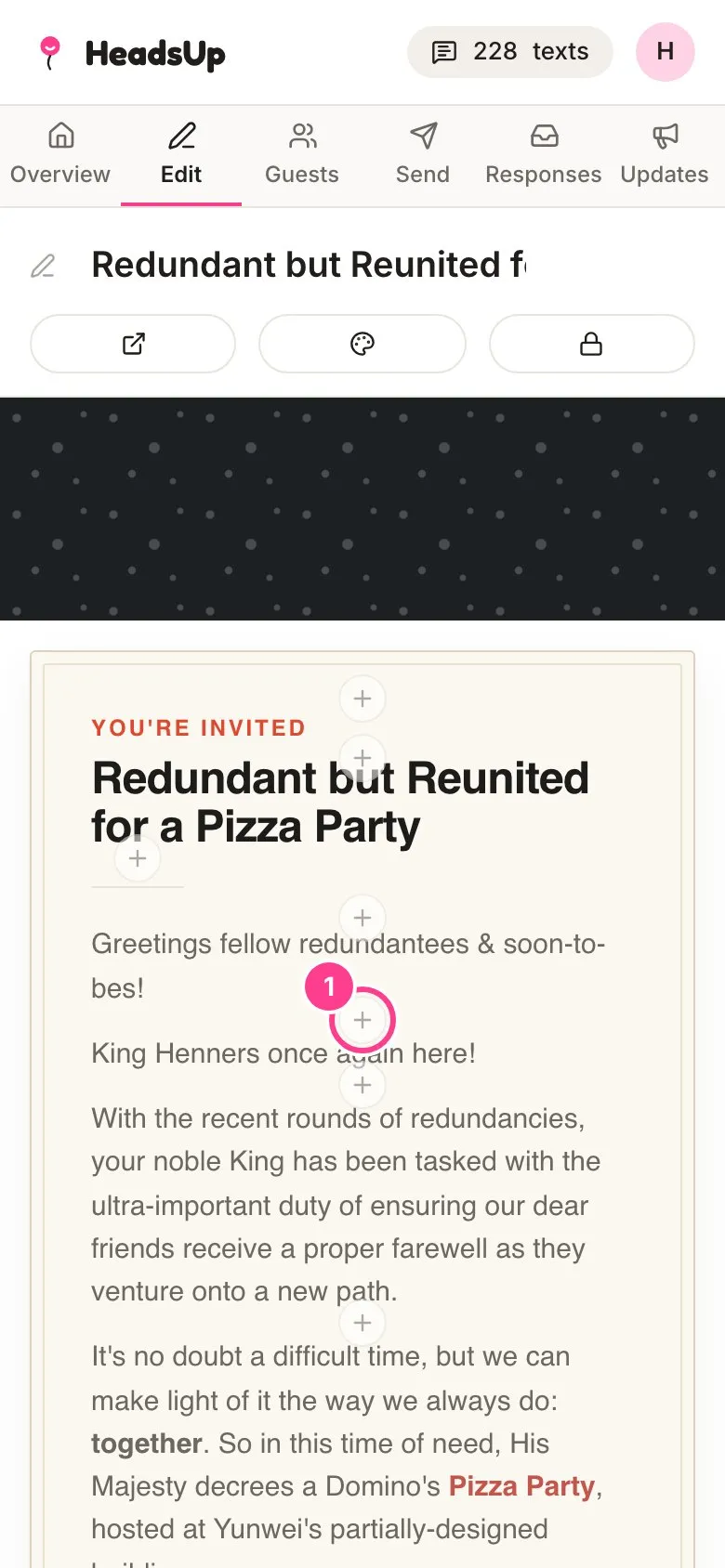
-
The Add a block list opens. Tap the kind of block you want, and it lands in that spot.
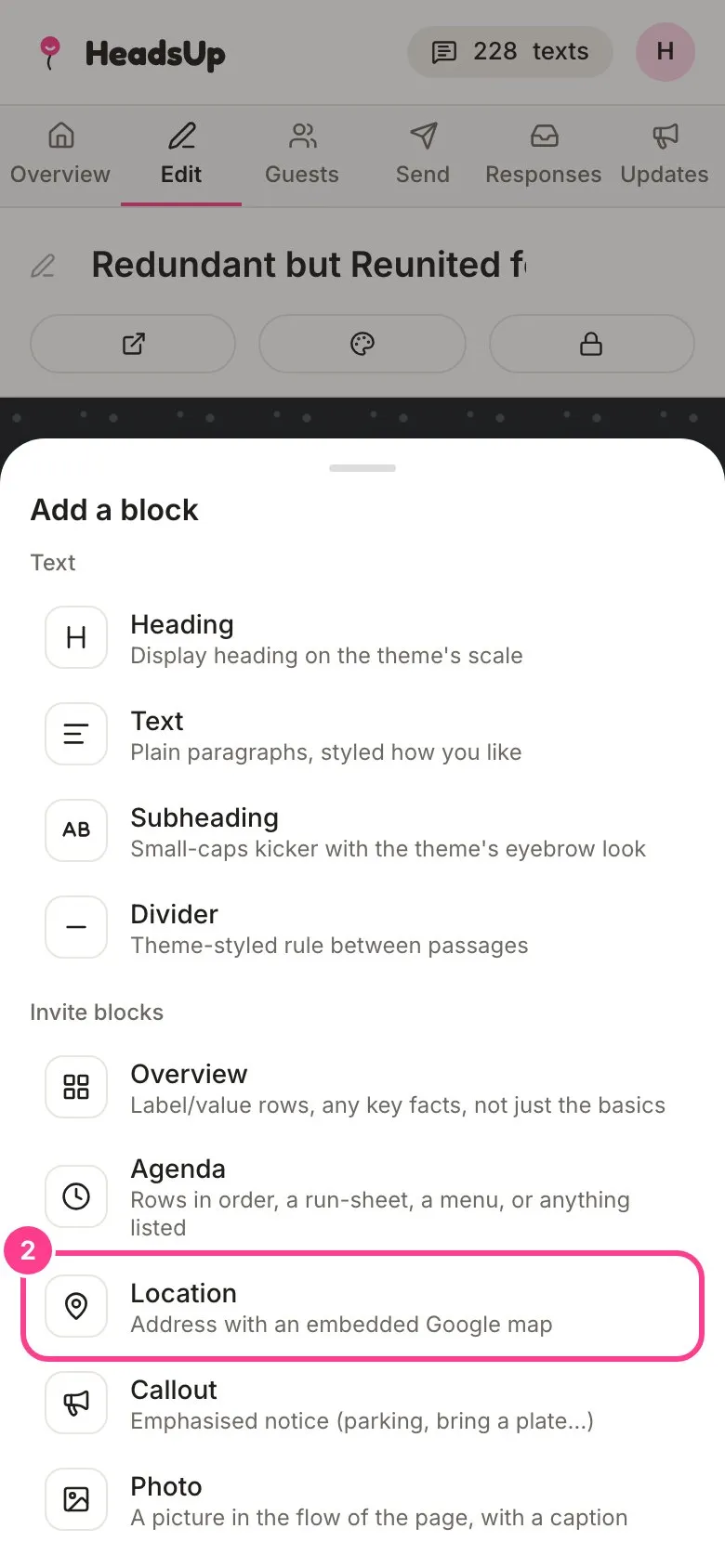
-
To move a block, tap it. A toolbar appears above it. Use the up and down arrows to move it one place at a time.
-
To delete a block, tap the bin on the same toolbar. Changed your mind? Tap Undo in the message that pops up straight after.
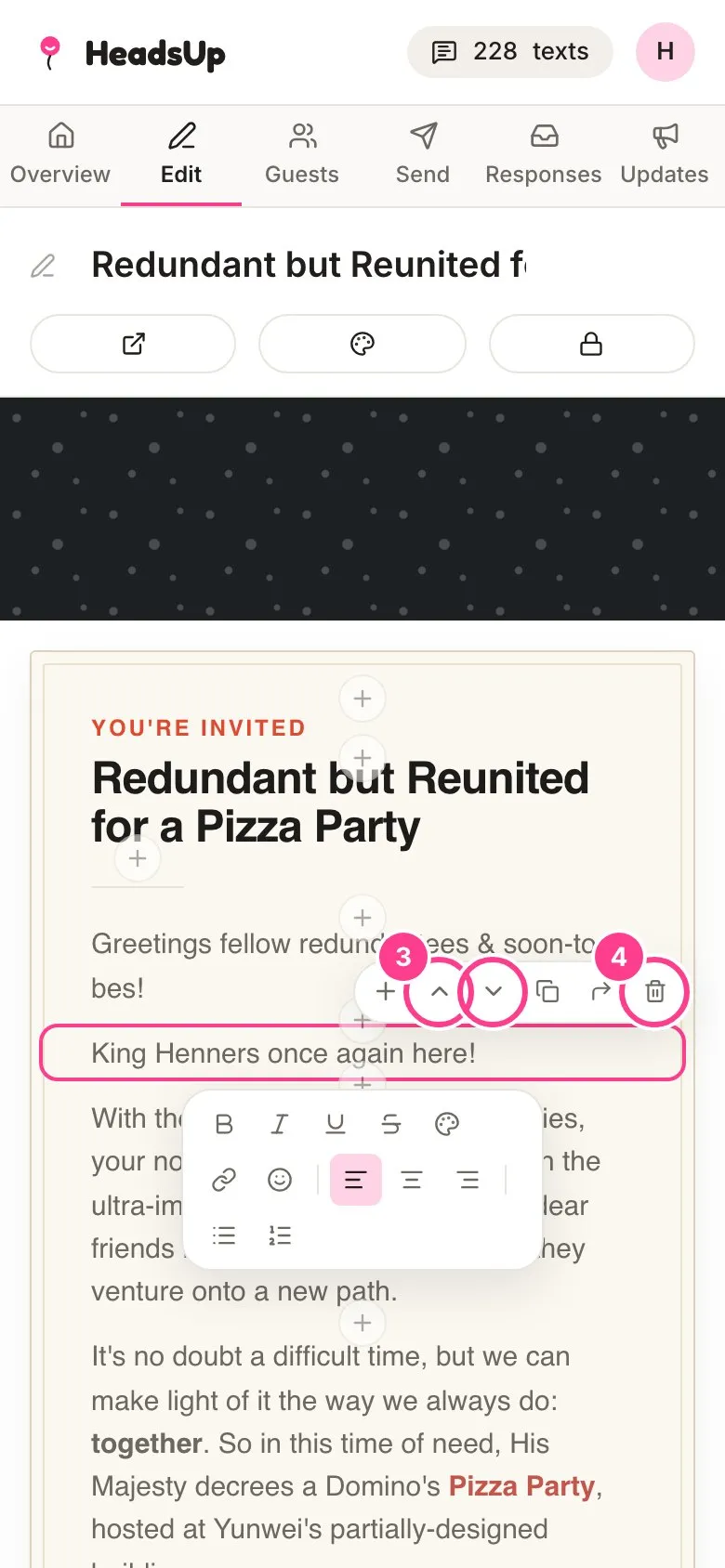
The same toolbar also has a + to add a block right below, a copy button to duplicate the block, and, once your invite has tabs, a button to move the block to another tab.
Every kind of block
Text blocks:
- Heading, Text, Subheading and Divider, for the words on your page. See editing your invite.
Invite blocks:
- Overview, rows of key facts, such as where, when and what to wear.
- Agenda, a run sheet, a menu or any list in order. See adding an agenda.
- Location, an address with a map. See adding a location.
- Callout, a notice that stands out, like parking or “bring a plate”.
- Photo, a picture with a caption. See adding photos.
- FAQ, the questions guests always ask. See adding an FAQ.
- Link buttons, big buttons for a playlist, a registry or a group chat. See adding link buttons.
- Countdown, a live count to the start. See adding a countdown.
- Reveal, a private detail like an address that guests see after a quick code check. See hiding details until guests verify.
- Chip-in, to collect money towards something. See collecting money with chip-in.
- Sign-up list, jobs guests put their name on. See adding a sign-up sheet.
- Potluck, a bring-a-plate list. See running a potluck.
- Poll, a question guests vote on. See adding a poll.
Good to know
- A page or tab with nothing on it yet shows an Add a block button instead of the + buttons.
- On a computer you can drop a picture from your desktop straight onto a photo block.
Didn't answer it?
Tell us what you were trying to do and we'll write back, or give our guide to your AI assistant and ask it.