How to edit an event together with a co-host
See who else is on the event, what they're editing, and how to ask for something they're working on.
You and your co-hosts can all work on an event at the same time. HeadsUp shows who’s there and what they’re editing, and it stops two people changing the same thing at once, so nobody’s work gets written over.
-
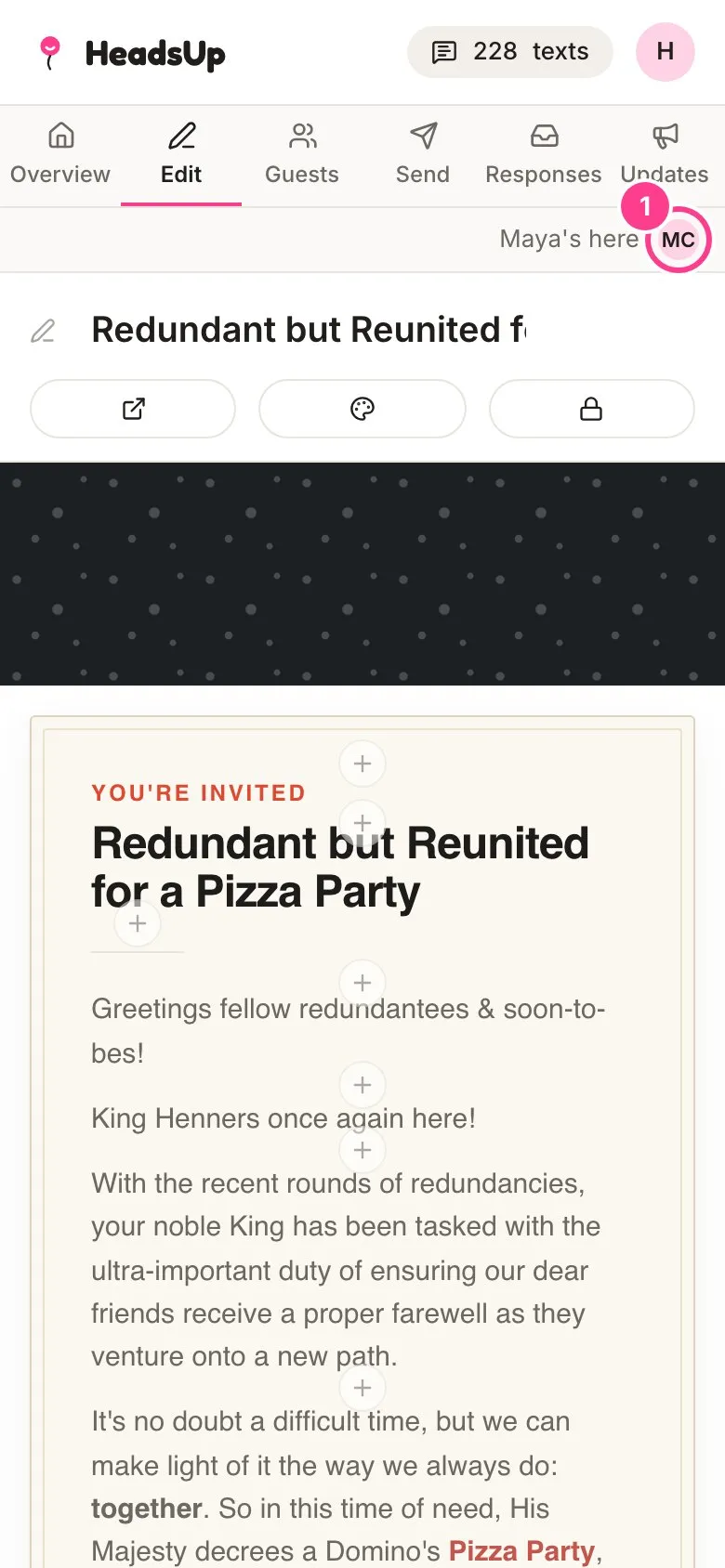
When a co-host has the event open, their initials appear under the event’s tabs, with a line like “Maya’s here”.
-
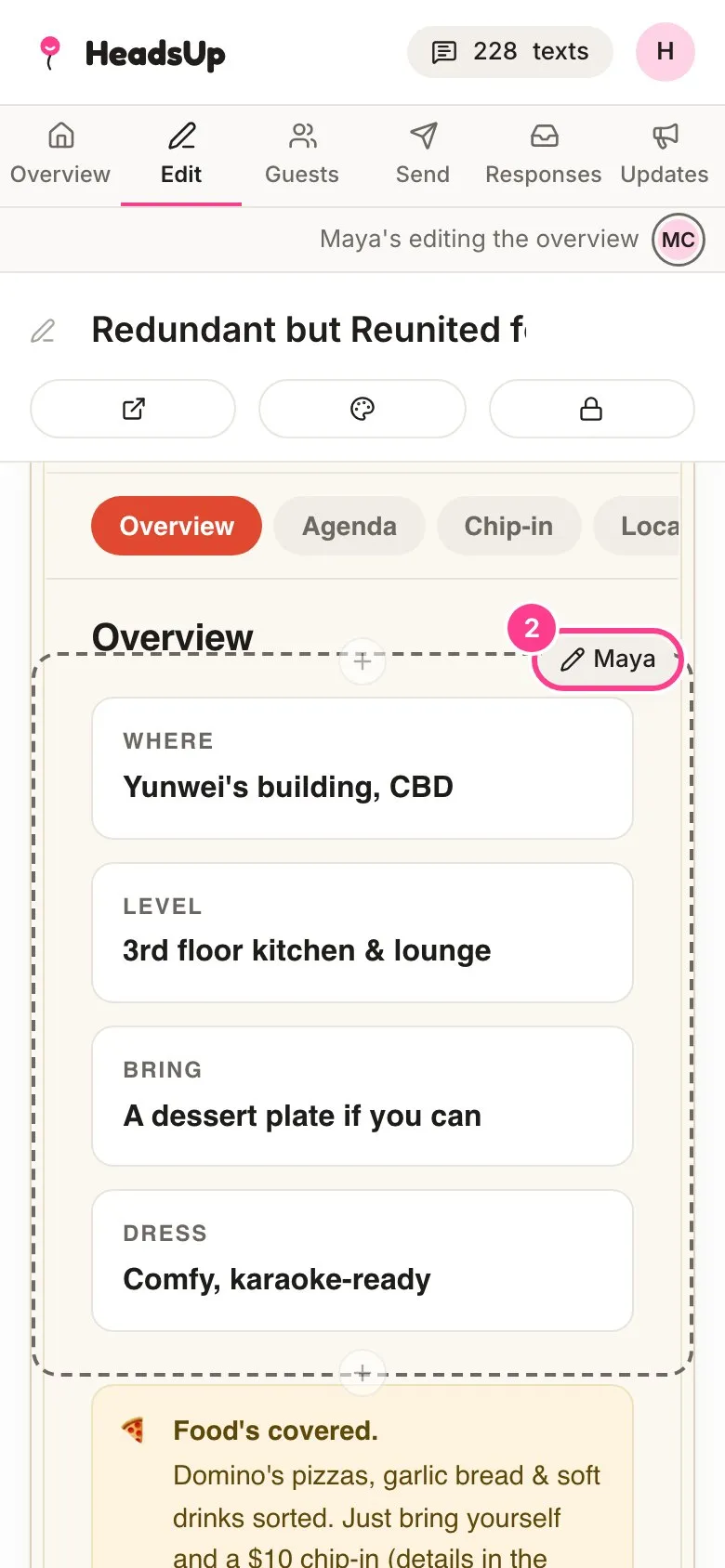
While they’re editing something, the line says what, like “Maya’s editing the overview”. That part of the invite wears a dashed outline and a chip with their name. Everything else is yours to edit as normal.
-
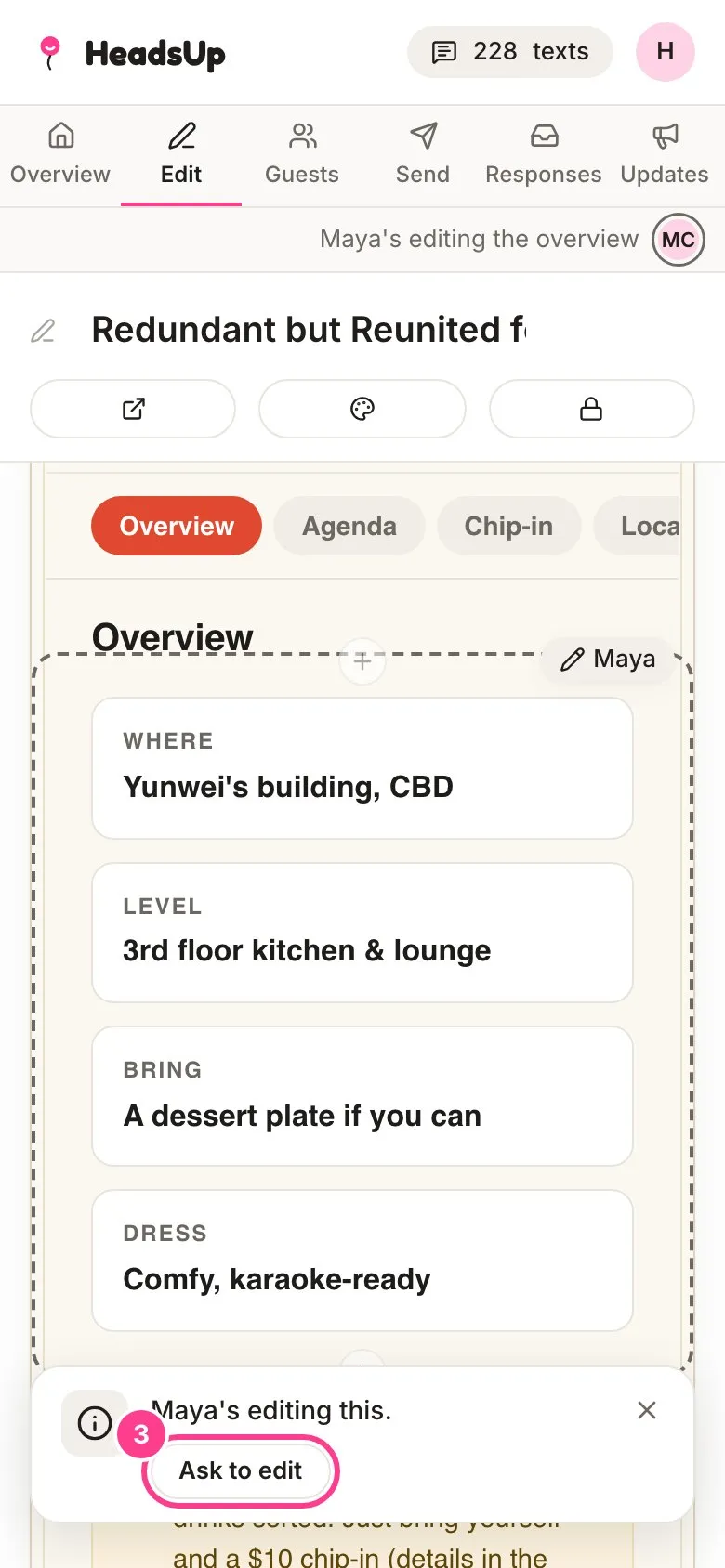
Tap something they’re editing and you’ll see “Maya’s editing this.” To ask for it, tap Ask to edit.
-
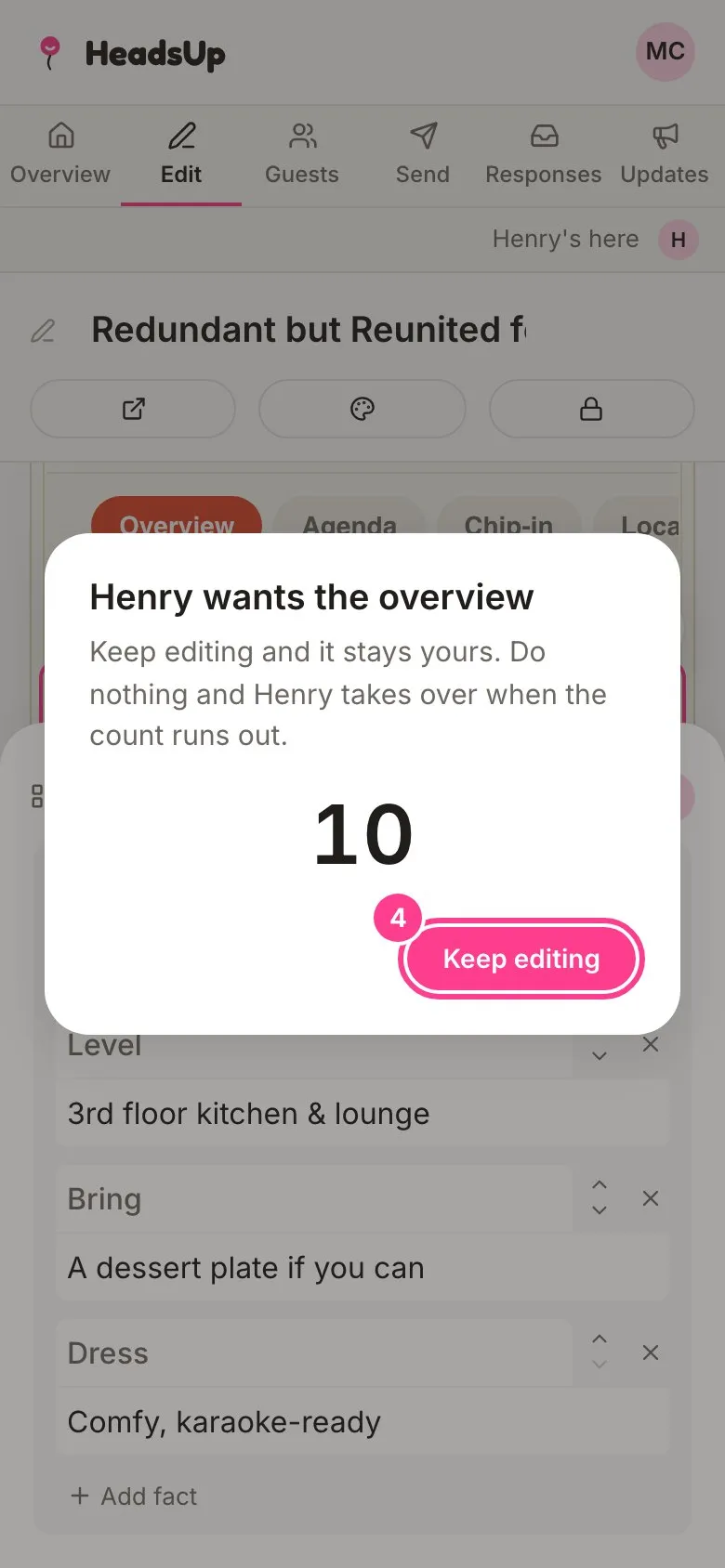
Your co-host sees a card with a ten second countdown. If they tap Keep editing, it stays theirs and you’re told they’re staying on it. If they do nothing, it’s handed to you and you’ll see “All yours. Tap it to edit.”
Good to know
- The same goes for the settings cards on the Overview and for updates. While somebody’s changing one, it shows their name and can’t be changed by anyone else until they’re done.
- Your own changes on another phone or computer never block you. The chip just says you’re editing it on another device.
- Changes show up for everyone as they’re saved, so there’s no need to refresh.
- If a change of yours can’t save because a co-host has that part open, HeadsUp tells you, saves the rest, and offers Copy your text so the words you typed aren’t lost.
Didn't answer it?
Tell us what you were trying to do and we'll write back, or give our guide to your AI assistant and ask it.