How to add a co-host
Invite somebody to run an event with you. They edit the invite, add guests and send from their own HeadsUp account.
Running an event with a partner, a friend or a workmate? Add them as a co-host. They sign in to their own HeadsUp account and can change anything on the event, while it stays yours.
-
Open your event and scroll down the Overview to the Co-hosts card.
-
Under Co-host’s email, type the email they sign in to HeadsUp with.
-
Tap Invite.
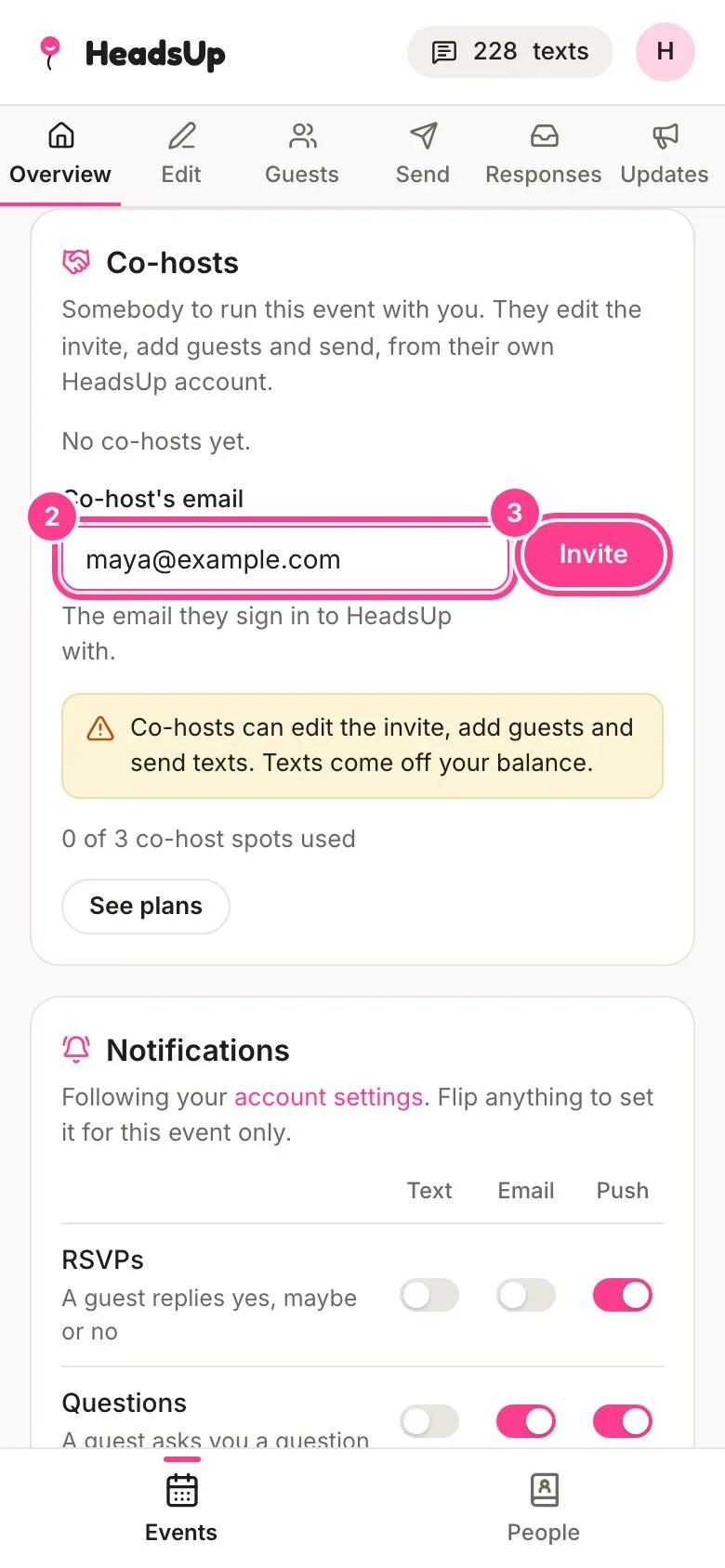
-
We email them to say they’ve been invited. If you’d like to tell them yourself too, tap Copy a message to send them and paste it into a chat.
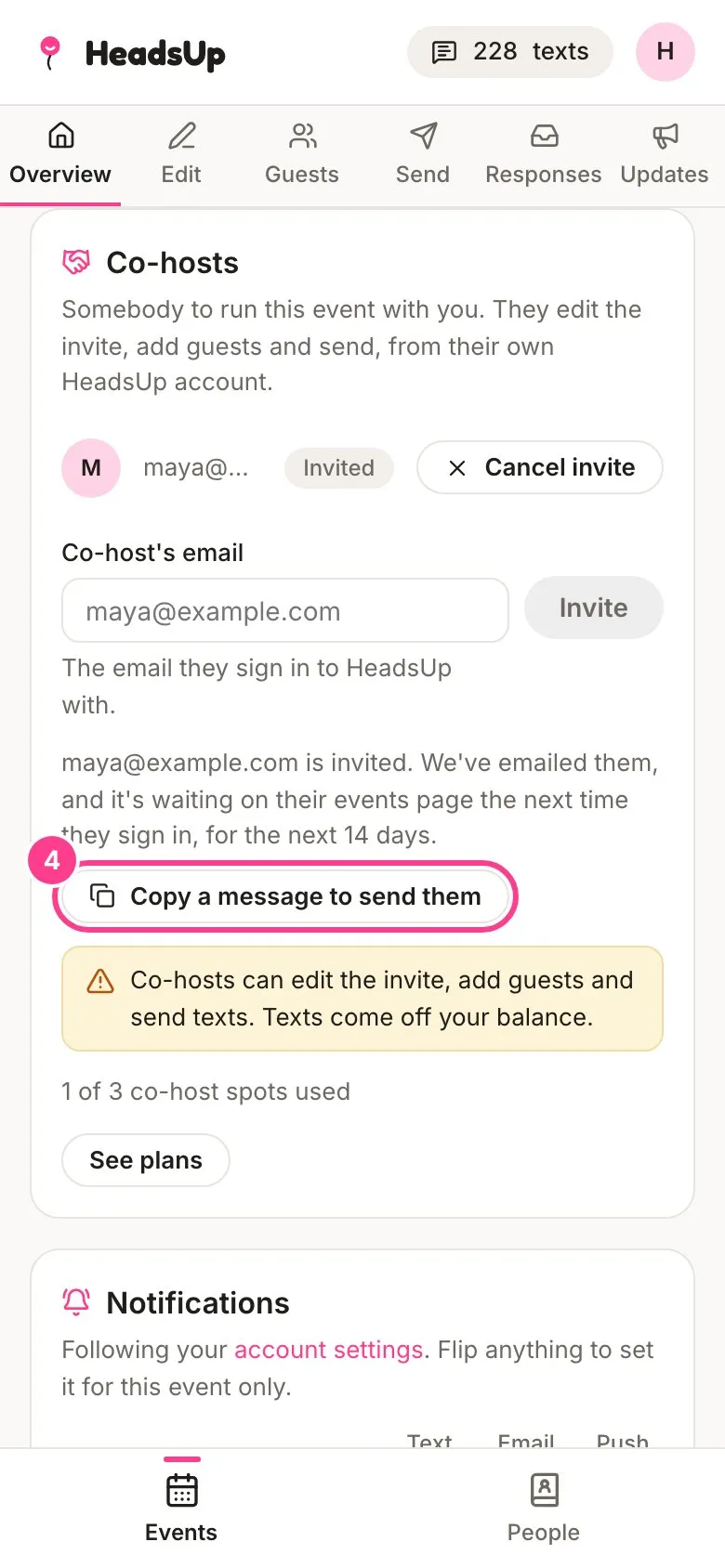
-
Next time they sign in, the invitation waits at the top of their Events page under Co-host invitations. They tap Accept and the event joins their list, marked Co-host.
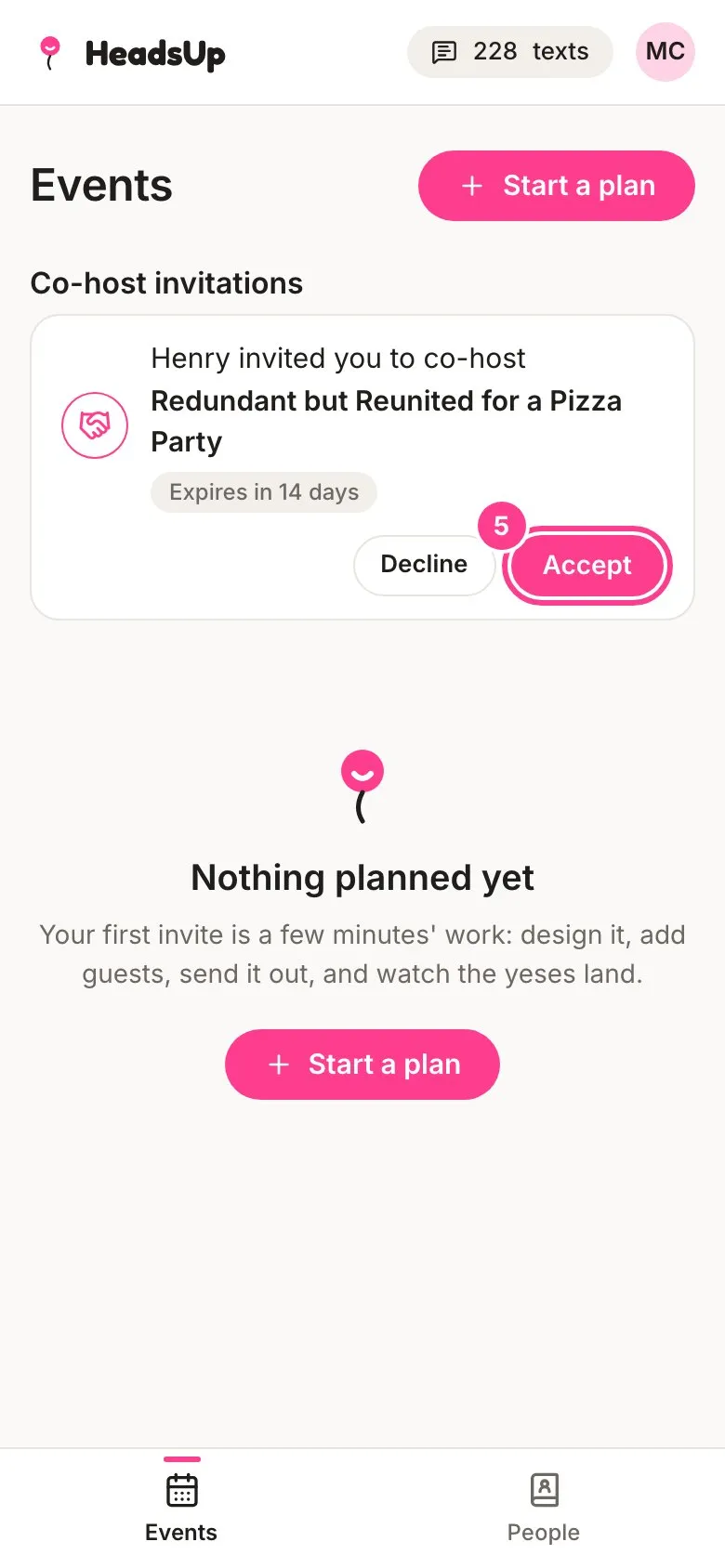
What a co-host can and can’t do
- They can edit the invite, add and remove guests, send invites and messages, post updates, answer questions and change the event’s settings.
- Only you can move the event to the bin, restore or delete it, add or remove co-hosts, or change the event’s Notifications card.
- Anything that costs money comes from your account. Texts a co-host sends come off your balance, and so does AI design they use. Your texts history shows who sent what, like “Sent by Maya”.
- They hear about replies, questions and plus ones by push and email, following their own notification settings. Texts about the event only ever go to you.
Good to know
- Your co-host needs a HeadsUp account, which is free. They don’t need a paid plan.
- How many co-hosts an event can have depends on your plan: 1 on Plus, 3 on Pro, 10 on Business, 25 on Business Pro and 50 on Business Max. The card shows how many spots you’ve used.
- An invitation lasts 14 days and takes a spot while it’s waiting. Tap Cancel invite to take it back.
- Invitations are matched on a verified email. If yours isn’t verified yet, the card says so and links you to Account to verify it. Your co-host’s email needs to be verified too, or the invitation won’t show for them.
- If your plan ends, co-hosts you already have keep access. Adding new ones waits until you renew.
Didn't answer it?
Tell us what you were trying to do and we'll write back, or give our guide to your AI assistant and ask it.