How to remove a co-host
Take a co-host off an event, cancel an invitation that hasn't been accepted yet, or leave an event you co-host.
Only the event’s host can remove a co-host. It takes effect straight away and frees up their spot for somebody else.
-
Open your event and scroll down the Overview to the Co-hosts card.
-
Next to their name, tap Remove.
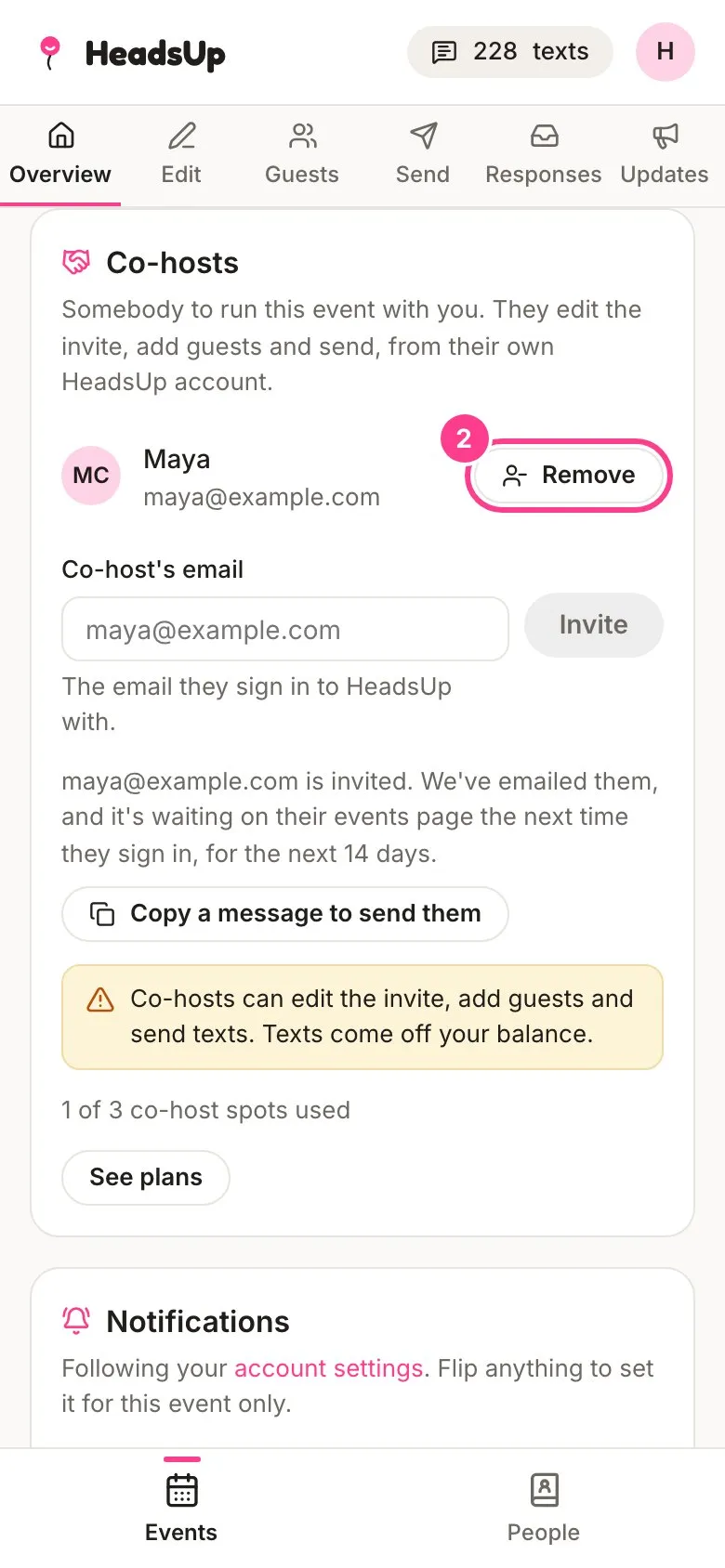
-
HeadsUp checks with you first. Tap Remove co-host to confirm, or Keep them to change your mind.
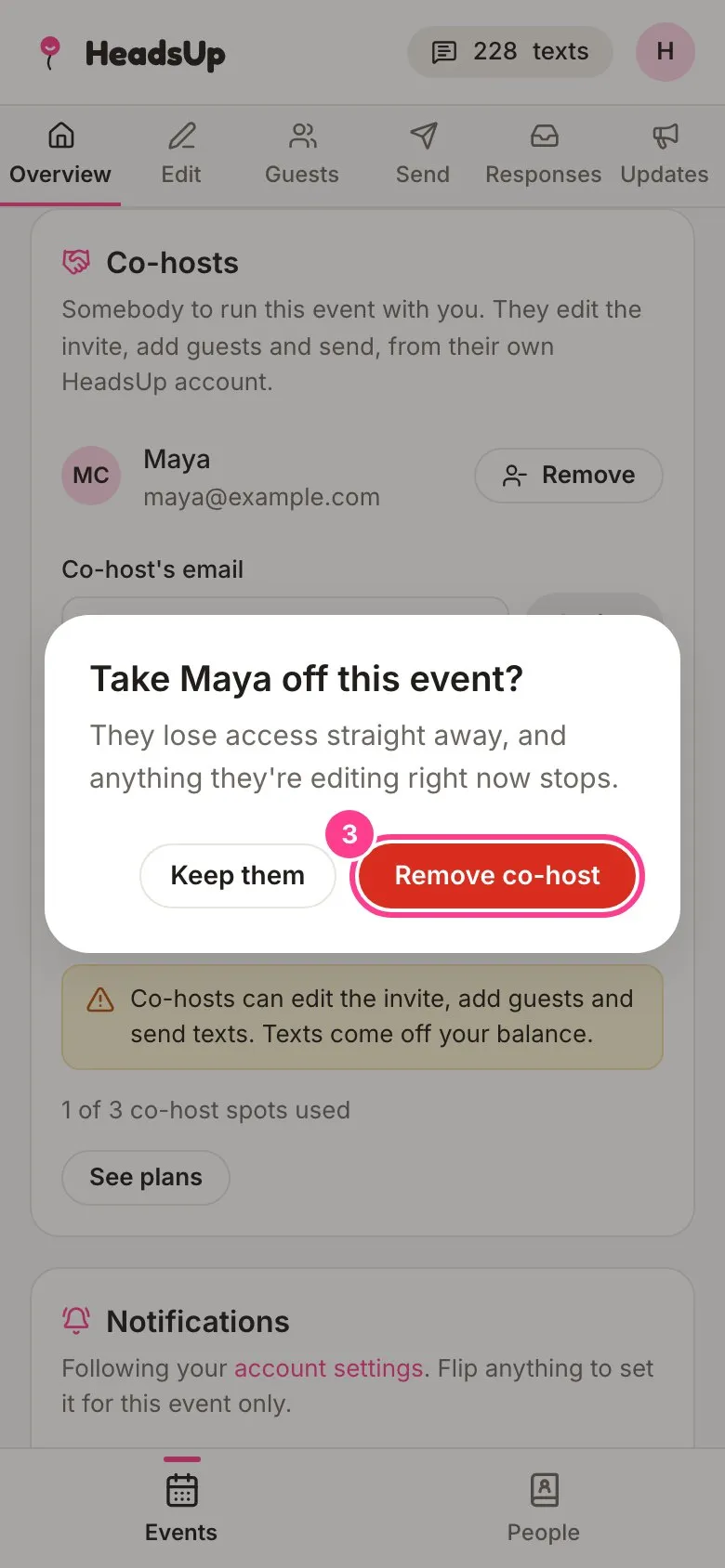
They lose access straight away. If they were editing something, it stops, and the event disappears from their Events page.
Leaving an event you co-host
-
If you’re the co-host, you can take yourself off. On the event’s Overview, find the Co-hosts card and tap Leave this event, then Leave event to confirm.
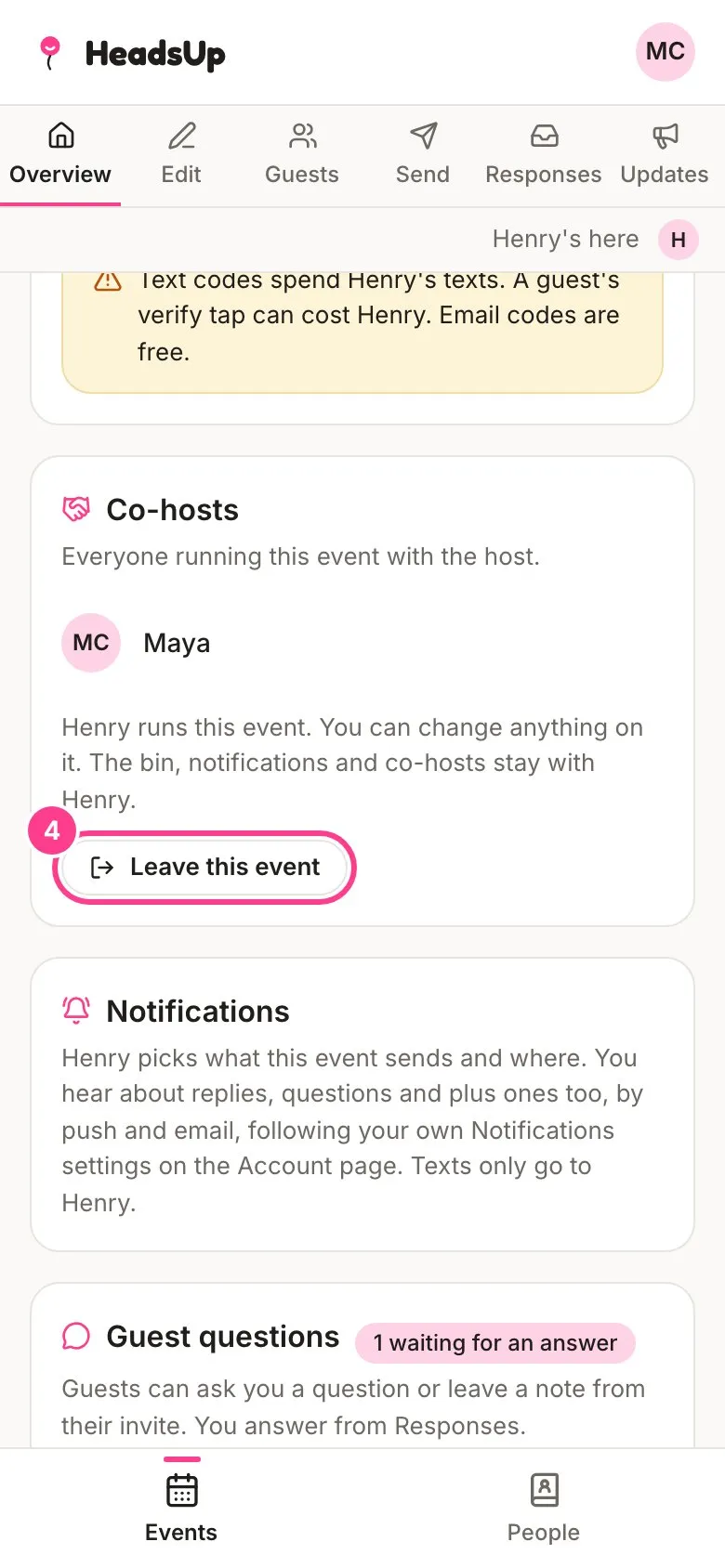
Good to know
- To take back an invitation that hasn’t been accepted, tap Cancel invite next to it.
- Everything a co-host added or changed stays on the event, like guests, updates and edits to the invite.
- You can invite them again any time, as long as you have a spot free on your plan.
Didn't answer it?
Tell us what you were trying to do and we'll write back, or give our guide to your AI assistant and ask it.