How to post an update
Tell every guest about a change of plan in one go, on their invite, then send a text or email so they know to look.
Plans change. The parking closes early, the venue moves, it’s going to rain. Instead of texting everyone by hand, post an update. It shows on every guest’s invite under an Updates tab, newest first, with the time you posted it.
-
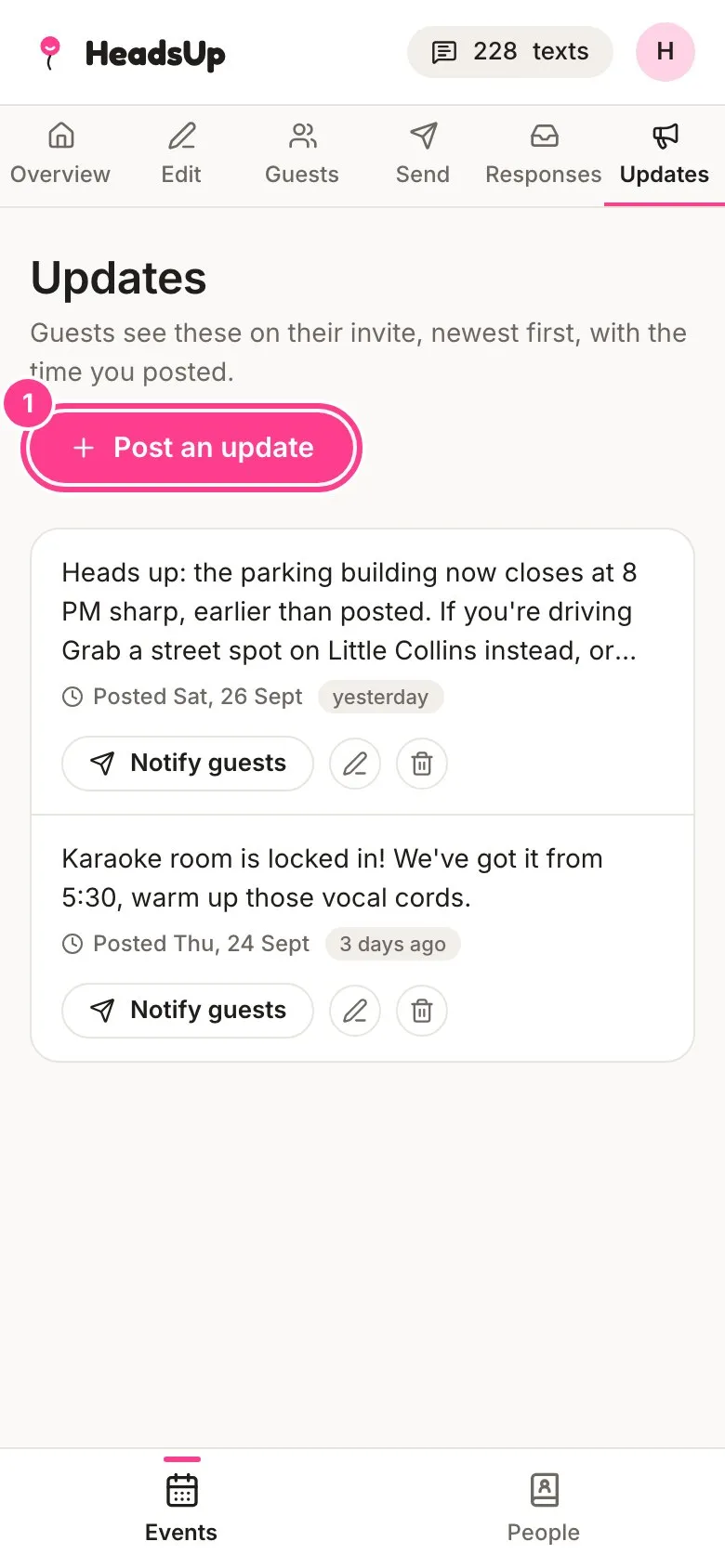
Open your event and tap Updates, then tap Post an update.
-
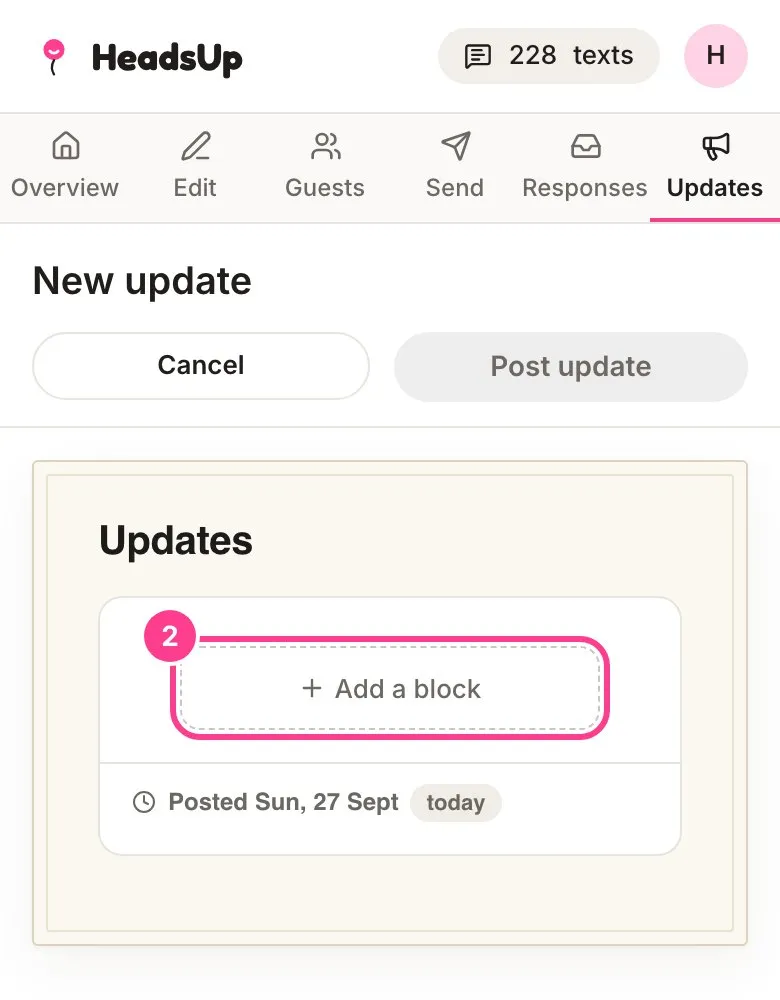
The update opens looking just like it will on your invite. Tap Add a block and pick Text, or anything else from the list, like a Location or a Photo.
-
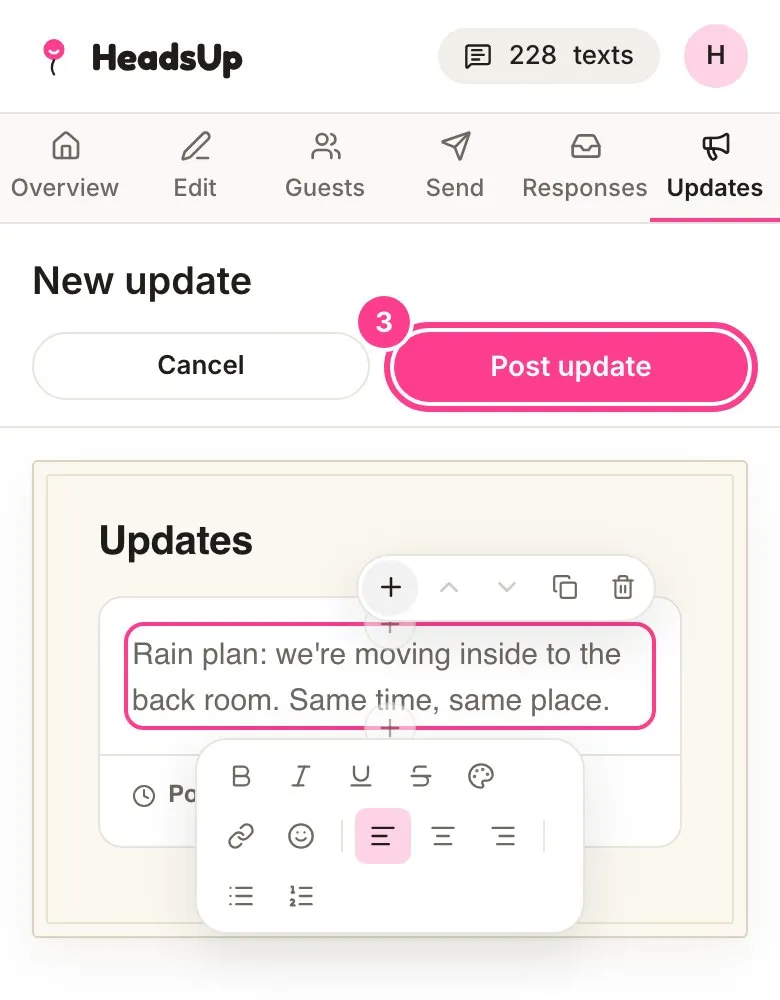
Write your update. The toolbar lets you add bold, colour, links and lists. When it reads right, tap Post update. It’s on every guest’s invite straight away.
-
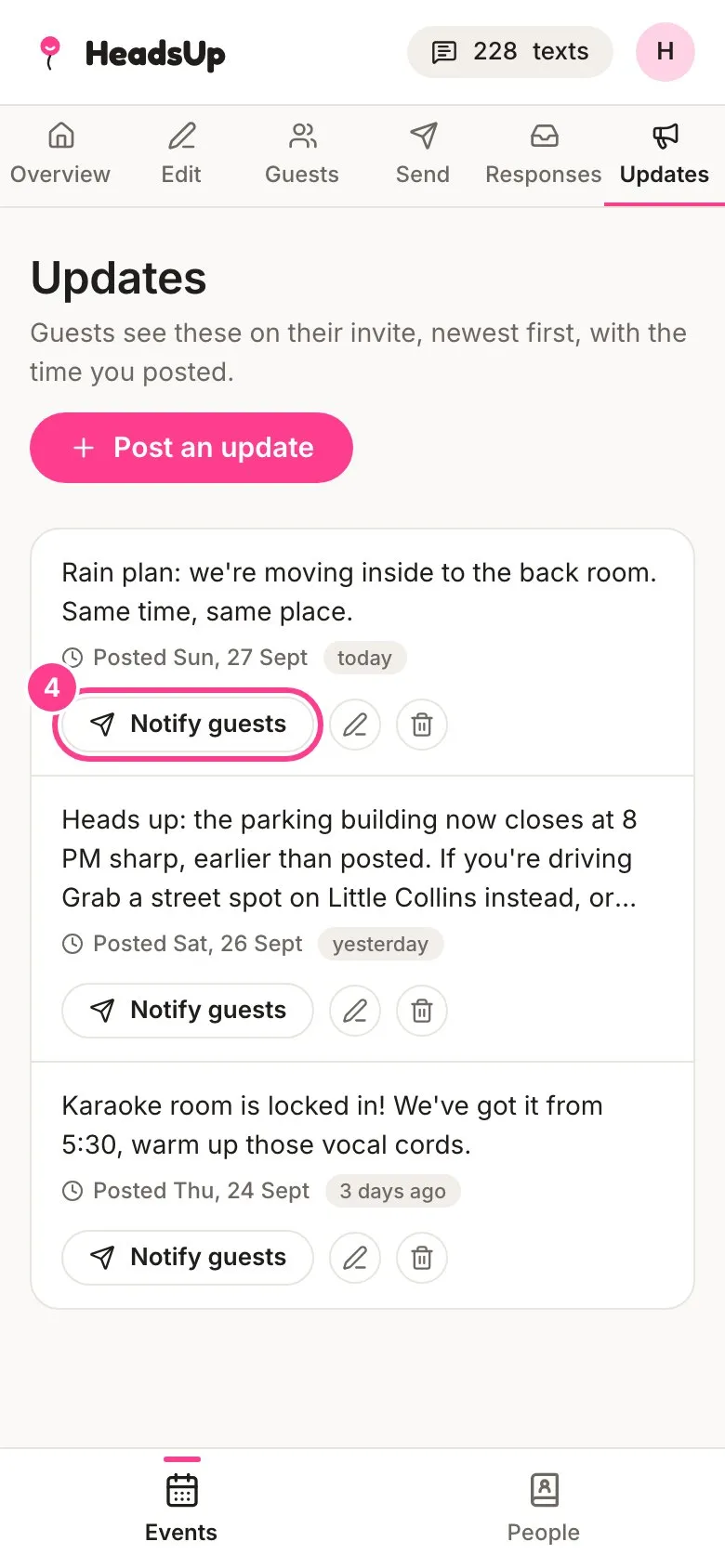
Posting doesn’t message anyone. To let guests know, tap Notify guests on the update.
-
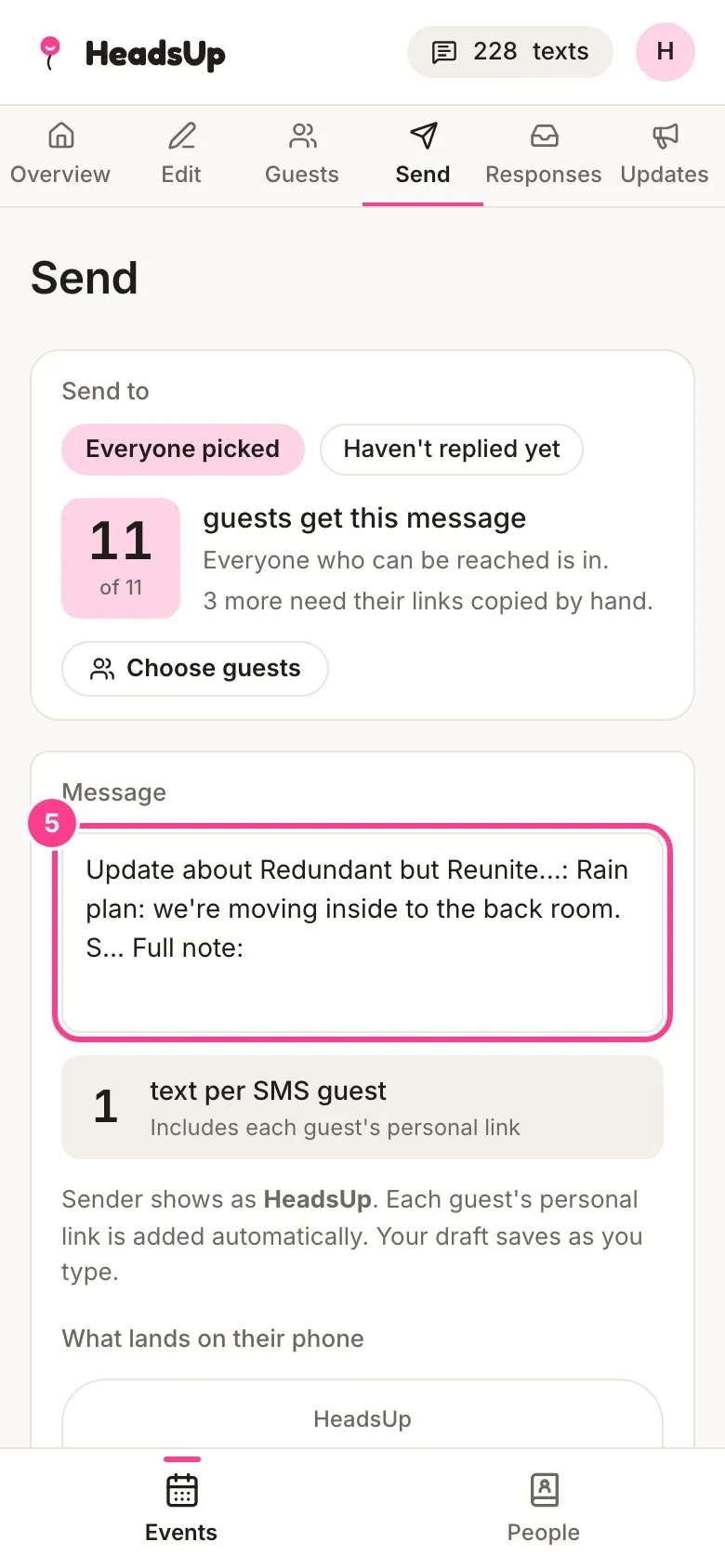
You land on Send with a message already written, and each guest’s link opens their invite straight onto this update. Change the message if you like, pick who gets it, and send it the way you’d send any message.
Good to know
- The ready-made message is sized to fit in one text. Texts come off your balance and emails are free. See How texts are counted.
- To fix a typo, tap the pencil on the update, make the change and tap Save changes. Guests see an Edited tag. The bin deletes it.
- An update can hold any block your invite can, including private details that only show once a guest verifies. Flip the Locked view switch while writing to see it the way guests do before they verify.
- Your event’s Overview shows your latest update with a Post an update shortcut.
- Guests don’t need an account to see updates. They’re on the same link as their invite.
Didn't answer it?
Tell us what you were trying to do and we'll write back, or give our guide to your AI assistant and ask it.