How to schedule a send
Write your invite now and have it go out later. Pick a date and time, and HeadsUp sends it for you, texts set aside.
Want invites to land at a good time, like Saturday morning rather than midnight when you finished setting up? Schedule the send and HeadsUp does it for you.
-
Choose your guests on the Guests tab, then open Send, write your message and pick how it goes under Send by, the same as a normal send.
-
Tap Send later.
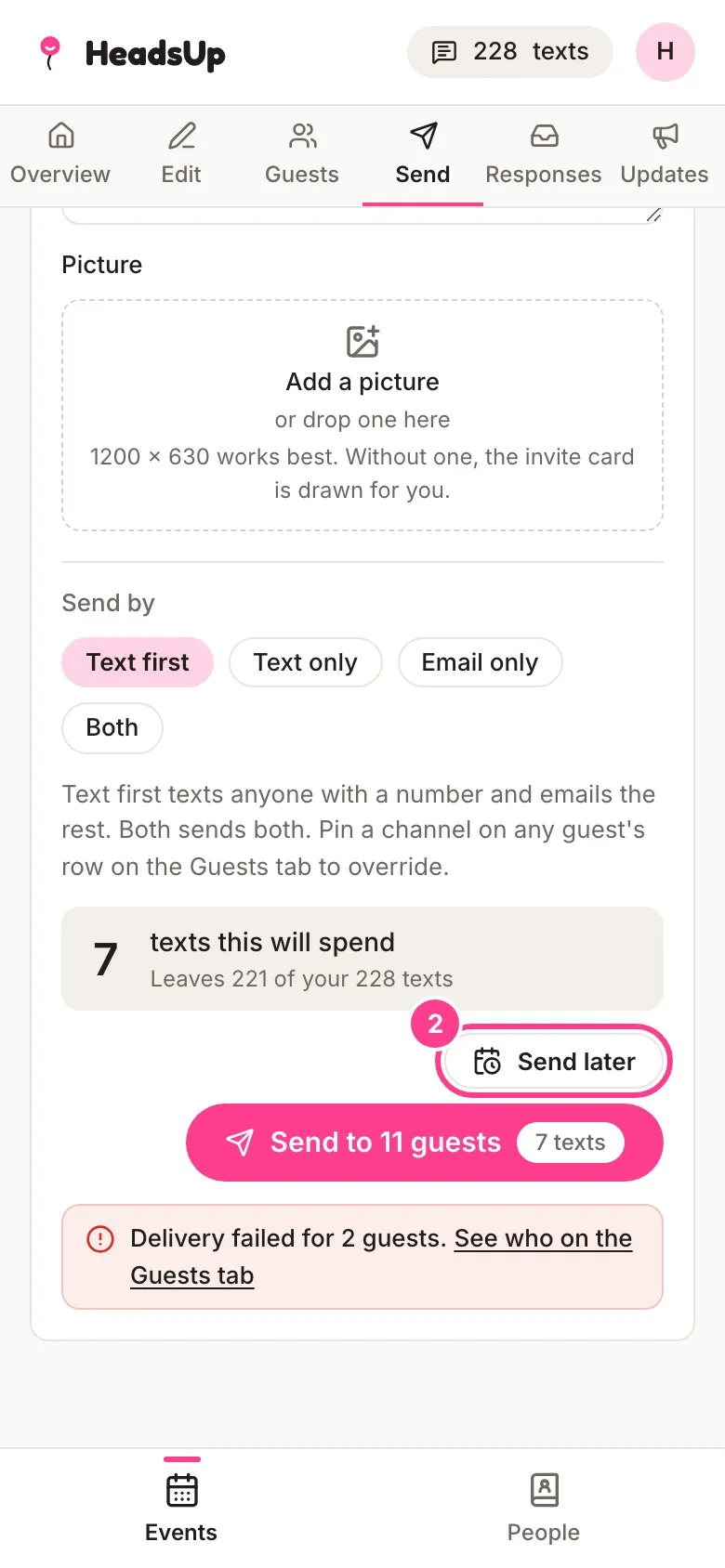
-
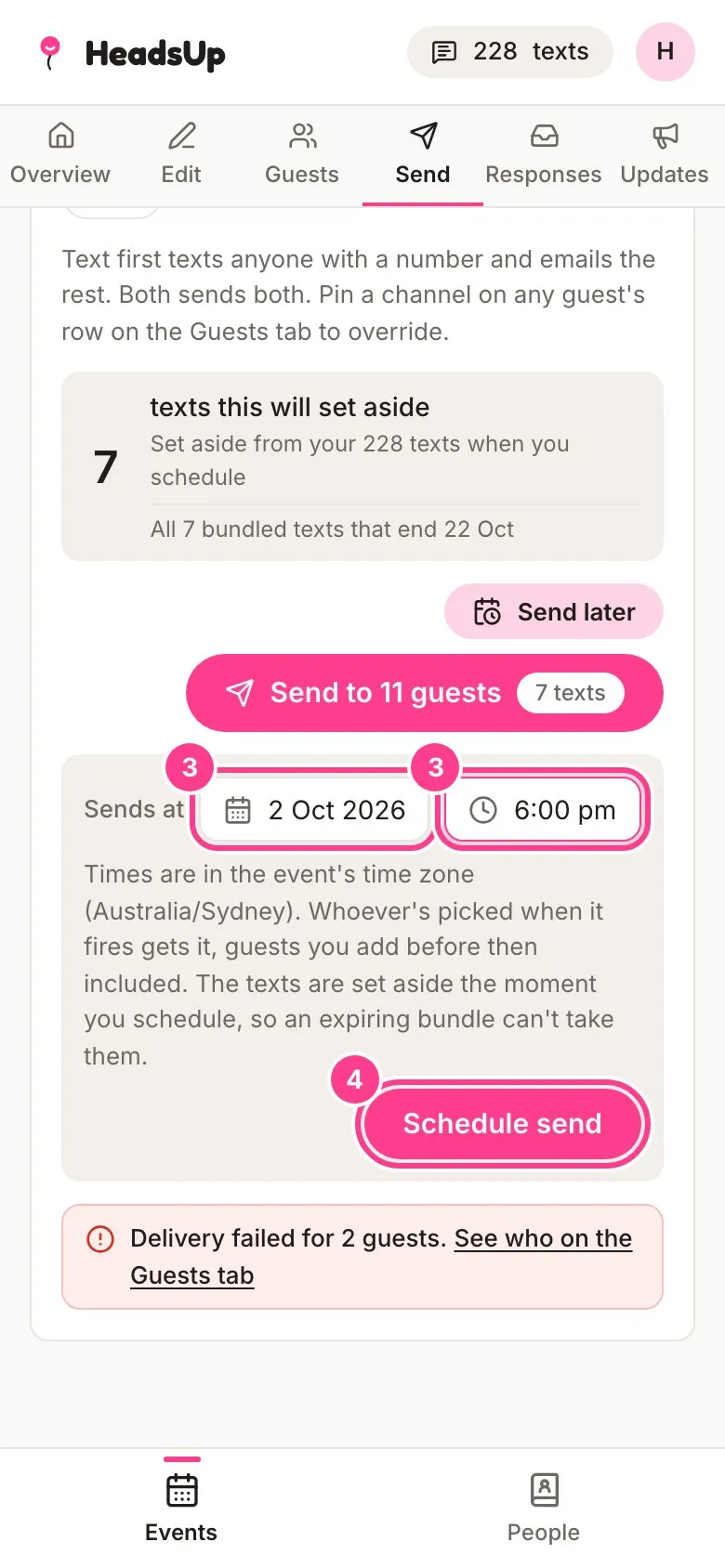
Under Sends at, pick a date and a time.
-
Tap Schedule send.
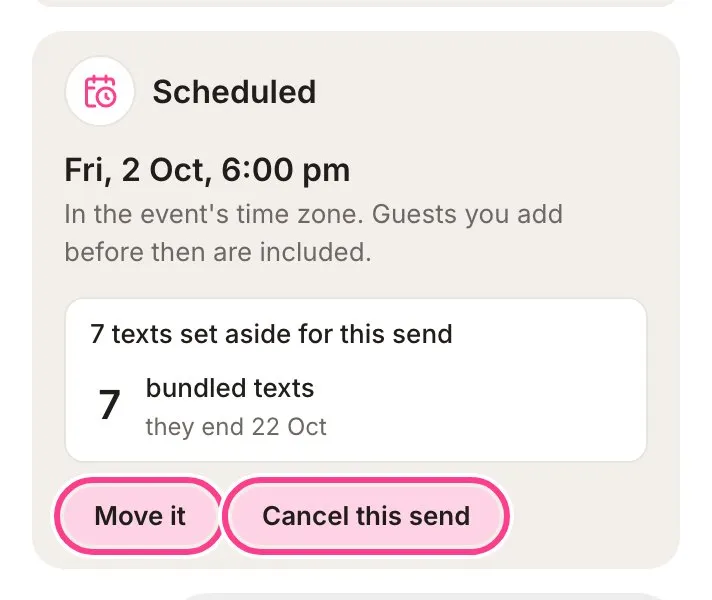
A Scheduled card shows when it’ll go and how many texts are set aside for it. Tap Move it to change the time, or Cancel this send to call it off.
Good to know
- Times are in the event’s time zone when it has one, otherwise your own.
- Pick a time at least five minutes from now.
- Your texts are set aside the moment you schedule, so they’re kept for this send even if your plan’s included texts would run out before then.
- Cancel and the set-aside texts go back to your balance. If they came from included texts that have since ended, those ones can’t come back, and the card warns you before you cancel.
- Move it can shift the send up to two weeks either side of the time you first booked. For a bigger move, cancel and schedule it again.
- Who gets it is worked out when it goes, so guests you add in the meantime are included.
- If you run short of texts when it goes, guests who’d have got a text get an email instead.
- While a send is scheduled, the send button waits. Cancel the scheduled one to send straight away.
- You’ll only hear from us about a scheduled send if something went wrong.
- On Free, invites go out the moment you tap send. Scheduling comes with Plus and up. See compare plans.
Didn't answer it?
Tell us what you were trying to do and we'll write back, or give our guide to your AI assistant and ask it.