How to choose your notifications
Pick what guest activity you hear about, and whether it comes by text, email or push, for all your events or just one.
HeadsUp can let you know when guests do things on your invites: reply, ask you a question, ask to bring a plus one, or vote in a poll. You choose which of those you hear about, and how. Your choices cover every event you run, and any single event can have its own.
-
Tap your initials in the top corner, then Account settings, then the Notifications tab.
-
Under What you hear about, flip the switches for each kind of activity. The three columns are Text, Email and Push.
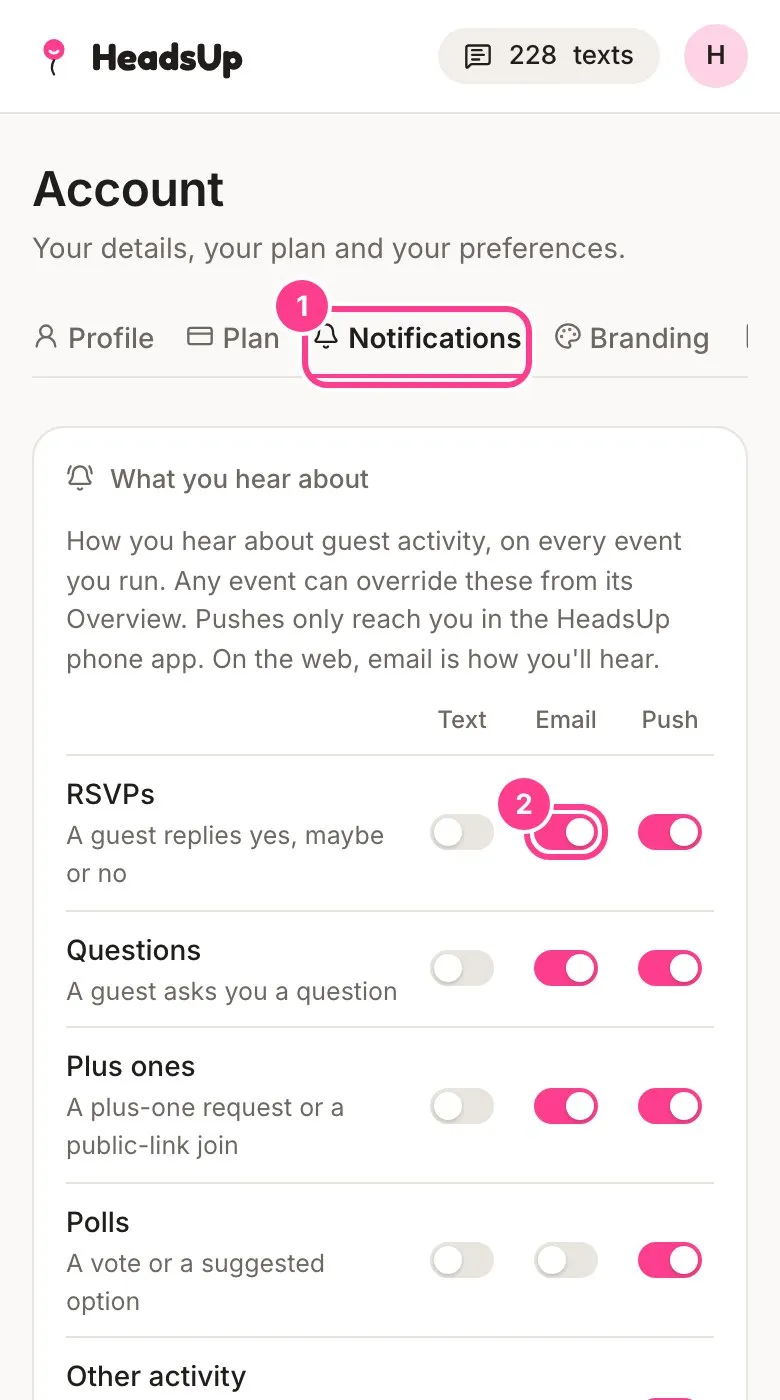
- RSVPs: a guest replies yes, maybe or no.
- Questions: a guest asks you a question.
- Plus ones: a plus-one request or a public-link join.
- Polls: a vote or a suggested option.
- Other activity: plates, chip-ins and sign-up claims. This one is push only.
Your choices save as soon as you flip a switch.
-
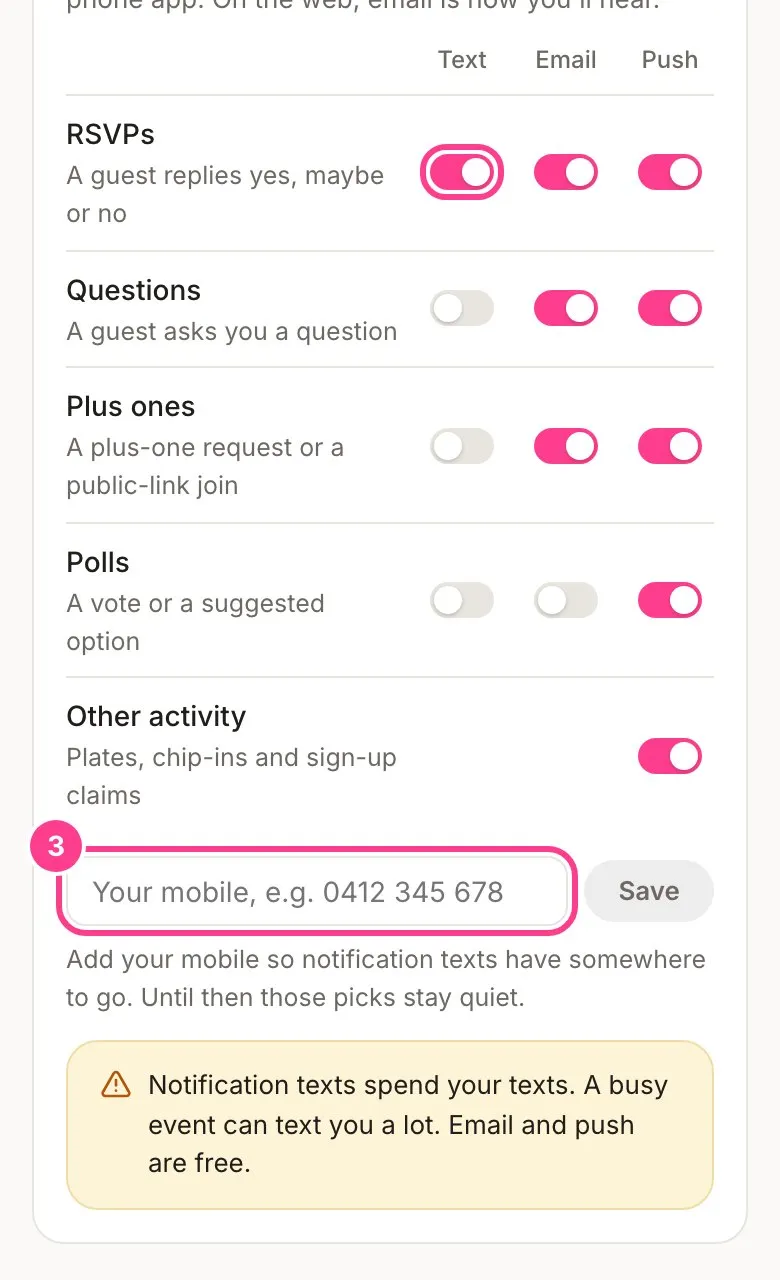
Want texts? Turn on a switch in the Text column, then add your mobile in the box that appears and tap Save. Until you add a number, text notifications stay quiet.
-
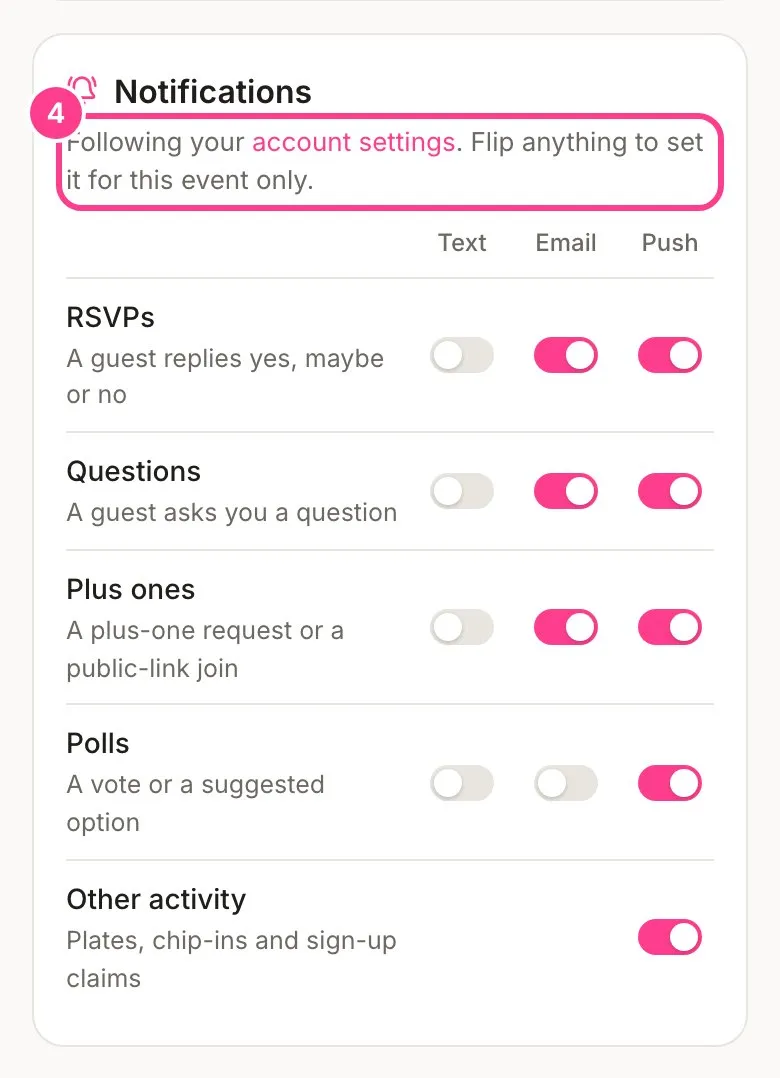
To set things differently for one event, open the event and scroll down its Overview to the Notifications card. Flip anything there and it applies to that event only. Tap Use my account settings to go back to your usual choices.
Good to know
- Notification texts spend your texts, the same balance your invites use, and a busy event can text you a lot. Email and push are free.
- Emails go to the address you sign in with.
- Out of the box you get emails about replies, questions and plus ones, and push for everything. Poll emails start off, so turn them on if you’d like them.
- Push notifications need the HeadsUp phone app, which isn’t in the app stores yet. Until it is, pick Email or Text for anything you don’t want to miss.
- On one event you can also use a different mobile for its texts. Add it in that event’s Notifications card, or leave the box blank to use your account number.
- Co-hosting somebody else’s event? The owner picks what that event sends. You hear about replies, questions and plus ones by push and email, following your own settings here.
Didn't answer it?
Tell us what you were trying to do and we'll write back, or give our guide to your AI assistant and ask it.