How to answer guest questions
Read the questions guests send from their invite, write an answer, and choose whether to let them know by email or text.
Guests can ask you something straight from their invite: where to park, whether they can bring the dog, what to wear. Each question is private between you and that guest, and your answer shows on their invite.
Questions are off until you turn them on. Set Guest questions to On when you create the event, or turn on Let guests ask you questions in the editor’s RSVP settings. See How to set up the RSVP card.
-
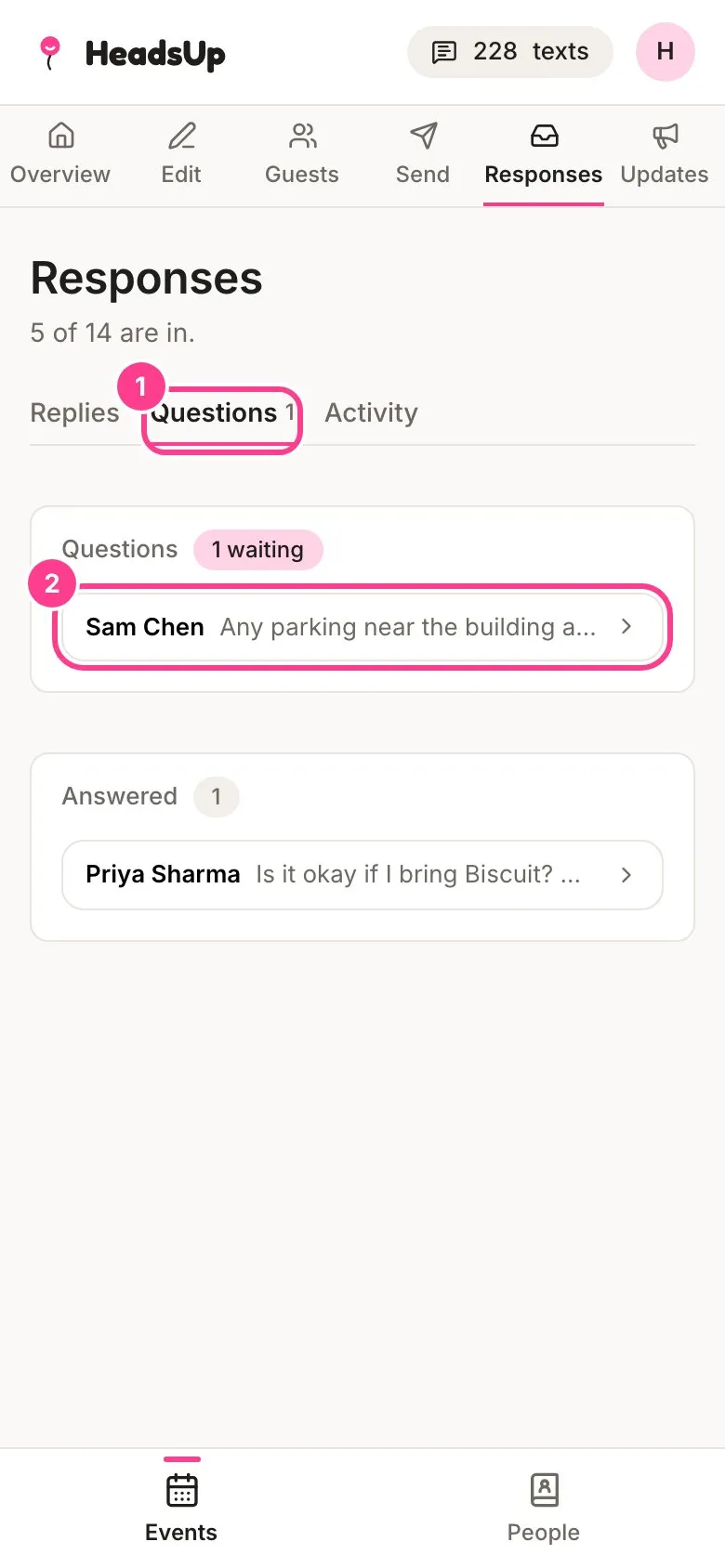
Open your event, tap Responses, then tap the Questions tab. The number beside it counts questions waiting on you.
-
Tap a question to open that guest’s details.
-
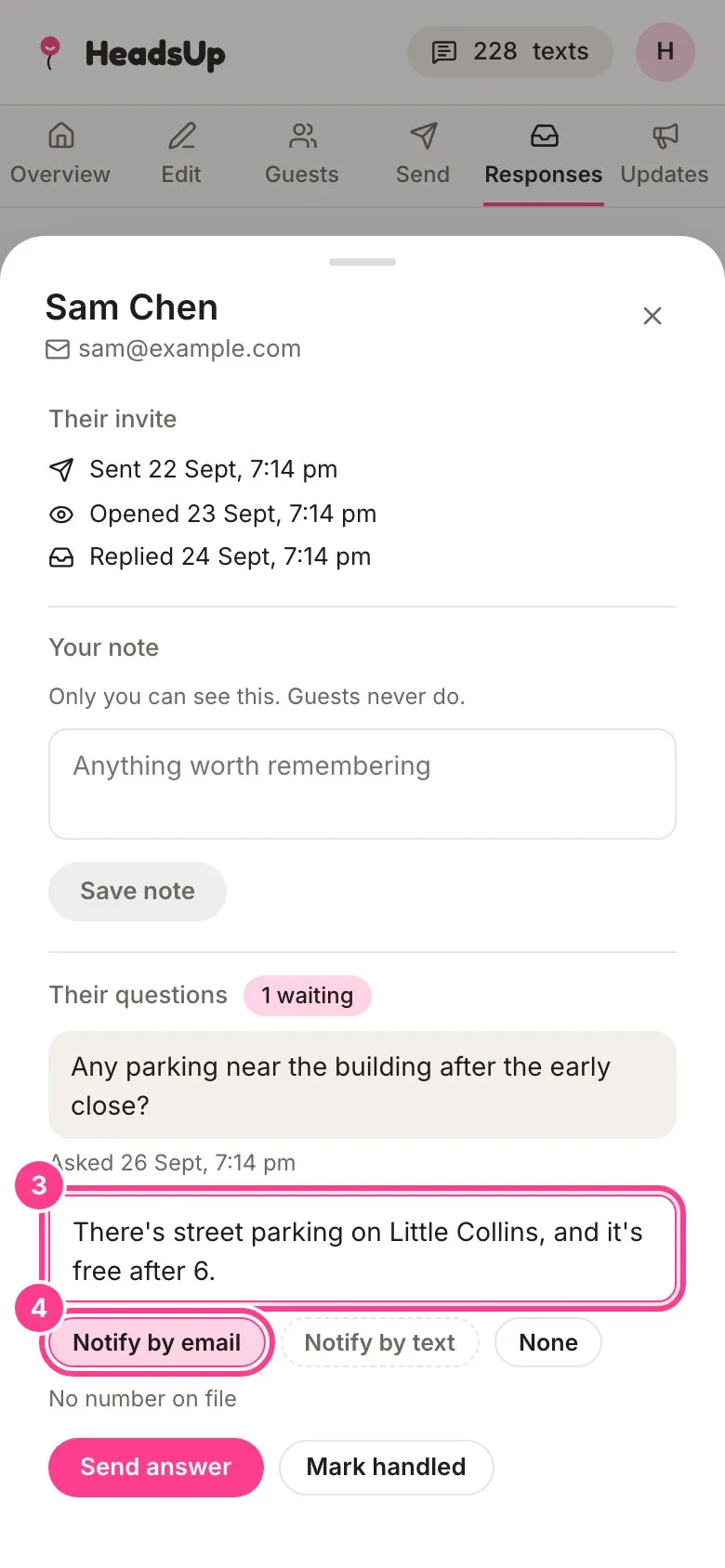
Under Their questions, type your answer in the box.
-
Choose how they hear about it: Notify by email, Notify by text, or None to just leave the answer on their invite.
-
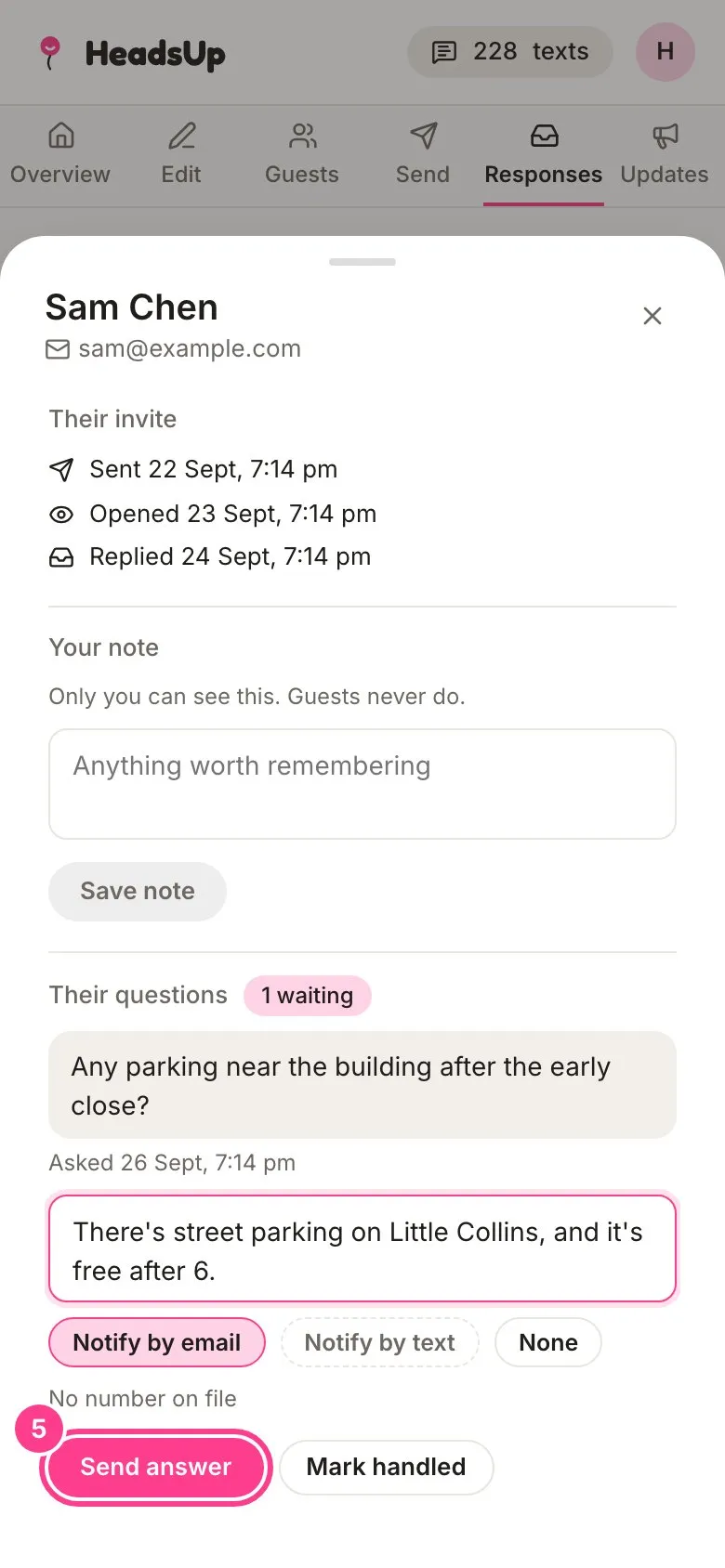
Tap Send answer. The answer saves first, then the email or text goes.
Good to know
- Some questions are really notes, like “running late”. Tap Mark handled to clear it without writing an answer. Reopen puts it back.
- Email is free. Notify by text sends a short nudge with their link and uses your texts. The screen shows how many it spends before you send.
- A pick is greyed out when it can’t reach that guest, like Notify by text when you don’t have their number. The reason shows under the picks.
- Each guest sees only their own questions and your answers, never anyone else’s.
- The Overview’s Guest questions card shows how many are waiting. You hear about new ones on the picks you set in your notifications.
- Guests confirm it’s them with a code before they can ask, so a forwarded link can’t ask in someone else’s name.
Didn't answer it?
Tell us what you were trying to do and we'll write back, or give our guide to your AI assistant and ask it.