How to check in guests at the door
Tick guests off as they arrive from your guest list on any plan, or scan their QR pass at the door on the Business plans.
On the day, HeadsUp can be your door list. Every plan can tick guests off as they walk in. The Business plans add a QR pass on each guest’s invite and a door screen that scans them in, handy when the queue’s long.
Tick guests off (every plan)
-
Open your event and tap Guests. On each guest’s row, tap the person-with-a-tick button to mark them arrived. They get an Arrived tag. Tap it again to undo.
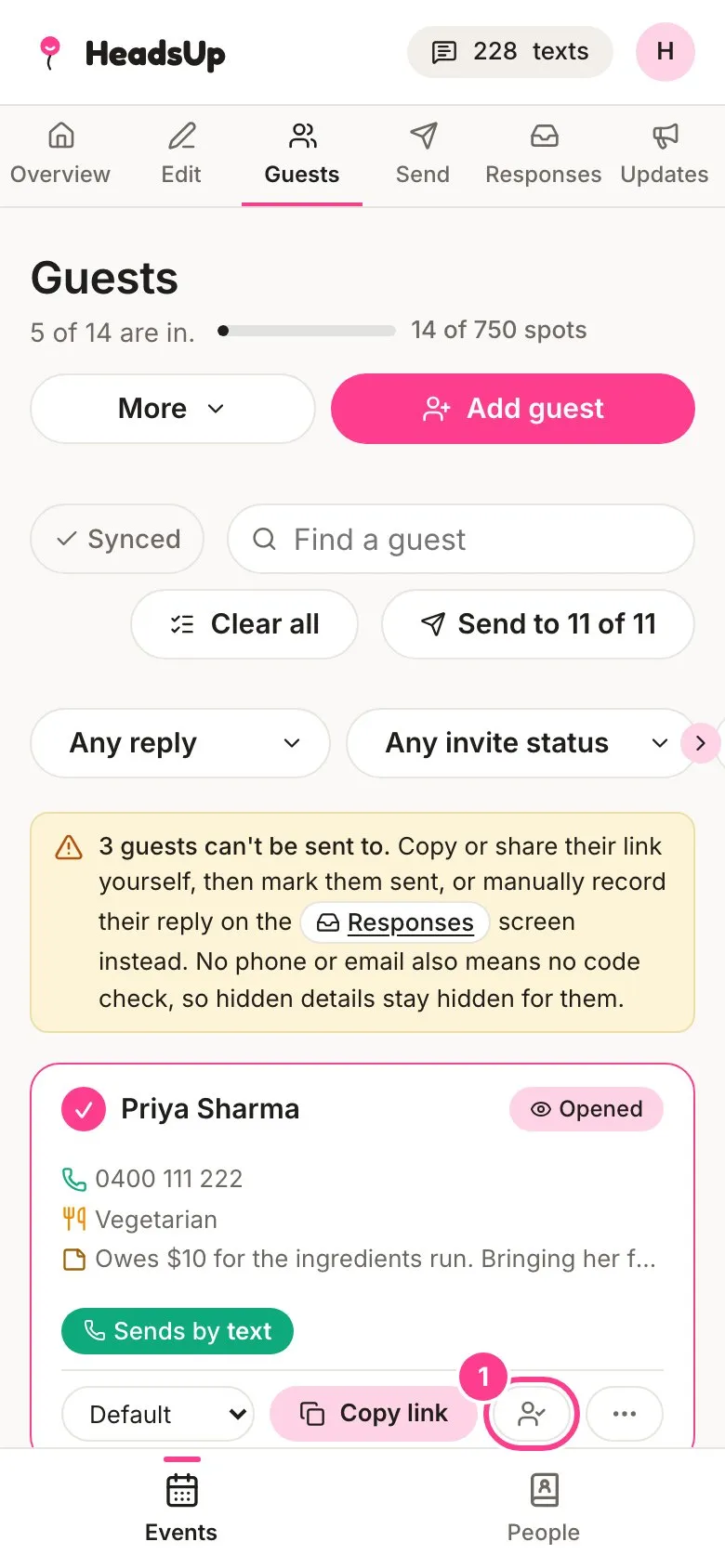
To see who’s still to come, set the arrival filter above the list to Not arrived yet.
Scan guests in (Business plans)
-
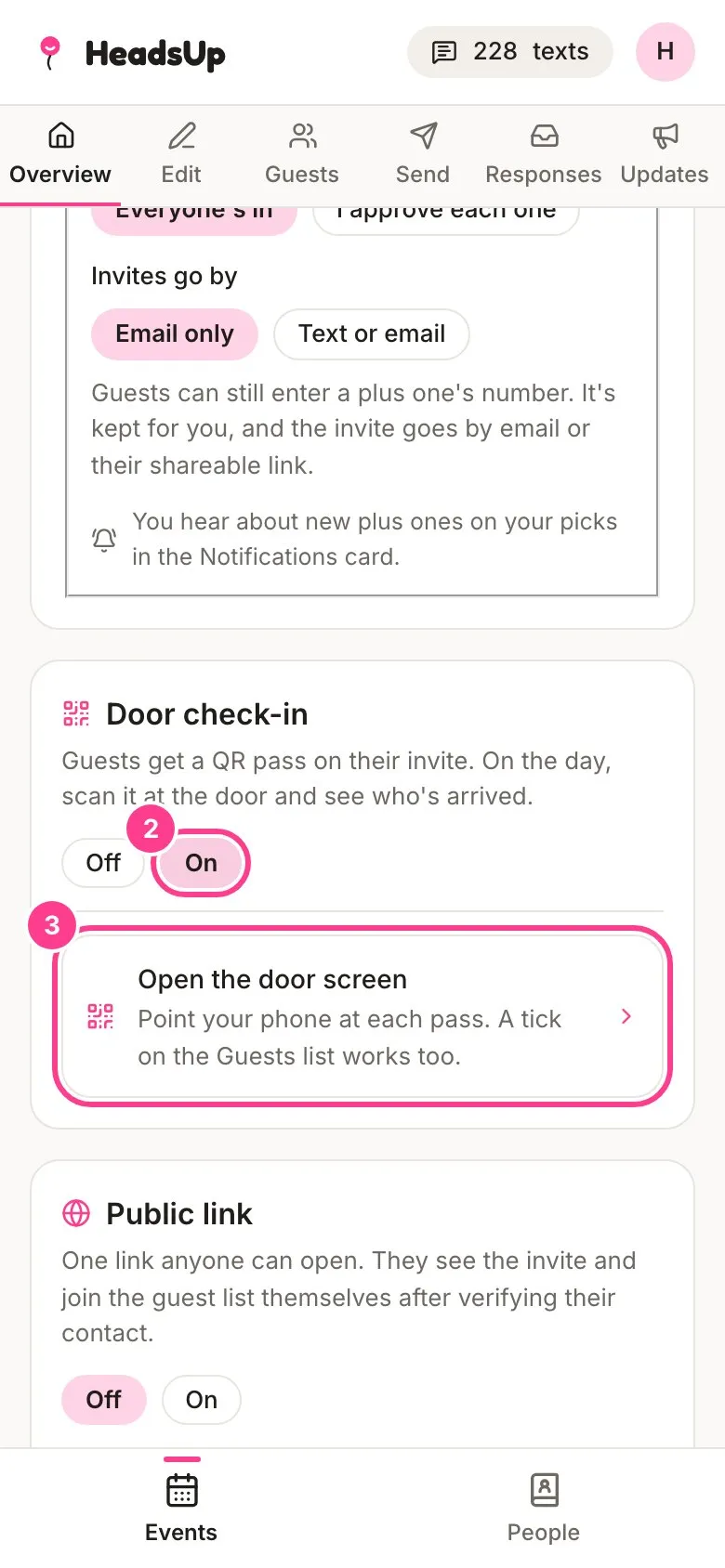
On your event’s Overview, find the Door check-in card and tap On. Every guest’s invite now shows a QR pass.
-
On the day, tap Open the door screen. You can also get there from Guests, then More, then Door check-in.
-
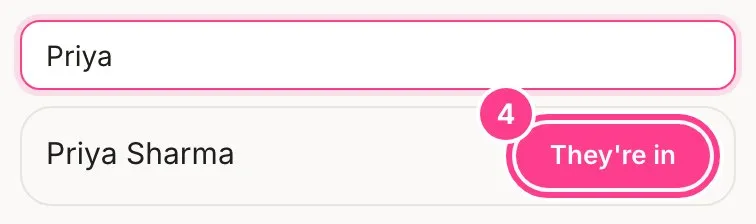
Point your phone’s camera at a guest’s pass. The screen says they’re in and the count at the top goes up. If a pass won’t scan, type their name in Or find them by name and tap They’re in.
Good to know
- The door screen needs your camera. The first time, your phone asks if HeadsUp can use it. Say yes, or find guests by name instead.
- Scanning somebody twice is fine. The screen says they’re already in and doesn’t count them again.
- A pass from another event, or from a guest still waiting on your approval, won’t check in. The screen says why.
- The pass is just the guest’s own invite link as a QR code. Scanned with a normal camera app, it opens their invite.
- Arrivals are only ever seen by you and your co-hosts, never by guests.
- If a Business plan ends, the passes and the door screen wait until you renew. Ticking guests off on Guests keeps working, and every arrival you’ve marked stays.
Didn't answer it?
Tell us what you were trying to do and we'll write back, or give our guide to your AI assistant and ask it.