How to see your notifications
The bell at the top of the screen keeps every reply, question and alert in one place, grouped by event, with your texts and plan in their own group.
Everything guests do on your invites lands in one place, even the things you’ve turned off emails and texts for. Replies, questions, plus ones, poll votes and the rest are sorted by event, and anything about your texts or your plan has its own group. Nothing is lost if you miss an email or a push.
-
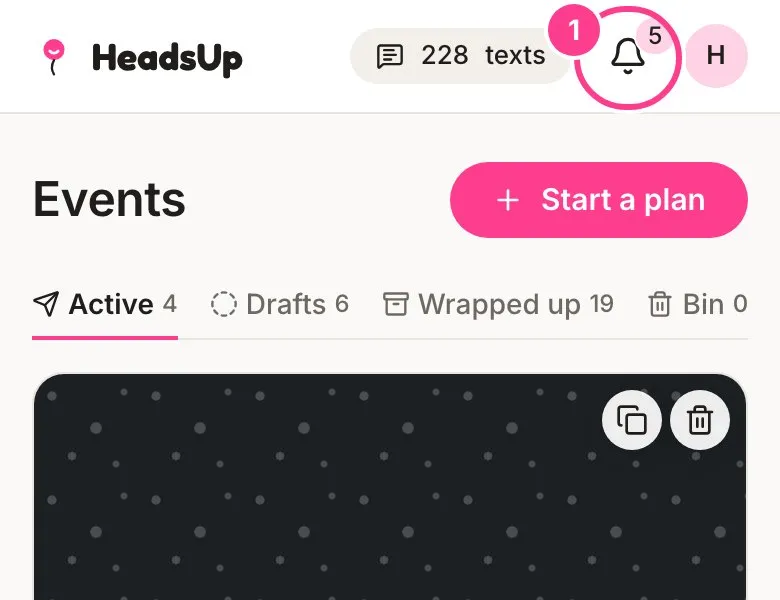
Tap the bell at the top of the screen, beside your initials. The number on it is how many new things are waiting for you.
-
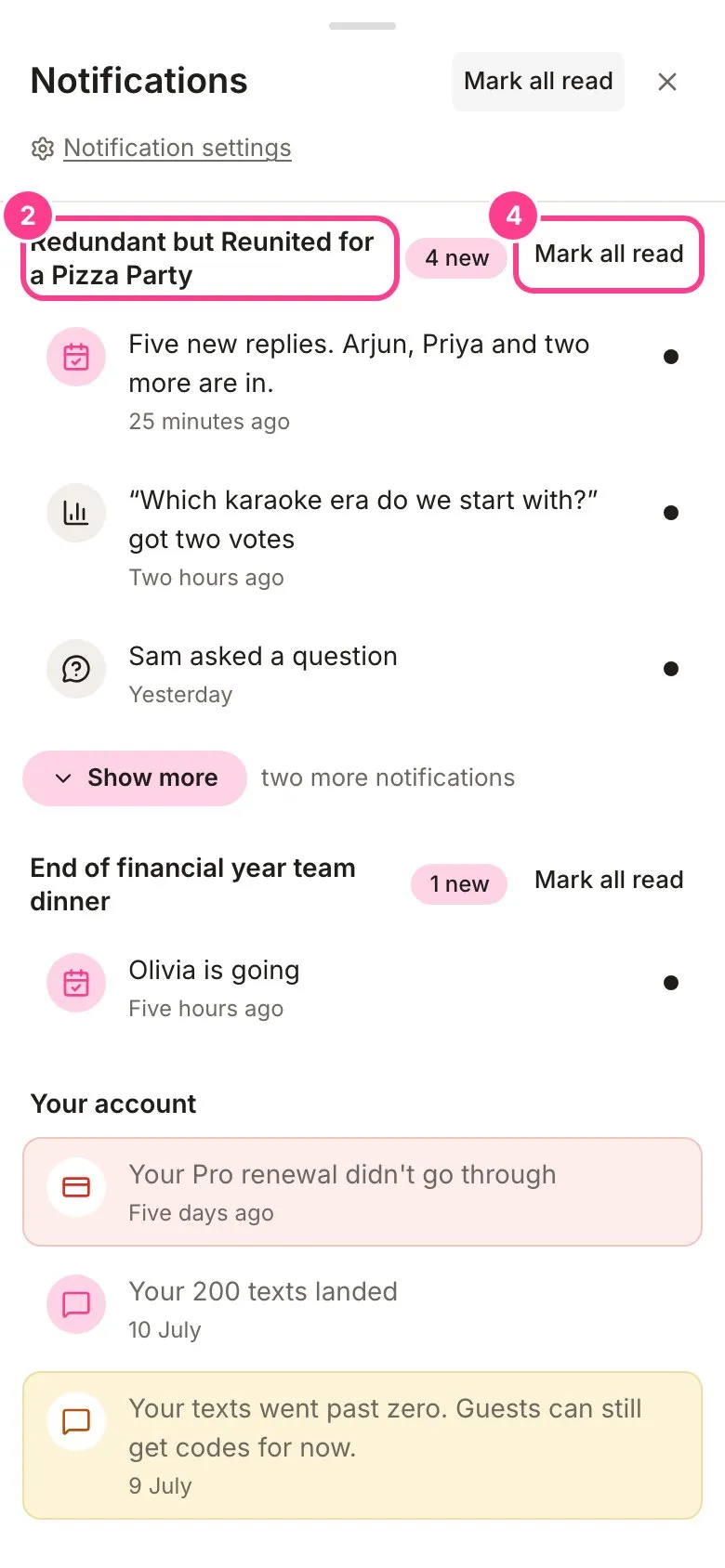
Your notifications open in a panel, one group per event with the newest at the top. Each group shows its first three, with what’s still unread ahead of what you’ve read, and Show more opens the rest and Show less folds it back. Nothing moves while the panel is open, so a notification you open in a new tab stays where it was. Replies that arrive close together are folded into one line, like “Five new replies. Arjun, Priya and two more are in.”
-
Tap a notification to go straight to where you’d deal with it: the event’s Responses for replies and votes, its Questions tab for a question, Waiting for a plus one who needs your OK, Activity for plates, chip-ins and sign-ups, or your texts and plan for anything about your account. The panel closes on the way.
-
Tap Mark all read on a group to clear just that event, or the one at the top to clear everything. Read notifications stay in the list, a little quieter, so you can always look back. A read line drops “new”, so “Five new replies” becomes “Five replies. Arjun, Priya and two more are in.”
Your texts and your plan
Anything about your account sits in the Your account group:
- “You’re down to four texts”, when you drop below ten.
- “Your texts went past zero. Guests can still get codes for now.” So a guest is never stuck at the gate, a verification code by text still goes out when you’ve just run out. This tells you it happened.
- “Guests can’t get codes by text. Add texts or turn on email codes.” You’re out of texts and the cover has run out too. Add texts, or set Verification codes to Email only on the event’s Overview so guests get their codes free.
- “Your Plus plan ends in three days”, if your plan isn’t renewing, and “Your Plus plan has ended” once it has.
- “Your Plus plan renewal didn’t go through”, so you can sort out your card before your plan ends.
- “Your 200 texts landed” and “Your Plus plan is on”, after a purchase.
While something here needs you, the group sits at the top of the panel. Good news, like texts landing, shows in the list but never adds to the number on the bell. Once texts land, an alert about running low or running out is marked read for you, whether you bought a pack or your plan renewed.
Good to know
- The bell keeps notifications for 90 days.
- Your choices in Notification settings decide what reaches you by text, email or push. They never change what the bell keeps. There’s a Notification settings link at the top of the panel.
- Alerts about running low, going past zero and codes being refused also come by push and email, never by text, since you might be out of them. See how to choose your notifications to turn those off.
- Co-hosting somebody else’s event? You see that event’s notifications in your own bell, and nothing else of theirs. Texts and plan alerts go to the event owner, since it’s their balance.
- On a phone the panel fills the screen. Swipe it down, tap the cross or use your phone’s back gesture to close it.
- A guest you’ve since removed shows as “A guest”, and an event in the bin hides its notifications until you restore it.
Didn't answer it?
Tell us what you were trying to do and we'll write back, or give our guide to your AI assistant and ask it.