How to find your way around HeadsUp
A quick tour of the Events home, the six sections inside every event, your People list, the texts pill and your account menu.
HeadsUp has two main places: Events, where every invite you’re running lives, and People, your saved guests. Everything else hangs off those two. Here’s where things are.
-
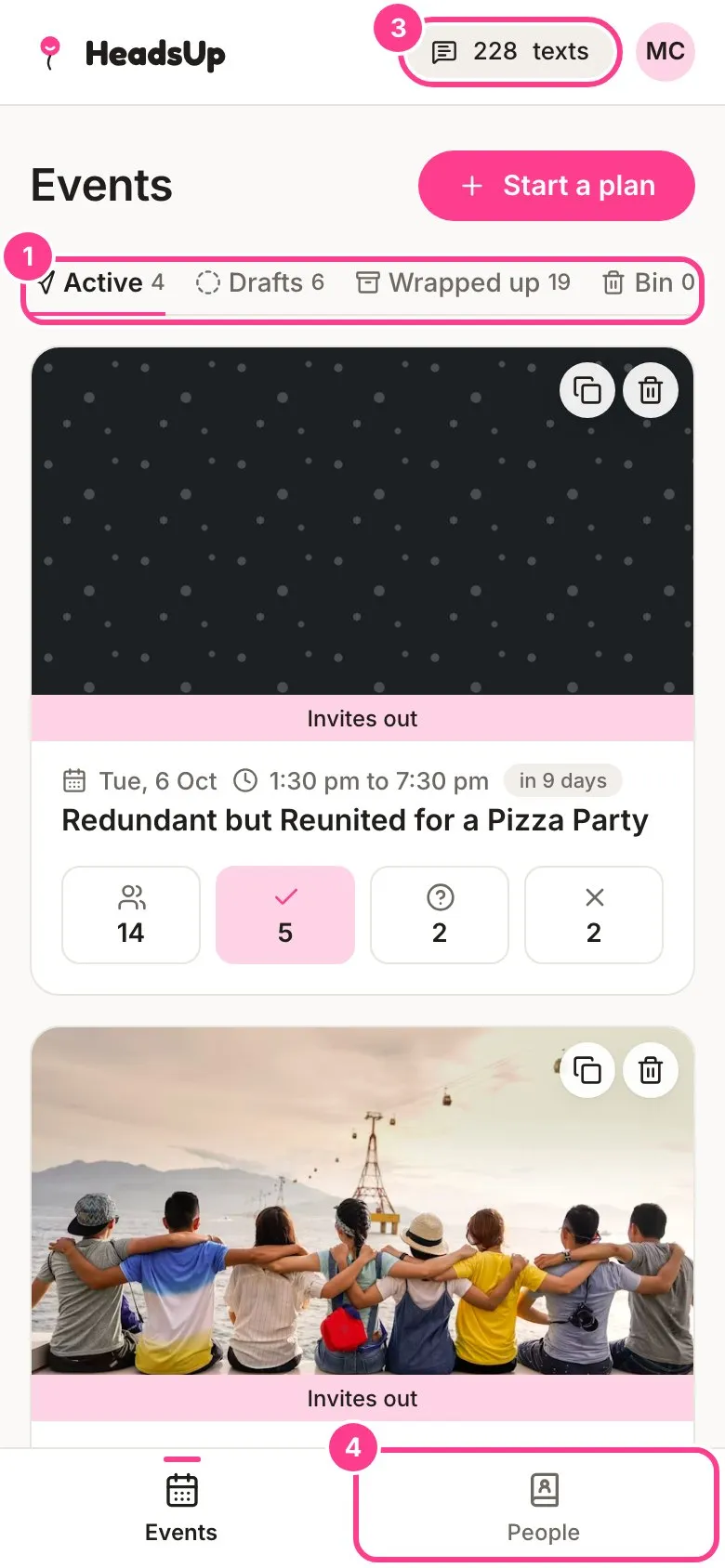
Your Events home. Your events are sorted into four tabs. Active has events whose invites are out. Drafts has events you haven’t sent yet. Wrapped up has events that have finished. Bin has events you’ve deleted, which you can still restore for 30 days. Each card shows the date and how many guests are invited, going, maybe and can’t go. Tap a card to open the event.
-
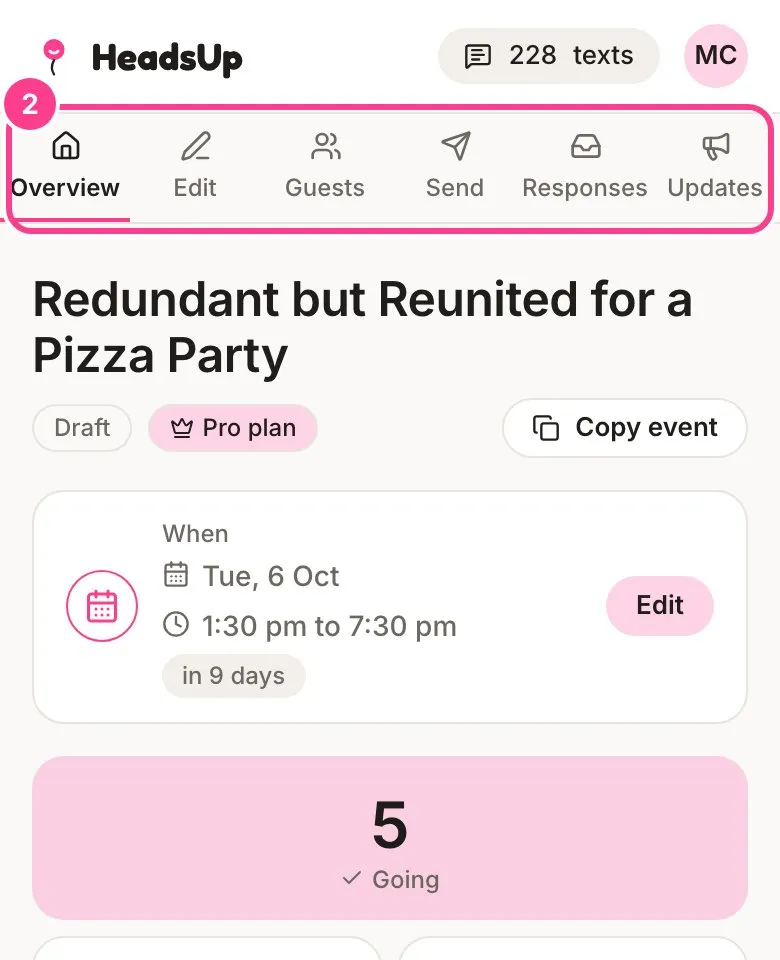
Inside an event. Every event has six sections along the top:
- Overview: the date, your reply numbers, what to do next, and the event’s settings, such as verification codes, the public link, co-hosts and notifications.
- Edit: the invite itself. Tap anything on it to change it.
- Guests: add people and copy each guest’s personal link.
- Send: send the invite by text or email.
- Responses: who’s coming, dietary needs, guest questions and activity.
- Updates: post news to your guests after the invite has gone out.
-
The texts pill. The number at the top of the screen is how many texts you have left to send. Tap it for your Texts history: every top-up, spend and expiry, with the balance each one left.
-
People. Tap People to see everyone you’ve saved. People you add here are ready to invite to any event, and you can sort them into groups.
-
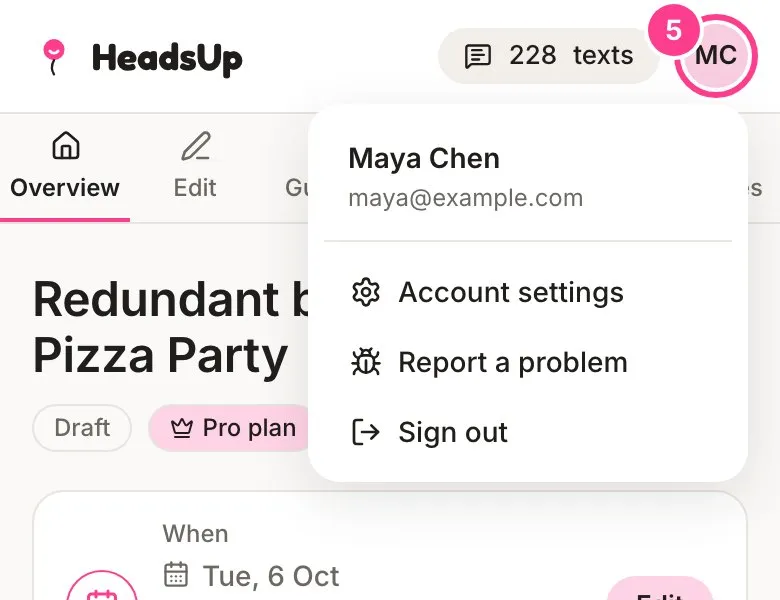
Your account menu. Tap your initials in the top corner for Account settings, Report a problem and Sign out.
Good to know
- On a phone, Events and People sit along the bottom of the screen. While you’re editing an invite on a phone, the bars tuck away to give you room.
- Upcoming events sort with the soonest at the top.
- If somebody made you a co-host of their event, it shows up in your tabs too, with a Co-host chip on the card.
- Found something that doesn’t work? Report a problem in the account menu sends it straight to us.
Didn't answer it?
Tell us what you were trying to do and we'll write back, or give our guide to your AI assistant and ask it.