How to duplicate an event
Copy an event to reuse its invite and guest list for your next one. The date, sends and replies start fresh.
Running the same kind of event again? Copy it instead of starting over. The copy gets the whole invite and the same guest list, and everything else starts fresh, so it’s ready for its own date and its own replies.
-
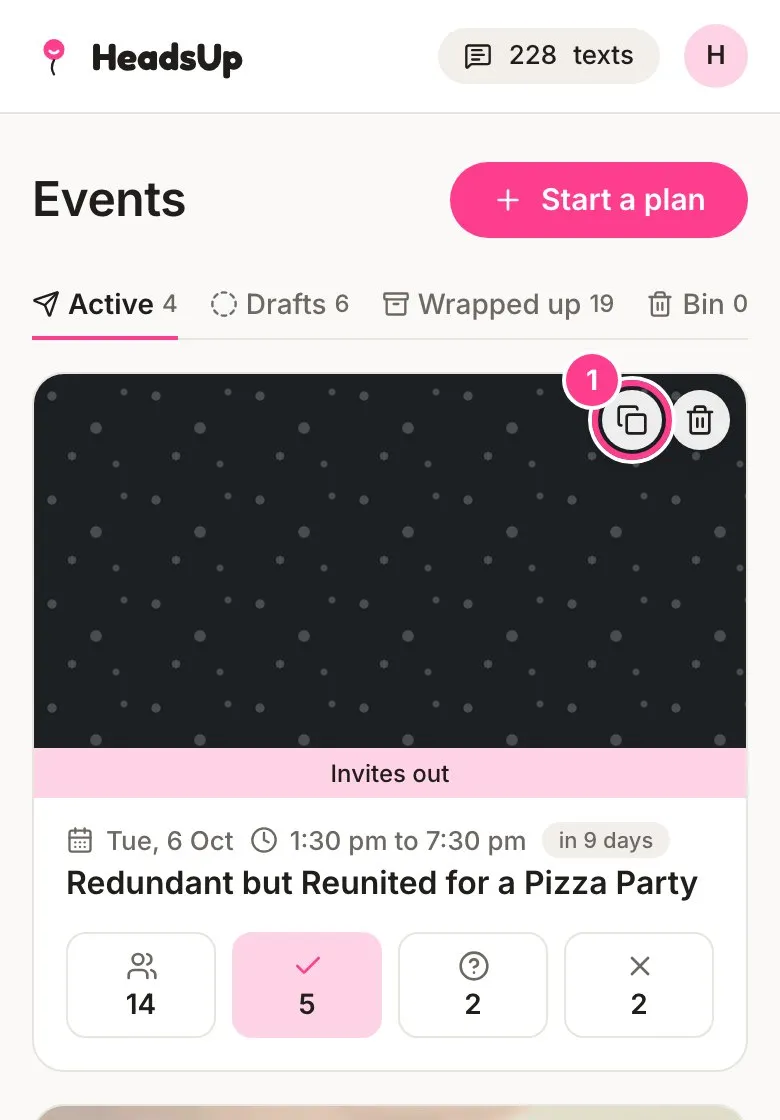
On your Events home, tap the copy button on the event’s card.
-
Give the copy a name. It starts as “Copy of” plus the old name, so just type over it.
-
Tap Copy event.
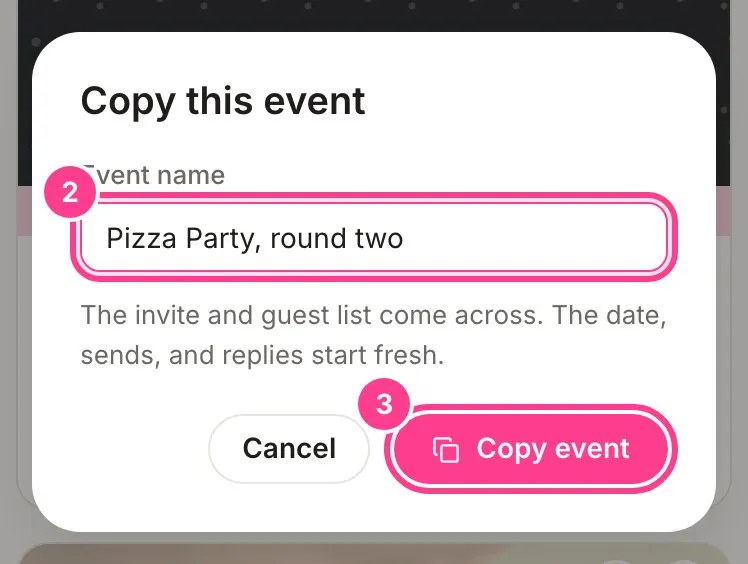
The copy opens on its Overview, ready for you to set a date and tweak the invite.
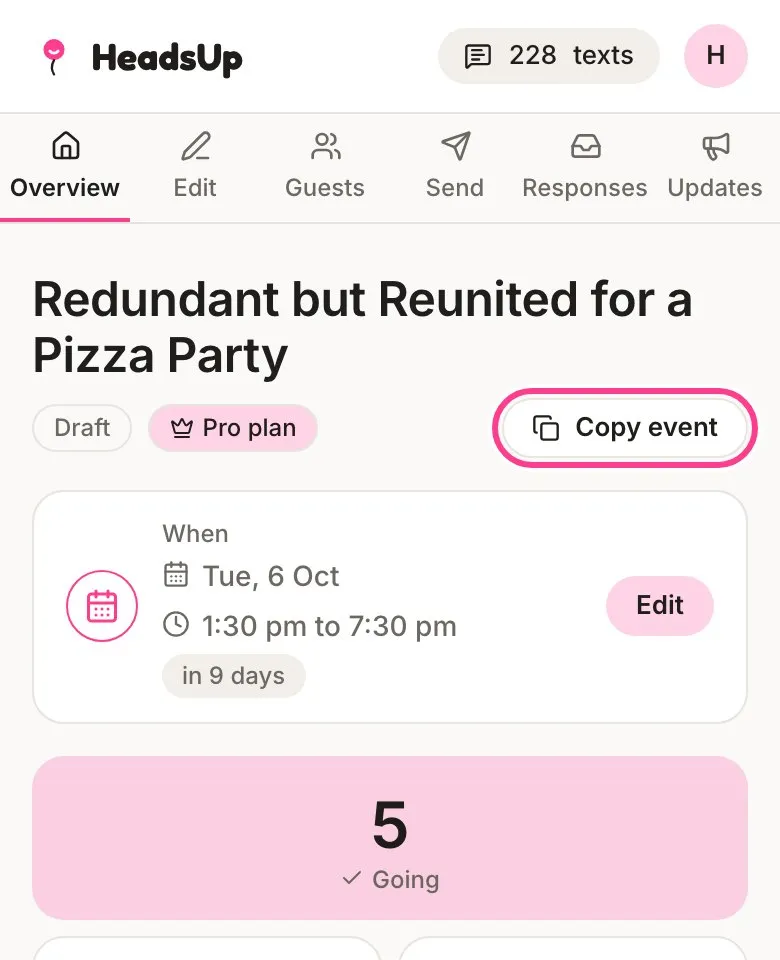
You can also copy an event from inside it. On its Overview, tap Copy event next to the event’s name.
Good to know
- What comes across: the invite, with its design and every block, and the guest list.
- What starts fresh: the date, the sends and the replies. Every guest gets a brand new personal link, so nothing from the old event carries over to the new one.
- The copy is a draft until you send it, and it counts towards the number of invites your plan lets you run at a time. On the Free plan that’s 3, counting drafts and active events. Compare plans to see the others.
- You can copy an event that’s in the Bin too, without restoring it first.
- Co-hosting somebody else’s event? You can copy it, but only the invite comes across. The guest list, date, sends and replies stay with the owner.
Didn't answer it?
Tell us what you were trying to do and we'll write back, or give our guide to your AI assistant and ask it.