How to try the editor without an account
Play with the real HeadsUp invite editor before you sign up. Your draft saves in your browser and comes with you when you join.
Want to see what an invite looks like before making an account? The playground is the real HeadsUp editor with a sample invite already in it. Nothing is sent to anybody, and you don’t need to sign up.
-
Go to headsup.rsvp/try, or tap Try the editor at the top of the HeadsUp website.
-
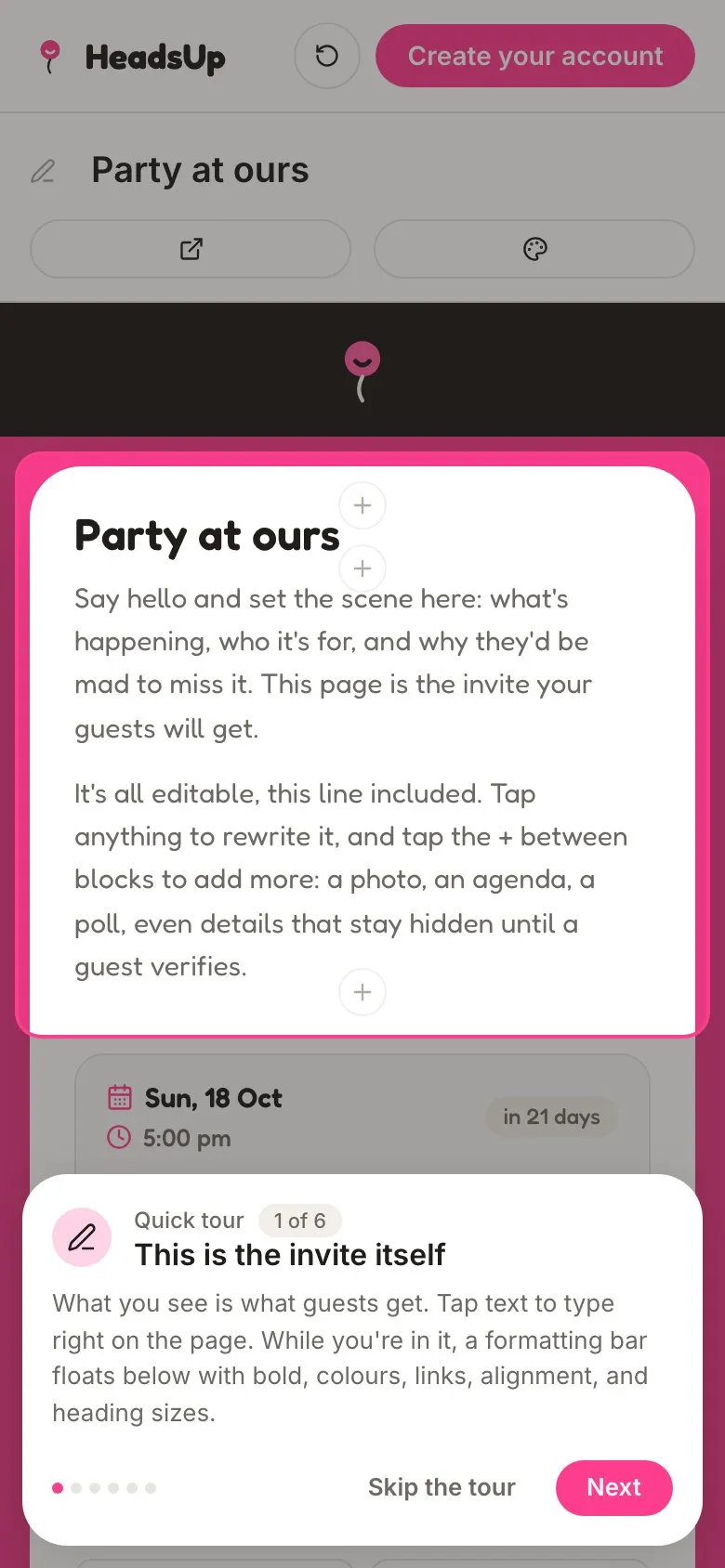
A quick tour shows you around. Tap Next to follow it, or Skip the tour if you’d rather dive in.
-
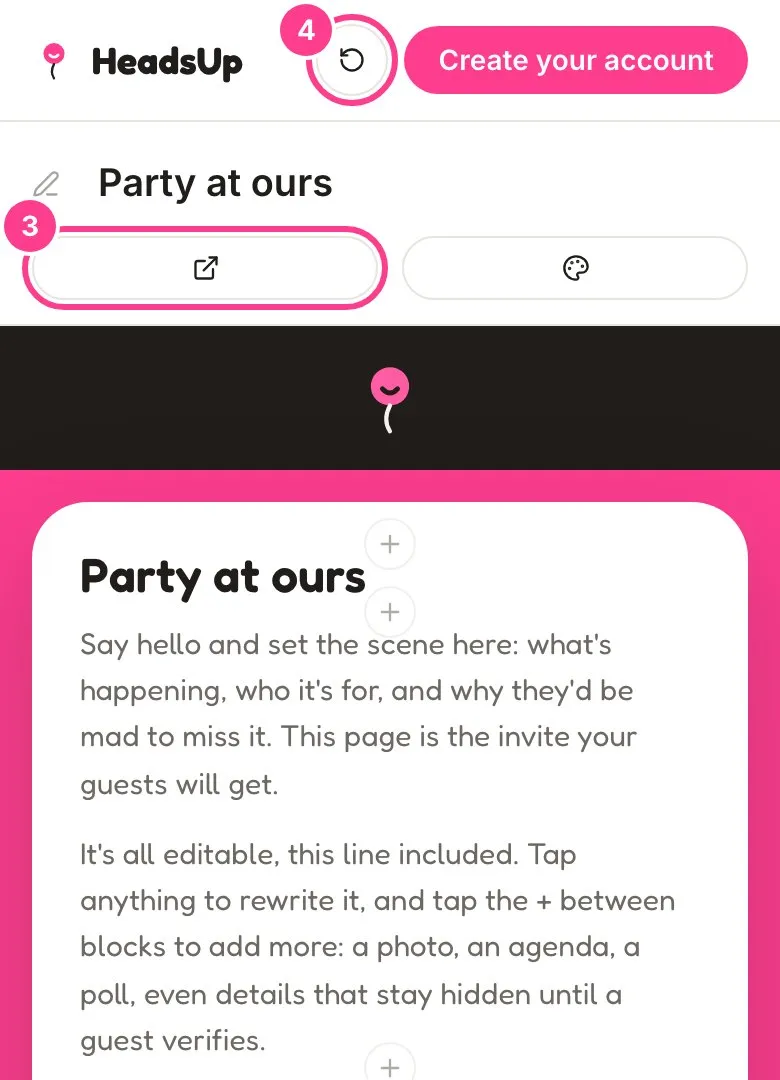
Change anything you like. Tap text to type right on the invite, and tap the + between blocks to add things like photos, an agenda or a poll. Tap View as guest to see the invite the way your guests would, RSVP buttons and all.
-
Want a clean slate? Tap Start over. Everything you’ve built goes, and the sample invite comes back.
-
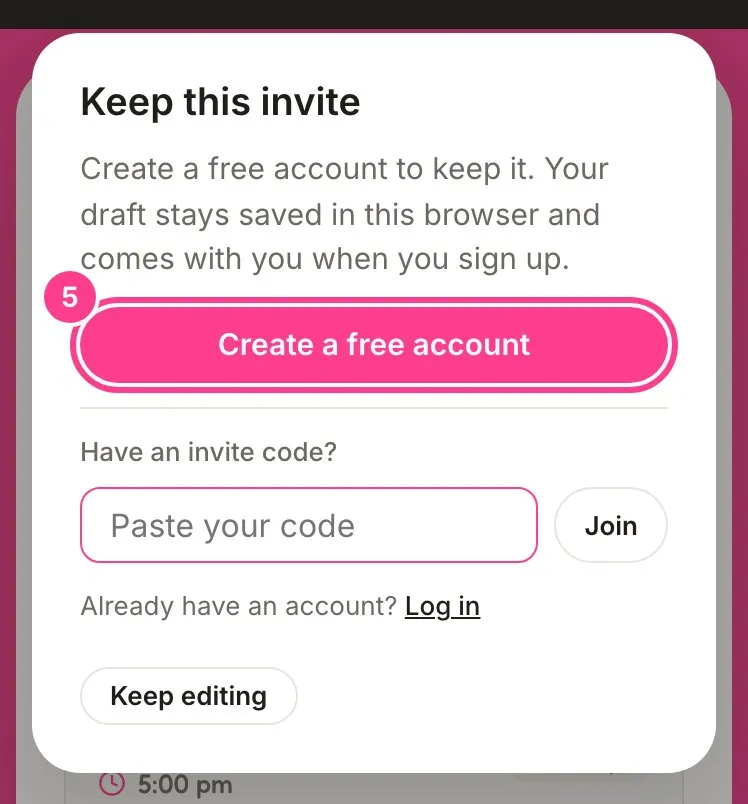
Happy with it? Tap Create your account, then Create a free account. Already have one? Tap Log in instead.
-
Once you’re signed in, your Events home offers the invite you built. Tap Bring it in, check the name and date, then tap Create event. It becomes a real event you can send. Or tap Discard it to let it go.
Good to know
- Your playground invite saves in the browser you made it in. Clear your browser data, or switch to a different phone or computer, and it won’t be there.
- On a phone, the View as guest and Start over buttons show as icons only.
- The map on a location block stays off in the playground, so the address you type never leaves the page.
- AI features in the playground show a sample rather than writing a real draft. Sign up to use the real thing on a paid plan.
- The playground can’t send anything. Adding guests and sending happen in your account.
Didn't answer it?
Tell us what you were trying to do and we'll write back, or give our guide to your AI assistant and ask it.