How to delete or restore an event
Move an event to the bin, bring it back within 30 days, or delete it for good straight away.
Deleting an event moves it to the Bin first, so a slip of the finger never costs you anything. It sits there for 30 days, and you can restore it any time before then.
Move an event to the bin
-
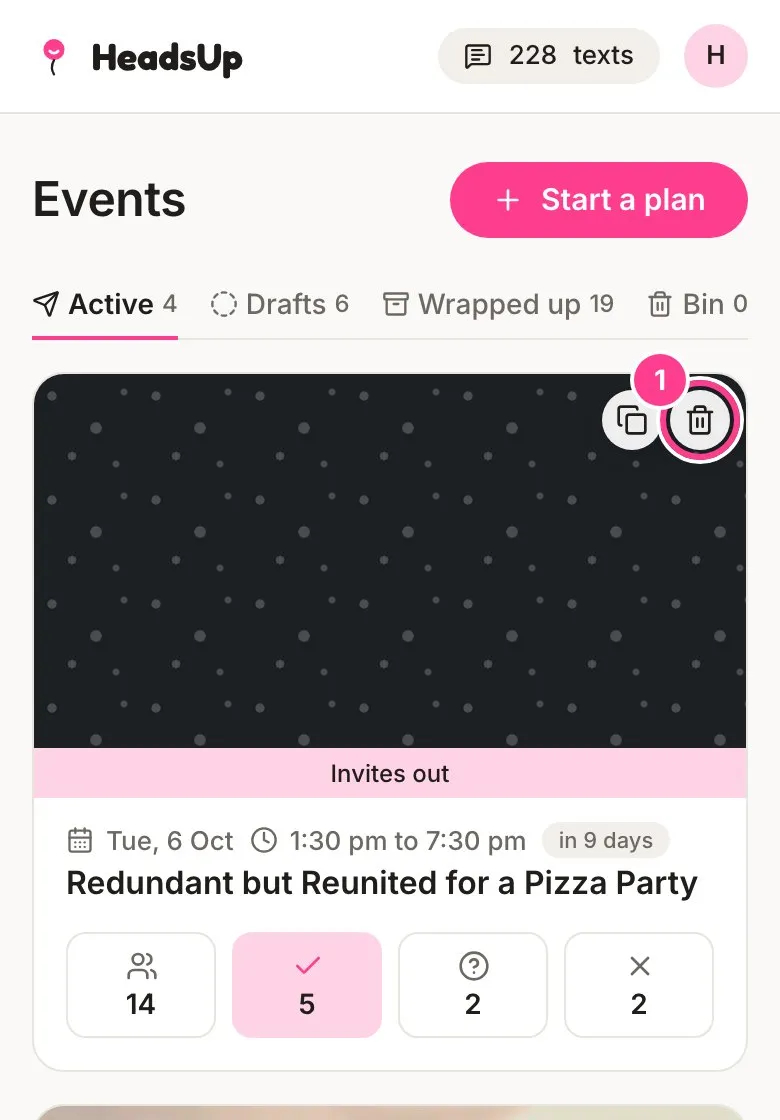
On your Events home, tap the bin button on the event’s card.
-
Tap Move to bin to confirm, or Keep it if you changed your mind.
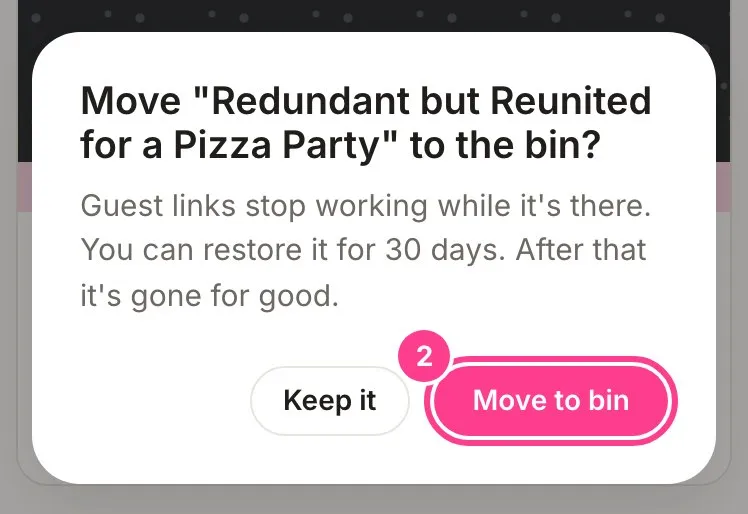
While an event is in the bin, its guest links stop working. Guests who open one won’t see the invite.
Restore it, or delete it for good
-
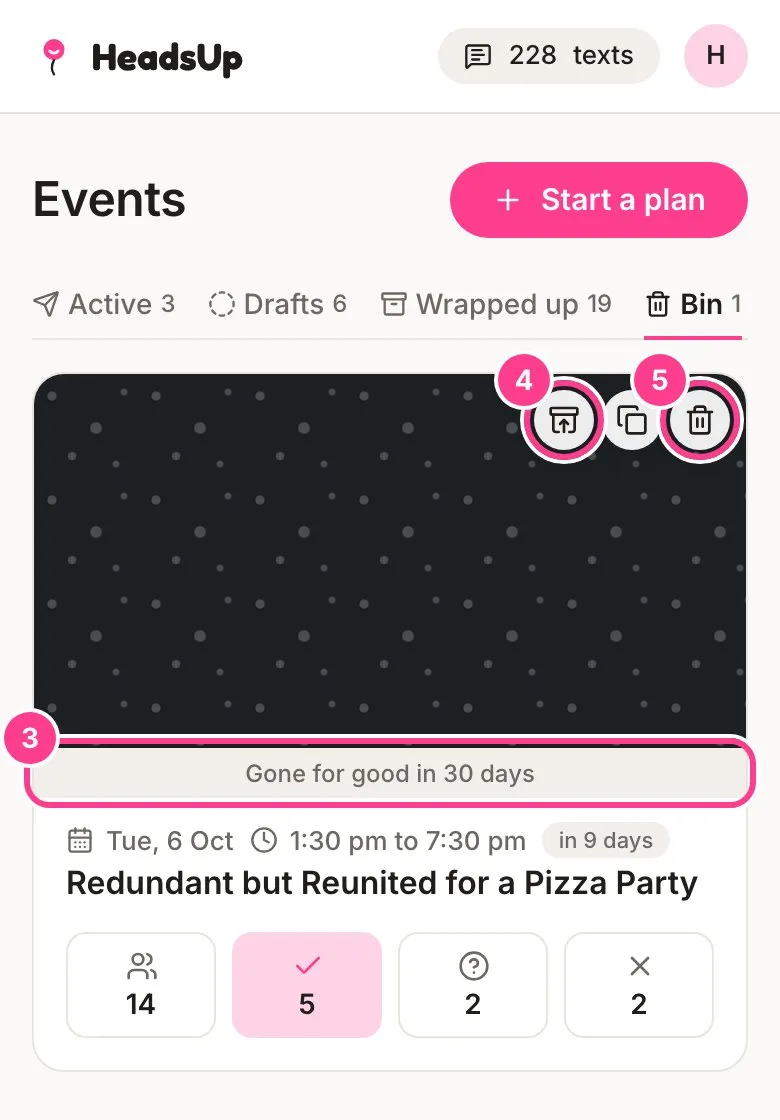
Open the Bin tab. Each event there counts down the days it has left, like Gone for good in 30 days.
-
Tap the restore button to bring the event back. It returns to the tab it came from, and its guest links work again.
-
Or tap the delete button, then Delete forever, to get rid of it now. The invite, the guest list and the responses all go with it, and there’s no getting it back.
Good to know
- After 30 days in the bin, an event is deleted for good automatically, with everything on it: guests, replies, votes, dishes, sign-ups, questions, updates and photos.
- Restoring counts towards the number of invites your plan lets you run at a time. If you’re already at your limit, HeadsUp tells you, and you can make room or move up a plan first.
- Want the invite again without the old event? You can copy an event straight from the bin.
- Only the event’s owner can move it to the bin, restore it or delete it. Co-hosts don’t see the bin button on events they help run.
Didn't answer it?
Tell us what you were trying to do and we'll write back, or give our guide to your AI assistant and ask it.