Where to find your purchases, receipts and texts history
See everything you've bought on the Plan tab, open your receipts and invoices, and check where every text went.
HeadsUp keeps two records for you: what you’ve bought, and every text added to or spent from your balance. Your receipts come from Stripe, our payment provider, by email, and you can open them again any time.
-
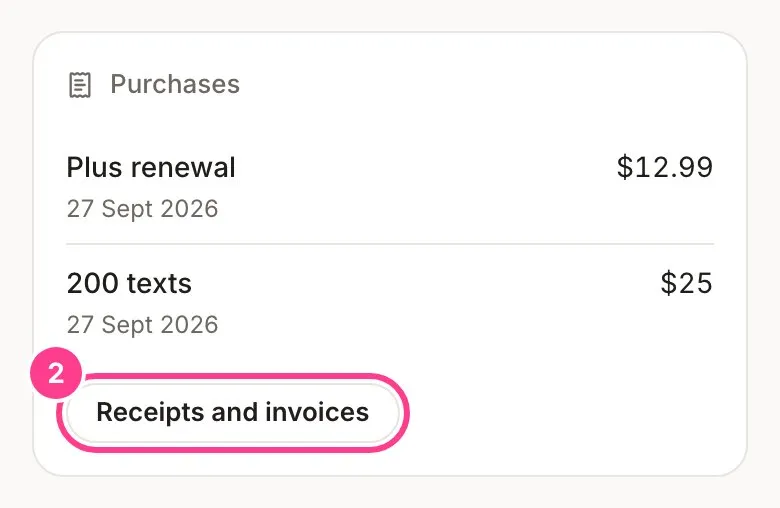
Tap your initials in the top corner, then Account settings, then the Plan tab. Scroll to Purchases to see everything you’ve bought, newest first, with the date and the amount.
-
Tap Receipts and invoices to open your billing page, run by Stripe. Your invoices are there, and it’s also where you update your card.
-
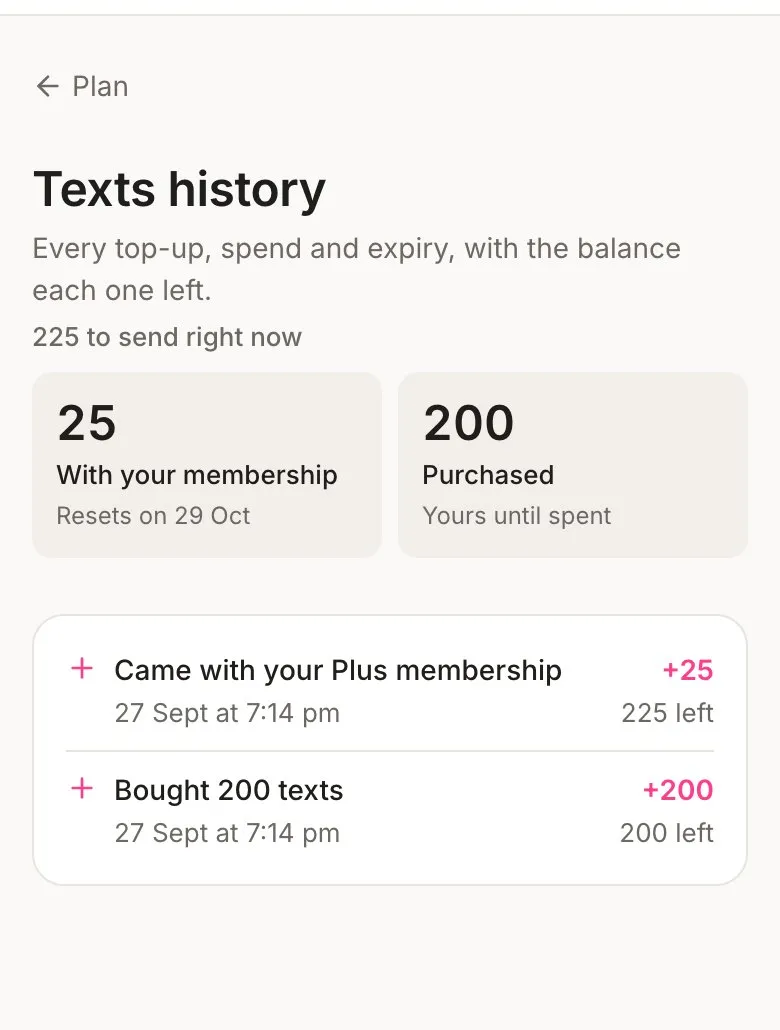
For your texts, tap See your texts history on the plan card, or tap the texts count at the top of any screen. Texts history lists every top-up, send, refund and expiry, with the balance each one left.
Good to know
- Stripe emails you a receipt for every payment. HeadsUp doesn’t send a separate one.
- Receipts and invoices appears once you’ve bought something.
- A purchase can carry a small tag: Refunded, Disputed, On hold (a payment we’re refunding because your plan changed while the checkout was open), or Returned (a dispute settled in your favour. For a text pack, the texts it took back are returned).
- When you move up from a pass, the old pass’s row says how much was refunded and for how many unused days. See move up a plan.
- In your texts history, texts your co-hosts sent from your balance say who sent them.
- Prices are in Australian dollars, and no GST is charged.
- Need a refund or spotted something wrong? Email support@headsup.rsvp and tell us what happened.
Didn't answer it?
Tell us what you were trying to do and we'll write back, or give our guide to your AI assistant and ask it.