How to use your own domain for invites
Put your invites on a subdomain you own, like invite.your-domain.com, with one DNS record and a check.
On a Business plan your guest links can use your own domain instead of headsup.rsvp, so an invite reads as coming from your brand from the very first tap. You’ll need to be able to edit the DNS settings for your domain. It takes three steps, and the app walks you through each one.
-
Tap your initials in the top corner, then Account settings, then the Branding tab. Scroll to Custom domain.
-
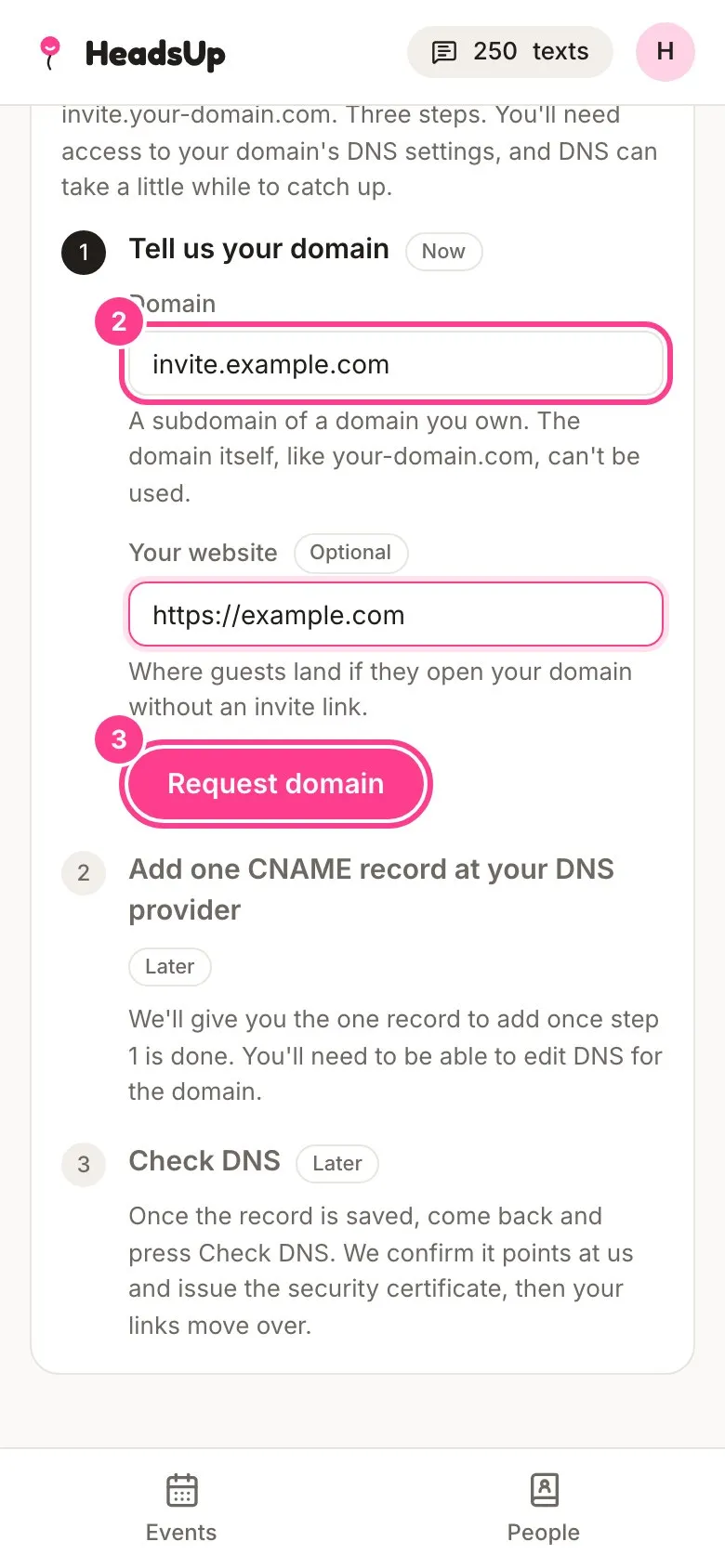
Under Tell us your domain, type the subdomain you’d like to use in Domain, such as invite.your-domain.com. If you like, add Your website, which is where anyone who opens your domain without an invite link lands.
-
Tap Request domain.
-
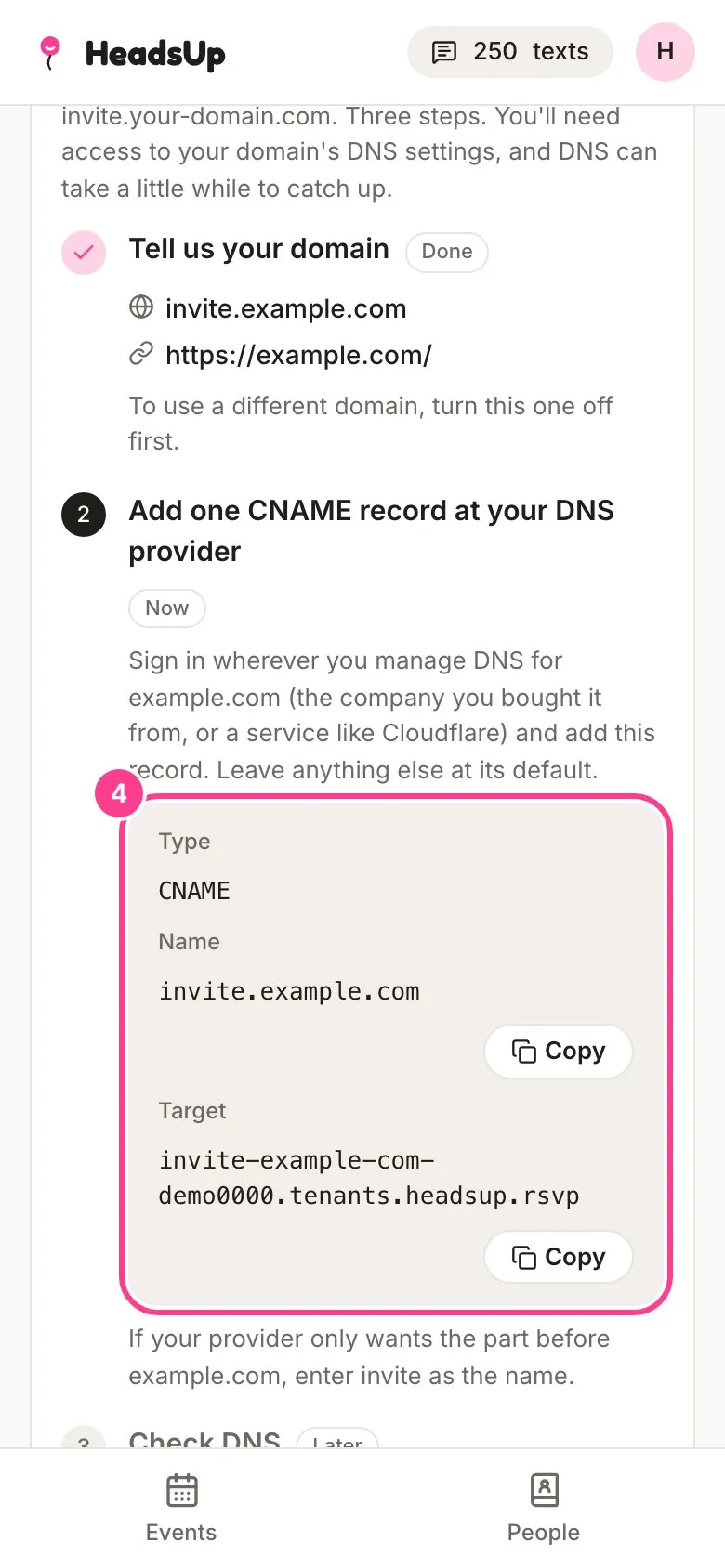
HeadsUp shows you one record to add. Sign in wherever you manage DNS for your domain, such as the company you bought it from or a service like Cloudflare, and add a record with the Type CNAME, the Name and the Target shown. Tap Copy beside the Name and the Target to copy them exactly. Leave anything else at its default.
-
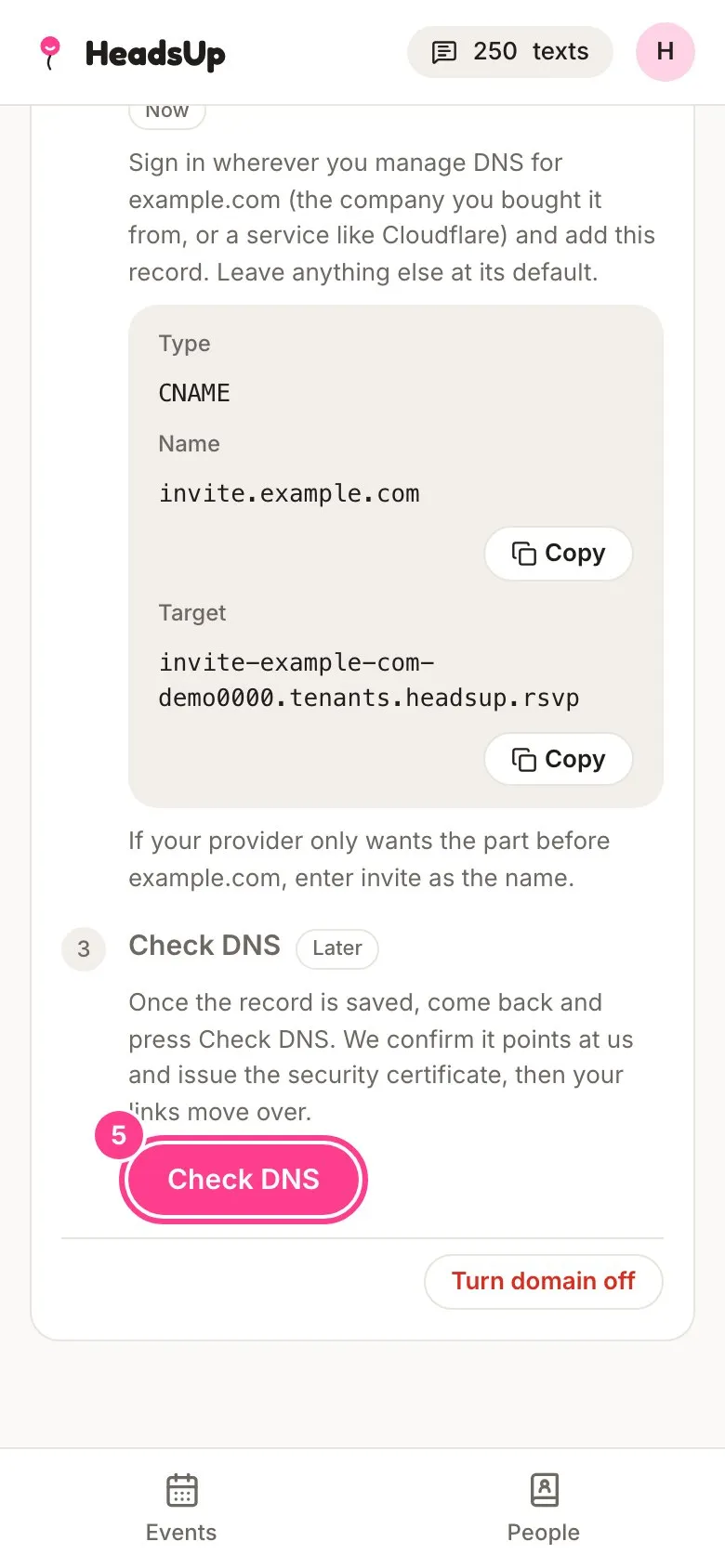
Once the record is saved, come back and tap Check DNS. We confirm the record points at us and set up the security certificate.
-
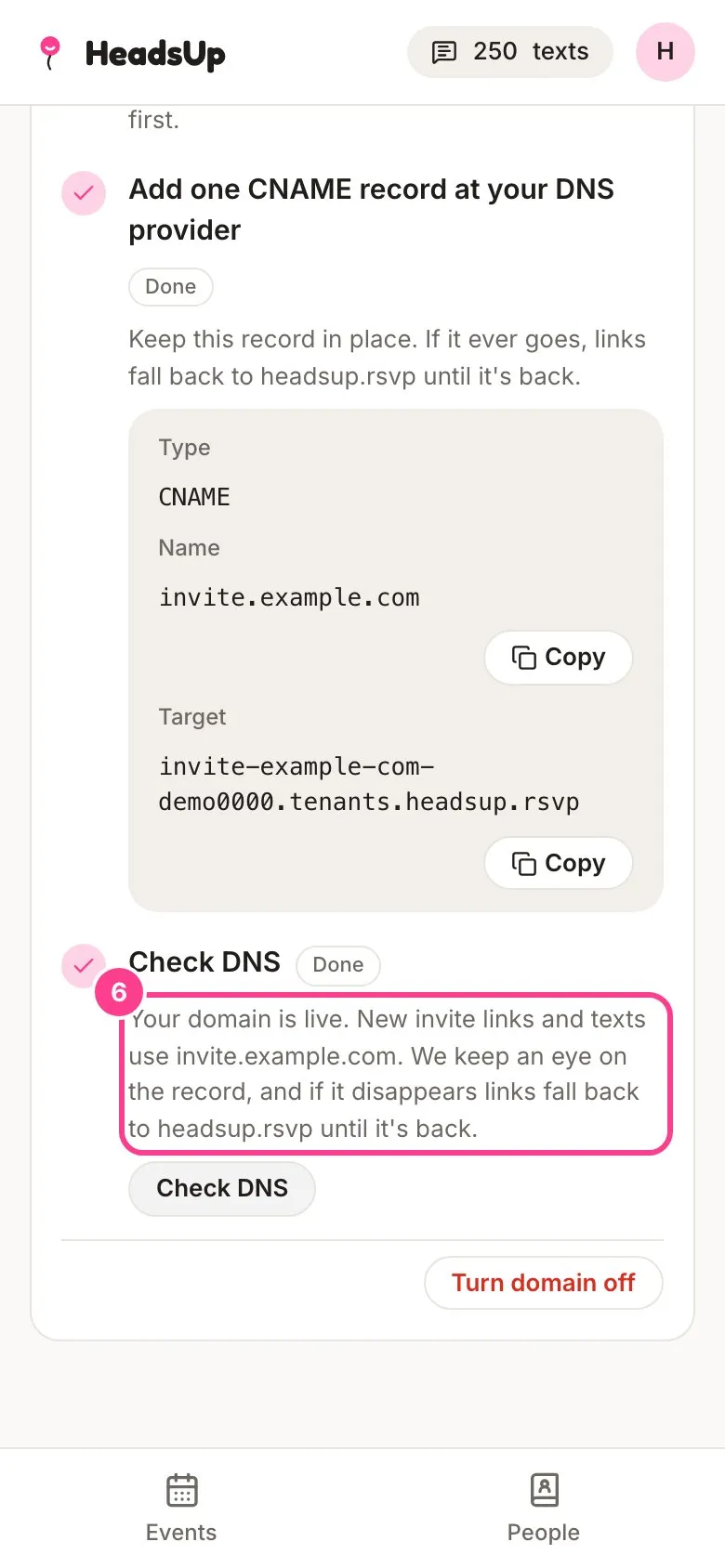
When it’s done, the card says your domain is Live. New invite links and texts use your domain from then on.
DNS changes can take a while to reach everywhere. If the check says it isn’t through yet, give it some time and tap Check DNS again.
Good to know
- It has to be a subdomain, like invite.your-domain.com. The domain itself, like your-domain.com, can’t be used.
- If your DNS provider only wants the part before your domain, the card tells you what to enter, such as invite.
- Keep the record in place. If it ever goes, your invites keep working and links go back to headsup.rsvp until it’s back.
- Links you sent before your domain went live keep working.
- To use a different domain, tap Turn domain off first, then request the new one. Links you’ve already sent on the old domain stop opening, and guest links go back to headsup.rsvp.
- If your Business plan ends, your domain is turned off once 14 days have passed, or within a day if you move to Plus or Pro. Your invites keep working on headsup.rsvp. Setting it up again later needs a fresh request and a fresh DNS record.
- The domain stays yours. We just serve your invite pages on it.
- Stuck? Email support@headsup.rsvp and we’ll help.
Didn't answer it?
Tell us what you were trying to do and we'll write back, or give our guide to your AI assistant and ask it.