How to remove the HeadsUp branding from your invites
On a Business plan the Powered by HeadsUp line comes off your invites and guest emails automatically. You can switch it back on if you like.
Invites on the Free, Plus and Pro plans end with a small “Powered by HeadsUp” line under the page. On a Business plan it’s gone, so your invite is all yours. There’s nothing to set up. It comes off as soon as you’re on a Business plan, on every event you have.
What comes off:
- The “Powered by HeadsUp” line under your invite pages and your public link page.
- The HeadsUp line at the foot of the emails your guests get, such as invites, updates and verification codes.
- The HeadsUp branding on the preview card that shows when your invite link is shared in a chat.
Would you rather keep it? Some hosts like guests to see where the invite came from.
-
Tap your initials in the top corner, then Account settings, then the Branding tab.
-
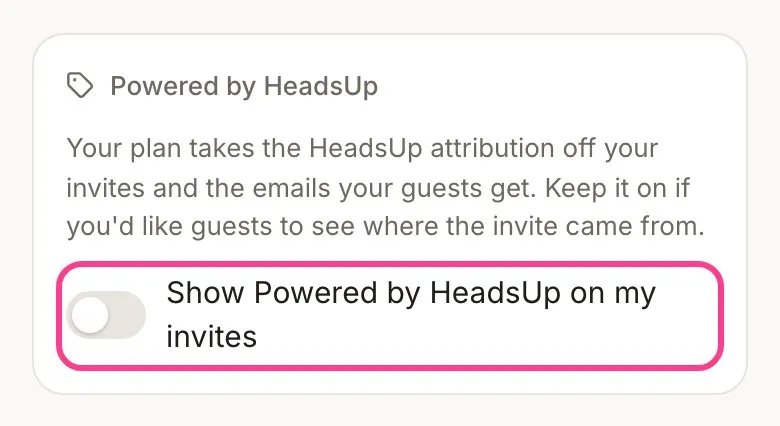
Under Powered by HeadsUp, turn on Show Powered by HeadsUp on my invites. Turn it off again any time.
Good to know
- To see exactly what your guests see, preview your invite as a guest.
- A small “How we handle your details” link always stays at the bottom of the invite page, so guests can reach our privacy policy. The switches that let a guest stop texts and emails stay too.
- Emails sent to you as the host, like activity updates, still carry the HeadsUp name.
- If your Business plan ends, the line comes back on your invites 14 days later. Take Plus or Pro after it ends and the line is back straight away.
- The line can’t be hidden with custom CSS. Taking it off is part of the Business plans.
Didn't answer it?
Tell us what you were trying to do and we'll write back, or give our guide to your AI assistant and ask it.