How to Send Event Invites by Text in Minutes
Send one short SMS with the event name, date, venue and each guest's own RSVP link, then track opens, replies and plus-ones in one place.

The fastest way to get RSVPs is one short text with the event details and one clear link. That cuts out long email threads, messy group chats, and back-and-forth follow-ups.
Here is the short version: add the event name, date, time, venue, and RSVP deadline, write a tight SMS in Australian format, send each guest their own link, and watch opens, replies, plus-ones, and questions land in one place. For private addresses, keep the location hidden until guests verify with a code.
What this covers:
- how to set up the invite details
- what the free plan on HeadsUp covers, and how text packs work
- how to write a short SMS people can scan in seconds
- Australian date and time formatting like Fri 14/08, 6:30pm AEST
- how to send invites, check RSVPs, and remind only the people who have not replied
One thing to know before you start: HeadsUp is in private alpha, so access is invite-only for now. You can request early access at headsup.rsvp, and paid plans open up with the public beta.
Bottom line: keep the text short, give guests one action, and use personal links so replies are easy to track. That means less admin, fewer missed messages, and a better shot at getting responses on the same day.
How to set up an SMS invite workflow with HeadsUp
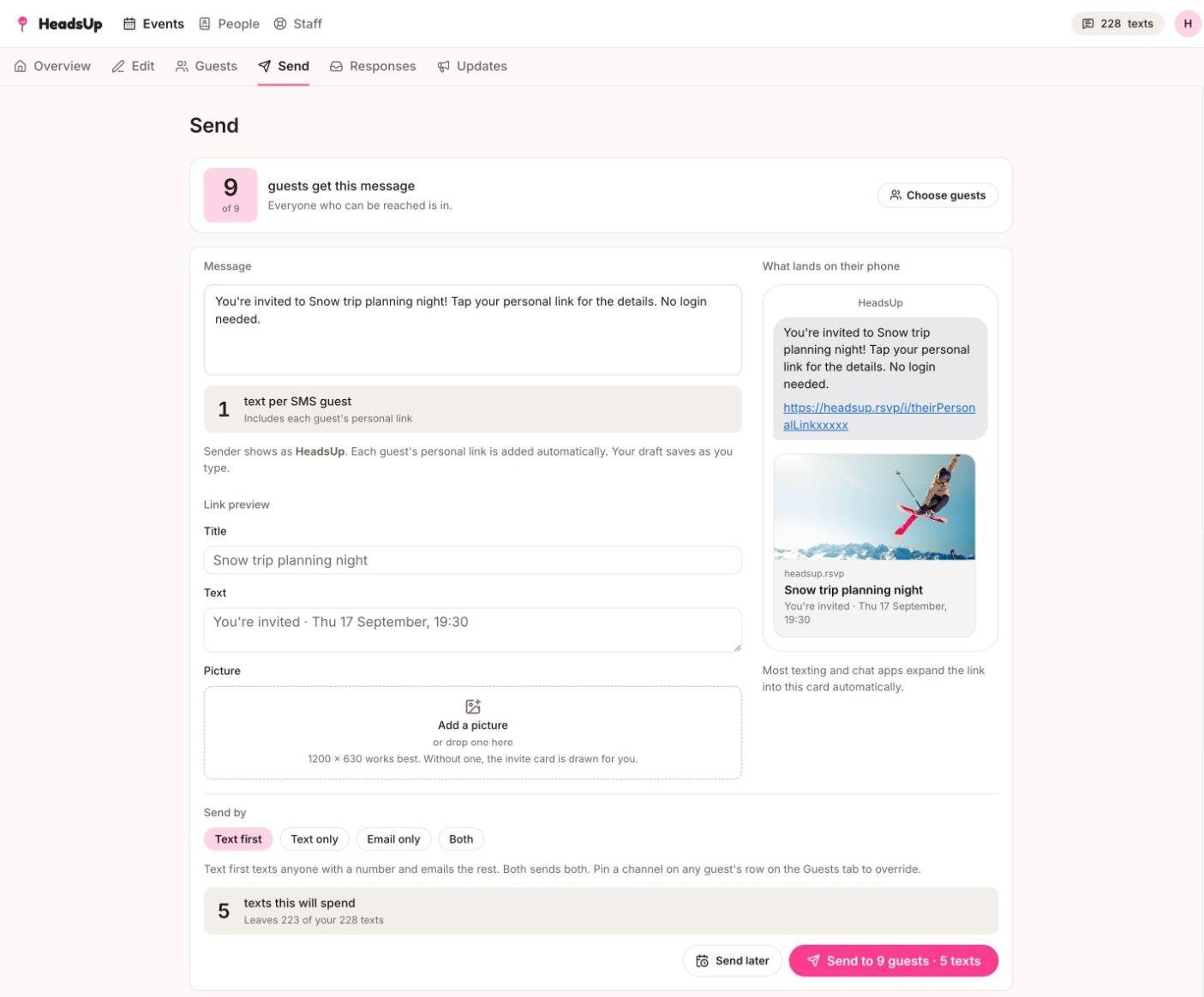 Once you know SMS gets faster replies, the next move is simple: turn your event details into a text-ready invite in HeadsUp.
HeadsUp takes your event info and builds a phone-friendly invite page. It also creates a personal link for each guest, so you can send everything by text, by email, or by copying a link into any chat app, all from one dashboard.
What event details to add before you send
Before you hit send, add the core details first:
- event name
- date
- time
- venue or online link
- RSVP deadline
Everything else goes on the invite page itself. Add blocks for dress code, parking, or the wet-weather plan, set your own dietary options on the RSVP, turn on plus-one requests, and add a potluck or sign-up list if people are bringing things. When there is more to say than fits on one screen, put it behind a tab.
If you are hosting at home or sharing private location details, keep that information behind a reveal. Guests only see it once they verify with a 6-digit code sent by text or email, so your address is not sitting in a link anyone can forward.
What the free plan covers, and when to move up
The free plan is a real plan, not a trial. It gives you three invites on the go at a time, up to 150 guests on each one, themed invite pages with cover photos, RSVP tracking and guest stats, potluck lists, tabs and event updates, private details revealed with an email code, and sending by email or by sharing your link.
Texts work differently to everything else, because each one costs real money to deliver. Text packs are available on every plan, including free, so you only pay for the texts you actually send. Email invites stay free, always.
Paid plans add more invites running at once, bigger guest lists, a batch of texts included every cycle, AI invite designs, and scheduled sending. Business plans add white-label invites, guest import from your CRM, QR check-in, and post-event reports for company events. Current prices are on the pricing page, and paid plans go on sale with the public beta.
With the invite page ready, the next step is tightening the SMS copy.
How to write a short text invite guests can act on straight away
Once your event details are in HeadsUp, cut them down to one short SMS. A good invite has four parts: who it is from, what the event is, when and where, and the link. Keep it simple. Give guests one action: tap the link.
Two things worth knowing about how the text arrives. It comes from the branded HeadsUp sender ID rather than your own number, so open with your name and guests will know who it is. And the message is one-way: guests cannot text back a yes. Everything happens on the invite page, which is exactly where you want it, because that is where the RSVP, the dietaries and the plus-one all get recorded against the right person.
Format your SMS with Australian date and time details
Write dates as DD/MM, like Sat 22/08. Use 12-hour time with am/pm, such as 7pm or 12:30pm. Shorten the day name to save characters, and keep the whole message brief enough to read on one screen.
Make the layout easy to scan. Add a short line break between the event name, date and time, and the link, so guests can skim it on a small screen without losing their place. Skip big blocks of text. Put the link on its own line so it is easy to tap. Use Australian spelling, and start with your name.
Then plug that format into a short SMS.
Ready-to-use text invite examples
You can use the same basic structure for private, family, and work invites. HeadsUp swaps in each guest's own link where the placeholder sits, so you write the message once.
| Event | SMS Example |
|---|---|
| Birthday drinks | It's Sarah. Birthday drinks Sat 22/08, 7pm at the Glenmore. RSVP by 15/08: [your link] |
| Family BBQ | Family BBQ at ours! Sun 15/09, 1pm. Bring your favourite drinks. RSVP by Wed: [your link] |
| Hens or wedding event | Drinks for Jess's hens! Fri 05/11, 6pm in the city. RSVP here: [your link] |
| Work function | Team lunch: Fri 12/10, 12:30pm, venue in the invite. RSVP by Tue: [your link] |
Each message gives guests exactly what they need and one easy way to respond.
Send to your guest list and track replies
Once your SMS is ready, build your guest list and send it in minutes.
Import guests and send personal invite links
Add each guest's name and mobile number, import them from a CSV, or pull them straight from your phone contacts. People you have invited before are already in your contacts directory, so the second event is faster than the first.
The composer shows what a send will cost before it goes, and every guest gets their own link. After the send you can see delivery status per person, including texts that failed, so a wrong number shows up as a wrong number instead of silence.
Track opens, RSVPs, plus-ones, and guest questions
Opens, RSVPs, dietaries, plus-one requests and guest questions all land on one dashboard, live, as they happen. Those personal links are what make it readable: you can tell who has seen the invite and who still needs a nudge.
HeadsUp never messages your guests on its own. Nothing goes out automatically, which means nothing goes out that you did not write. As the deadline gets close, filter your list to the people who have not replied and send that group a reminder. On paid plans you can also schedule a send in advance, so a day-before nudge can be booked once and forgotten.
If plans change, post an update and send it to the whole guest list at once, instead of messaging people one by one.
Conclusion: Get invites out and responses back with less effort
Send invites in minutes. Add your event details, write a short SMS, let HeadsUp attach each guest's own link, and send it to your list. Once the invite goes out, everything stays organised in one place.
Guests tap the link and respond on the spot. RSVPs, plus-ones, questions and your updates stay together, without chasing bits and pieces across texts and notes. That means less admin and faster replies for private dinners, family events, and corporate functions.
FAQs
Can I send SMS invites without sharing my home address?
Yes. With HeadsUp, you can send SMS invites without putting your home address in the message.
Private details, like your address or the PayID for a group gift, sit behind a reveal on the invite page. A guest only sees them after entering a 6-digit code sent to their own phone or email, so a forwarded link does not carry the address with it. RSVP itself never needs a code, so the gate protects the private parts without getting in the way of a yes.
What should I do if guests do not RSVP by the deadline?
Send them a nudge yourself. HeadsUp does not send anything automatically, so no reminder goes out unless you write it.
The dashboard shows each person's status, including who opened the invite and still has not answered. Filter to that group, send them a short follow-up, and leave everyone who has already replied alone. On paid plans you can schedule that follow-up in advance instead of remembering to send it.
Can guests reply to the text invite?
No. Invites are sent from the branded HeadsUp sender ID, and that message is one-way, so a texted-back "yes" has nowhere to land.
Guests tap their link instead and answer on the invite page, where their RSVP, dietaries, plus-one request or question is recorded against their name. Say who you are at the start of the message so nobody wonders who is asking.
How many guests can I invite on the free plan?
Up to 150 guests on each invite, with three invites running at a time. That covers most birthdays, dinners and family gatherings without paying anything.
Email invites and shared links are included. Text packs can be added on any plan, including free, so you only pay for the texts you actually send. Paid plans lift the guest and invite limits and include a batch of texts each cycle. See the pricing page for current numbers.